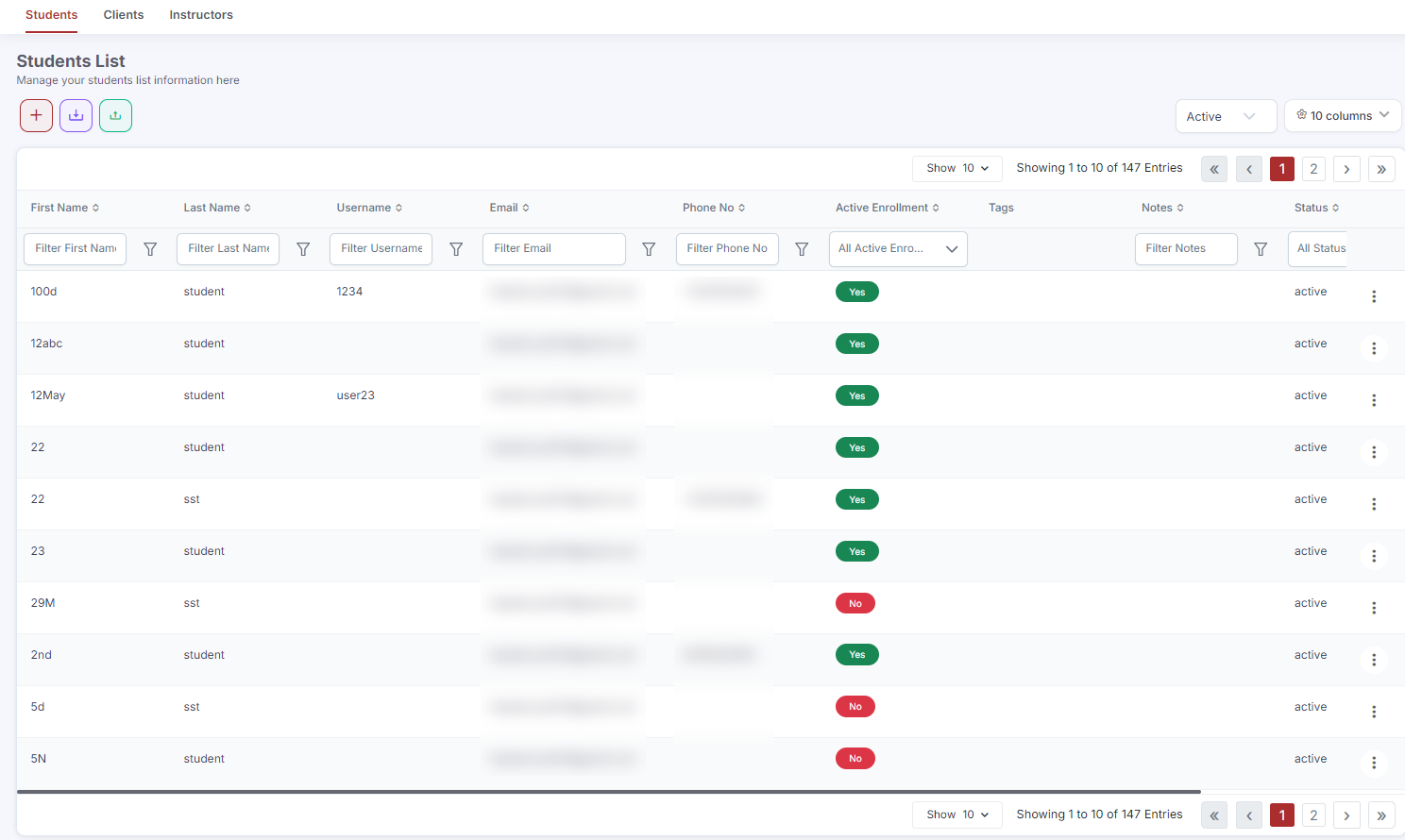
In CPR Enroll+, students and instructors are separate record types. Students are stored as enrollment records, while instructors are a distinct user category under People > Instructors. If someone who was previously only a student in your system now needs to be an instructor, you need to create a new Instructor record for them — student profiles cannot be directly converted, but the process is straightforward.
Before You Begin
- Have the person's existing student email address on hand, so you can reuse it for consistency.
- Know whether this person needs login access to the dashboard, or just needs to appear in instructor dropdowns.
- Gather their certification details if you plan to add certifications right away.
Step-by-Step Instructions
Step 1: Create an Instructor Record
- From the sidebar, go to People > Instructors.
- Click + Add Instructor.
- Enter the person's First Name, Last Name, and Email — use the same email address as their student record to maintain consistency.
- Add their phone number, address, and any other relevant details.
- Click Save.
Step 2: Add Their Certifications
- In the Instructor record, click ⋮ > Profile.
- Click Certifications then + Add Certification and enter the certification details: Type, Association, Certification Number, Discipline, Initial Date, and Expiration Date.
- Upload a copy of the certification card or file if available.
- Click Save.
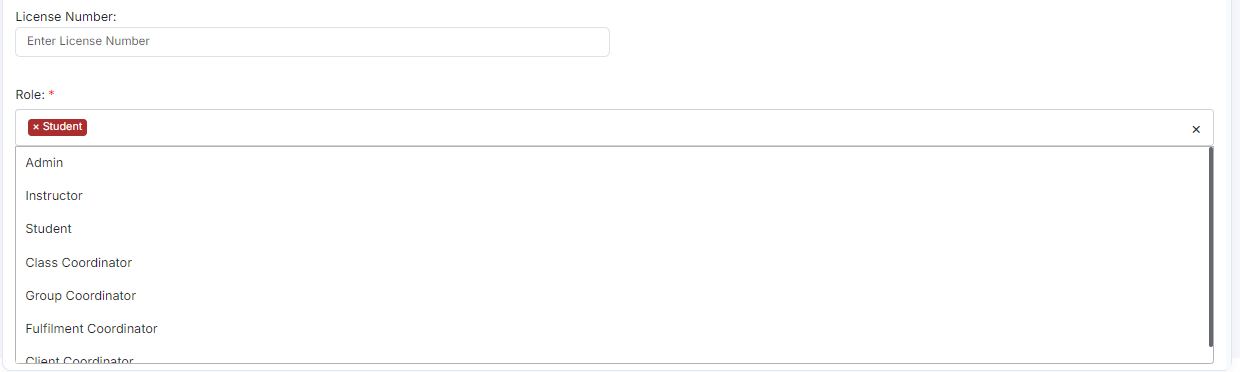
Step 3: Assign Them to Classes
The new instructor record is now available in the Instructor dropdown when creating or editing classes. Their student enrollment history remains separate and intact in the Enrollments section.
ℹ Student records are preserved. Creating an instructor record does not remove or modify the person's existing student enrollment history. Both records exist independently in CPR Enroll+. This is by design — someone can be both a student (taking continuing education) and an instructor (teaching classes) at the same time.
Best Practices
- Always reuse the person's existing email address on the new instructor record to keep their identity consistent across the platform.
- Add certifications right away rather than leaving the instructor record incomplete.
- Only enable Create Portal Access if the person genuinely needs to log in — records-only instructors still appear in class dropdowns.
- Remember that the student and instructor records are independent going forward; updates to one won't affect the other.
Frequently Asked Questions
| Question | Answer |
|---|---|
| Can I directly convert a student profile into an instructor profile? | No. Student profiles cannot be directly converted; you need to create a new Instructor record for the person. |
| Will creating an instructor record affect the person's student history? | No. Both records exist independently, so their existing student enrollment history is preserved unchanged. |
| Can the same person be both a student and an instructor at the same time? | Yes. This is by design — someone can take continuing education as a student while also teaching classes as an instructor. |
✔ You're all set. The person now has an instructor record, their certifications are on file, and they're ready to be assigned to classes.
Was this article helpful?
That’s Great!
Thank you for your feedback
Sorry! We couldn't be helpful
Thank you for your feedback
Feedback sent
We appreciate your effort and will try to fix the article