A course in CPR Enroll+ is the blueprint for your training program. It defines everything — the name, description, price, certification body, expiration period, and all the rules that apply to every class scheduled from it. You create a course once, then schedule multiple classes from it over time.
This article walks you through creating a course from scratch, creating one from a Marketplace template, key settings to review afterward, and cloning an existing course.
Before You Begin
- Decide on your Course Name, base Price, and how long the certification should remain valid (Expiration Years).
- Know which Discipline and certifying Association (AHA, ARC, HSI, etc.) apply to the course.
- Consider whether a similar course already exists in the Marketplace that you could import instead of building from scratch.
Step-by-Step Instructions
Step 1: Create a Course From Scratch
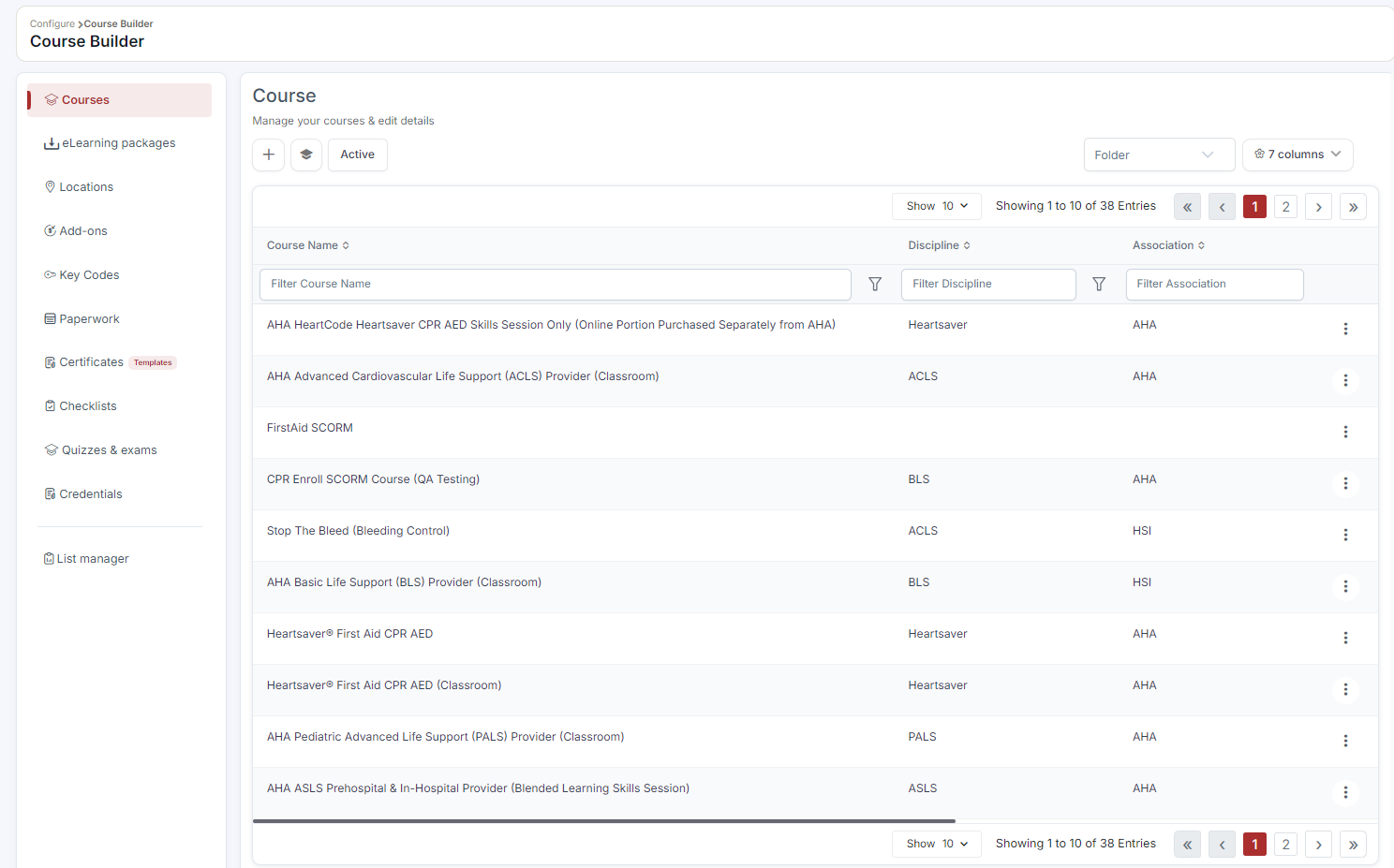
- Go to Course Builder > Courses.
- Click + Create.
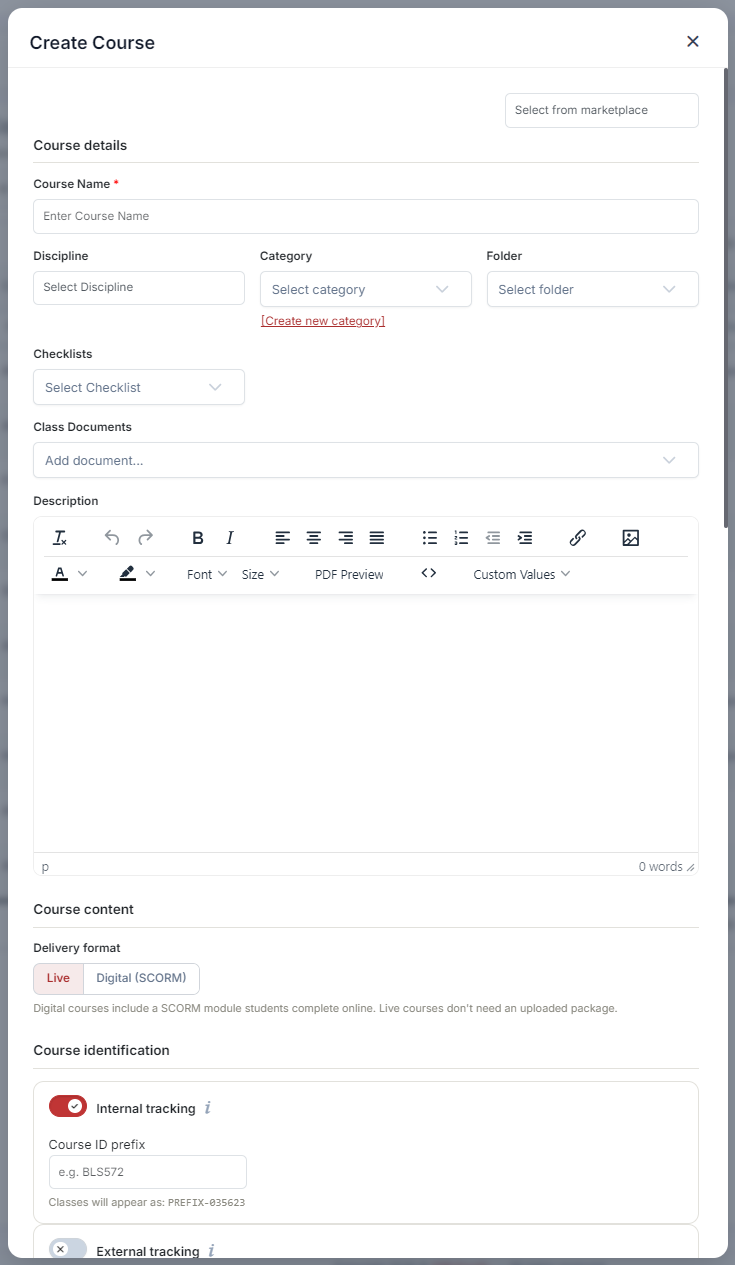
- Fill in the required fields:
- Course Name (required) — the name students see on your registration page.
- Expiration Years (required, default: 2) — how long the certification is valid.
- Price — the base enrollment price.
- Discipline — select from the 13 available disciplines.
- Association — select your certifying body (AHA, ARC, HSI, etc.).
- Description — rich text description visible to students.
- Optionally upload a Course Image (322 × 220 px) and Cover Image (1358 × 570 px).
- Click Save.
Step 2: Create a Course From a Marketplace Template
- Click Marketplace in the sidebar and select Course Templates from the category dropdown.
- Browse or search. Hover over a card and click Preview to review before importing.
- Click Use Template. A modal opens with the course name pre-filled.
- Edit the name if desired, then click Use Template to add it to your account with all fields pre-configured.
Step 3: Review Key Settings After Creation
| Setting | What It Controls |
|---|---|
| Platform Fee | Whether the payment processing fee is Student Paid or Account Paid. |
| Minimum Enrollments To Start Class | The minimum headcount required for the class to run. |
| Close Registration | Days before class start that self-enrollment closes. |
| Reminder Notifications | Days before class for the 1st and 2nd reminder emails. |
| Add-Ons | Supplementary products offered at registration. |
| Registration Questions | Custom questions students answer at enrollment. |
Step 4: Clone a Course
- In the Courses list, click ⋮ > Clone.
- The Create Course form opens pre-filled from the original.
- Modify the name and any other fields, then click Save.
✔ Tip: Cloning is the fastest way to create a new version of an existing course — for example, a refresher or classroom variant — without re-entering every field from scratch.
Best Practices
- Start from a Marketplace template when one closely matches your course, then adjust pricing and description to fit your organization.
- Review all Key Settings after creation, not just the required fields, since defaults like Platform Fee and Close Registration affect how the course runs.
- Use Clone rather than building from scratch when creating a variant of an existing course, to keep settings consistent.
- Assign the correct Discipline and Association so students can find and trust the course on your registration page.
Frequently Asked Questions
| Question | Answer |
|---|---|
| What's required to create a course? | At minimum, Course Name and Expiration Years. Price, Discipline, Association, and Description are strongly recommended but not required to save. |
| Can I preview a Marketplace template before importing it? | Yes. Hover over a template card and click Preview to review it before clicking Use Template. |
| Does cloning a course copy all of its settings? | Yes. The Create Course form opens pre-filled from the original course, which you can then modify before saving as a new course. |
✔ You're all set. Your course is created and ready to have classes scheduled from it.
Was this article helpful?
That’s Great!
Thank you for your feedback
Sorry! We couldn't be helpful
Thank you for your feedback
Feedback sent
We appreciate your effort and will try to fix the article