Keycodes are digital access codes that give students access to online learning platforms such as AHA HeartCode. When a student enrolls in a course or purchases an add-on that includes a keycode, CPR Enroll+ automatically assigns one from your keycode bank and delivers it in the enrollment confirmation email — no manual distribution needed.
Before You Begin
Here's how keycodes work, end to end:
- You purchase a block of codes from your certification body.
- You upload them into a CPR Enroll+ Keycode Bank.
- You attach the bank to a course or add-on.
- At enrollment, CPR Enroll+ draws the next available code and emails it to the student.
Step-by-Step Instructions
Step 1: Create a Keycode Bank
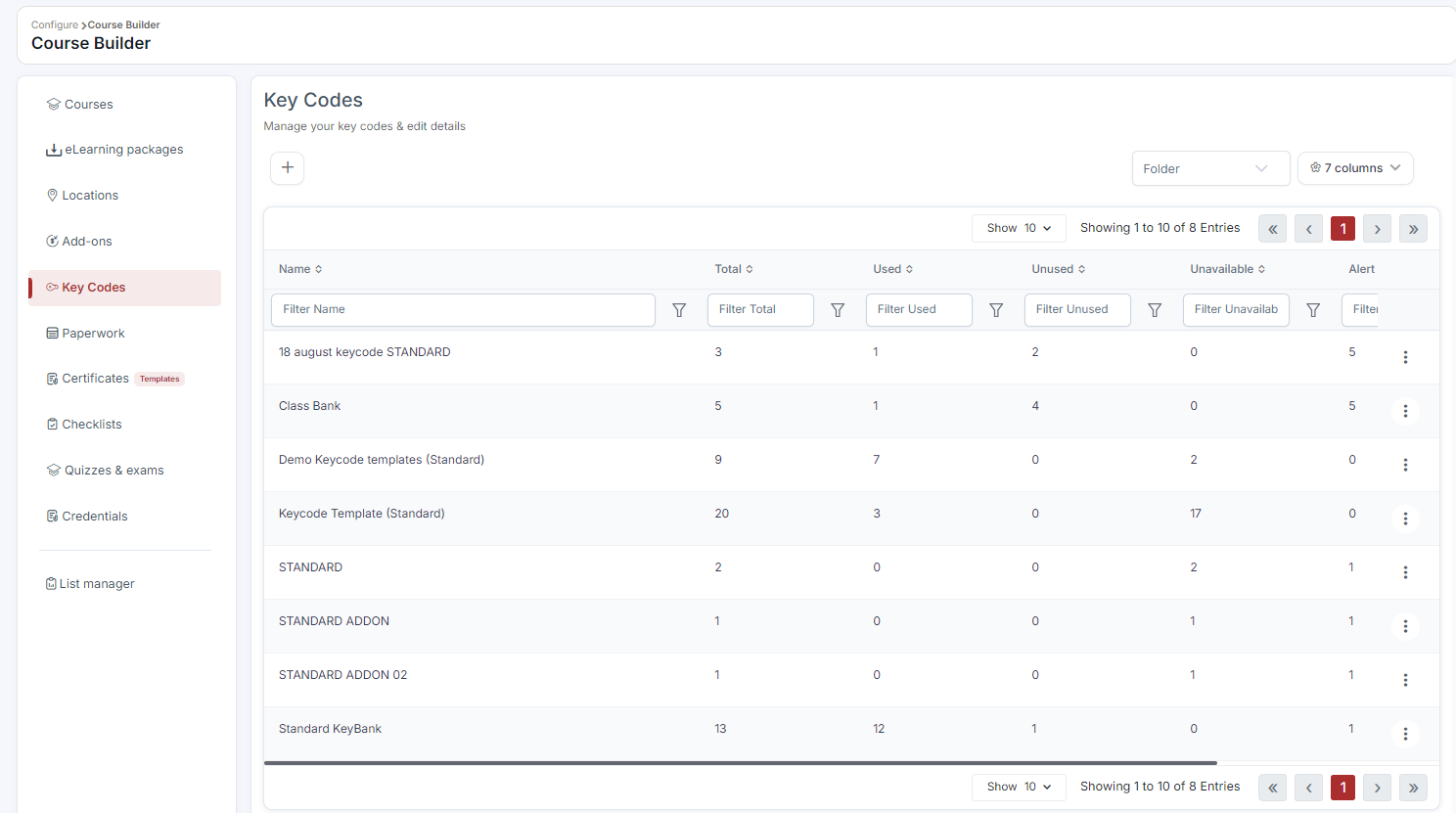
- Go to Course Builder > Keycodes (or Payments > Catalog > Keycodes).
- Click + Create.
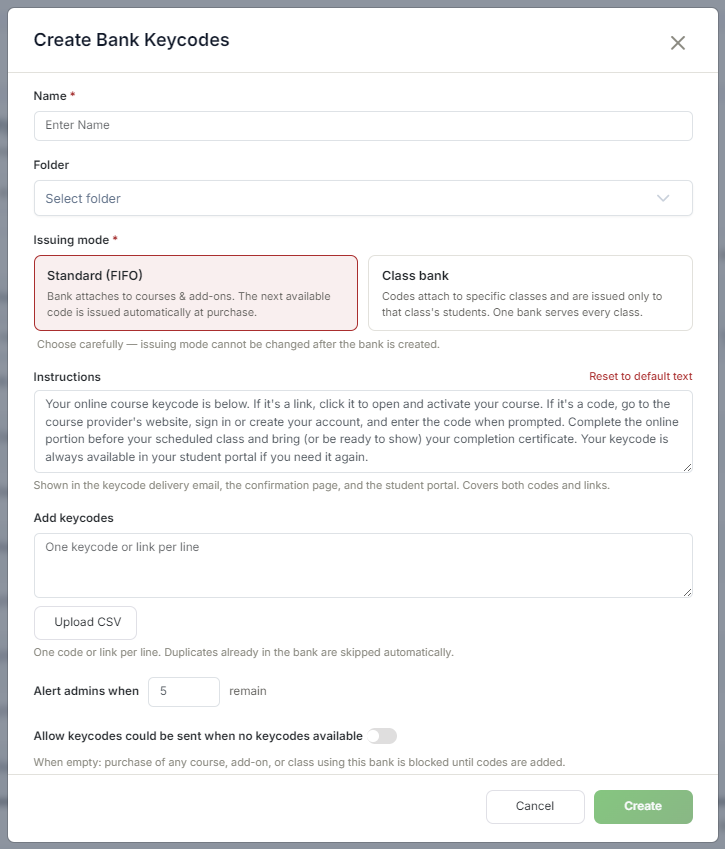
- Enter a Bank Name (e.g., "AHA BLS HeartCode — Q2 2026").
- Paste your access codes, one per line.
- Click Save.
Step 2: Attach the Bank to a Course or Add-On
- For a course: go to Courses > ⋮ > Edit, find the Key Codes section, select the bank, and click Save.
- For an add-on: go to Add-Ons > ⋮ > Edit, set the Type to Keycode, select the bank from the Keycode Bank dropdown, and click Save.
⚠ Monitor your inventory: CPR Enroll+ can send a Low Bank Key Code notification — configure it in Settings > Communication Hub.
Step 3: Import Keycode Templates from the Marketplace (Optional)
- Click Marketplace > Keycode Templates.
- Hover over a template and click Use Template to import the bank structure, then add your actual codes.
Best Practices
- Name banks clearly (e.g., "AHA BLS HeartCode — Q2 2026") so you can tell them apart when attaching to courses or add-ons.
- Set up the Low Bank Key Code notification so you're never caught off guard by an empty bank.
- Import a Marketplace keycode template first if one matches your certification body, then add your actual codes on top of the pre-built structure.
- Restock proactively rather than waiting for students to enroll into an empty bank.
Frequently Asked Questions
| Question | Answer |
|---|---|
| How does a student receive their keycode? | CPR Enroll+ automatically draws the next available code from the attached bank and emails it in the enrollment confirmation — no manual distribution needed. |
| Can I attach the same keycode bank to both a course and an add-on? | Yes. A bank can be attached to a course's Key Codes section or to an add-on set to the Keycode type. |
| How will I know when a bank is running low? | Configure the Low Bank Key Code notification in Settings > Communication Hub to be alerted automatically. |
✔ You're all set. Your keycode bank is created and attached, and codes will now be delivered to students automatically at enrollment.
Was this article helpful?
That’s Great!
Thank you for your feedback
Sorry! We couldn't be helpful
Thank you for your feedback
Feedback sent
We appreciate your effort and will try to fix the article