CPR Enroll+ gives you precise control over the visibility of every class you schedule. Understanding the three visibility states ensures the right students can find and register for your classes at the right time.
How to Set Visibility on a Class
Go to Classes in the sidebar.
Click + to create a new class, or ⋮ > Edit on an existing class.
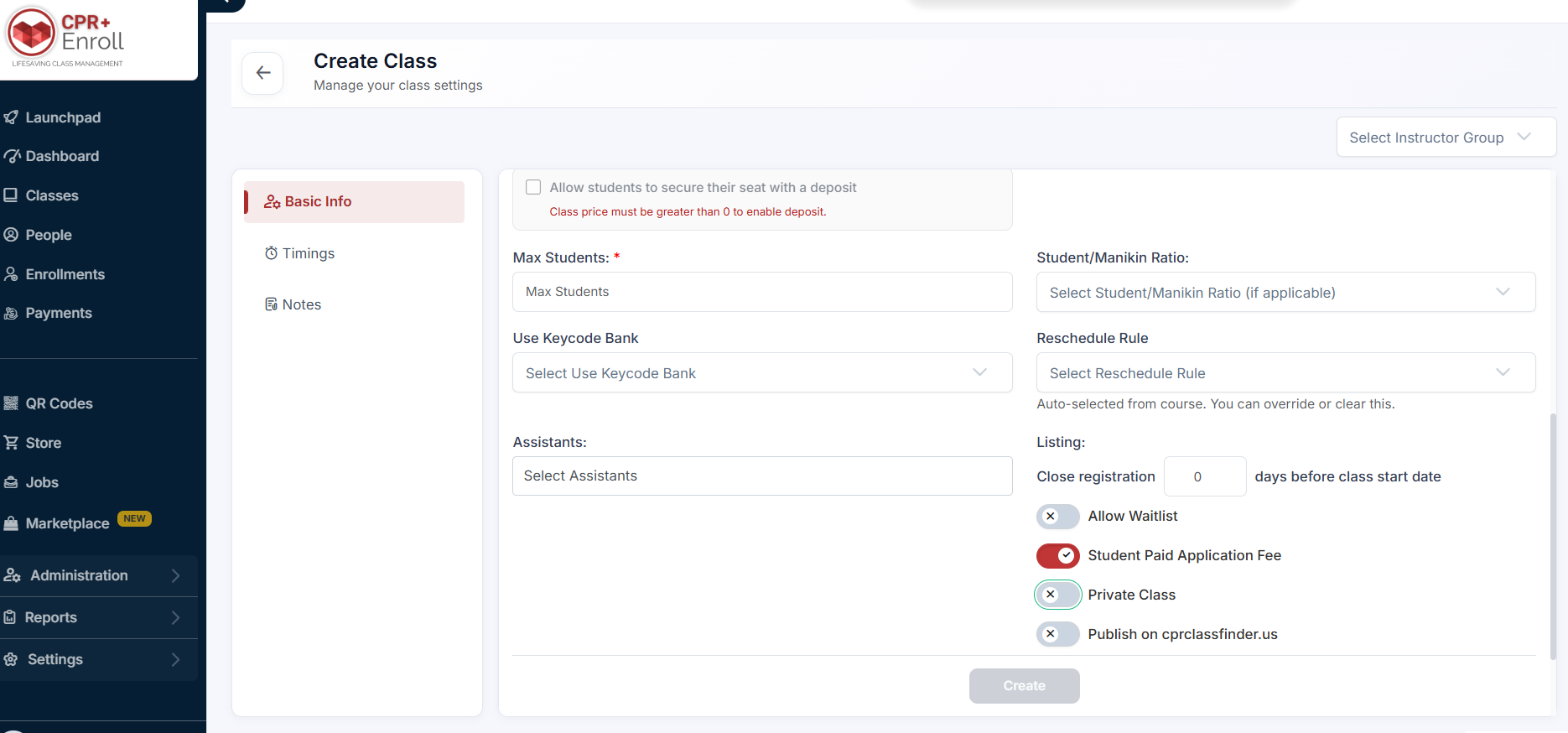
In the Listing Settings section of the class form, find the visibility options.
Configure as needed (see each option below).
Click Save.
Public Classes
Public is the default state. A public class:
Appears on your Layout Based View, List View, and Calendar View registration pages
Is included in embedded registration widgets on your website
Displays available seat count (if Show Available Seats Publicly is ON)
Allows students to self-enroll and pay online at any time (subject to registration deadlines)
Private Classes
In the Listing Settings section, toggle Private Class to ON.
Click Save.
A private class:
Does NOT appear on any public registration page
Requires admin enrollment (Enrollments > Quick Add or Add Student)
Can be shared via a direct class registration link — go to Classes > ⋮ > Share Registration to get the direct link. Only people with the exact link can register.
Post UnScheduled Classes
In the class form, check the Post UnScheduled checkbox.
Click Save.
An unscheduled class:
Appears publicly on your registration page but shows no specific date or time
Allows students to enroll and pay in advance
Creates Unscheduled Enrollments in your Enrollments > Unscheduled tab
Students are assigned to a specific class date later once scheduling is confirmed
Was this article helpful?
That’s Great!
Thank you for your feedback
Sorry! We couldn't be helpful
Thank you for your feedback
Feedback sent
We appreciate your effort and will try to fix the article