If you have created a class in CPR Enroll+ but students cannot see it on your registration page, there are several common causes. Work through this troubleshooting checklist to identify and resolve the issue quickly.
Before You Begin
Have the class name, course title, and scheduled date ready.
Ensure you have admin access to CPR Enroll+ to check course and class configuration settings.
Step-by-Step Instructions
Step 1: Troubleshooting Checklist
The Class Is Set to Private
Private classes are intentionally hidden from public registration pages.
Go to Classes > ⋮ > Edit on the class.
In the Listing Settings section, check the Private Class toggle.
If it is ON (private), turn it OFF to make the class public, then click Save.
The Class Date Is in the Past
Past classes do not appear on the student-facing registration page. Only classes with a future date are displayed. Verify the class date is set correctly and is in the future.
Registration Has Closed
If a Close Registration deadline was set on the course or class and that deadline has passed, the class will no longer accept new registrations and may not appear as available.
Check the course's Rules section (Course Builder > Courses > ⋮ > Edit) for the Close Registration setting.
Check the class's Listing Settings for a class-level Registration Closes setting.
If registration closed too early, increase the number or set it to 0 to remove the deadline.
The Class Is Full (No Waitlist)
When a class reaches its Max Students limit and no waitlist is enabled, the class shows as "Full" or may be hidden from the registration page depending on your configuration.
Edit the class and increase Max Students, or enable Allow Waitlist in the Listing Settings.
The Class Has Been Canceled
- Canceled classes are removed from the public registration page. Go to Classes and check the Status column for the class — if it has been canceled you will need to create a new class.
Your Registration Page Is Not Showing the Correct View
If you are looking at an embedded widget on your website that is not showing a class, it may be that the embed is working correctly but the class filters do not match. Check:
The embed is using the correct registration URL for your account.
The class discipline or association filters on the registration page are not excluding your class.
You are looking at the correct registration page (register.cprenroll.com) rather than a cached or old version.
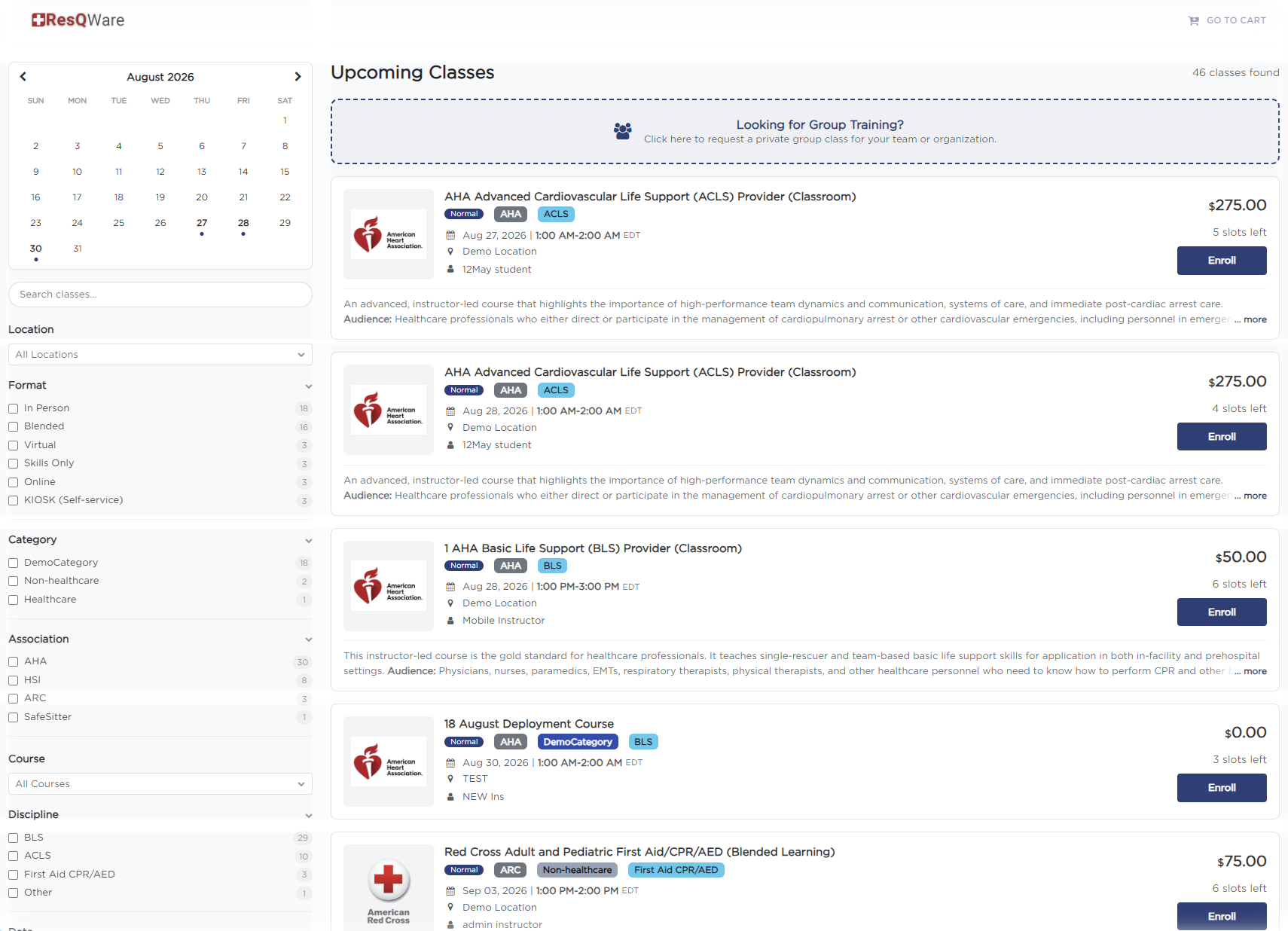
✔ Test from a private browser window: Open your registration page in an Incognito/Private browser window to see exactly what a new student would see — without any cached data or admin session affecting the view.
Best Practices
Always test public visibility using an Incognito/Private window after updating class settings.
Double-check Close Registration offset rules on both course-level and class-level settings.
Enable Allow Waitlist on high-demand classes to maintain visibility even when maximum capacity is reached.
Frequently Asked Questions
✔ You're all set. Following these checklist steps will help you quickly identify and fix any class visibility issue.
Was this article helpful?
That’s Great!
Thank you for your feedback
Sorry! We couldn't be helpful
Thank you for your feedback
Feedback sent
We appreciate your effort and will try to fix the article