Before you can accept payments for your classes, you'll need to connect your CPR Enroll account to Stripe, our secure payment processing partner. Once connected, your account can accept card payments for class enrollments, giving your students a fast, secure checkout experience.
This article walks you through the entire connection process, from opening your Setup Guide to completing your Stripe account link.
Before You Begin
Before starting this setup, have the following ready:
- A business or personal email address you'd like associated with your payment account.
- Basic business information, such as your business name, address, and tax ID (if applicable), since Stripe may request these during account verification.
- Authorization to complete this step on behalf of your business. If you're setting this up for a business, the form must be completed by the business owner or someone with significant management responsibility for that business.
Setup takes about 5 minutes, though Stripe may occasionally request additional verification information depending on your business type and location.
Step-by-Step Instructions
Step 1: Open Your Setup Guide
- From the opening screen, click Settings on the left menu.
- Click Setup Guide.
You'll land on Your Setup Guide, where you can finish setting up your account with everything you need to sell and operate.
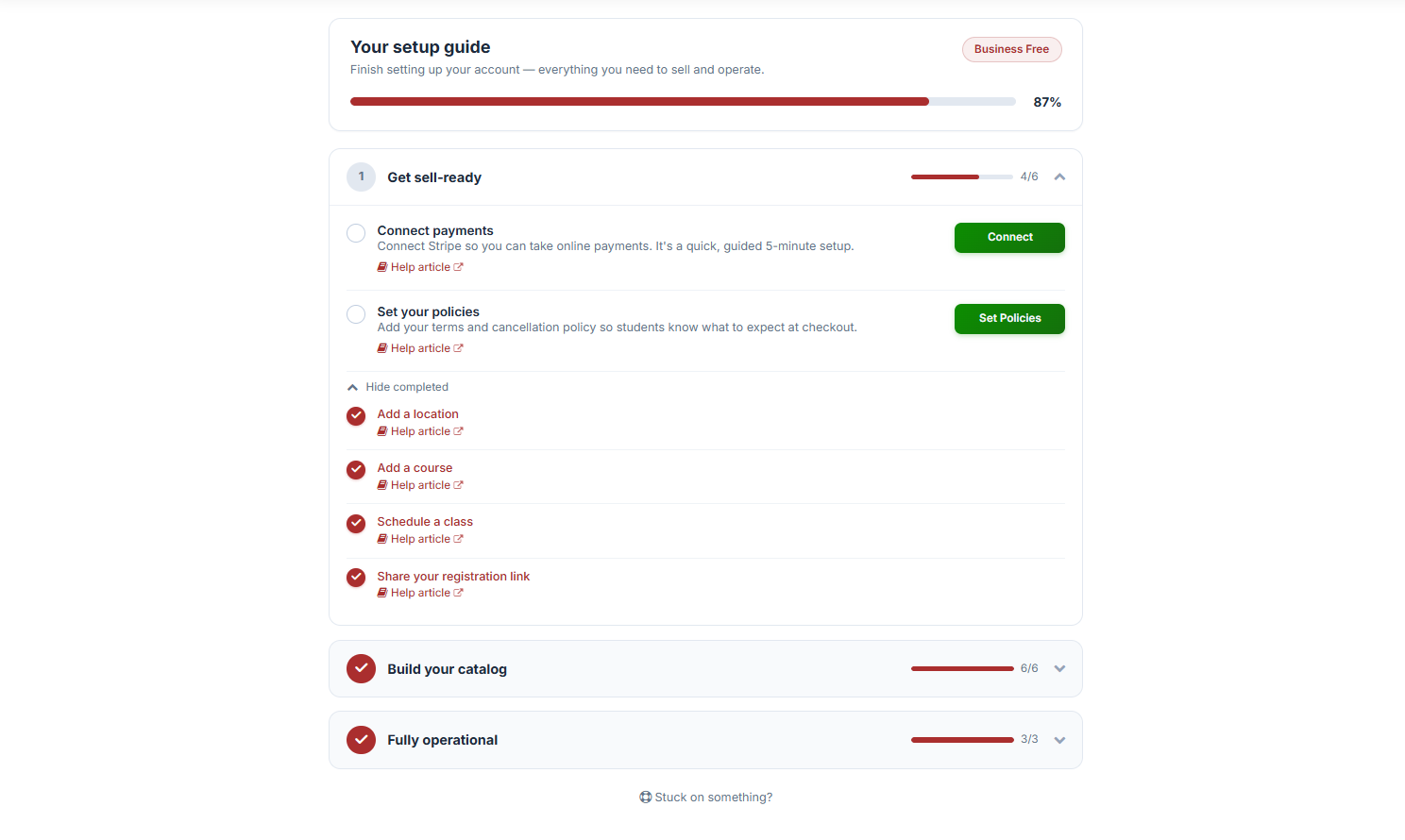
Step 2: Locate Connect Payments
Under 1. Get Sell-Ready, find Connect Payments and click Connect.
This opens the Connect Payments screen, which is where you'll link your account to Stripe so you can begin accepting online payments. Connecting here links your CPR Enroll account directly to Stripe, enabling you to accept card payments for class enrollments.
Step 3: Start the Stripe Connection
Click Connect with Stripe. You'll be redirected to Stripe's secure connection page. CPR Enroll partners with Stripe to keep every transaction safe and secure, so none of your payment details are stored directly on CPR Enroll's servers.
✔ Note: If you're completing this on behalf of a business, the form must be completed by the business owner or someone with significant management responsibility for that business. Stripe uses this information to verify the account and remain compliant with financial regulations.
Step 4: Enter Your Email Address
On the Get Started with Stripe screen, enter your email address.
- Already have a Stripe account? Use the same email address already on file with Stripe. This links your existing Stripe account instead of creating a duplicate.
- New to Stripe? Enter the email you'd like to use, then click Continue to proceed with account creation.
Step 5: Complete Stripe's Verification Steps
Depending on your business type, Stripe may ask for additional details such as your business classification, banking information for payouts, or identity verification documents. Follow the on-screen prompts to complete this process.
Step 6: Confirm the Connection
Once you've completed Stripe's setup steps, you'll be returned to CPR Enroll, where your account status will reflect that payments are connected.
Best Practices
- Use your official business email when connecting Stripe, rather than a personal email, to keep financial records and support communications organized.
- Keep your Stripe login credentials secure, since this account handles your payment processing and payout information.
- Double-check your payout bank details during Stripe setup to avoid delays in receiving funds.
- Revisit this screen anytime if you need to update your connected Stripe account or review your payment status.
Frequently Asked Questions
| Question | Answer |
|---|---|
| Do I need a Stripe account before starting this process? | No. If you don't already have one, you can create a Stripe account directly during this setup by entering your email and following the prompts. |
| Can I use a personal Stripe account for my business? | The connection form must be completed by the business owner or someone with significant management responsibility for the business, so make sure the correct authorized person completes this step. |
| How long does it take to connect Stripe? | The guided setup typically takes about 5 minutes, though Stripe may request additional verification depending on your business type, which could take longer to process. |
| What happens if I already use Stripe for another business or platform? | Enter the same email address associated with your existing Stripe account. Stripe will guide you through linking or creating the appropriate account from there. |
| Is my payment information secure? | Yes. CPR Enroll partners with Stripe, a PCI-compliant payment processor, to ensure all transactions and sensitive payment data are handled securely. |
✔ You're all set. Once connected, your CPR Enroll account will be ready to accept online payments for class enrollments, giving your students a smooth, secure checkout experience.
Was this article helpful?
That’s Great!
Thank you for your feedback
Sorry! We couldn't be helpful
Thank you for your feedback
Feedback sent
We appreciate your effort and will try to fix the article