Issuing is the point at which a design becomes a record. This article covers how credentials are issued, what each one carries, how the public verification page works, and how to revoke or reinstate.
Before You Begin
- The template must exist and be saved before anything can be issued from it.
- Check the template’s Email Settings. Automatic emails the recipient the moment you issue.
- Revocation needs a reason and is permanent in the audit trail, though the credential itself can be reinstated.
How Credentials Get Issued
Certificates and badges can be issued to an individual recipient or to an entire passing roster. Issuance also happens automatically on:
- class completion,
- course or category completion,
- eligible AHA, HSI and Red Cross eCard events.
What Every Credential Carries
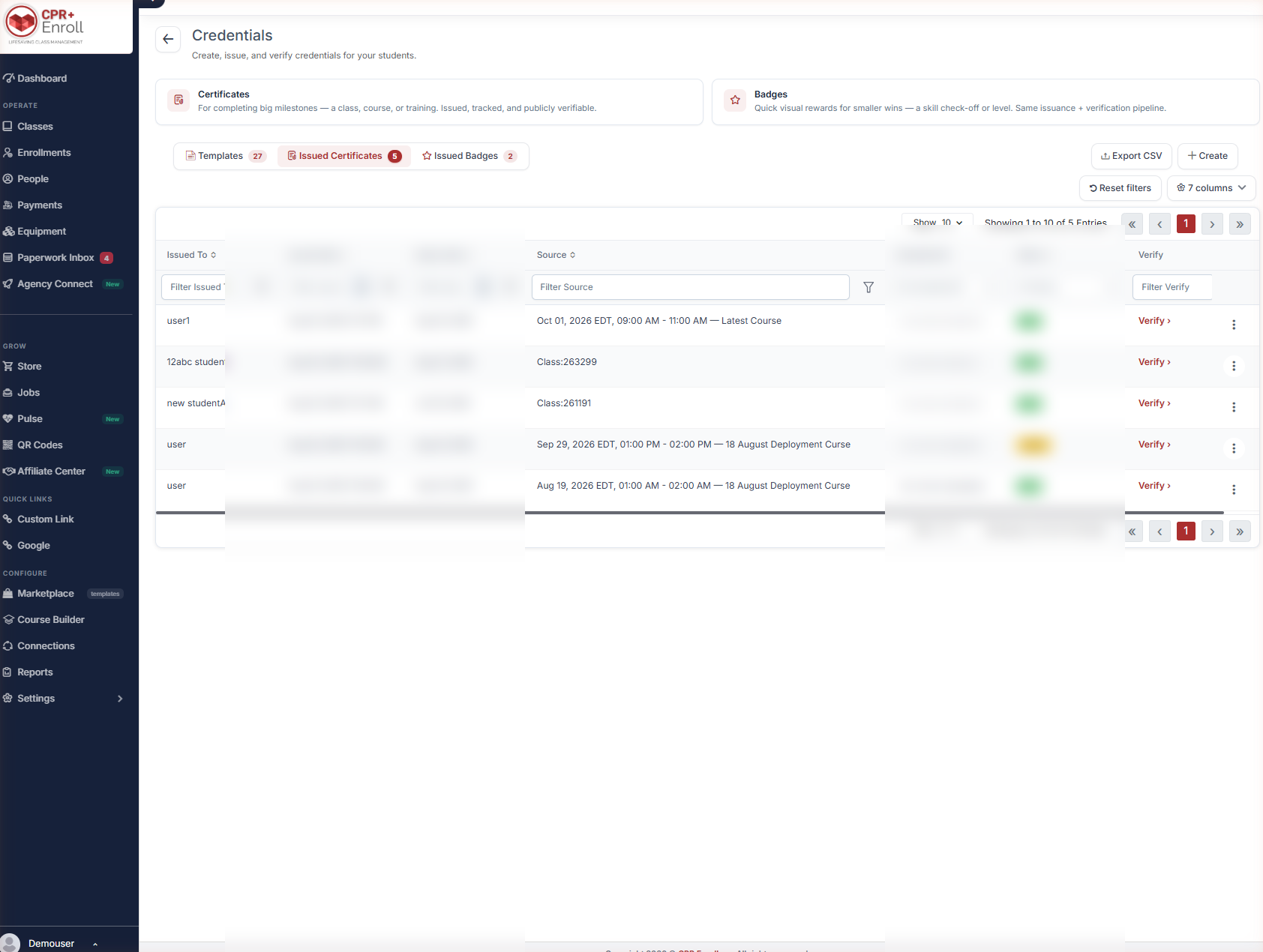
Each issued credential receives a unique Credential ID, a verification code and a signed digest for tamper-evident verification. The Credential ID is visible in the Issued Certificates and Issued Badges grids.
Row Actions
Open the action menu (⋮) at the end of any issued row:
| Action | Result |
|---|---|
| Open verification | Opens the public verification page for that credential. |
| Copy link | Copies the verification URL to your clipboard. |
| Download | Downloads the credential PDF, including its scannable QR code. |
| Revoke | Marks the credential revoked. |
The Public Verification Page
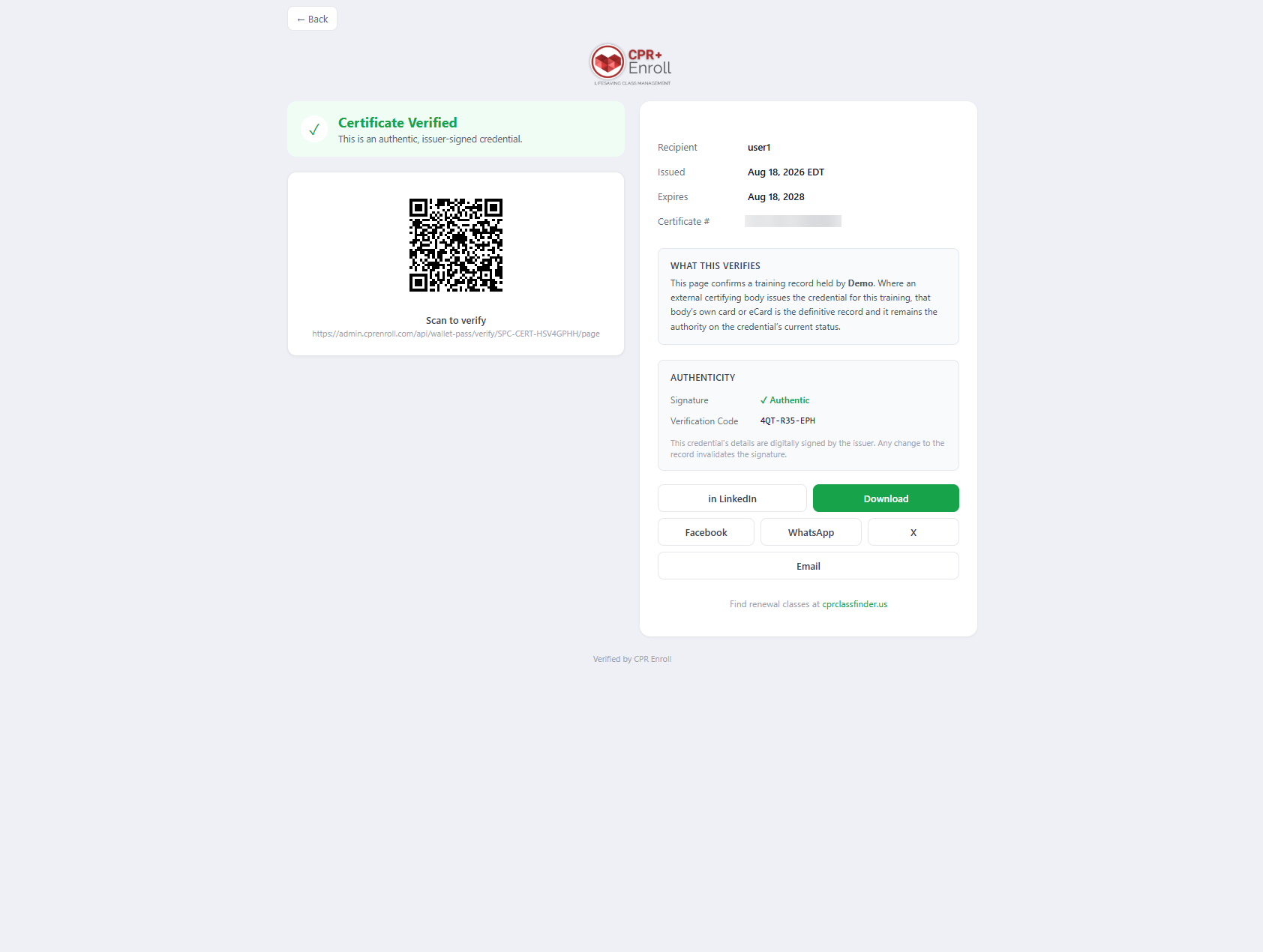
Every credential has a live public page showing one of three statuses — Verified, Expired or Revoked. Status is calculated dynamically, so the page always reflects the current expiry and revocation state.
✔ You never reissue a credential to correct its status. The page is computed live, so an expired credential shows as expired without you touching it, and a revoked one scans as revoked even from a printout made months earlier. QR codes point at this live page, not at a snapshot.
The page is privacy-focused and displays only what is needed to validate the credential.
Revoking and Reinstating
Revocation requires a reason and is recorded in the audit trail. A revoked credential can be reinstated the same way.
Expiry and Renewal
Templates carry a Default Expiry — a fixed period, Never, or Inherit from course. Automatic renewal reminders are sent ahead of expiry.
Exporting
Use Export CSV on the Issued Certificates or Issued Badges tab to pull a full credential list for reporting or audit. Use the columns control to choose which fields are included.
Best Practices
- Export a CSV before an audit rather than during one. The columns control lets you build the exact file your auditor asked for.
- Give a real reason when revoking. It is the audit trail, and “error” will not help anyone in twelve months.
- Trust the verification page rather than the PDF. The PDF is a snapshot; the page is the truth.
- Check expiry behavior on the template before a large batch issue — Inherit from course is easy to assume and easy to get wrong.
Frequently Asked Questions
| Question | Answer |
|---|---|
| Can I issue to a whole class at once? | Yes. Credentials can be issued to an individual or an entire passing roster. |
| What makes a credential tamper-evident? | Each carries a unique Credential ID, a verification code and a signed digest. |
| Does an old printout still verify correctly after revocation? | Yes. The QR code points at the live page, which shows Revoked. |
| Do I need to reissue when a credential expires? | No. Status is calculated dynamically. |
| Can a revoked credential be brought back? | Yes, it can be reinstated the same way it was revoked. |
| How do I get a list for audit? | Export CSV on the Issued Certificates or Issued Badges tab. |
✔ That completes the Credentials set. You have the model, the builder, and the issuance and verification pipeline.
Was this article helpful?
That’s Great!
Thank you for your feedback
Sorry! We couldn't be helpful
Thank you for your feedback
Feedback sent
We appreciate your effort and will try to fix the article