When you create a new instructor or user account in CPR Enroll+, the system does not automatically send them their login details. You need to send the account creation email manually. This gives you control over when new users receive their credentials — useful when you are setting up multiple accounts in advance of onboarding.
Before You Begin
- Make sure the instructor or user record has already been created, with a correct email address on file.
- Decide whether the account belongs to an instructor or an admin/staff user, since each uses a different email action.
Step-by-Step Instructions
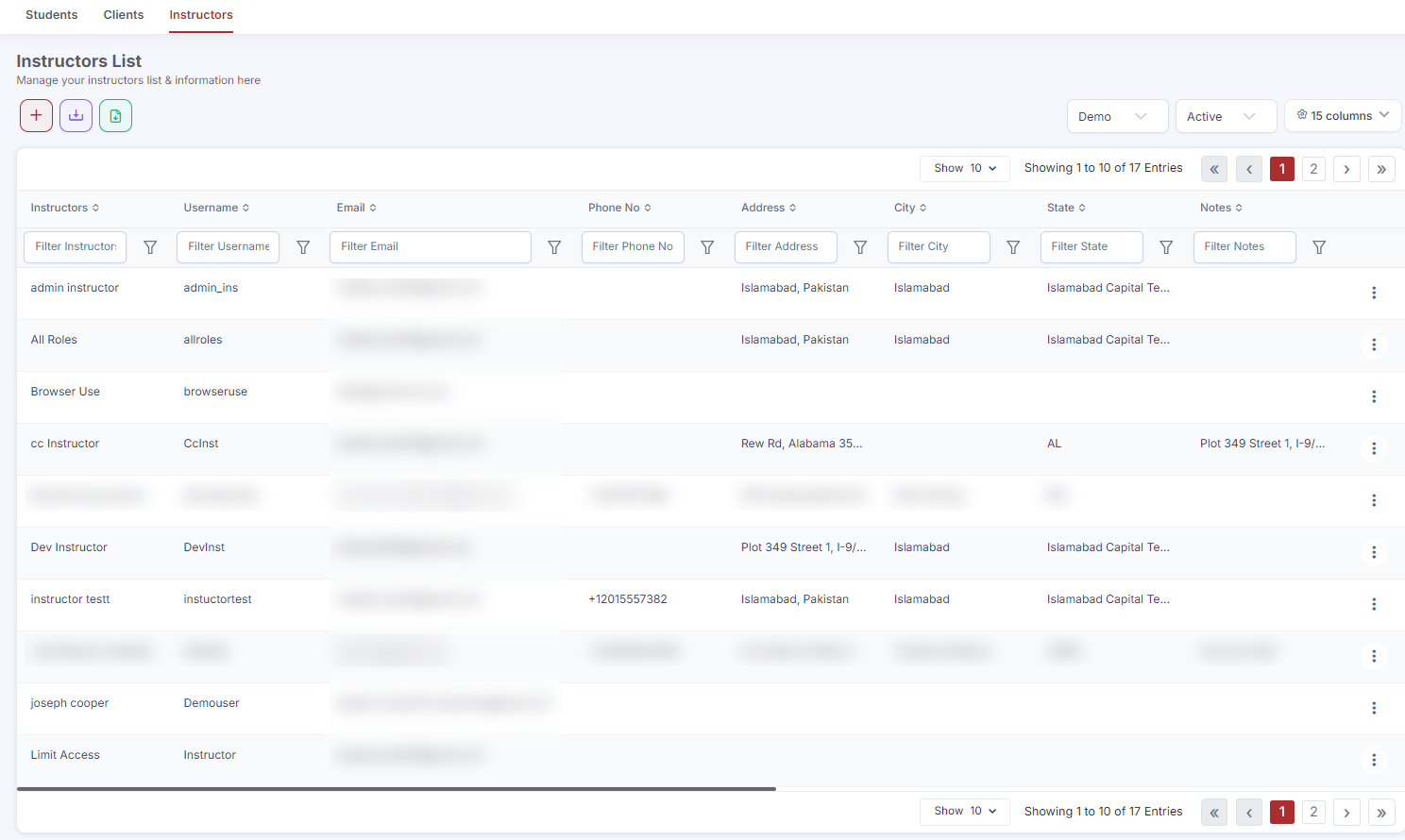
Step 1: Send an Account Create Email to a New Instructor
- From the sidebar, go to People > Instructors.
- Find the instructor in the list.
- Click ⋮ on their row.
- Select Account Create Email from the action menu.
- A confirmation prompt appears. Click Send.
- The instructor receives an email with their username and a link to set their password.
Step 2: Send a Confirmation Email to a New User (Admin/Staff)
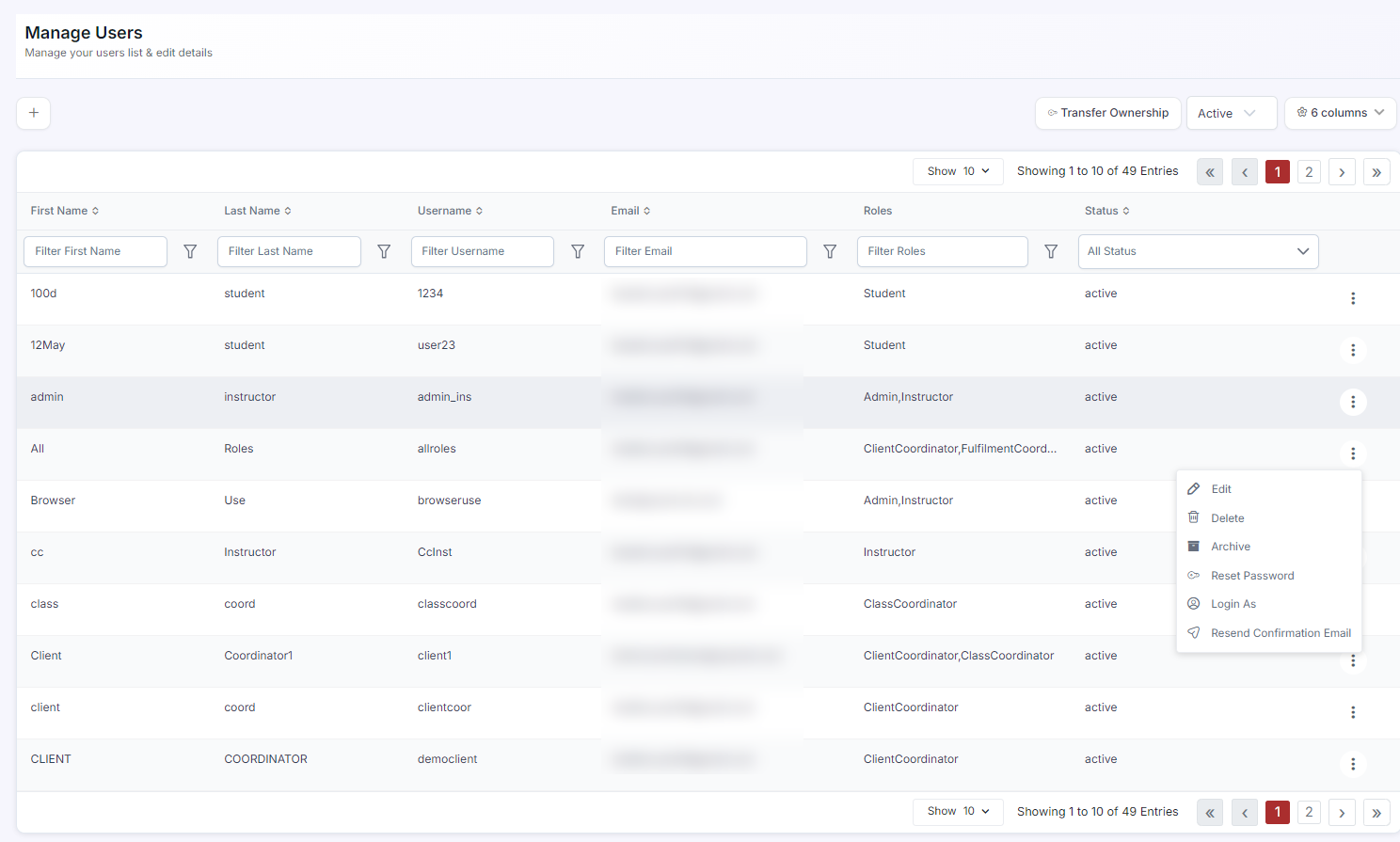
- Go to Settings> Users & Permissions.
- Find the user in the list.
- Click ⋮ > Resend Confirmation Email.
- The user receives a confirmation email with instructions to activate their account.
Step 3: Troubleshoot a Missing Email
- Ask the user to check their Spam or Junk folder — automated emails are sometimes filtered.
- Add support@cprenroll.com or your sender address to their safe senders list.
- Use ⋮ > Resend Confirmation Email or ⋮ > Account Create Email to resend the email.
- If the problem persists, verify the email address on file is correct (Settings > Users & Permissions > ⋮ > Edit).
ℹ You're in control of timing. Because these emails are sent manually, you can create accounts well ahead of onboarding and send credentials only when you're ready for the person to log in.
Best Practices
- Double-check the email address on the record before sending — a typo means the credentials go nowhere.
- Send Account Create Email to instructors and Resend Confirmation Email to admin/staff users, since they trigger different emails.
- If setting up several accounts at once, send invitations in small batches so you can quickly follow up with anyone who doesn't receive theirs.
- Keep your sender address on an allow list you share with new users to reduce spam-filtering issues.
Frequently Asked Questions
| Question | Answer |
|---|---|
| Are login credentials sent automatically when I create an account? | No. You need to manually send the account creation email using Account Create Email (instructors) or Resend Confirmation Email (admin/staff users). |
| What does the instructor receive in the Account Create Email? | An email with their username and a link to set their password. |
| What should I do if a user says they never got their invitation? | Have them check their spam/junk folder, add your sender address to their safe senders list, resend the email, and verify the email address on file is correct. |
✔ You're all set. Your new accounts have their login credentials, and you know how to troubleshoot if an invitation goes missing.
Was this article helpful?
That’s Great!
Thank you for your feedback
Sorry! We couldn't be helpful
Thank you for your feedback
Feedback sent
We appreciate your effort and will try to fix the article