Agency Connect has to be switched on and configured per certification body before any class will offer an assisted run. This article covers that setup.
Before You Begin
- Configuration lives at Settings > Integrations & Connections, in the Certification Bodies section.
- Have your certification-body login URL and, for HSI, each instructor’s Instructor ID to hand.
- CPR Enroll never stores your certification-body password. Runs use your own logged-in browser session.
Where to Configure It
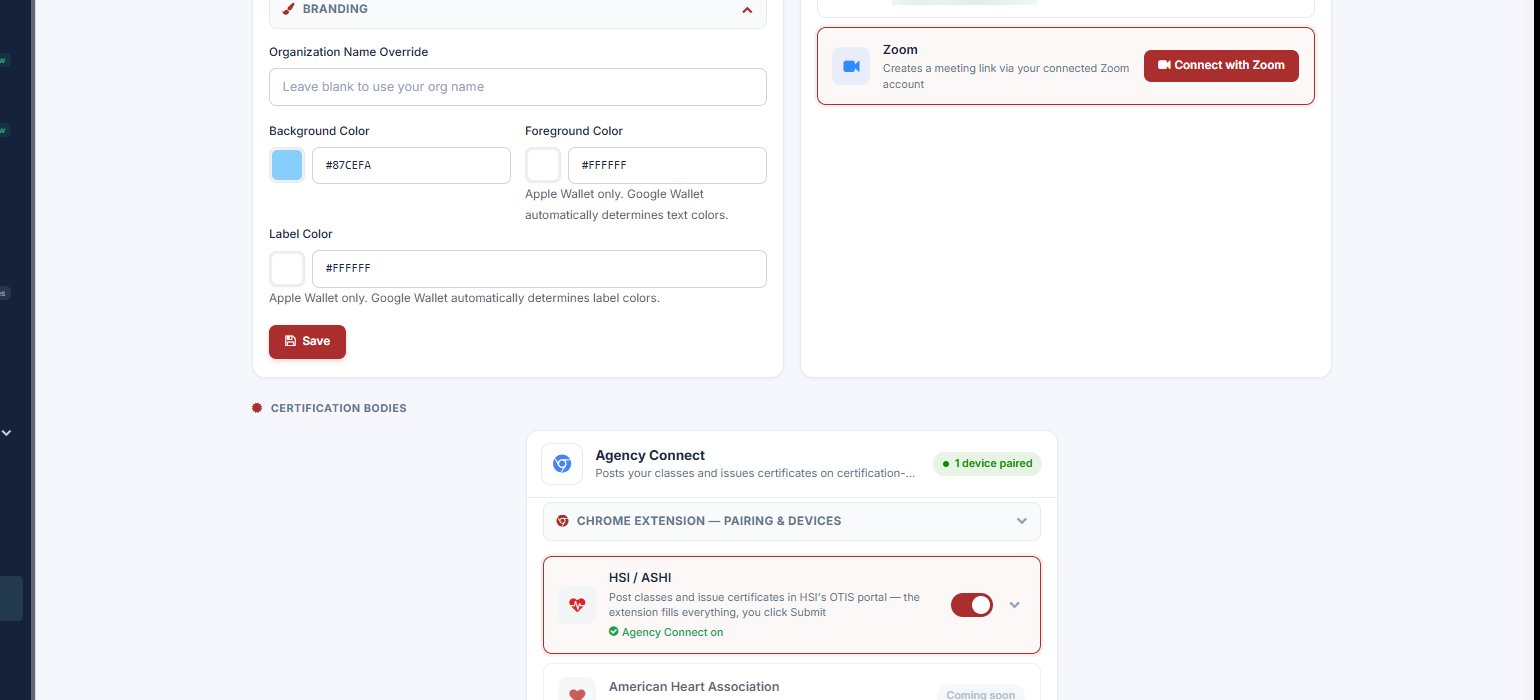
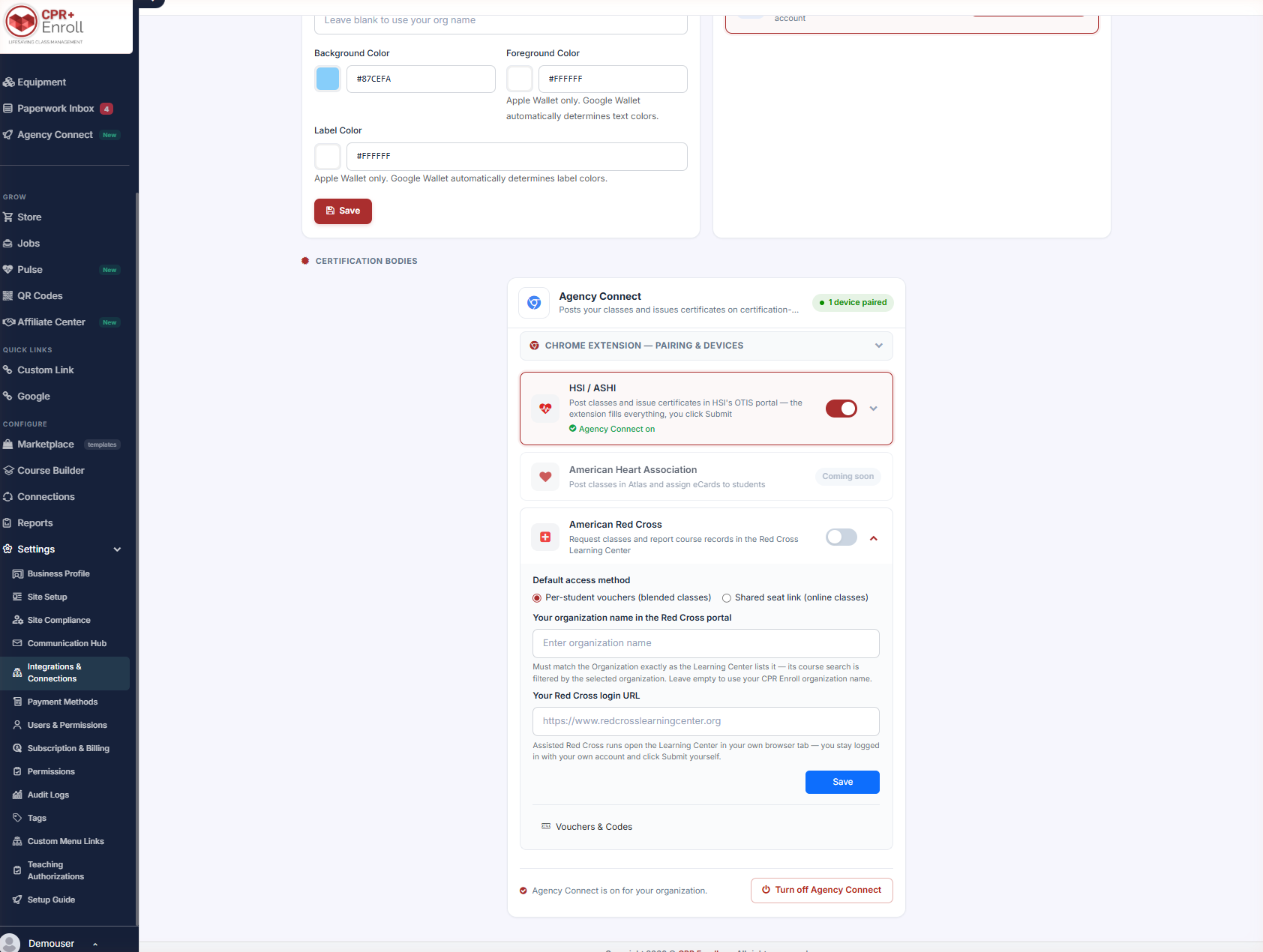
Settings > Integrations & Connections, then scroll to Certification Bodies. The Agency Connect card shows a device count — for example 1 device paired — and expands into three certification bodies plus a Chrome Extension — Pairing & Devices panel.
Pairing Your Browser
Expand Chrome Extension — Pairing & Devices and follow the pairing flow.
✔ Pairing is per person, per computer. Runs use each person’s own login at the certification body, so pairing one machine does not cover the team. Anyone who will start a run pairs their own browser.
HSI / ASHI
The card describes itself: “Post classes and issue certificates in HSI’s OTIS portal — the extension fills everything, you click Submit.”
Switch the toggle on, then expand the card to complete setup:
- Set your HSI login URL.
- Map each HSI course to its OTIS program under Course Mapping.
- Add each instructor’s HSI Instructor ID.
American Red Cross
The card describes itself: “Request classes and report course records in the Red Cross Learning Center.”
Switch the toggle on and complete:
| Field | Notes |
|---|---|
| Default access method | Per-student vouchers (blended classes) or Shared seat link (online classes). |
| Your organization name in the Red Cross portal | “Must match the Organization exactly as the Learning Center lists it — its course search is filtered by the selected organization. Leave empty to use your CPR Enroll organization name.” |
| Your Red Cross login URL | For example https://www.redcrosslearningcenter.org |
Click Save.
✔ The organization name must match exactly. The Learning Center filters its course search by organization, so a near-miss here produces an empty course list during a run and looks like a broken integration.
The note beneath is worth passing on: “Assisted Red Cross runs open the Learning Center in your own browser tab — you stay logged in with your own account and click Submit yourself.”
American Heart Association
The AHA card — “Post classes in Atlas and assign eCards to students” — is marked Coming soon.
Turning It All Off
At the bottom of the Agency Connect card, Turn off Agency Connect disables the whole feature for the organization. The status line above it confirms the current state: “Agency Connect is on for your organization.”
Best Practices
- Copy the organization name straight out of the Learning Center rather than typing it. Exact means exact.
- Collect HSI Instructor IDs before you start rather than chasing them mid-run.
- Pair every machine in advance, including any laptop used for classes off-site.
- Leave AHA alone until it ships. The card is visible but not functional.
Frequently Asked Questions
| Question | Answer |
|---|---|
| Does CPR Enroll store my certification-body password? | No. Runs use your own logged-in browser session. |
| Why does my colleague have to pair separately? | Runs use each person’s own certification-body login, so pairing is per person per computer. |
| What happens if my Red Cross organization name is slightly wrong? | The Learning Center’s course search is filtered by organization, so you will see no courses during a run. |
| Which access method should I choose for Red Cross? | Per-student vouchers for blended classes, shared seat link for online classes. |
| Is AHA available? | Not yet. The card is present but marked Coming soon. |
| How do I disable the whole feature? | Turn off Agency Connect at the bottom of the Agency Connect card. |
✔ Setup is done. Next, read Course Mapping and Managing Vouchers & Codes.
Was this article helpful?
That’s Great!
Thank you for your feedback
Sorry! We couldn't be helpful
Thank you for your feedback
Feedback sent
We appreciate your effort and will try to fix the article