Jobs is a real-time dispatch system: post the work, find an instructor, award it, and track the payment. One thing to be clear about from the start — CPR Enroll tracks payments but never moves money. You keep paying instructors the way you always have.
Before You Begin
- Jobs is in the left navigation, under Grow. The header shows a live summary, for example 9 open · 0 applications awaiting award · 0 awarded.
- Have the classes you want covered already created — the job form pulls details from the class record.
- Decide your hiring style and distribution before you start. Both are required, and both change who sees the job. See Hiring Styles and Job Distribution Explained.
- Check your dispatch radius in Jobs settings if you plan to post publicly.

Step 1: Post the Job
- Click + Post a job.
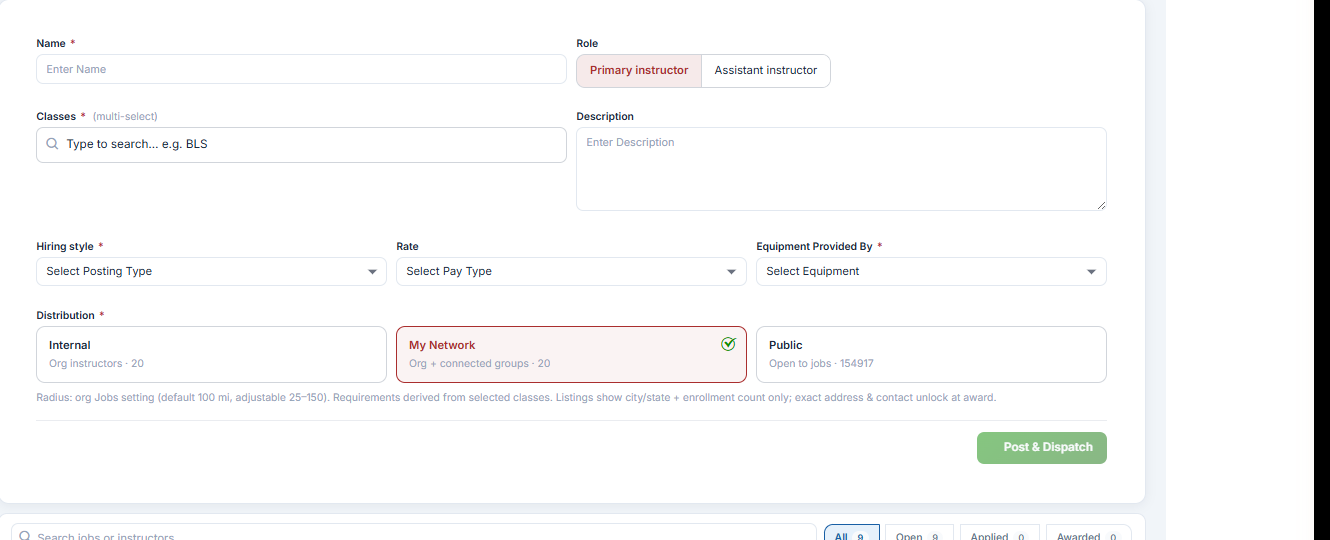
- Complete the form (fields below).
- Click Post & Dispatch.
| Field | Notes |
|---|---|
| Name | Required. The title instructors will see. |
| Role | Primary instructor or Assistant instructor. |
| Classes | Required, multi-select. Search by course name — details auto-fill from the class record. |
| Description | Anything the instructor needs to know. |
| Hiring style | Required. See Hiring Styles and Job Distribution Explained. |
| Rate | By Class, By Hour or By Student. |
| Equipment Provided By | Required. Removes the most common day-of dispute. |
| Distribution | Required. Internal, My Network or Public. |
✔ Fill in Equipment Provided By carefully. It is required for a reason — “I assumed you were bringing the manikins” is the single most common day-of dispute.
Step 2: Know What Instructors Can See Before Award
The note under the Distribution selector is the key privacy rule: listings show city/state and enrollment count only; the exact address and contact details unlock at award.
Requirements are derived automatically from the classes you selected — you do not enter them by hand.
Step 3: Understand the Dispatch Radius
Public jobs reach instructors within your organization’s dispatch radius, set in your Jobs settings. The default is 100 miles and it is adjustable between 25 and 150.
Step 4: Manage Applications on the Board
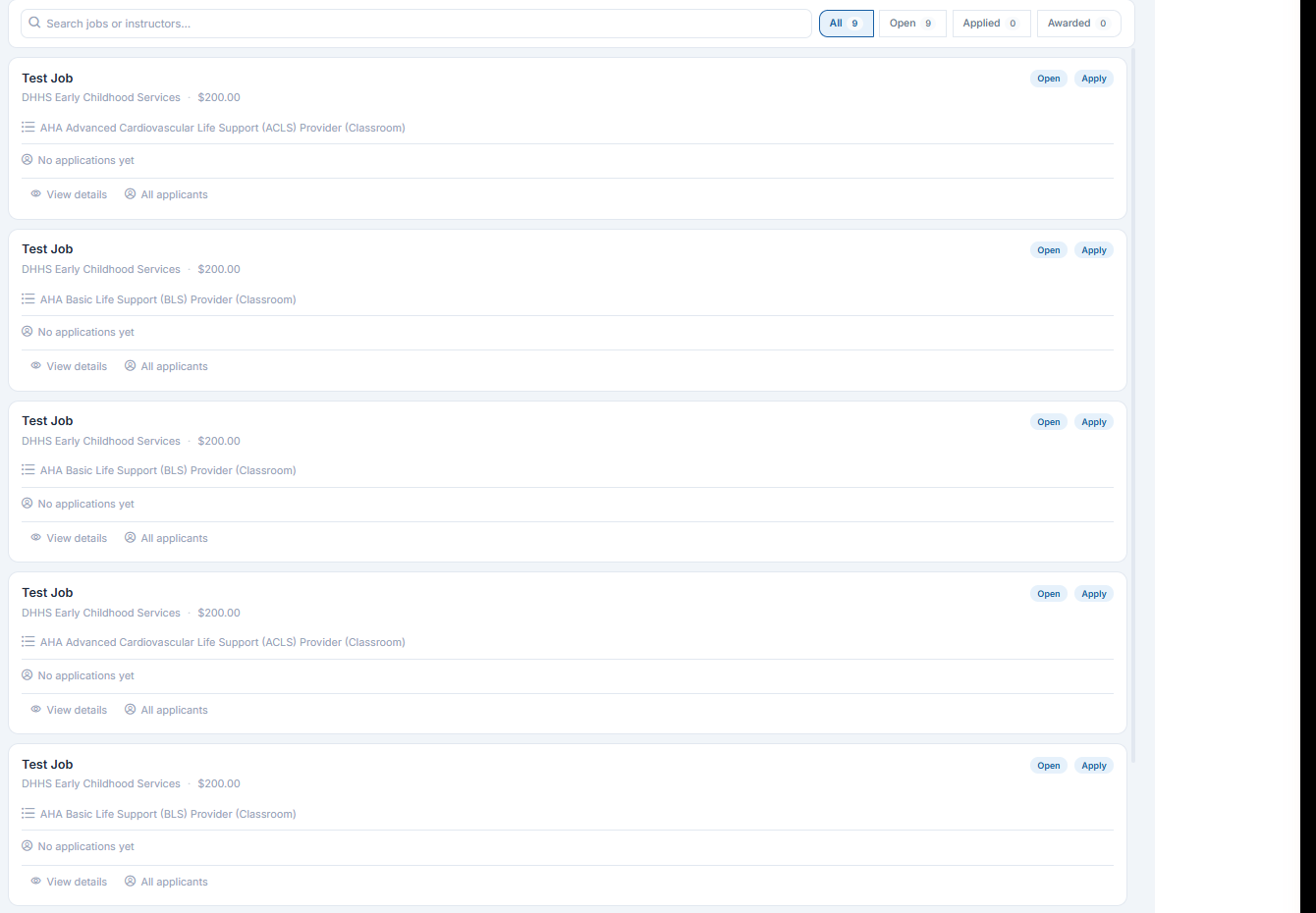
Each job card on the Board shows the job name, client, rate, the classes attached and the application count, with View details and All applicants links.
- Filter the board with All, Open, Applied and Awarded.
- Search by job or instructor name.
Step 5: Read the Qualification Checks
Applicants are compared against the credentials required by the selected classes.
- Qualified instructors proceed normally.
- Unqualified applicants are flagged with clear reasons.
- You can still award a flagged instructor — after a confirmation step.
✔ The flag is advice, not a wall. If you know why an instructor is flagged and it does not matter for this job, you can still award them. The confirmation step exists so it is never accidental.
Step 6: Handle Rejections
- You can reject an application outright at any time.
- When a job is awarded, all remaining applicants are automatically marked Rejected.
- Applicants can see their own status — Pending, Accepted or Rejected.
- Rejection notifications can optionally be sent.
Best Practices
- Post as early as you can. A job posted the night before competes with everyone else’s emergencies.
- Write a Description that answers the questions you always get asked — parking, room setup, class size quirks.
- Start Internal, widen to My Network, then Public only if you have to. Reach and control trade off against each other.
- Turn on rejection notifications. Instructors who hear back apply again; instructors who never hear back stop applying.
- Adjust your dispatch radius to reflect reality — 100 miles in a dense metro is very different from 100 miles rurally.
Frequently Asked Questions
| Question | Answer |
|---|---|
| Does CPR Enroll pay my instructors? | No. CPR Enroll tracks payments but never moves money. You keep paying instructors the way you always have. |
| What can an instructor see before I award the job? | City/state and enrollment count only. Exact address and contact details unlock at award. |
| Where do the job requirements come from? | They are derived automatically from the classes you selected. |
| How far does a public job reach? | Your dispatch radius — default 100 miles, adjustable between 25 and 150. |
| Can I award a job to a flagged instructor? | Yes, after a confirmation step. Unqualified applicants are flagged with clear reasons rather than blocked. |
| What happens to the other applicants when I award? | They are automatically marked Rejected, and can see that status themselves. |
| Why is Equipment Provided By required? | Because it removes the most common day-of dispute. |
✔ You’re all set. Next, read Hiring Styles and Job Distribution Explained before you post your second job.
Was this article helpful?
That’s Great!
Thank you for your feedback
Sorry! We couldn't be helpful
Thank you for your feedback
Feedback sent
We appreciate your effort and will try to fix the article