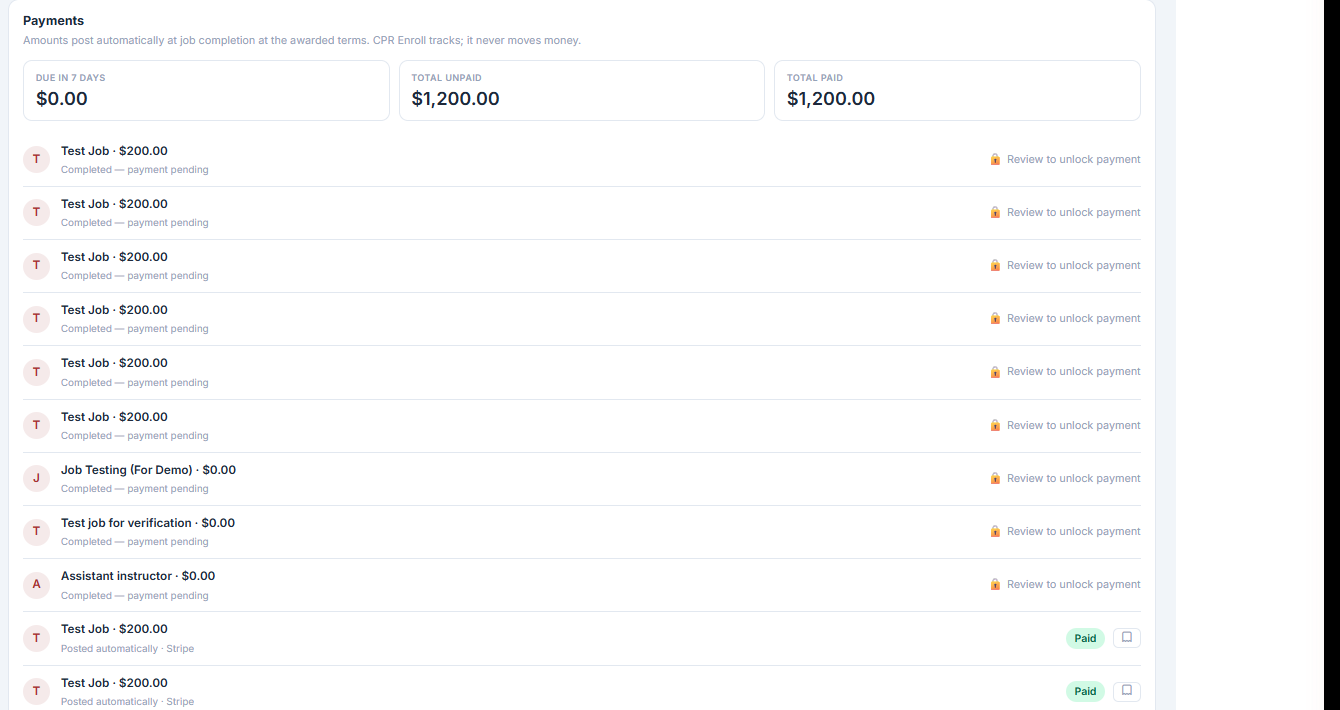
The Payments page is the ledger side of Jobs. It records what you owe and what you have paid, so awarded work does not quietly go unpaid. The page states the model at the top: amounts post automatically at job completion at the awarded terms — CPR Enroll tracks; it never moves money.
Before You Begin
- Find it at Jobs → Payments.
- No payment method is configured here and none is needed. You pay instructors outside the platform and record it here.
- Payment release is linked to the post-job review, so expect to complete reviews as part of closing out work.
✔ CPR Enroll never moves money. Every amount on this page is a record of an obligation or a payment you made elsewhere — cheque, Zelle, ACH, payroll, however you already pay.
Step 1: Understand How Entries Appear
When a job completes, an entry posts to both ledgers — the organization ledger and the instructor ledger — at the rate that was awarded. You then record the real-world payment you made.
Step 2: Read the Three Summary Cards
- Due in 7 days — what is about to come due.
- Total unpaid — your outstanding obligation.
- Total paid — what has been recorded as settled.
Step 3: Read a Payment Row
Each row shows the job name and amount, with a status line beneath it:
| Status line | Meaning |
|---|---|
| Completed — payment pending | The job is done and the amount is owed. A ? Review to unlock payment link appears — complete the review to release it. |
| Posted automatically · Stripe with a Paid chip | The payment has been recorded. |
Step 4: Record a Payment
- Find the row for the completed job.
- Click Record Payment.
- Log how you actually paid — cheque, Zelle, ACH, or anything else.
This is a record-keeping action. No money moves through CPR Enroll.
Step 5: Clear a Locked Payment
The Review to unlock payment prompt exists because ratings and payment release are linked. Completing the post-job review clears the lock.
✔ A locked payment is almost always an unwritten review. If an instructor asks why they are still showing unpaid, check whether your side of the review is outstanding.
Step 6: Expect Nudges
Instructors can send a polite Nudge on unpaid work. A nudge is a reminder, not a dispute — treat it as a prompt to either record the payment you already made or complete the outstanding review.
Best Practices
- Record payments the same day you make them. The ledger is only as useful as it is current.
- Complete post-job reviews promptly — they gate payment release and they feed the double-blind rating system.
- Use Due in 7 days as your weekly run sheet rather than working from Total unpaid.
- Note the actual payment method in Record Payment. Six months later, “paid” without a method is not much of a record.
- Answer nudges rather than dismissing them. Most are a bookkeeping gap, not a complaint.
Frequently Asked Questions
| Question | Answer |
|---|---|
| Does CPR Enroll pay the instructor for me? | No. It tracks; it never moves money. |
| When does an amount appear? | Automatically at job completion, at the awarded terms, on both the organization and instructor ledgers. |
| Why is a payment locked? | Payment release is linked to the post-job review. Complete the review to unlock it. |
| What does Record Payment do? | Logs how you actually paid — cheque, Zelle, ACH or otherwise. It is record-keeping only. |
| What is a Nudge? | A polite reminder from an instructor on unpaid work. It is a reminder, not a dispute. |
| What do the three summary cards show? | Due in 7 days, Total unpaid and Total paid. |
✔ You’re all set. Reviews completed and payments recorded closes the Jobs loop from post to payout.
Was this article helpful?
That’s Great!
Thank you for your feedback
Sorry! We couldn't be helpful
Thank you for your feedback
Feedback sent
We appreciate your effort and will try to fix the article