Clickup – Actions & Triggers in Workflows
TABLE OF CONTENTS
- 1. Introduction
- 2. Triggers and Actions
- 3. Getting Started
- 4. How ClickUp Triggers Work
- 5. Common Use Cases
- 6. FAQs
1. Introduction
The ClickUp integration enables seamless automation between your CRM workflows and ClickUp’s project management platform. Whether you’re managing client delivery, tracking internal projects, or ensuring tasks are always up to date, this integration connects automation with ClickUp’s task and documentation features.
Why It Matters
With this integration, agencies, marketers, and SMBs can:
Automatically turn CRM events (like form submissions or appointment outcomes) into ClickUp tasks.
Keep project management in sync with client interactions.
Save time by reducing manual task creation and project updates.
2. Triggers and Actions
Triggers (ClickUp → Workflows)
These are events in ClickUp that can initiate workflows :
| Trigger Name | Description |
|---|---|
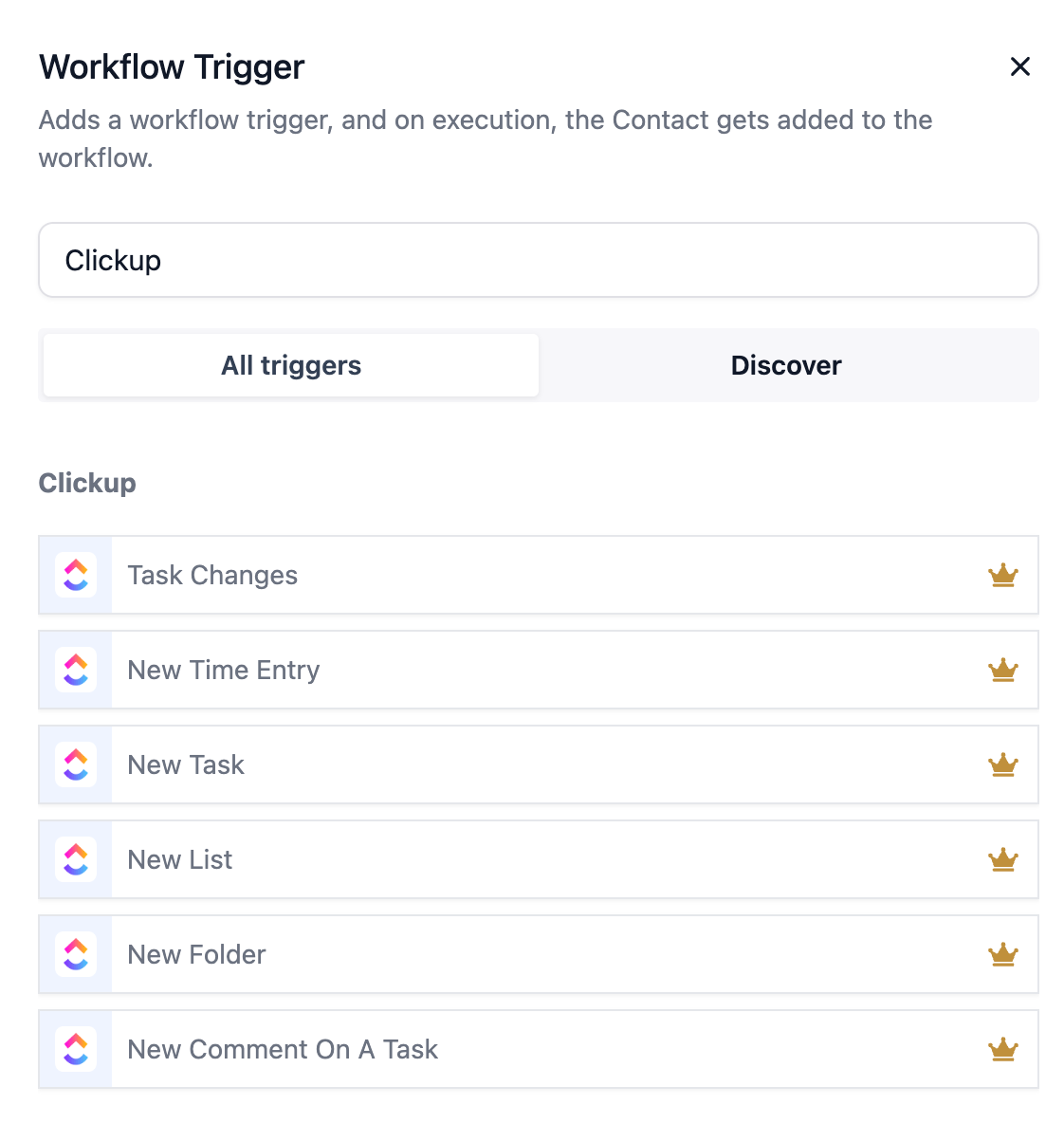
| New Task | Fires when a new task is created in ClickUp |
| New Comment on a Task | Fires when a new comment is added to a task |
| New List | Fires when a new list is created |
| New Attachment Added to Task | Fires when an attachment is added to a task |
| Task Changes | Fires when a task is updated (status, due date, etc.) |
| New Reaction Added to Chat Message | Fires when a reaction is added to a public channel message |
| New Folder | Fires when a new folder is created |
| New Reaction Added to Task Comment | Fires when a reaction is added to a task comment |
| New Time Entry | Fires when time is logged via ClickUp’s time tracking |
Actions (Workflows → ClickUp)
These are actions that can execute in ClickUp through workflows:
| Action Name | Description |
|---|---|
| Archive or Delete Task | Archive or delete a task in ClickUp |
| Create New Document | Create a document in a specified location |
| Create Space | Create a new workspace/team space |
| Create Folder | Add a new folder to organize tasks and lists |
| Post a Task Comment | Add a comment to an existing task |
| Post Attachment | Upload a file or attachment to a task |
| Create Task | Generate a new task with fields like name, due date, assignee |
| Edit Document Page | Make changes to an existing ClickUp document page |
| Create New Document Page | Add a new page within an existing document |
| Create Custom Field [Coming Soon] | Add a custom field to a space, folder, or task |
| Create List | Create a new task list |
| Update Custom Field Value [Coming Soon] | Modify the value of a custom field on a task |
| Update Task | Update an existing task (status, due date, priority, etc.) |
| Find Task by ID | Locate a specific task using its ID |
| Find Documents | Search for documents within ClickUp |
| Find Custom Fields | Locate a specific custom field |
| Find a List of All Tasks | Fetch all tasks from a workspace/list |
| Find User by Name or Email | Look up users in ClickUp |
3. Getting Started
Follow these steps to start using ClickUp triggers and actions in your workflows:
Search in Workflows
Open your workflow builder and search for any ClickUp actions or triggers you’d like to add.
Connect Your Account
If your ClickUp account is already connected, you’ll see the configuration options right away.
If not, click Connect Now and complete the integration setup.
Alternative Method
You can also connect from Settings → Integrations.
Find ClickUp in the list of available integrations and complete the authorization process.
Once connected, you’ll be able to seamlessly add ClickUp triggers and actions to your automations.
4. How ClickUp Triggers Work
ClickUp triggers rely on webhooks through ClickUp’s API. When a trigger condition is met (like a new task or a status change), Workflows immediately processes the event and initiates the workflow.
Setup Instructions:
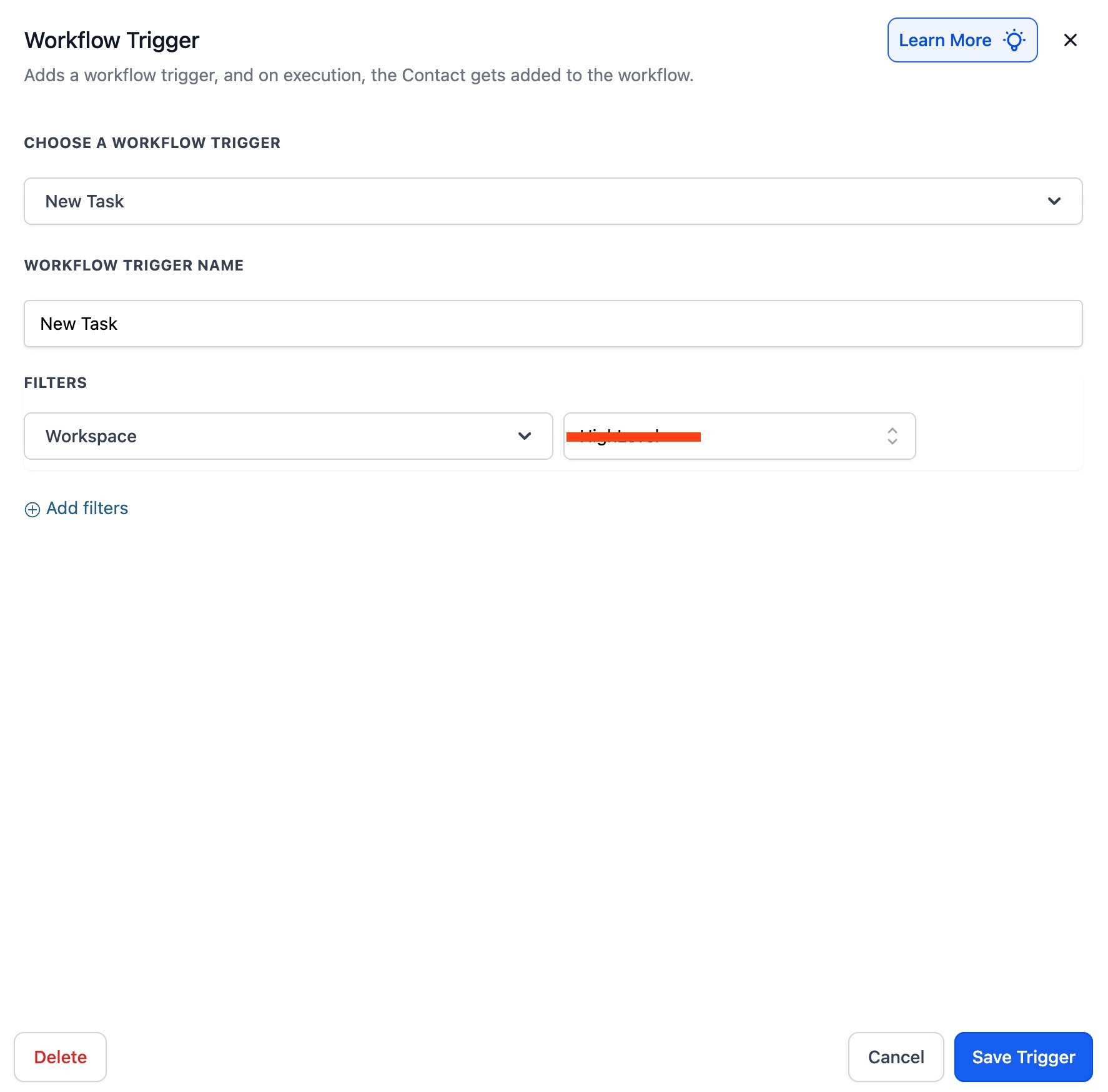
Choose a trigger (e.g., New Task).
Name your trigger and click Test Trigger.
Workflows will fetch metadata from ClickUp to enable field mapping in your workflow actions.
5. Common Use Cases
Use Case 1: Create ClickUp Tasks from Form Submissions
Goal: Convert form submissions into actionable ClickUp tasks.
Workflow Setup:
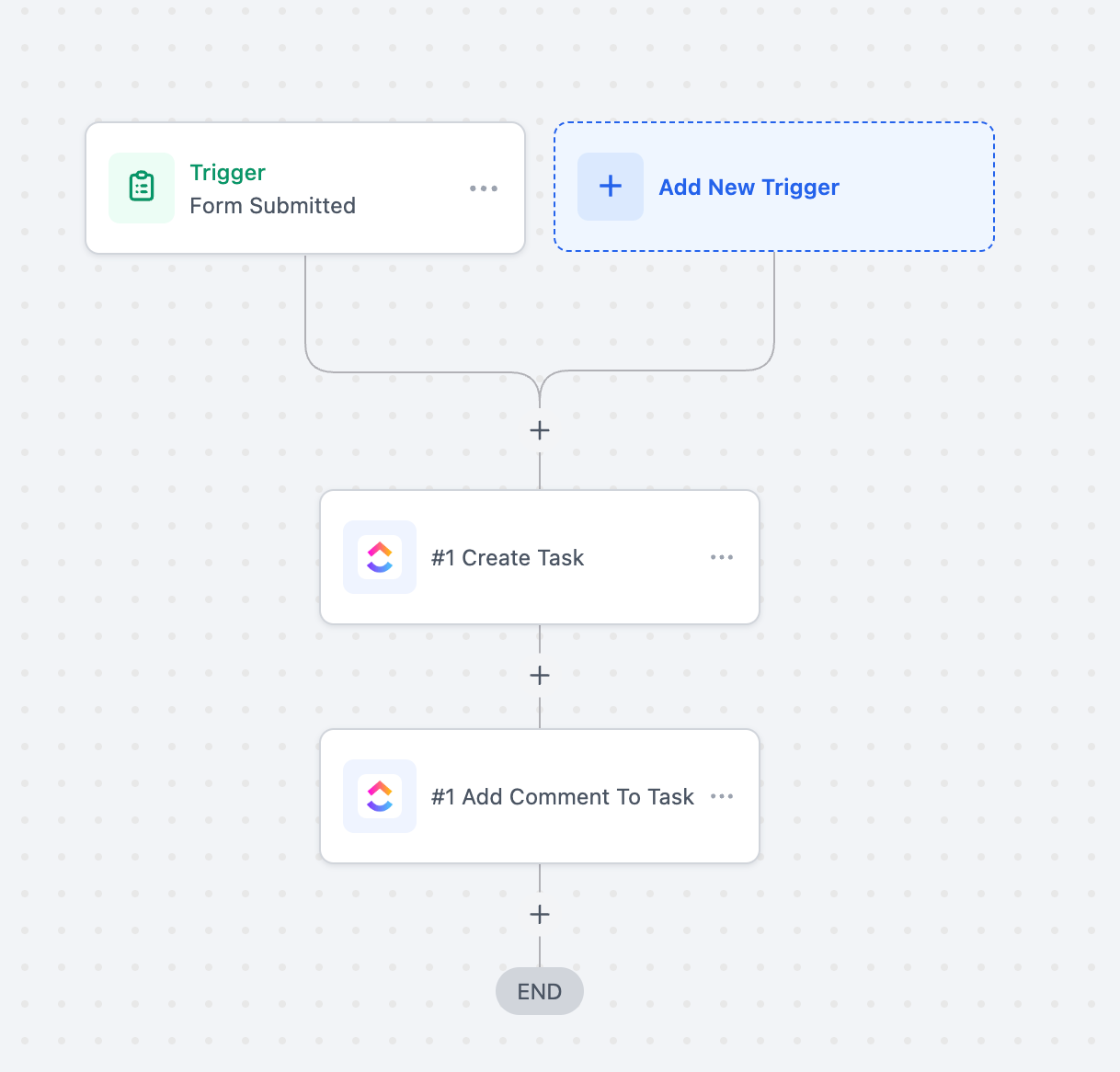
Trigger: Form Submitted
Filter: Form Name = “Client Onboarding Form”
Actions: Create Task (ClickUp), Add Task Comment (ClickUp)
Example:
A client submits the onboarding form with their requirement details → A task is created in the “Client Setup” list in ClickUp → A comment is added with the client’s expectations.
Use Case 2: Auto-Generate AI-Powered Proposal Documents
Goal: Automatically generate personalized proposals, briefs, or summaries when an opportunity changes stage, using AI to draft content and ClickUp to store the document.
Workflow Setup:
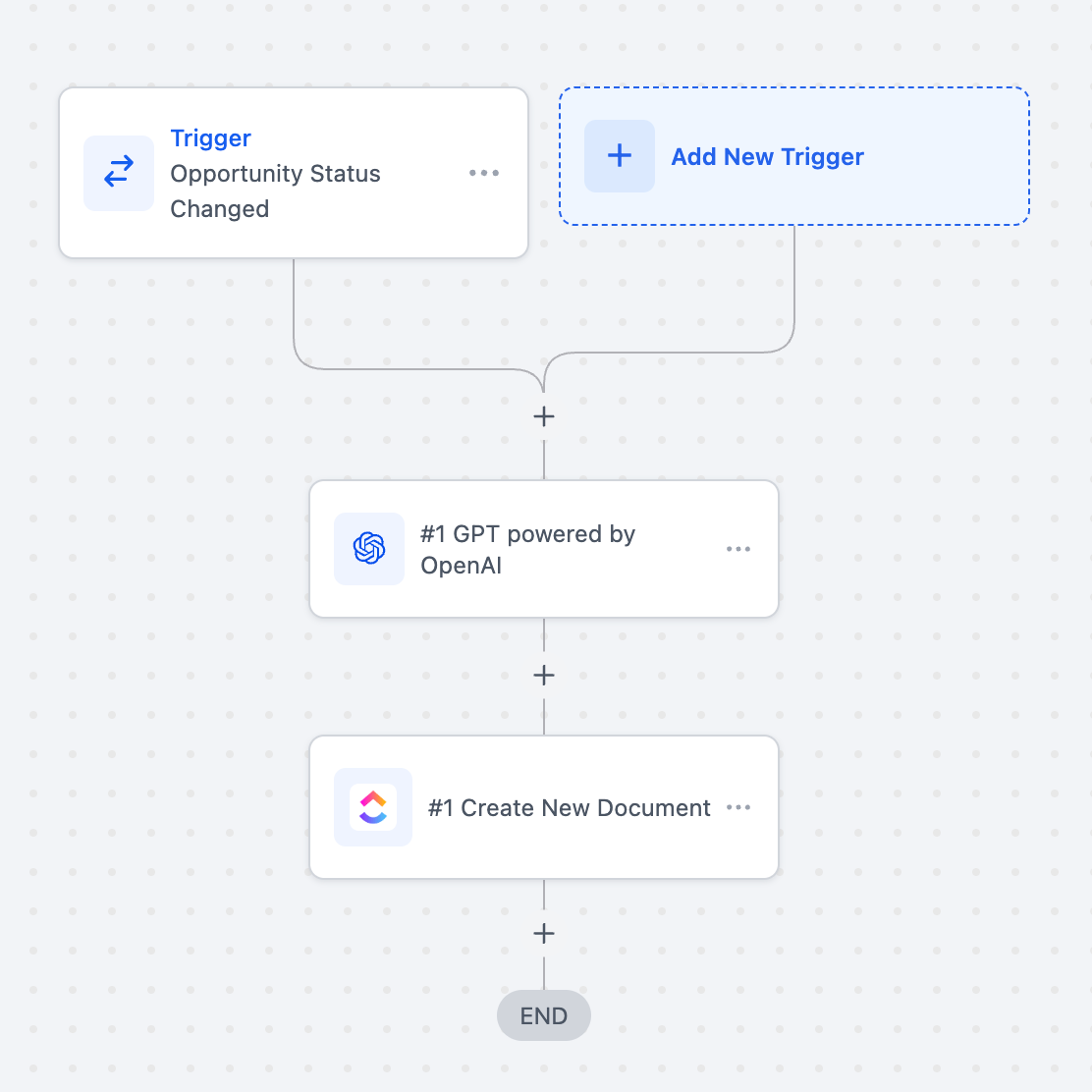
Trigger: Opportunity Status Changed
Filter: Stage = “Proposal request” (or any relevant pipeline stage)
Actions:
GPT powered by OpenAI → Generate proposal content (e.g., client-specific summary, deliverables, pricing outline).
Create New Document (ClickUp) → Save the AI-generated proposal in ClickUp under the “Sales Docs” folder.
Example:
A deal advances to the “Proposal Sent” stage → GPT generates a tailored proposal titled “Proposal for {{contact.name}}” with scope, deliverables, and pricing → A new ClickUp document is automatically created and shared with the sales team for review.
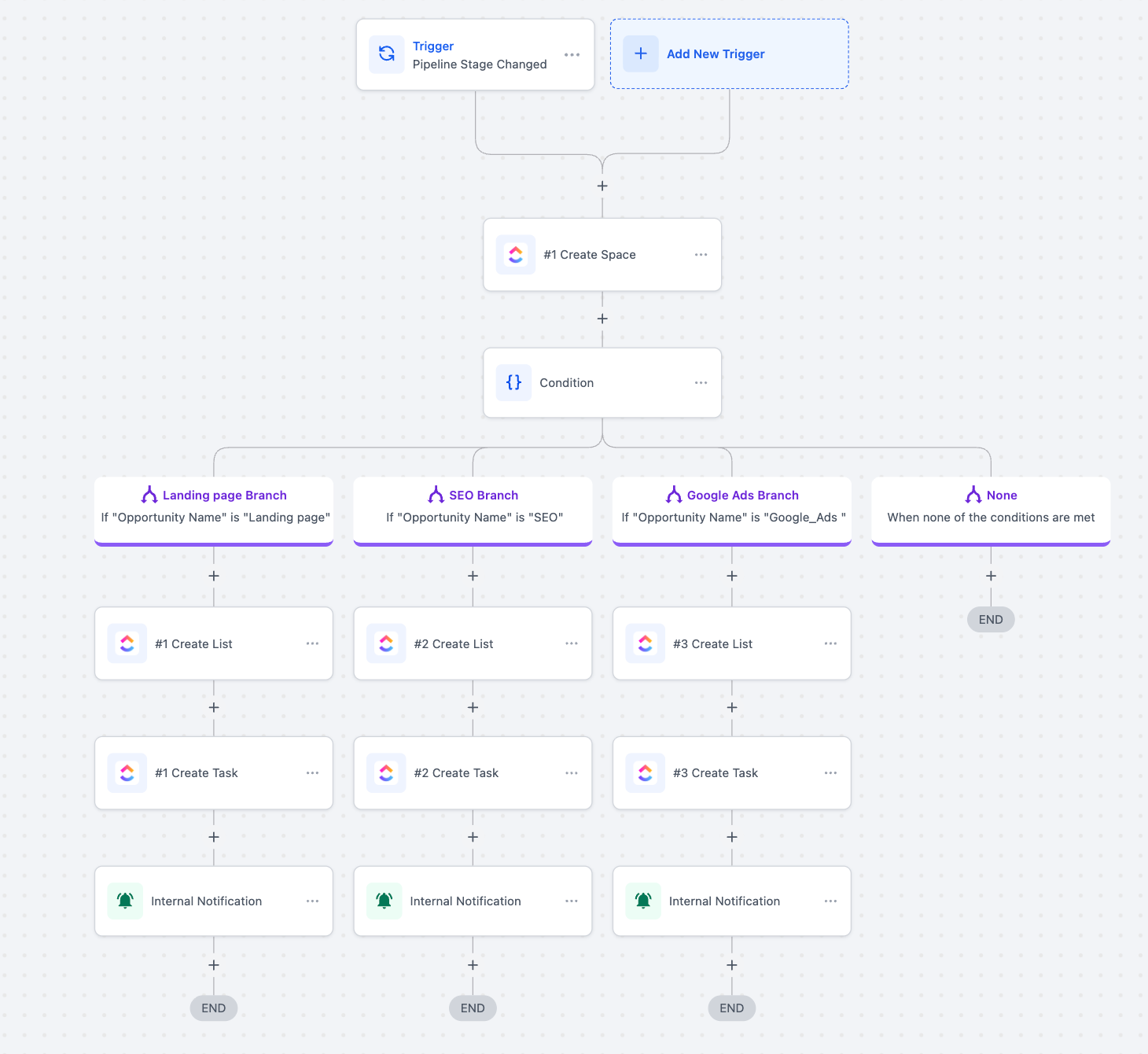
Use Case 3: Auto-Build Project Spaces Based on Opportunity Type
Goal: Automatically set up structured project workspaces in ClickUp whenever a deal moves to a new stage, with tasks and notifications tailored to the service type (Landing Page, SEO, or Google Ads).
Workflow Setup:
Trigger: Pipeline Stage Changed
Action: Create Space in ClickUp (named after the client/opportunity)
Condition Branching:
Landing Page Branch → If Opportunity Name = “Landing Page”
Create List: Landing Page Project
Create Task: “Design Landing Page”
Internal Notification to assigned team
SEO Branch → If Opportunity Name = “SEO”
Create List: SEO Setup
Create Task: “Keyword Research & Site Audit”
Internal Notification to SEO team
Google Ads Branch → If Opportunity Name = “Google_Ads”
Create List: Google Ads Campaign
Create Task: “Campaign Setup & Tracking”
Internal Notification to Ads team
None Branch → Ends workflow if conditions are not met
Example:
A deal moves to the “Contract Signed” stage. If the opportunity is for SEO, a new ClickUp space named “[Client Name] - SEO Project” is created. Inside it, an SEO Setup list is generated with a first task: Keyword Research & Site Audit. An internal notification is sent to the SEO manager, ensuring immediate project kickoff.
6. FAQs
Q: Do I need a paid ClickUp plan to use this integration?
A: No, the integration works with both free and paid accounts. However, features like time tracking or custom fields may require a premium plan.
Q: Is this integration available to all Workflows users?
A: Yes, it’s available to all accounts with access to workflows and integrations.
Q: How many workflows can I build with ClickUp?
A: There no workflow limits from Workflows and ClickUp integration itself doesn’t impose limits beyond ClickUp’s API rate caps.
Q: Are these actions and triggers paid?
A: Yes. These are premium actions and will be billed at the standard rates. If you’re on a Pro plan , usage will be billed at the plan’s default rates.
Was this article helpful?
Related articles
- Set Event Start Date Event In WorkflowsIn this guide, we'll explore the "Set Event Start Date" Workflow Action, a dynamic tool that allows you to schedule tasks and reminders within your workflow for precise event management. This feature is crucial for maintaining well-organized webinars, conferences, or personalized notification systemWorkflow
- How to use the Inbound Webhook Workflow Premium Trigger?Inbound Webhooks enable seamless CRM integration by allowing external systems to automatically send data using various HTTP request methods like GET, POST, and PUT. This real-time data transfer capability enhances CRM functionality and streamlines workflows, facilitating efficient communication and Workflow
- How to use the Custom Webhook LC Premium Workflow Action?The Custom Webhook - LC Premium Action is a feature enabling real-time data exchange between your CRM and third-party services. It allows tailored requests with various HTTP methods, authorization, headers, and query parameters. This user-friendly tool ensures efficient and accurate workflows while Workflow
- How to use the Workflow Slack Premium Action?Workflow Slack Premium Action is a feature that enables users to send automated messages to Slack channels and users, streamlining communication and improving team collaboration. The action offers three main events: sending a message to a user, a private channel, or a public channel. Covered in thWorkflow