Workflow Builder - Overview
TABLE OF CONTENTS
- Infinite Canvas layout
- Add New Trigger
- Add New Action
- Stats View
- Test Workflow
- Save Workflow
- Version History
- Draft/Publish
Infinite Canvas layout
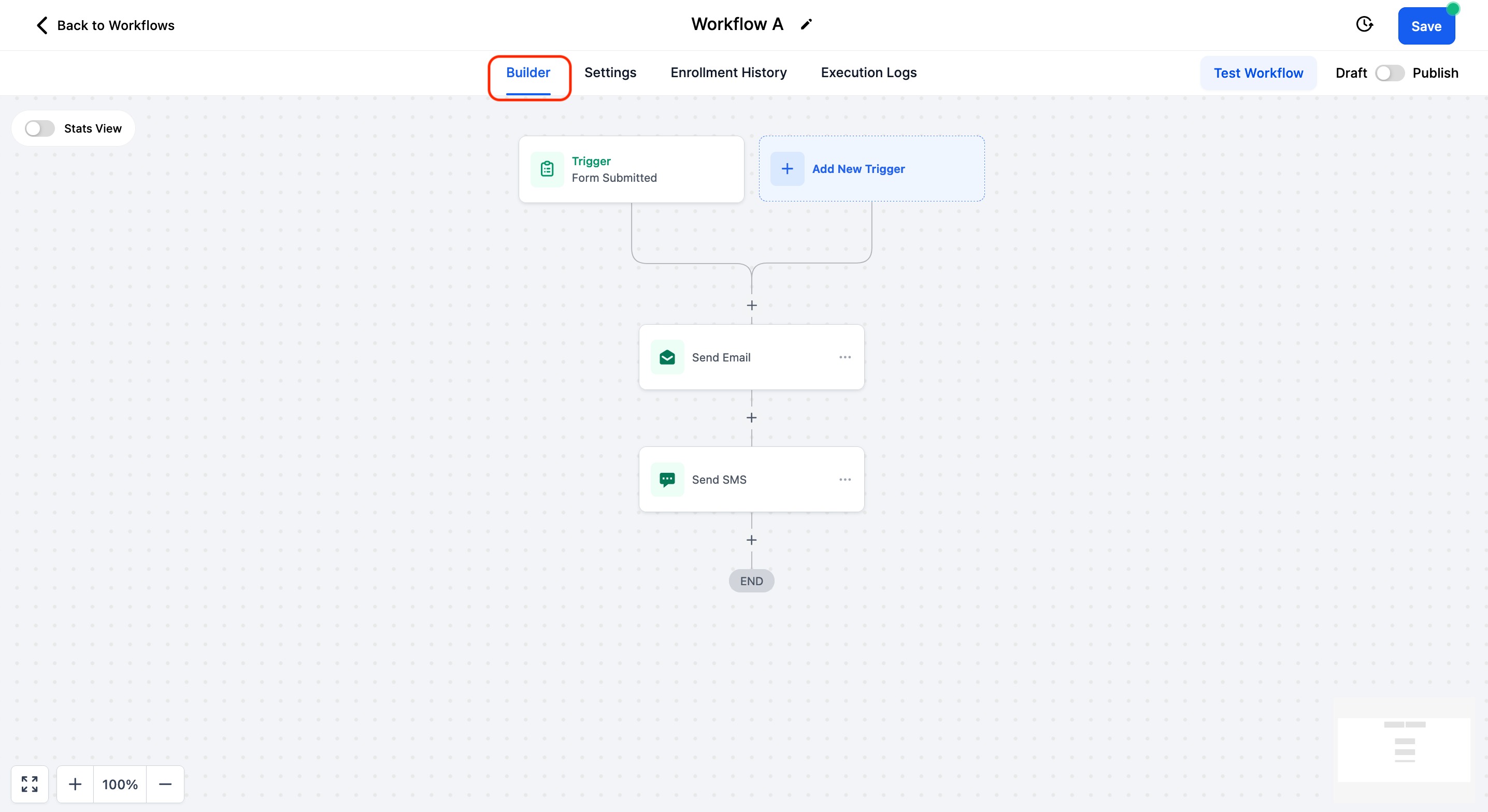
Use the "Fit to Screen" and "Zoom In/Zoom Out" buttons in the bottom left of the screen to control the view area. The Minimap in the bottom right shows the current position.
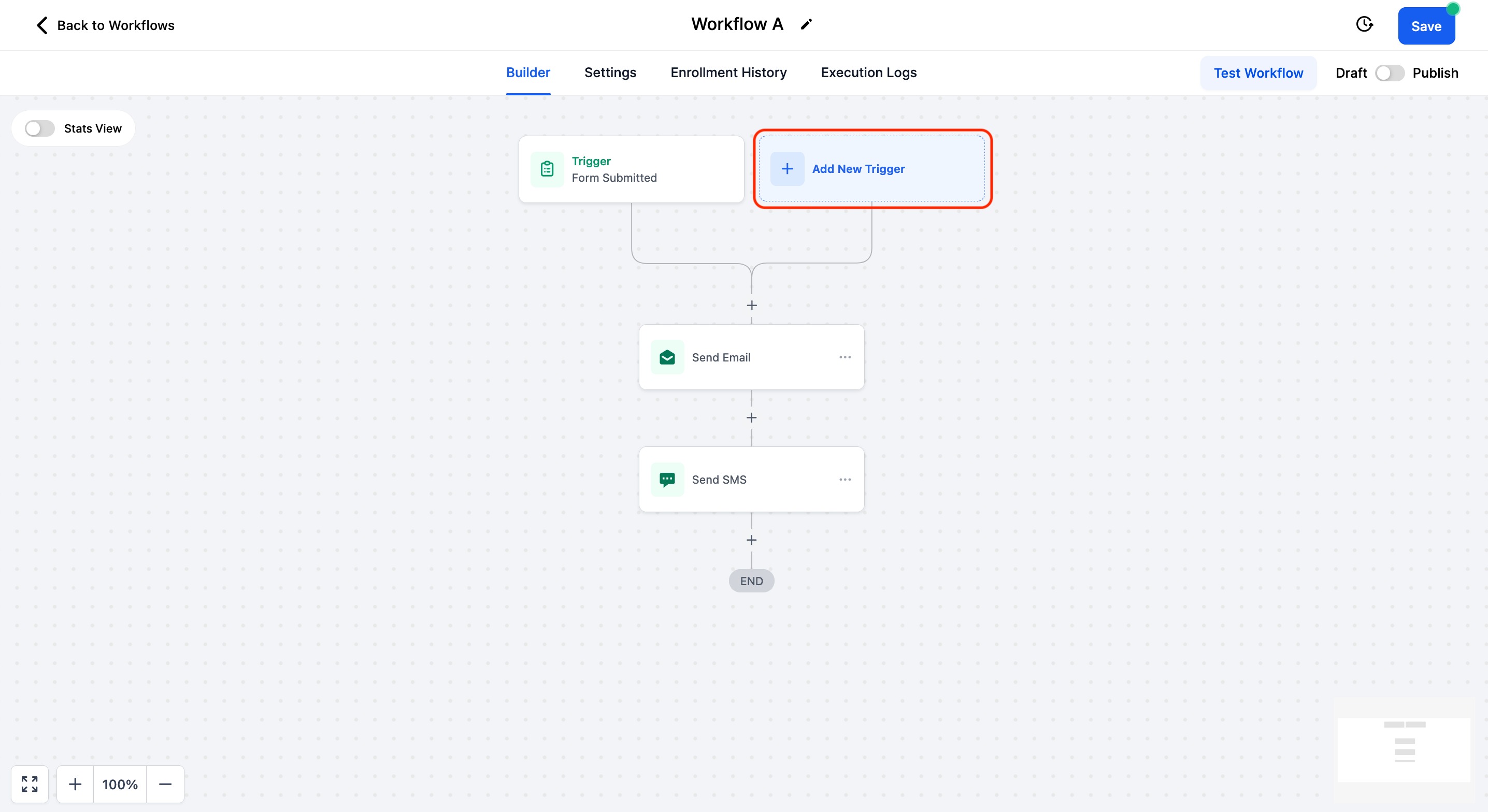
Add New Trigger
Click on "Add New Trigger" button to open the Workflow Triggers list
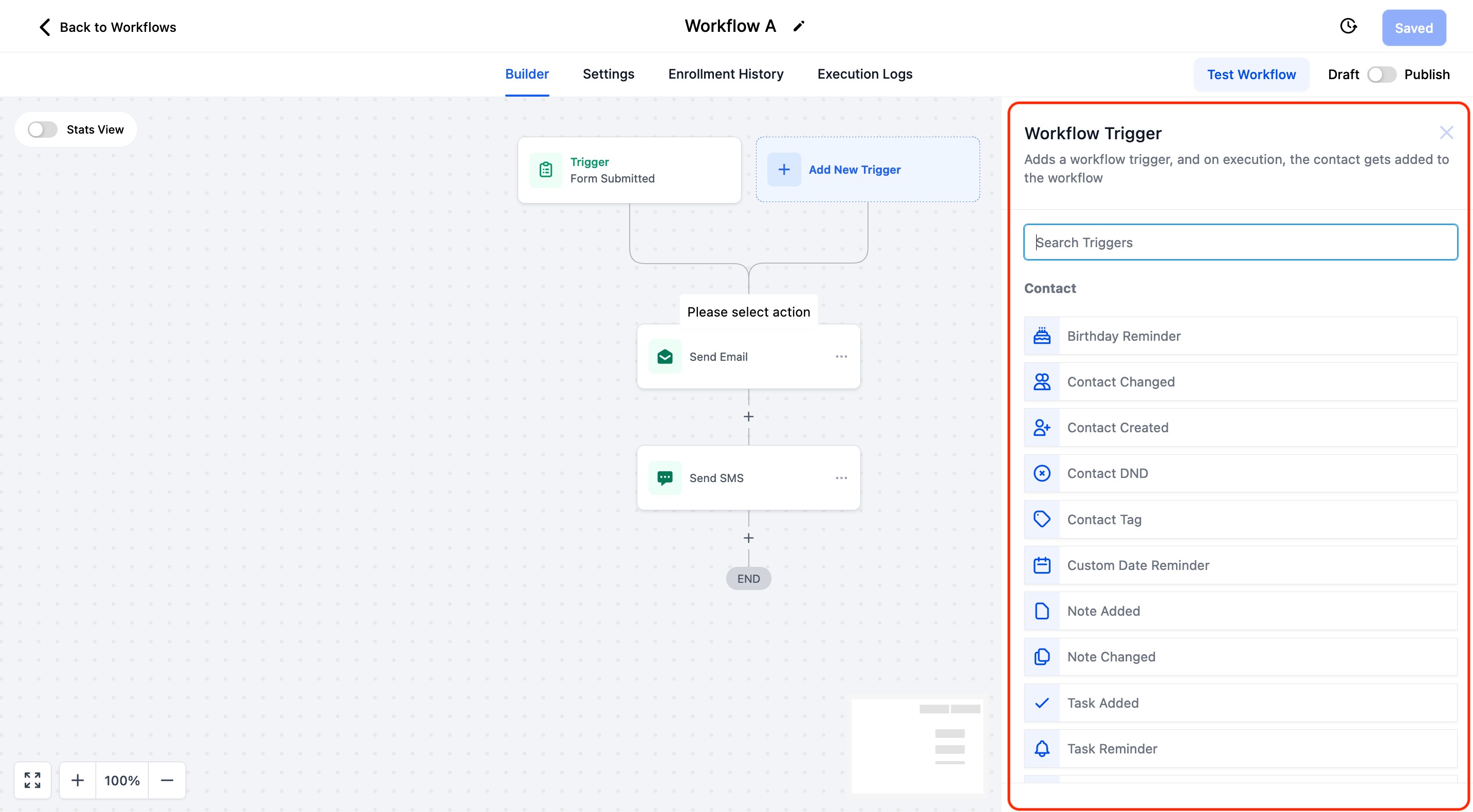
Select a Trigger from the list and configure
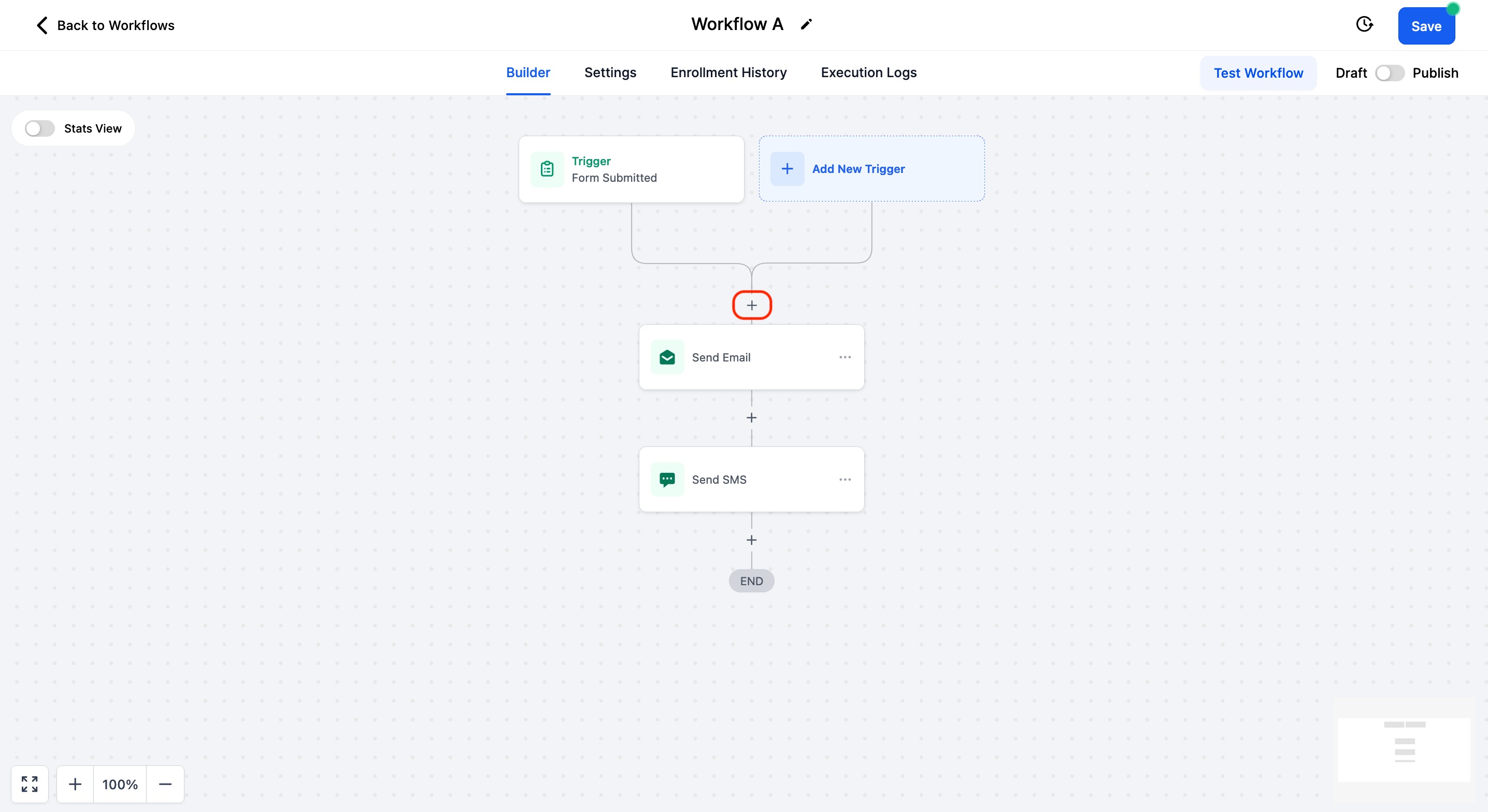
Add New Action
Click on "+" button to open the Workflow Actions list
Select an Action from the list and configure
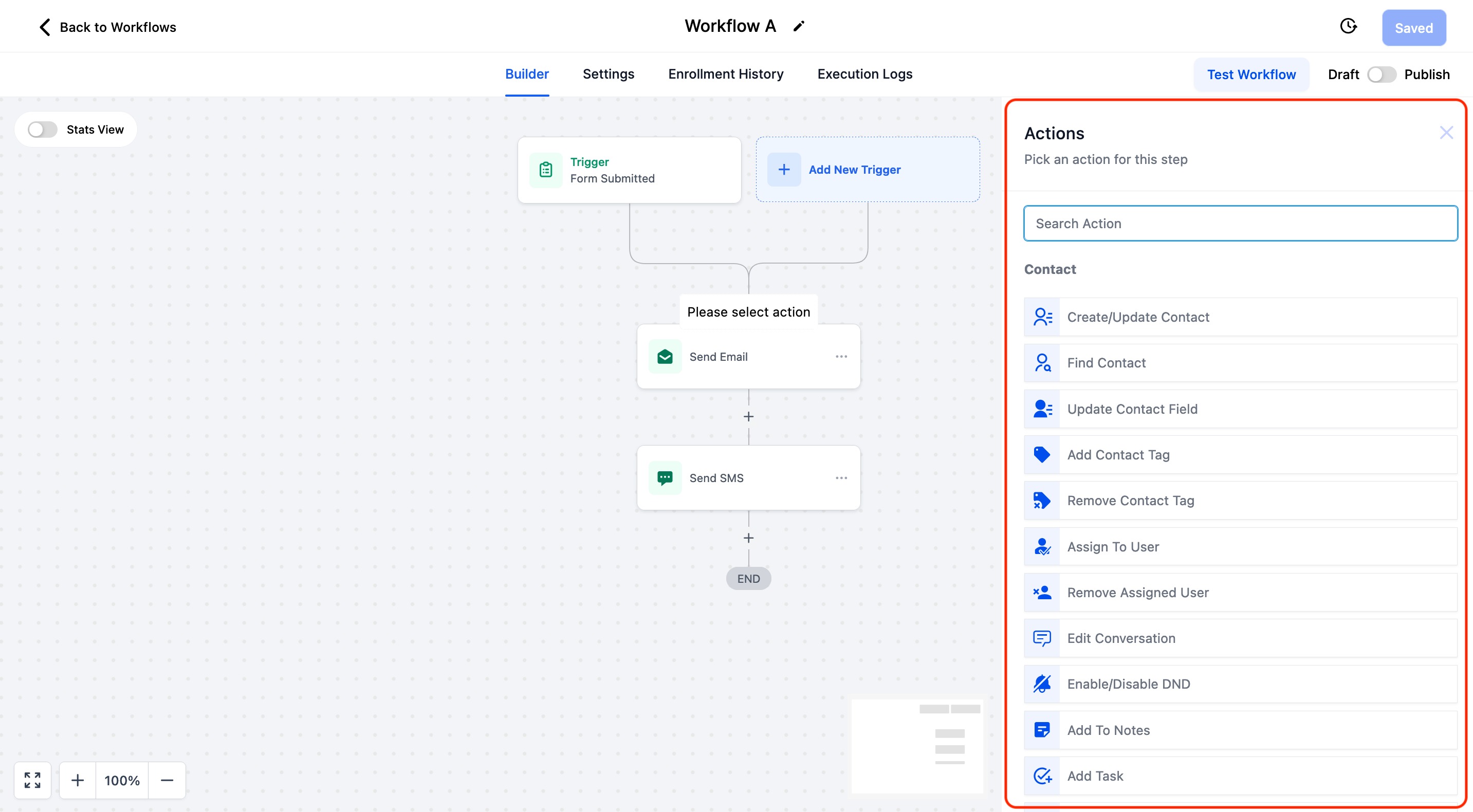
Stats View
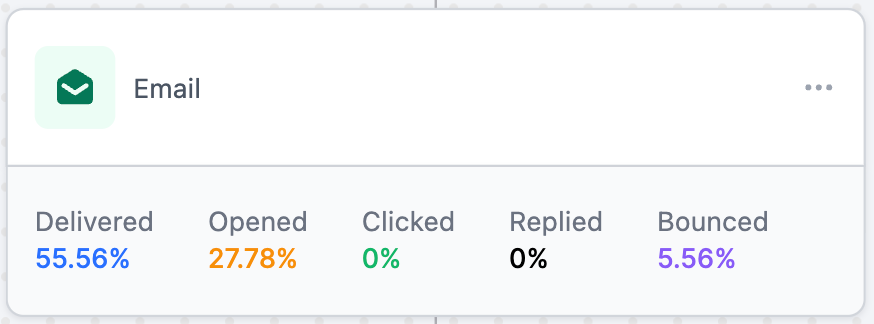
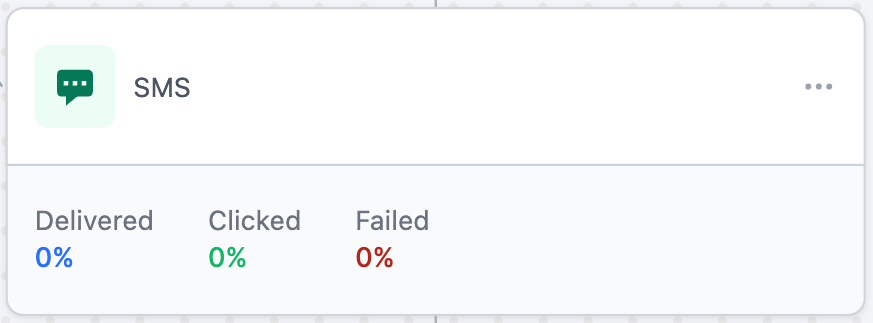
Turn on the "Stats View" in the top left to view Email and SMS stats in the builder
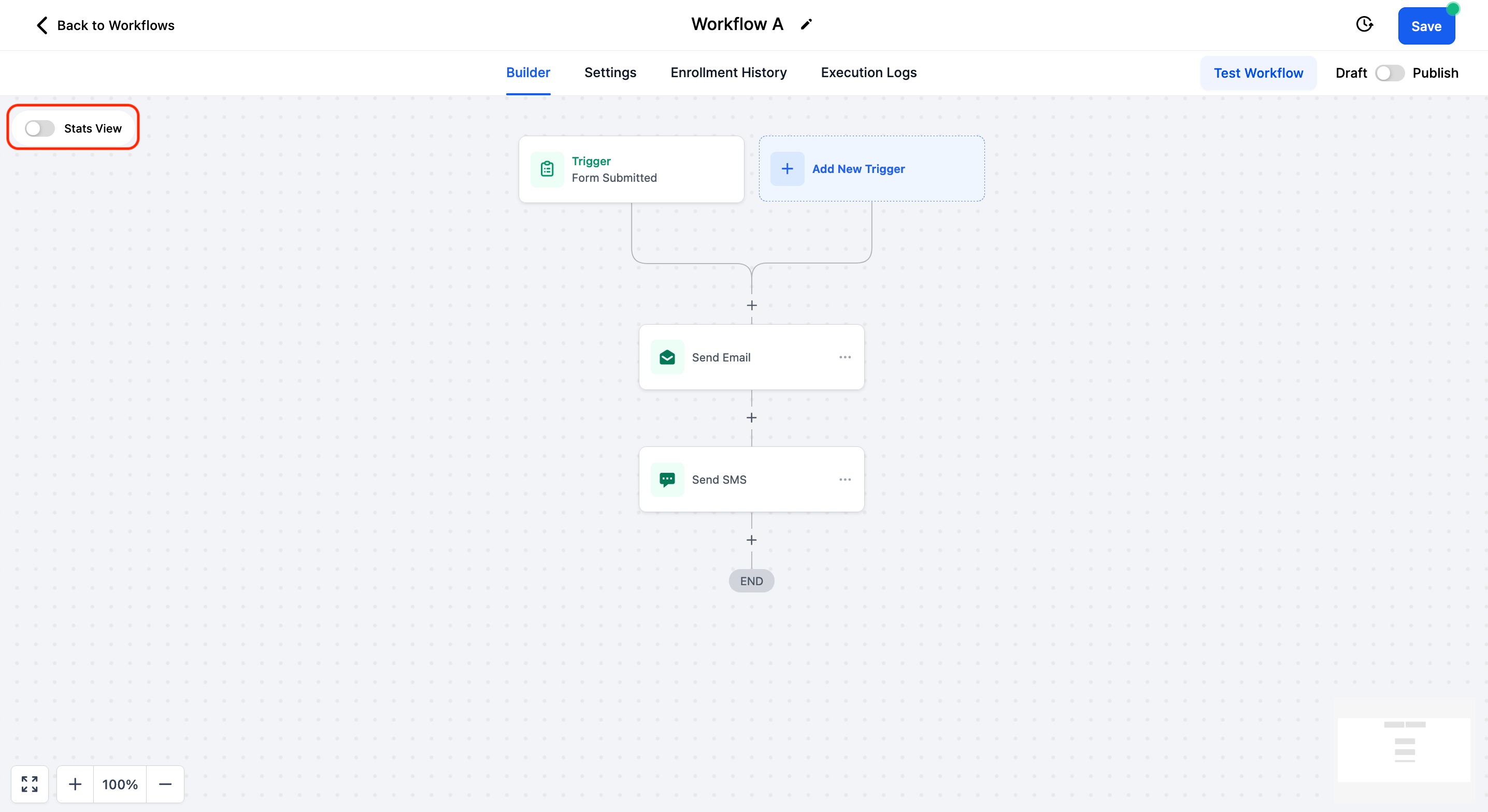
Open detailed statistics model by clicking on any of the stats data
Test Workflow
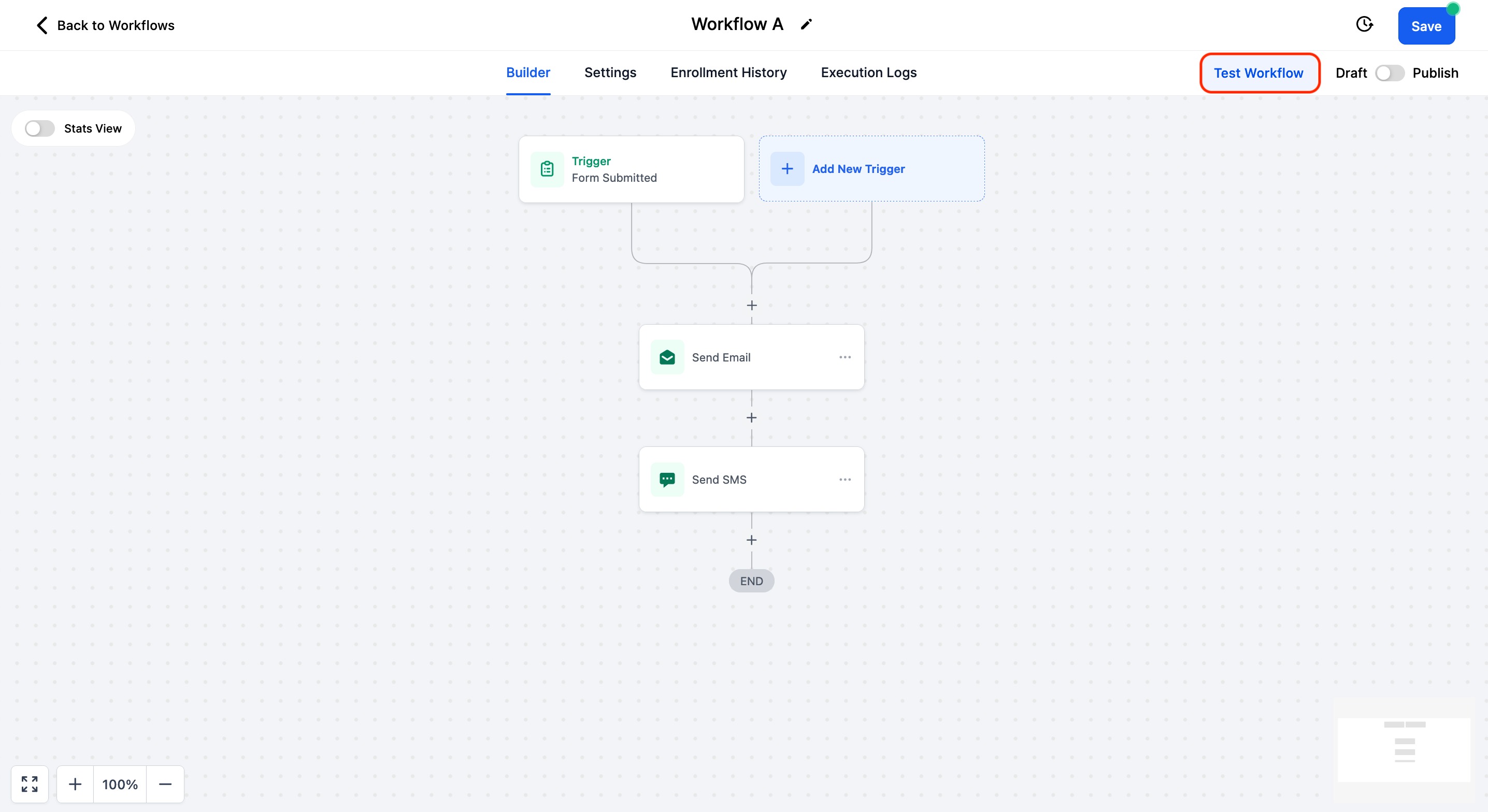
Click on the "Test Workflow" button in the top right
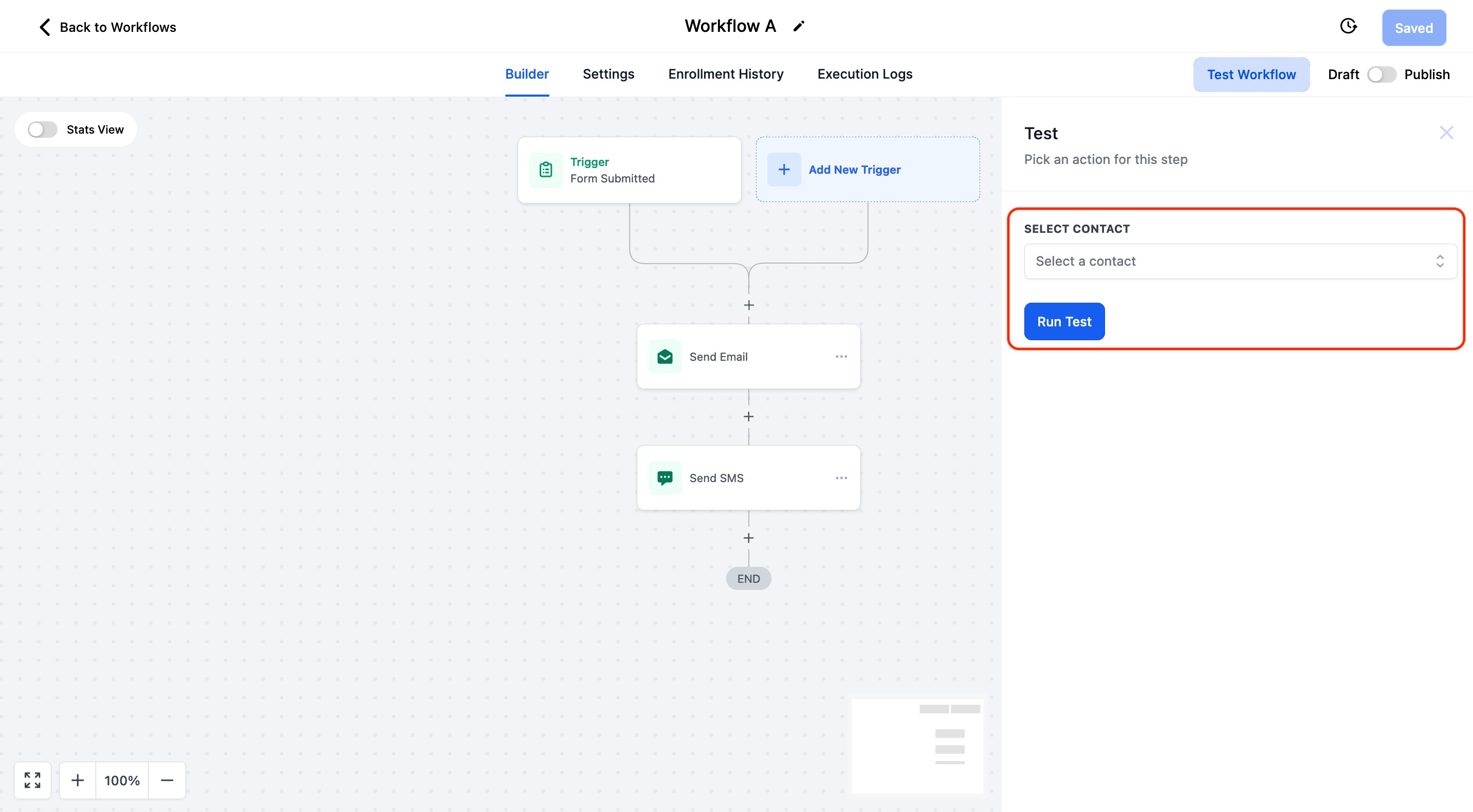
Select a contact and click on "Run Test" to start testing the workflow
Save Workflow
Click the "Save" button in the top right which indicates unsaved changes.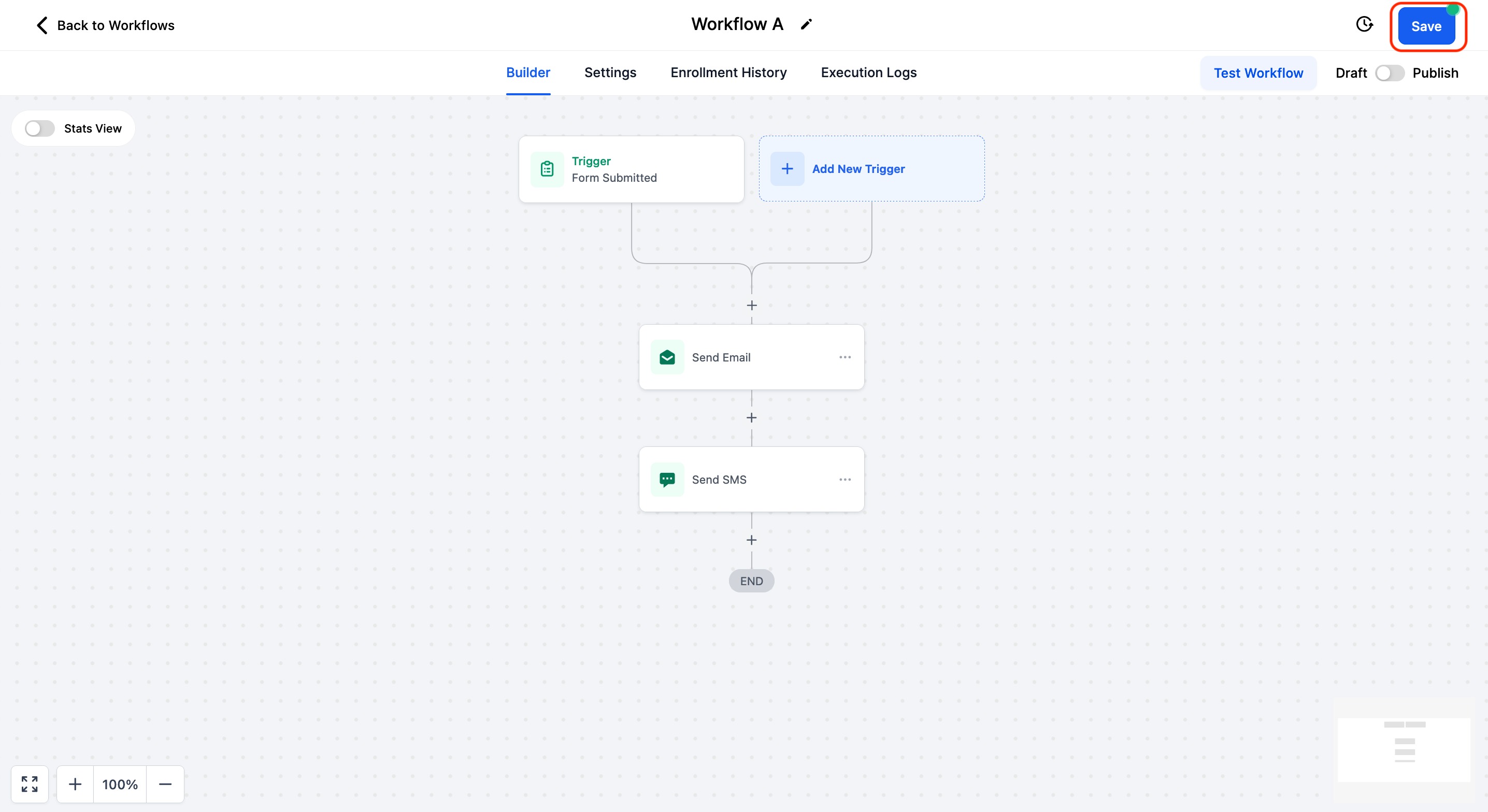
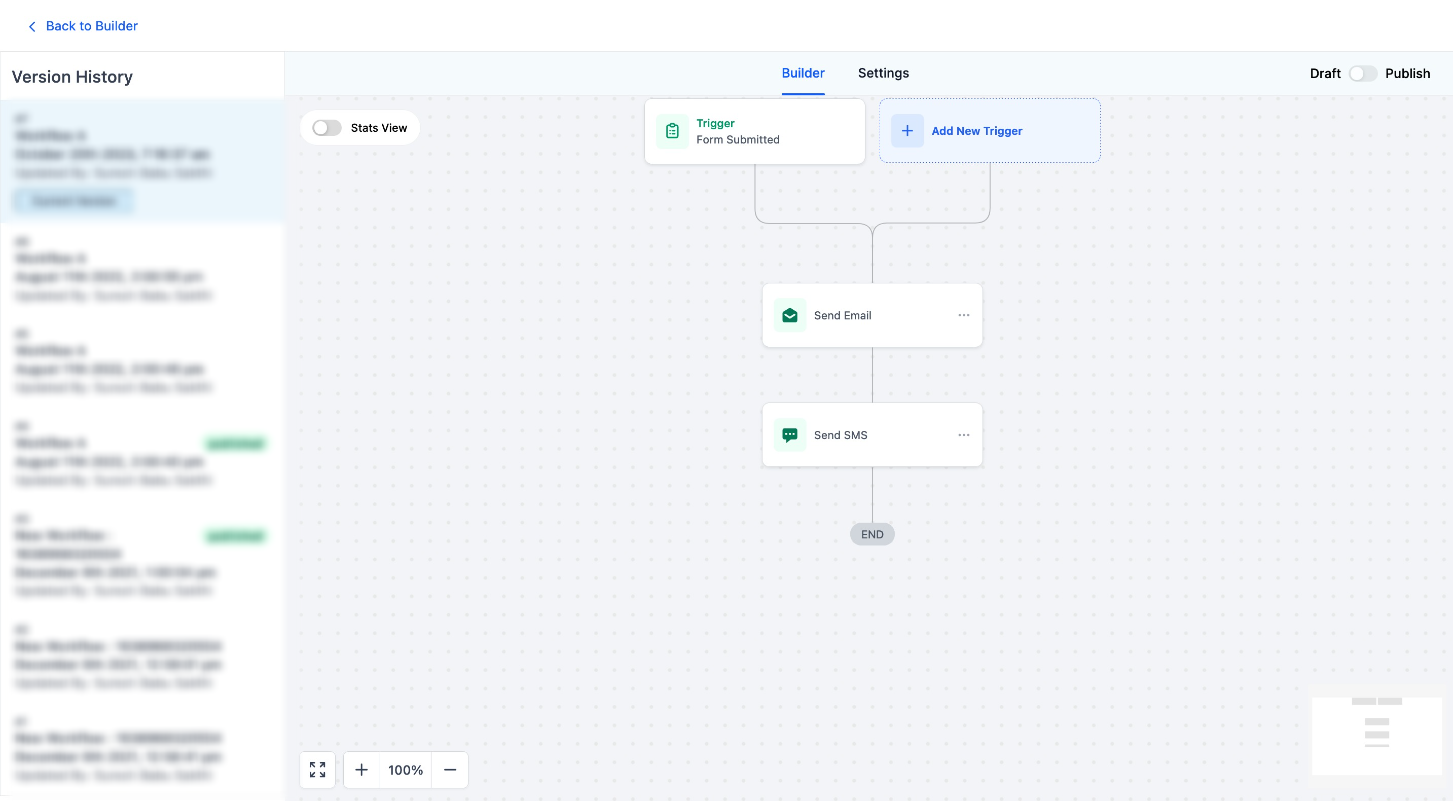
Version History
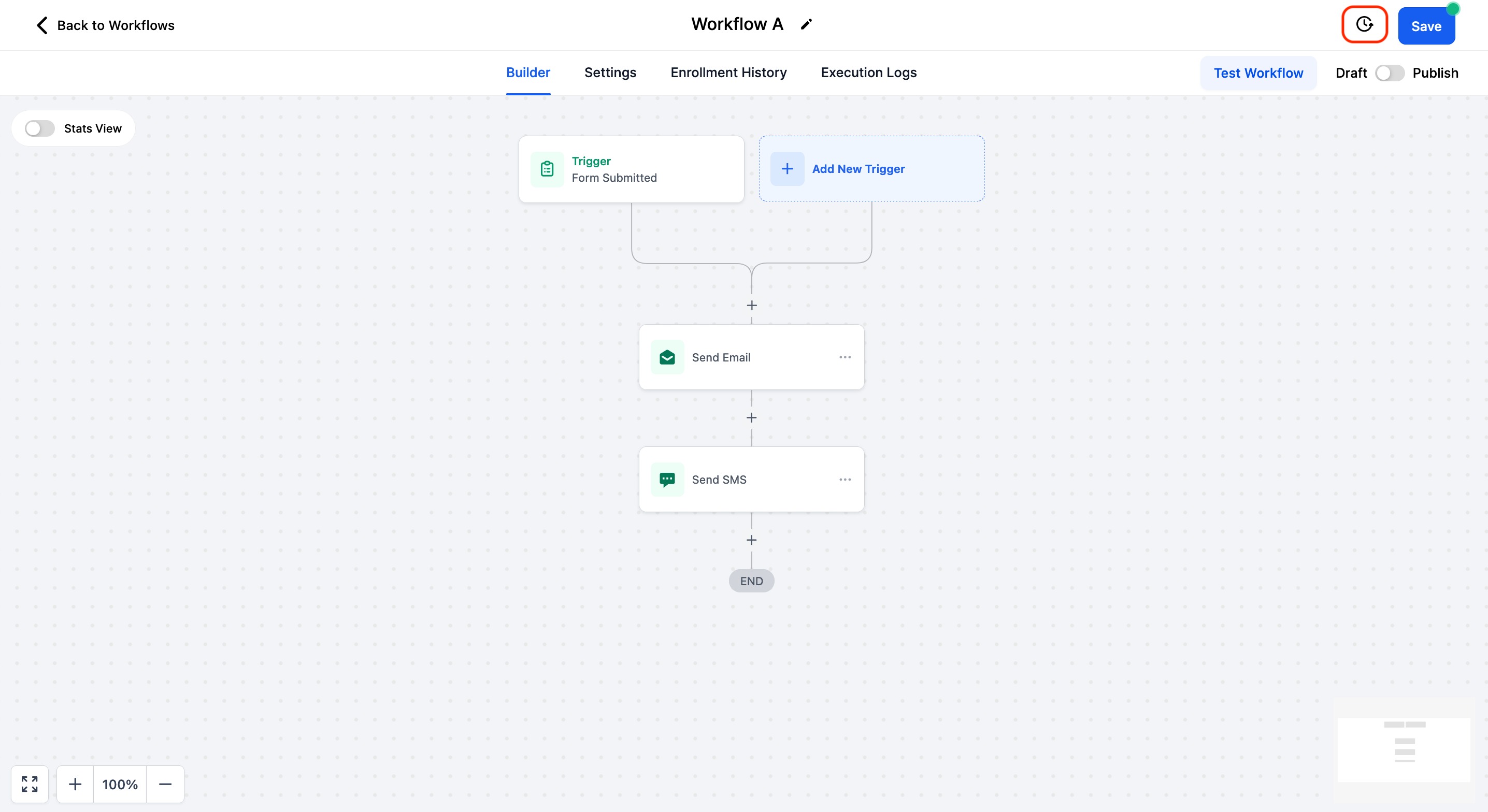
View history of changes made by clicking on the history icon in the top right
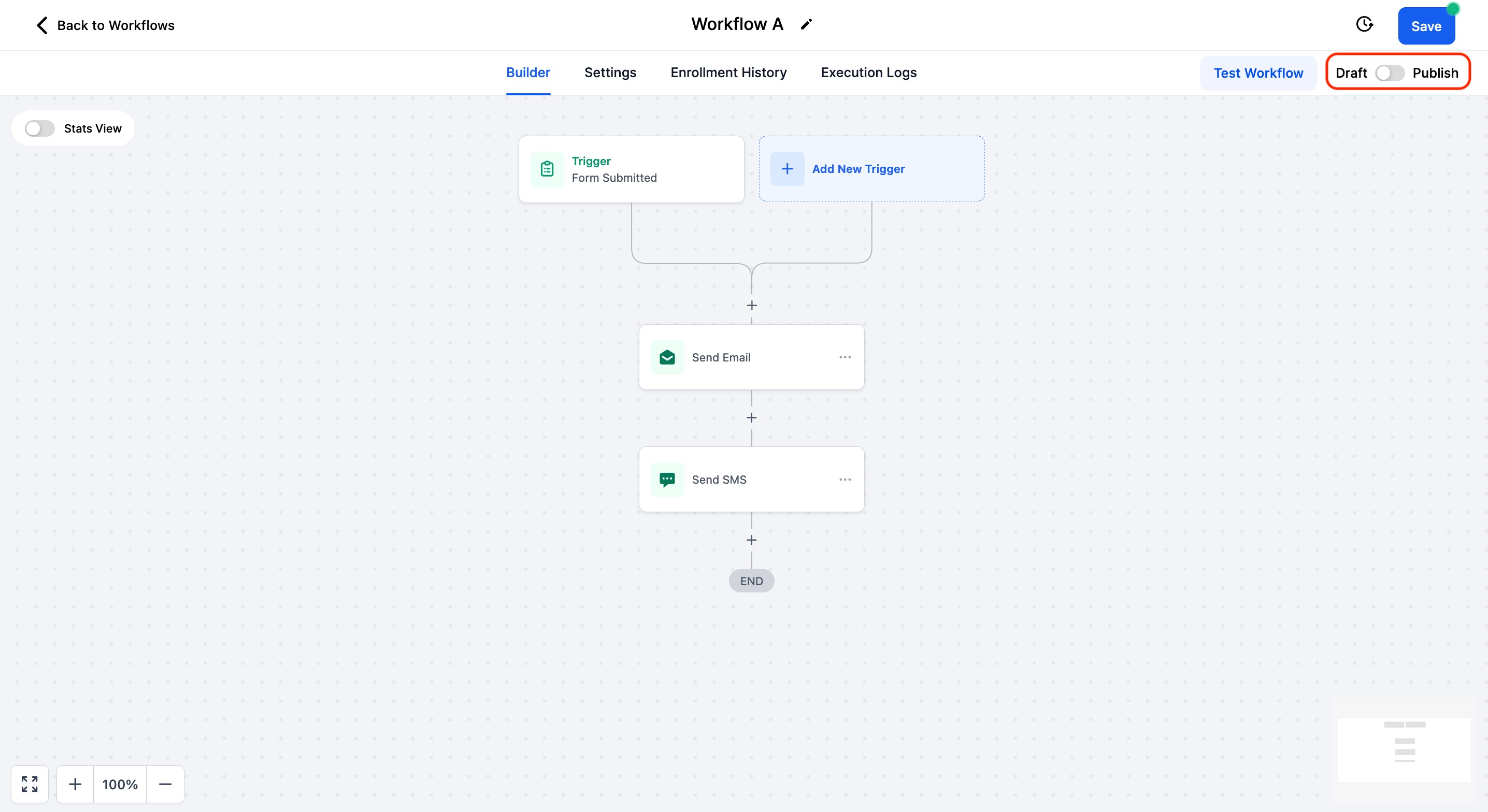
Draft/Publish
Publish workflow or switch back to Draft by switching the toggle on the top right
FAQs
Q1. What happens to contacts in my workflow if I set it to draft? Will they stay in the same step when I resume later?
Ans. If the contact is waiting on any off the waiting steps (wait, manual call, manual sms etc), they would be on the same step. when the workflow is resumed.
Was this article helpful?
Related articles
- Set Event Start Date Event In WorkflowsIn this guide, we'll explore the "Set Event Start Date" Workflow Action, a dynamic tool that allows you to schedule tasks and reminders within your workflow for precise event management. This feature is crucial for maintaining well-organized webinars, conferences, or personalized notification systemWorkflow
- How to use the Inbound Webhook Workflow Premium Trigger?Inbound Webhooks enable seamless CRM integration by allowing external systems to automatically send data using various HTTP request methods like GET, POST, and PUT. This real-time data transfer capability enhances CRM functionality and streamlines workflows, facilitating efficient communication and Workflow
- How to use the Custom Webhook LC Premium Workflow Action?The Custom Webhook - LC Premium Action is a feature enabling real-time data exchange between your CRM and third-party services. It allows tailored requests with various HTTP methods, authorization, headers, and query parameters. This user-friendly tool ensures efficient and accurate workflows while Workflow
- How to use the Workflow Slack Premium Action?Workflow Slack Premium Action is a feature that enables users to send automated messages to Slack channels and users, streamlining communication and improving team collaboration. The action offers three main events: sending a message to a user, a private channel, or a public channel. Covered in thWorkflow