Creating and Using Saved Views
A Saved View remembers a combination of filters, sorting, columns and display preferences so you can return to it in one click. If you find yourself re-applying the same three filters every morning, that is a Saved View waiting to be made.
Before You Begin
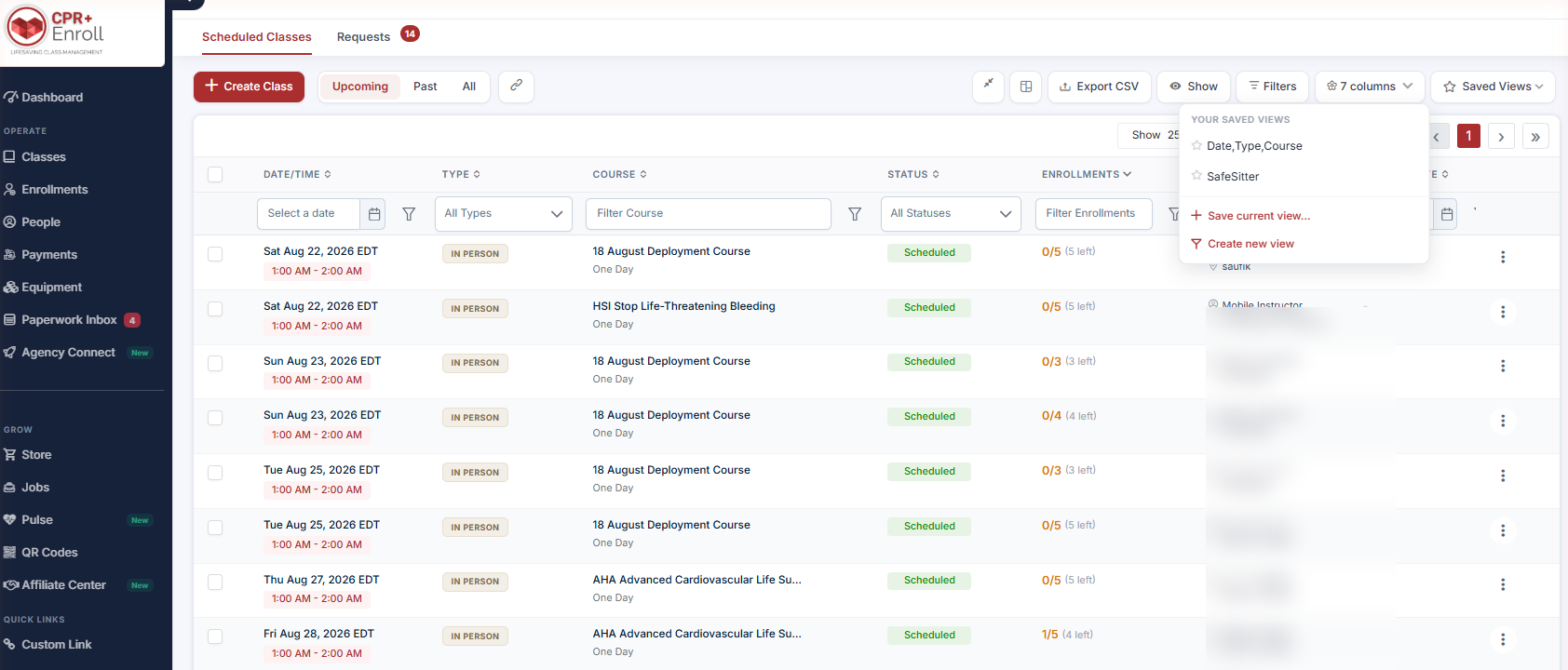
- Saved Views are reached from the Saved Views button in the Classes toolbar.
- They are also available on the Requests tab.
- Decide before saving whether the view is just for you or should be shared with your organization.
Step 1: Save the View You Are Already Looking At
This is the easiest route — configure first, save second.
- Set up the page the way you want it: filters, sort order, visible columns, comfortable or compact layout.
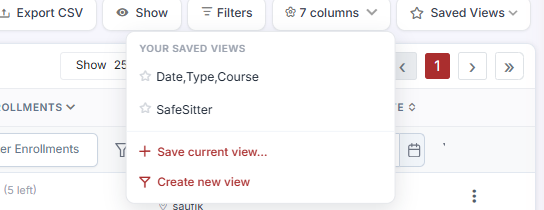
- Click Saved Views.
- Choose Save current view…
- Give it a name.
Step 2: Or Create a View From Scratch
- Click Saved Views → Create new view.
- Define the filters directly in the dialog.
- Name and save it.
Step 3: Use a Saved View
- Open Saved Views.
- Click a name under YOUR SAVED VIEWS.
- The grid reconfigures immediately.
Step 4: Decide Private or Shared
Views can be private to you or shared with your organization. Shared views are useful for standardizing how a team works — for example, a Needs Paperwork view that every coordinator opens each morning.
✔ Shared views are a training tool. Naming a view after the task it serves (“Needs an instructor”) teaches new coordinators the workflow without a handbook.
Step 5: Build the Views Worth Having
These five cover most day-to-day coordination work:
| View | Filters |
|---|---|
| This week | Upcoming, date range = next 7 days |
| Needs an instructor | Assigned To empty, Upcoming |
| Under-enrolled | Enrollments below minimum, Upcoming |
| Awaiting paperwork | Status = Awaiting Paperwork |
| Archived audit | Show archived on |
What Is Remembered Without a Saved View
Even without saving, the Classes, Enrollments and People grids retain their pagination and filter state as you navigate away and back, and breadcrumb navigation keeps previously entered data.
So Saved Views are not there to survive a single round-trip — they are for switching deliberately between working sets.
Best Practices
- Name views after the task, not the filter (“Needs an instructor”, not “Assigned To empty”).
- Share the views your whole team should be working from; keep experimental ones private.
- Include the columns the view needs and hide the rest — column visibility is saved too.
- Review shared views quarterly. A view nobody opens is clutter in everyone’s menu.
- Build an Archived audit view before an audit rather than during one.
Frequently Asked Questions
| Question | Answer |
|---|---|
| Where is the Saved Views button? | In the Classes toolbar. It is also on the Requests tab. |
| What exactly gets saved? | Filters, sorting, columns and display preferences — including comfortable or compact layout. |
| Can my team use my views? | Yes. Views can be private to you or shared with your organization. |
| Do I lose my filters if I navigate away? | No. The Classes, Enrollments and People grids retain pagination and filter state on return. |
| Can I build a view without configuring the grid first? | Yes — use Saved Views → Create new view and define the filters directly. |
✔ You’re all set. Next, read Working the Class Requests and Group Training Leads Queues to handle the inbound side of the Classes page.
Was this article helpful?
Related articles
- What Are the Different Class Types?CPR Enroll+ supports six distinct class types, each designed for a different training delivery format. The class type you select determines which fields are required, how the class appears on your registration page, and how students are expected to participate. Choosing the right type ensures studenGetting Started
- How to Add a Class?A class is a scheduled, student-facing instance of a course — it has a specific date, time, location, instructor, and capacity. This guide walks through the full class creation process in CPR Enroll+. Before You Begin - Ensure you have at least one Course set up in the system. - Ensure you have at Getting Started
- Why Isn't My Class Showing on the Public Enroll Page?If you have created a class in CPR Enroll+ but students cannot see it on your registration page, there are several common causes. Work through this troubleshooting checklist to identify and resolve the issue quickly. Before You Begin - Have the class name, course title, and scheduled date ready. - Getting Started
- Public vs. Private vs. Unscheduled ClassesCPR Enroll+ gives you precise control over the visibility of every class you schedule. Understanding the three visibility states ensures the right students can find and register for your classes at the right time. Before You Begin - Determine whether your class is open to the general public, restricGetting Started