Public vs. Private vs. Unscheduled Classes
CPR Enroll+ gives you precise control over the visibility of every class you schedule. Understanding the three visibility states ensures the right students can find and register for your classes at the right time.
Before You Begin
Determine whether your class is open to the general public, restricted to a specific corporate group, or posted in advance before dates are set.
Know which class type you are setting up (note that Private and Post UnScheduled options are not available for the Online class type).
Visibility Overview
Visibility State | Students Can See It? | Students Can Enroll? | Best For |
|---|---|---|---|
Public (default) | Yes on all registration pages | Yes — self-enrollment | Regular open-enrollment classes |
Private | No — hidden from all pages | Only via direct link or admin | Corporate groups, invitation-only classes |
Post UnScheduled | Yes — listed but no date shown | Yes — to express interest | Pre-selling enrollment before dates are set |
Step-by-Step Instructions
Step 1: Access Visibility Settings
Go to Classes in the sidebar.
Click + to create a new class, or click ⋮ > Edit on an existing class.
In the Listing Settings section of the class form, find the visibility options.
Step 2: Configure Public Classes
Public is the default state for new classes. A public class:
Appears on your Layout Based View, List View, and Calendar View registration pages.
Is included in embedded registration widgets on your website.
Displays available seat count (if Show Available Seats Publicly is ON).
Allows students to self-enroll and pay online at any time (subject to registration deadlines).
Step 3: Configure Private Classes
In the Listing Settings section, toggle Private Class to ON.
Click Save.
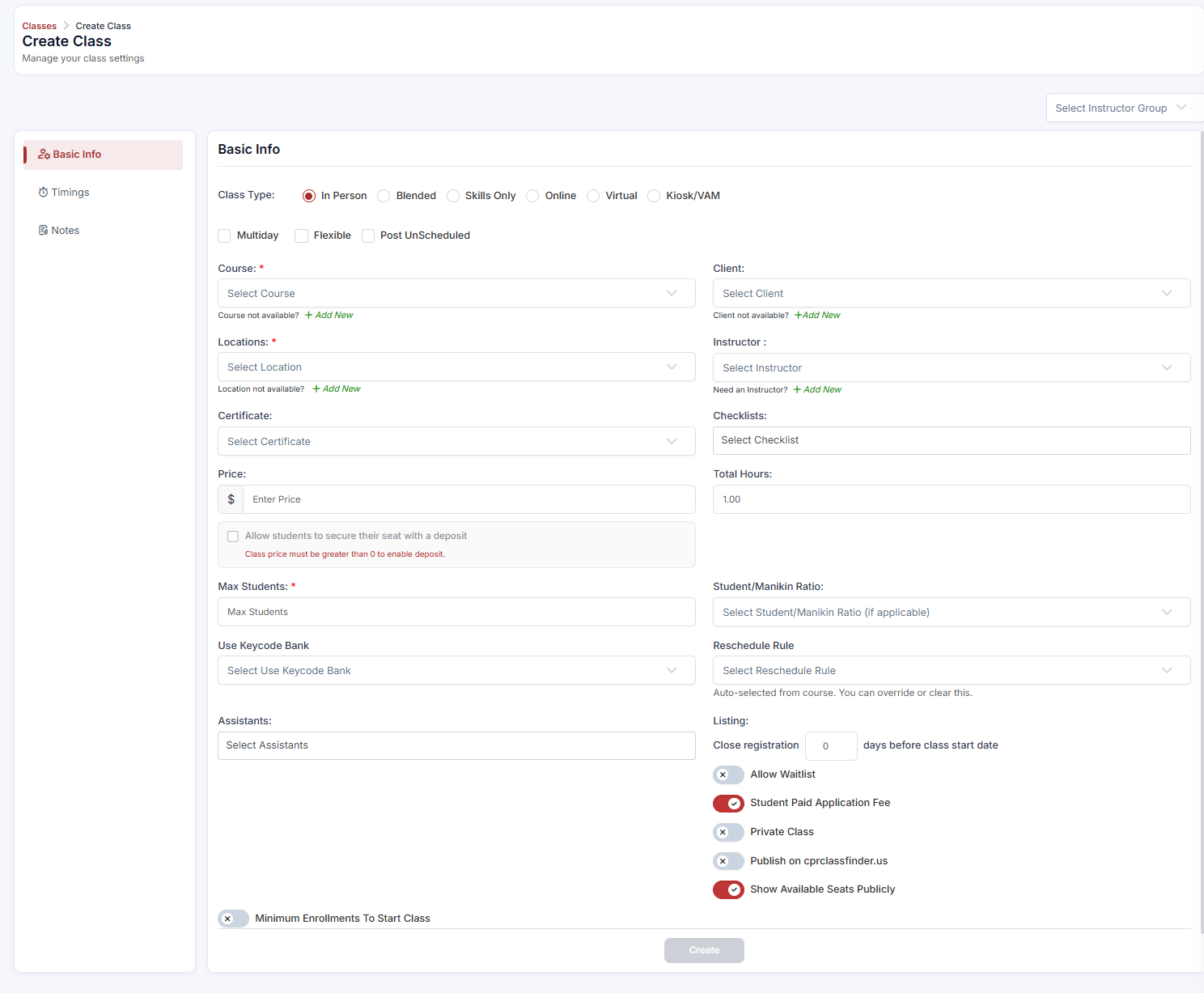
A private class does NOT appear on any public registration page. Enrolling students requires admin enrollment via Enrollments > Quick Add or Add Student, or sharing a direct registration link via Classes > ⋮ > Share Registration.
✔ Corporate group classes: Private classes are ideal for corporate on-site training. Enroll employees manually from a roster, or share the direct class link with the HR coordinator to distribute internally. No one else can find or register for the class.
Step 4: Configure Post UnScheduled Classes
In the class form, check the Post UnScheduled checkbox.
Click Save.
An unscheduled class appears publicly on your registration page with no specific date or time, allowing students to enroll and pay in advance. These generate records in your Enrollments > Unscheduled tab, ready to be assigned to specific class dates once scheduling is confirmed.
Best Practices
Use Private classes for client-specific corporate sessions so general public registrants cannot take reserved seats.
Use Post UnScheduled to capture customer demand and payments before committing to specific calendar dates.
Keep in mind that Private and Post UnScheduled settings cannot be applied to the Online class type.
Frequently Asked Questions
Question | Answer |
|---|---|
How do students enroll in a Private Class if it's hidden from the public page? | You can enroll them manually as an admin or send them a direct link via Classes > Share Registration. |
Why can't I select Private or Post UnScheduled for an Online class? | Online classes have no fixed date or physical constraints by definition, so these visibility state controls do not apply to them. |
Where do students go when they sign up for an Unscheduled class? | Their registrations appear under Enrollments > Unscheduled tab until you assign them to a confirmed class date. |
✔ You're all set. You now know how to configure public, private, and unscheduled visibility settings for all your class offerings.
Was this article helpful?
Related articles
- What Are the Different Class Types?CPR Enroll+ supports six distinct class types, each designed for a different training delivery format. The class type you select determines which fields are required, how the class appears on your registration page, and how students are expected to participate. Choosing the right type ensures studenGetting Started
- How to Add a Class?A class is a scheduled, student-facing instance of a course — it has a specific date, time, location, instructor, and capacity. This guide walks through the full class creation process in CPR Enroll+. Before You Begin - Ensure you have at least one Course set up in the system. - Ensure you have at Getting Started
- Why Isn't My Class Showing on the Public Enroll Page?If you have created a class in CPR Enroll+ but students cannot see it on your registration page, there are several common causes. Work through this troubleshooting checklist to identify and resolve the issue quickly. Before You Begin - Have the class name, course title, and scheduled date ready. - Getting Started
- Managing Recurring SchedulesIf you teach the same course on a regular schedule — weekly BLS classes, monthly ACLS sessions, or twice-weekly CPR/AED courses — the recurring class feature lets you generate an entire series of scheduled classes automatically. Instead of creating each session individually, you configure a recurrenGetting Started