What Are the Different Class Types?
CPR Enroll+ supports six distinct class types, each designed for a different training delivery format. The class type you select determines which fields are required, how the class appears on your registration page, and how students are expected to participate. Choosing the right type ensures students receive accurate information and that your records reflect your actual training delivery.
Before You Begin
Determine the training delivery format for your course (In Person, Blended, Online, Virtual, Skills Only, or Kiosk).
Ensure you have configured the necessary prerequisites such as physical or virtual locations and instructors where required.
Step-by-Step Instructions
Step 1: Understand the Six Class Types
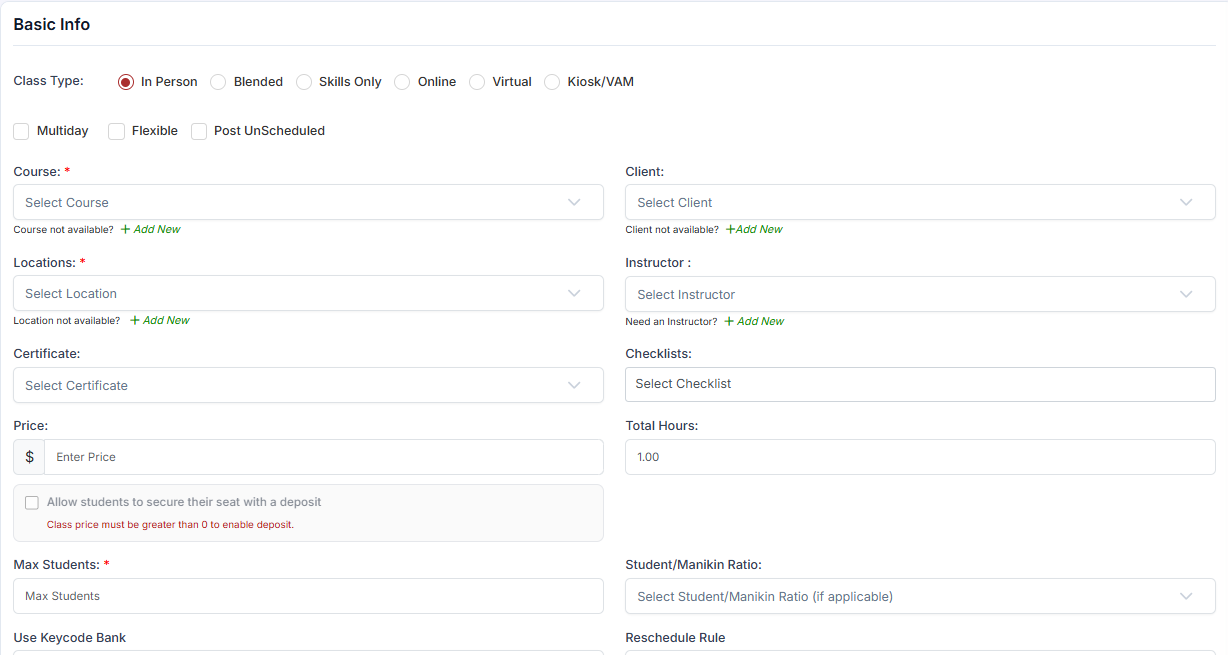
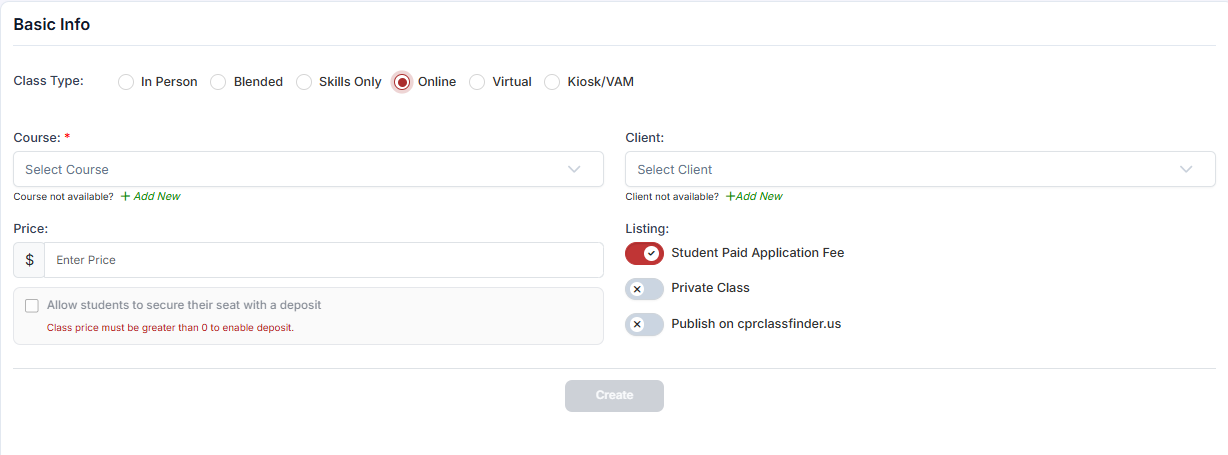
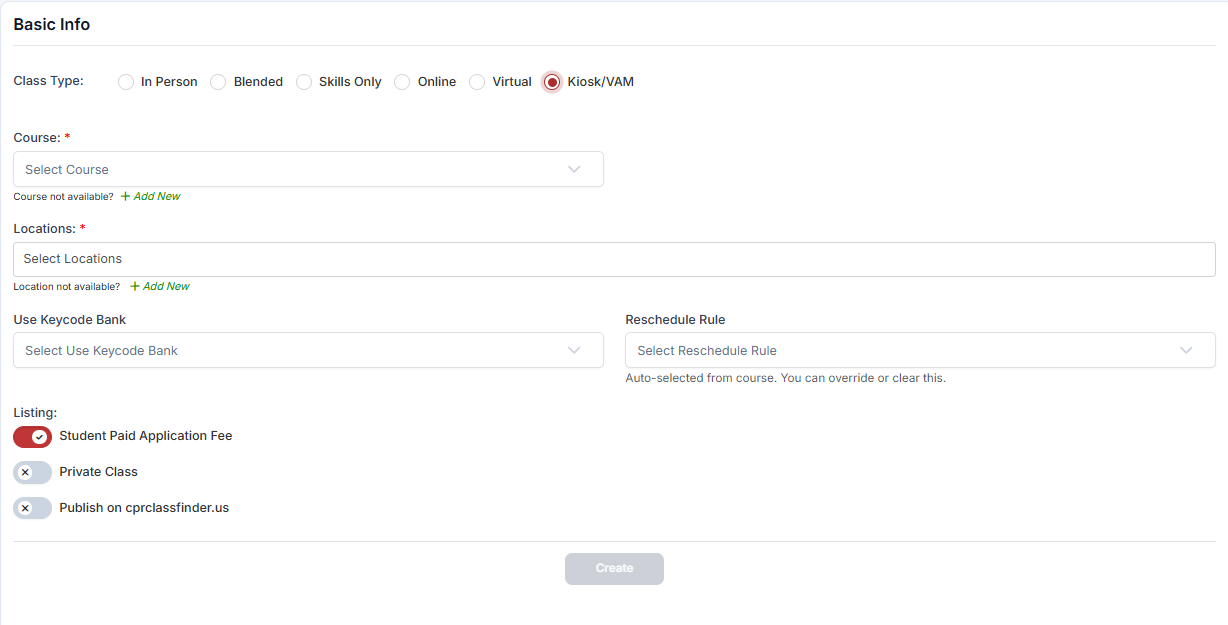
Four of the six types — In Person, Blended, Skills Only and Virtual — use exactly the same Basic Info form. What separates them is the delivery format you are recording and, for Virtual, the kind of location you attach; the fields on screen are identical. Only Online and Kiosk/VAM change the form itself, so those two are shown separately below.
In Person
A traditional face-to-face classroom class held at a physical location. This is the most common type for CPR and first aid training.
Requires: Course, Location (physical), Instructor, Date, Start Time, End Time
Registration page: Shows location address, date, time, and instructor
Use when: Students physically attend a training venue
Blended
A combination of online pre-work (completed independently) and an in-person skills session. AHA HeartCode classes are a common example of the Blended format.
Requires: Course, Location, Instructor, Date, Start Time, End Time
Typically paired with: A Keycode add-on for the online portion
Use when: Students complete eLearning first, then attend a skills check in person
Online
A fully self-paced online course with no physical component, no scheduled time, and no instructor interaction required.
Requires: Course only — no location, instructor, or timing fields
Modifiers: Multiday, Flexible, and Post UnScheduled checkboxes are not available for Online classes
Tabs: Basic Info and Notes only — Online classes have no scheduling tab.
Use when: Students complete the entire course independently through an online platform
Virtual
A live, real-time class delivered remotely via video conferencing (Zoom, Teams, etc.).
Requires: Course, Virtual Location (with a meeting URL), Instructor, Date, Start Time, End Time
Registration page: Shows the meeting link and scheduled time
Use when: Students attend a live video session but do not travel to a physical venue
Skills Only
A hands-on skills assessment or testing session only — no knowledge component delivered. Used when students have completed the knowledge portion elsewhere and need a skills check or makeup session.
Requires: Course, Location, Instructor, Date, Start Time, End Time
Use when: A student missed the skills portion of a blended class, or needs a standalone assessment
Kiosk
A self-service training station format where students interact with a training kiosk at a physical location without a dedicated instructor present.
Requires: Course and Location — no instructor. Scheduling is set on the Availability tab, not Timings.
Use when: Deploying unmanned CPR training stations in hospitals, gyms, or other high-traffic venues
Step 2: Apply Class Type Modifiers
Three optional checkboxes can modify any class type except Online:
Modifier | What It Does | Use When |
|---|---|---|
Multiday | Changes sub-type to Multiday; adds multi-session timing | Class spans multiple days or sessions |
Flexible | Marks class as having flexible scheduling | Timing varies by student or group |
Post UnScheduled | Publishes class without a fixed date | Accepting enrollments before dates are confirmed |
Best Practices
Always select the exact delivery format to ensure required fields and automated notifications match student expectations.
Pair Blended class types with Keycode add-ons to streamline delivery of the online pre-work component.
Do not attempt to apply modifiers like Multiday or Post UnScheduled to Online classes, as they are non-scheduled by nature.
Frequently Asked Questions
Question | Answer |
|---|---|
Can I use Class Type Modifiers on Online classes? | No. Modifiers like Multiday, Flexible, and Post UnScheduled are not available for Online classes since they are self-paced with no fixed schedule. |
What is required to schedule a Kiosk class? | Kiosk classes require a Course, Location, and Date. An instructor is not required. |
What is the main difference between Blended and Skills Only? | Blended includes both the online course element and in-person skills session, while Skills Only is strictly a hands-on assessment with no knowledge component included. |
✔ You're all set. You now know how to select the right class type and optional modifiers for your training delivery format.
Was this article helpful?
Related articles
- How to Add a Class?A class is a scheduled, student-facing instance of a course — it has a specific date, time, location, instructor, and capacity. This guide walks through the full class creation process in CPR Enroll+. Before You Begin - Ensure you have at least one Course set up in the system. - Ensure you have at Getting Started
- Why Isn't My Class Showing on the Public Enroll Page?If you have created a class in CPR Enroll+ but students cannot see it on your registration page, there are several common causes. Work through this troubleshooting checklist to identify and resolve the issue quickly. Before You Begin - Have the class name, course title, and scheduled date ready. - Getting Started
- Public vs. Private vs. Unscheduled ClassesCPR Enroll+ gives you precise control over the visibility of every class you schedule. Understanding the three visibility states ensures the right students can find and register for your classes at the right time. Before You Begin - Determine whether your class is open to the general public, restricGetting Started
- Managing Recurring SchedulesIf you teach the same course on a regular schedule — weekly BLS classes, monthly ACLS sessions, or twice-weekly CPR/AED courses — the recurring class feature lets you generate an entire series of scheduled classes automatically. Instead of creating each session individually, you configure a recurrenGetting Started