Why Isn't My Class Showing on the Public Enroll Page?
If you have created a class in CPR Enroll+ but students cannot see it on your registration page, there are several common causes. Work through this troubleshooting checklist to identify and resolve the issue quickly.
Before You Begin
Have the class name, course title, and scheduled date ready.
Ensure you have admin access to CPR Enroll+ to check course and class configuration settings.
Step-by-Step Instructions
Step 1: Troubleshooting Checklist
The Class Is Set to Private
Private classes are intentionally hidden from public registration pages.
Go to Classes > ⋮ > Edit on the class.
In the Listing Settings section, check the Private Class toggle.
If it is ON (private), turn it OFF to make the class public, then click Save.
The Class Date Is in the Past
Past classes do not appear on the student-facing registration page. Only classes with a future date are displayed. Verify the class date is set correctly and is in the future.
Registration Has Closed
If a Close Registration deadline was set on the course or class and that deadline has passed, the class will no longer accept new registrations and may not appear as available.
Check the course's Rules section (Course Builder > Courses > ⋮ > Edit) for the Close Registration setting.
Check the class's Listing Settings for a class-level Registration Closes setting.
If registration closed too early, increase the number or set it to 0 to remove the deadline.
The Class Is Full (No Waitlist)
When a class reaches its Max Students limit and no waitlist is enabled, the class shows as "Full" or may be hidden from the registration page depending on your configuration.
Edit the class and increase Max Students, or enable Allow Waitlist in the Listing Settings.
The Class Has Been Canceled
- Canceled classes are removed from the public registration page. Go to Classes and check the Status column for the class — if it has been canceled you will need to create a new class.
Your Registration Page Is Not Showing the Correct View
If you are looking at an embedded widget on your website that is not showing a class, it may be that the embed is working correctly but the class filters do not match. Check:
The embed is using the correct registration URL for your account.
The class discipline or association filters on the registration page are not excluding your class.
You are looking at the correct registration page (register.cprenroll.com) rather than a cached or old version.
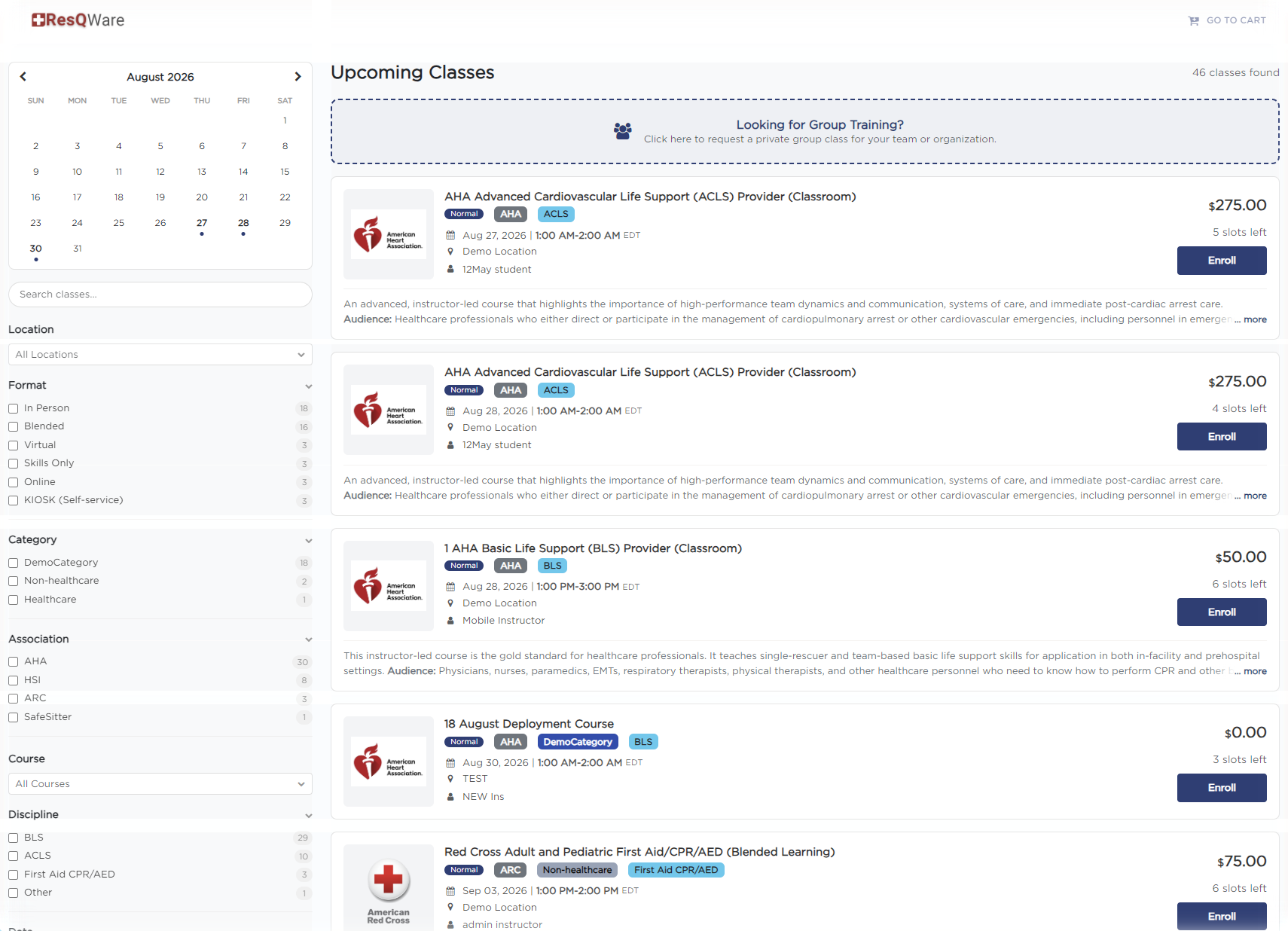
✔ Test from a private browser window: Open your registration page in an Incognito/Private browser window to see exactly what a new student would see — without any cached data or admin session affecting the view.
Best Practices
Always test public visibility using an Incognito/Private window after updating class settings.
Double-check Close Registration offset rules on both course-level and class-level settings.
Enable Allow Waitlist on high-demand classes to maintain visibility even when maximum capacity is reached.
Frequently Asked Questions
Question | Answer |
|---|---|
Why does my class show as hidden even though Private Class is turned off? | Check if the registration deadline has passed, if the class date is set in the past, or if the class status is set to Canceled. |
How can I verify what non-admin users see on the registration page? | Open your public registration URL in an Incognito/Private browser window to view the page without active admin cookies or cache. |
What happens when a class hits maximum capacity? | If Allow Waitlist is enabled, students can join a waitlist. If disabled, the class will show as Full or be hidden based on settings. |
✔ You're all set. Following these checklist steps will help you quickly identify and fix any class visibility issue.
Was this article helpful?
Related articles
- What Are the Different Class Types?CPR Enroll+ supports six distinct class types, each designed for a different training delivery format. The class type you select determines which fields are required, how the class appears on your registration page, and how students are expected to participate. Choosing the right type ensures studenGetting Started
- How to Add a Class?A class is a scheduled, student-facing instance of a course — it has a specific date, time, location, instructor, and capacity. This guide walks through the full class creation process in CPR Enroll+. Before You Begin - Ensure you have at least one Course set up in the system. - Ensure you have at Getting Started
- Public vs. Private vs. Unscheduled ClassesCPR Enroll+ gives you precise control over the visibility of every class you schedule. Understanding the three visibility states ensures the right students can find and register for your classes at the right time. Before You Begin - Determine whether your class is open to the general public, restricGetting Started
- Managing Recurring SchedulesIf you teach the same course on a regular schedule — weekly BLS classes, monthly ACLS sessions, or twice-weekly CPR/AED courses — the recurring class feature lets you generate an entire series of scheduled classes automatically. Instead of creating each session individually, you configure a recurrenGetting Started