Handling Max Capacity & Waitlists
Every class in CPR Enroll+ has a maximum student capacity. When a class fills up, you can either turn away additional students or enable a waitlist so interested students are automatically notified if a spot opens. This guide covers both options and explains how to monitor and manage class fill rates.
Before You Begin
- Know the maximum number of students your venue or instructor can accommodate.
- Decide whether you want to hide the remaining seat count from students on your registration page.
- Decide whether you want to enable a waitlist for classes that are likely to fill up.
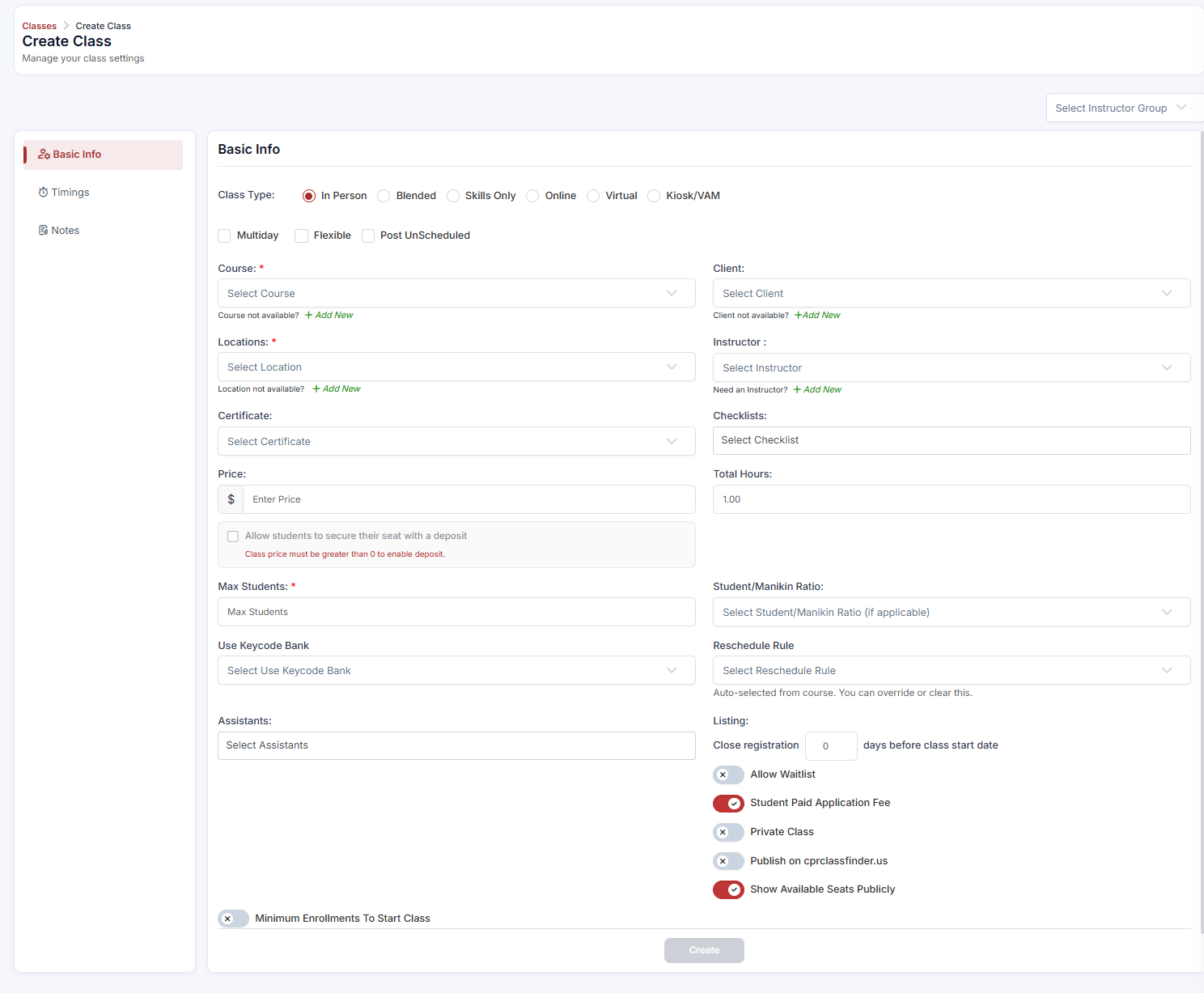
- to reduce panic-registrations near the deadline.
- When increasing Max Students on a full class, let CPR Enroll+ handle waitlist notifications automatically rather than manually enrolling students out of order.
- Check the waitlist regularly in the days leading up to class so you can fill last-minute cancellations.
Frequently Asked Questions
| Question | Answer |
|---|---|
| What happens when a class reaches Max Students? | The Enroll button is replaced with a "Class Full" message, and no additional self-enrollment is possible unless you increase the limit or enable a waitlist. |
| Can I hide the remaining seat count from students? | Yes. Turn off the Show Available Seats Publicly toggle in the Listing Settings section; students can still register, but the count stays hidden. |
| How are waitlisted students notified when a spot opens? | If you increase Max Students, CPR Enroll+ automatically notifies the next student in the queue in the order they joined the waitlist. |
✔ You're all set. Your class capacity is configured, and students who can't get a seat right away will be notified the moment one opens up.
Was this article helpful?
Related articles
- What Are the Different Class Types?CPR Enroll+ supports six distinct class types, each designed for a different training delivery format. The class type you select determines which fields are required, how the class appears on your registration page, and how students are expected to participate. Choosing the right type ensures studenGetting Started
- How to Add a Class?A class is a scheduled, student-facing instance of a course — it has a specific date, time, location, instructor, and capacity. This guide walks through the full class creation process in CPR Enroll+. Before You Begin - Ensure you have at least one Course set up in the system. - Ensure you have at Getting Started
- Why Isn't My Class Showing on the Public Enroll Page?If you have created a class in CPR Enroll+ but students cannot see it on your registration page, there are several common causes. Work through this troubleshooting checklist to identify and resolve the issue quickly. Before You Begin - Have the class name, course title, and scheduled date ready. - Getting Started
- Public vs. Private vs. Unscheduled ClassesCPR Enroll+ gives you precise control over the visibility of every class you schedule. Understanding the three visibility states ensures the right students can find and register for your classes at the right time. Before You Begin - Determine whether your class is open to the general public, restricGetting Started