Coupons — previously called promo codes — are the discount codes students and instructors type at checkout. CPR Enroll+ runs one coupon system across the whole platform — the same code works on invoices, class registrations and store purchases — so a code you create for instructors buying store products behaves exactly like one you create for a class promotion.
This article covers creating a coupon and using it for instructor store discounts. For the full picture, including voucher batches, see How to Set Up and Use Coupons (Promo Codes).
Step 1: Open the Coupons List
- From the sidebar, go to Operate > Payments.
- Click the Catalog tab in the top right, then the Coupons tab below it. Products, Collections and Vouchers sit alongside it.
- Use the search box to find a code by its text or description, and the All / Active / Scheduled / Expired filters to narrow the list.
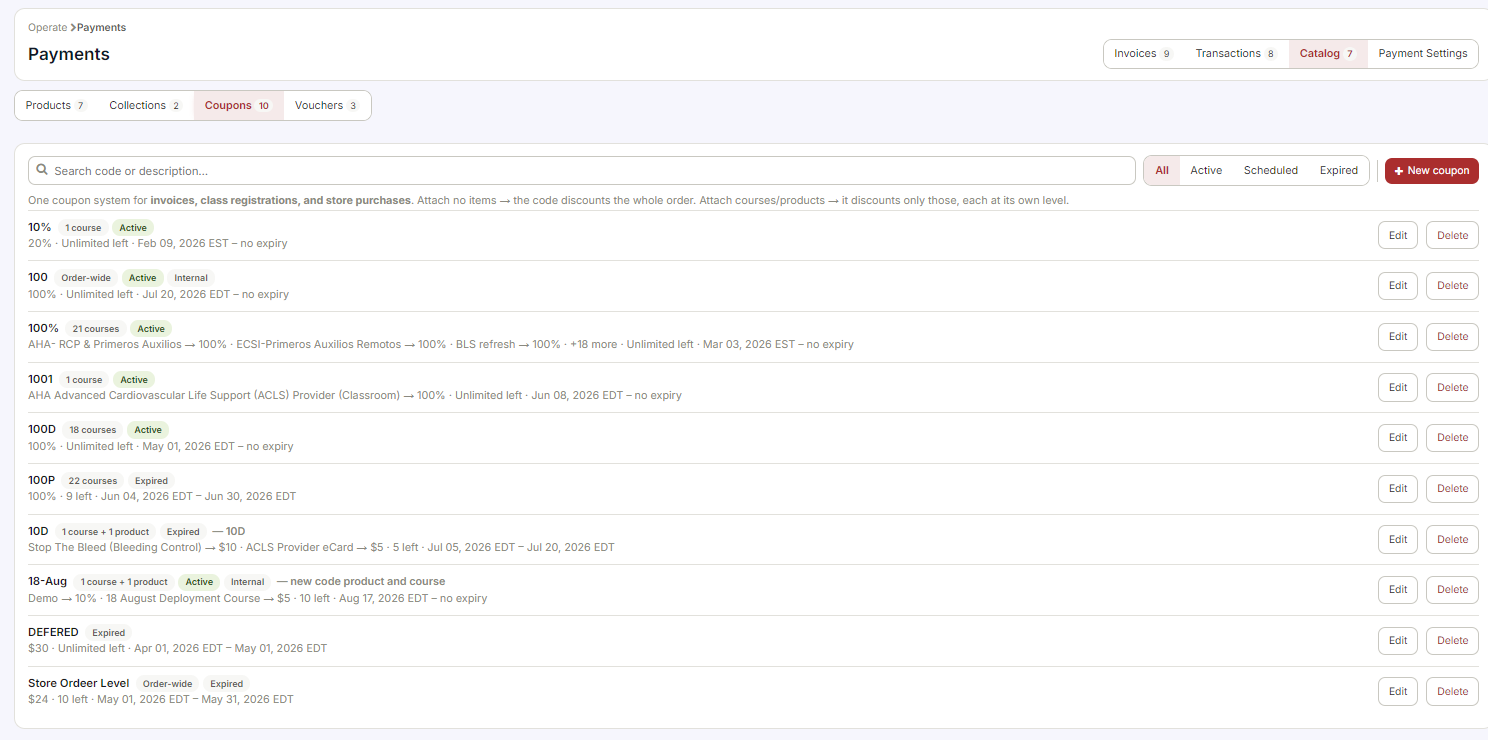
Each row shows the code, what it is attached to (order-wide, or a count of courses and products), its state, the discount, how many uses are left and the date range. Edit and Delete sit at the end of the row.
Step 2: Create a Coupon
Click + New coupon.
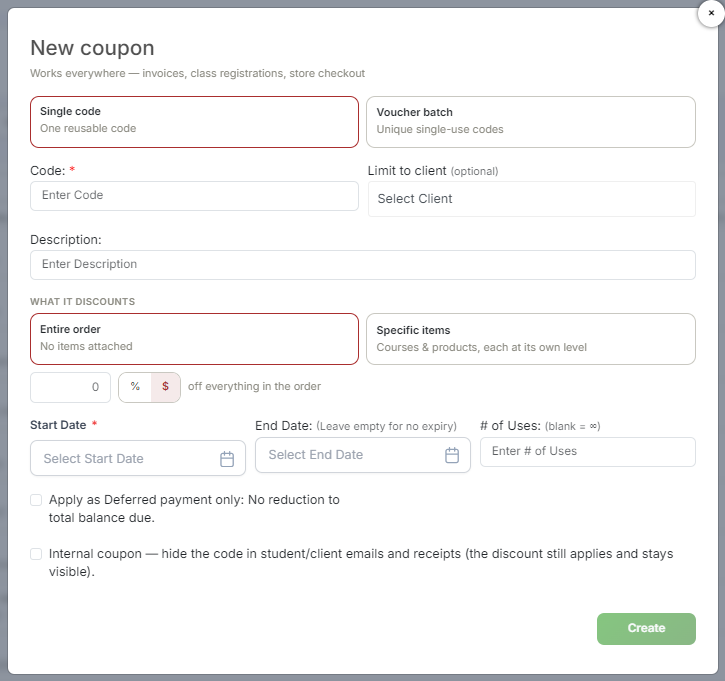
- Choose Single code — one reusable code — or Voucher batch, which generates unique single-use codes. For an instructor store discount, Single code is almost always what you want.
- Code (required) — the text typed at checkout, for example INSTRUCTOR10. Keep it short and easy to type.
- Limit to client (optional) — restrict the code to one client organization.
- Description — an internal note for your own reference.
- Under What it discounts, choose Entire order to discount the whole order, or Specific items to attach individual courses and products, each at its own discount level.
- Enter the discount amount and click % or $ to switch between a percentage and a flat dollar amount.
- Set the Start Date (required). Leave End Date empty for no expiry, and # of Uses blank for unlimited uses.
- Click Create.
Two Options Worth Knowing
- Apply as Deferred payment only — the code defers payment rather than reducing it. The total balance due does not change.
- Internal coupon — hides the code itself in student and client emails and receipts. The discount still applies and still shows on the document; only the code text is hidden. Use this for staff and partner rates you do not want circulating.
Using Coupons With Instructors
Instructor coupons are useful for:
- giving instructors a discount on store products they buy for their own classes;
- rewarding long-standing or high-volume instructors with reduced-price training materials;
- creating an instructor-only code for bulk material purchases — pair this with Internal coupon so the code stays out of student-facing receipts.
Step 3: Track Usage
- Go to Reports and open the Promo Code Report.
- Use the date range picker to filter usage by period.
- The report shows redemptions and the total discount applied, so you can see what a promotion actually cost you.
Best Practices
- Use a naming scheme you can read at a glance in the list — the grid shows the code, not the description.
- Set a # of Uses limit on anything you share outside your organization. Unlimited codes get forwarded.
- Attach Specific items when a discount is only meant for store products. An entire-order coupon will happily discount a class registration too.
- Give every promotion an End Date. Expired codes are easy to find in the Expired filter; live ones you forgot about are not.
- Check the Promo Code Report after each campaign before you run the same offer again.
Was this article helpful?
That’s Great!
Thank you for your feedback
Sorry! We couldn't be helpful
Thank you for your feedback
Feedback sent
We appreciate your effort and will try to fix the article