The Store is organized around what each role actually does rather than around the catalog. Users only see the sections that apply to them — whoever manages the catalog works in Build, instructors work in Buy, and whoever ships and processes works in Fulfillment.
Before You Begin
- Store is in the left navigation, under Grow. Three tabs sit across the top: Build, Buy and Fulfillment.
- Which tabs you see depends on your role. If a tab described here is missing, that is by design.
- If you sell to connected organizations, read the last section before you set pricing.

Step 1: Build — Manage the Catalog
The Build tab has three sub-tabs: Products, Collections and Pricing.
Products
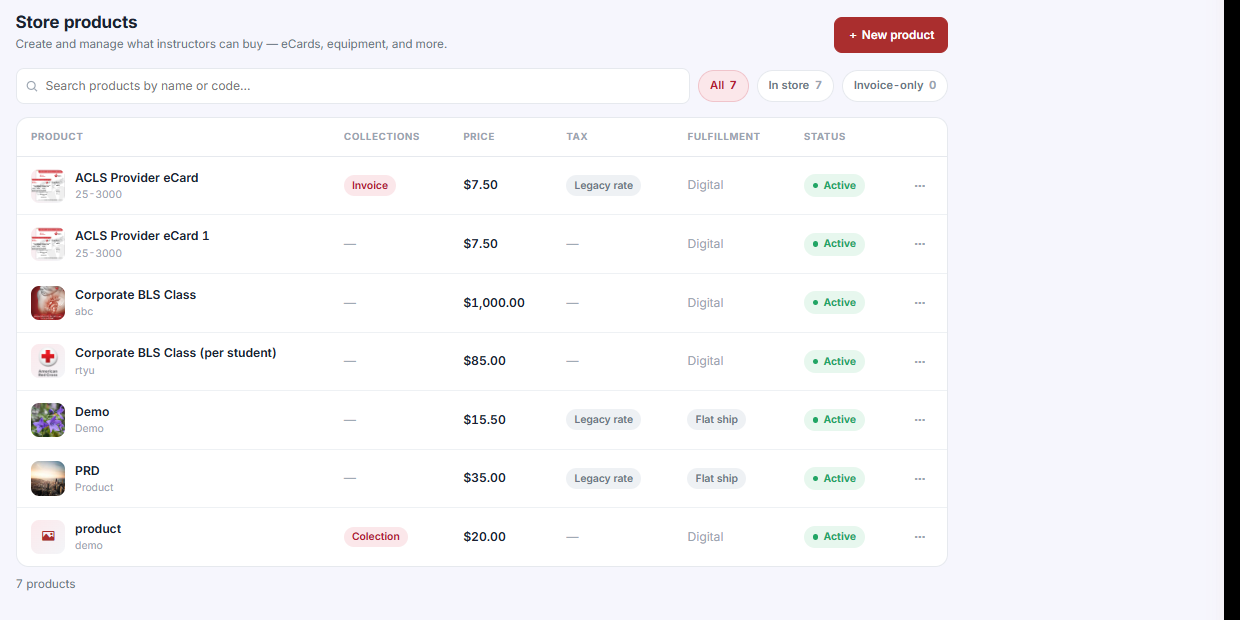
The Products grid is where you create and manage what instructors can buy — eCards, equipment, and more. Columns are Product, Collections, Price, Tax, Fulfillment and Status.
- Filter with All, In store and Invoice-only, or search by name or code.
- Click + New product to add one.
- Tax shows Legacy rate or a dash, matching your tax mode.
- Fulfillment shows Digital or Flat ship.
Collections
Collections group products for filtering on the storefront. You can create, reorder, rename or delete a collection without affecting the products in it — a collection is a lens, not a container.
Pricing
Pricing holds Instructor pricing: special-price profiles that apply automatically when attached instructors log in, across your organization and connected organizations.
- Click + New Profile.
- Set fixed prices, or a percentage or dollar discount.
- Attach the instructors the profile applies to.
✔ Profiles apply themselves. There is no code for the instructor to remember and nothing to apply at checkout — the right price simply appears when they log in.
Step 2: Buy — The Instructor Experience
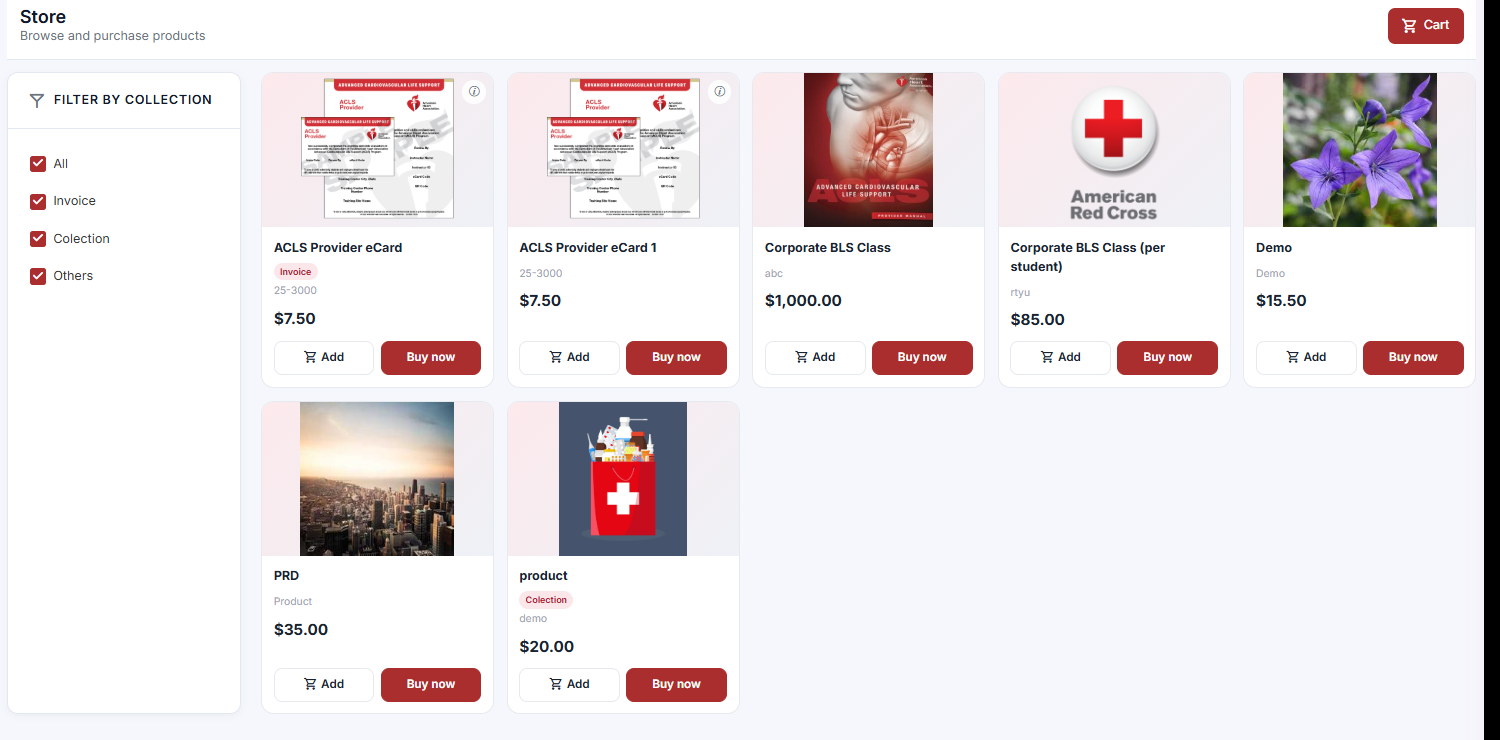
The Buy tab is where instructors browse and purchase products.
- Products appear as cards with Add (to cart) and Buy now buttons.
- The Filter by collection panel on the left narrows the list.
- The Cart button sits in the top right.
- Checkout supports quantity adjustments, coupons, order notes and clear totals.
Step 3: Fulfillment — Ship and Process
The Fulfillment tab has two sub-tabs: Orders and Payments.
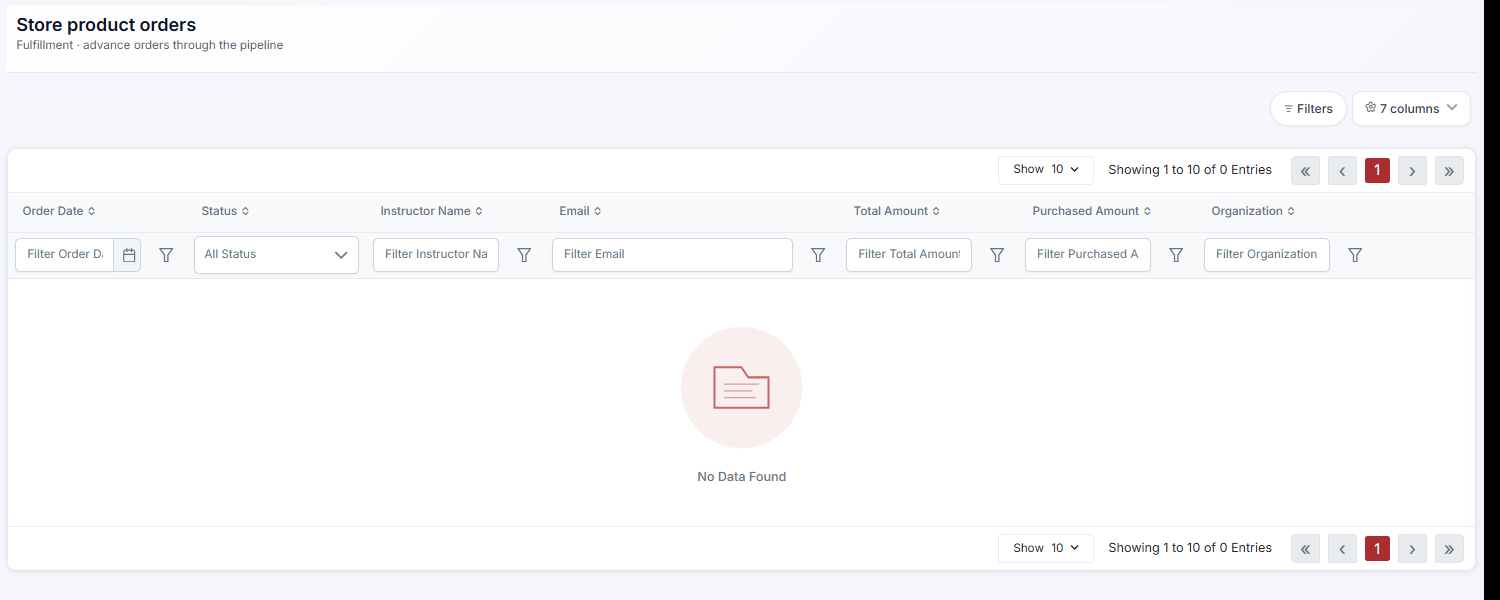
Store product orders advances orders through the pipeline. It is a filterable grid with columns for Order Date, Status, Instructor Name, Email, Total Amount, Purchased Amount and Organization. Use Filters and the columns control to shape the view.
- Fulfillment stages are customizable — match them to how you actually ship.
- Cancellations and refunds can be issued at any stage.
- For AHA eCard products, you can issue eCards straight to an instructor’s inventory from the order.
Step 4: Sell to Connected Organizations
Connected organizations can purchase from each other’s stores. Each keeps its own catalog and pricing.
✔ This is purchasing access only, never admin access. A connected organization can buy from your store. It cannot see or change your catalog, your pricing profiles or your orders.
Best Practices
- Build collections before you build a large catalog — retro-fitting them across fifty products is tedious.
- Use Invoice-only for products that should never appear on the storefront rather than deleting and recreating them.
- Set instructor pricing profiles by group (staff, contractors, partner orgs) rather than person by person.
- Customize the fulfillment stages to match your real process. Generic stages get ignored, and ignored stages stop reflecting reality.
- Issue AHA eCards from the order itself so the order record and the instructor’s inventory stay in step.
Frequently Asked Questions
| Question | Answer |
|---|---|
| Why can’t I see all three tabs? | The Store shows only the sections that apply to your role. |
| Will deleting a collection delete its products? | No. Collections can be created, reordered, renamed or deleted without affecting the products in them. |
| Do instructors need a code for their special pricing? | No. Profiles apply automatically when attached instructors log in. |
| What does the Fulfillment column on a product mean? | How the product is delivered — Digital or Flat ship. |
| Can I refund after an order has shipped? | Yes. Cancellations and refunds can be issued at any stage. |
| Can I issue AHA eCards from an order? | Yes — straight to the instructor’s inventory. |
| Can a connected organization edit my store? | No. Connected organizations get purchasing access only, never admin access. |
✔ You’re all set. Catalog in Build, instructors in Buy, shipping in Fulfillment — each role sees only its own half of the store.
Was this article helpful?
That’s Great!
Thank you for your feedback
Sorry! We couldn't be helpful
Thank you for your feedback
Feedback sent
We appreciate your effort and will try to fix the article