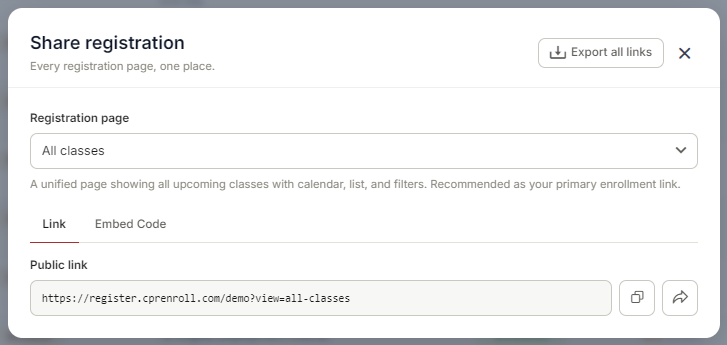
The Share Registration screen is where you'll find every link and embed code you need — your full class catalog, appointment booking, and group training — along with embeddable website widgets, all from one place.
Before You Begin
- Your classes are scheduled and visible on your calendar, since the registration page displays upcoming classes automatically.
- You've decided where you'll share this link — for example, in email campaigns, social media, or embedded directly on your website.
- If embedding on your own site, you have access to edit your website's HTML, or a website platform that supports embedding JavaScript widgets or iFrames.
Opening Share Registration
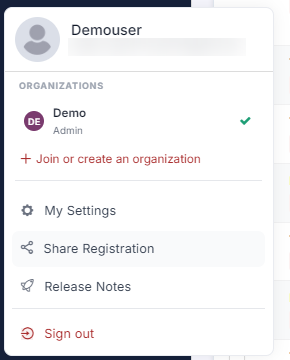
- Click your username in the lower left of the screen.
- Click the ^ arrow.
- Select Share Registration. From there, you can choose which share page you'd like to use.
✔ Setting up for the first time? If you haven't finished setting up your account yet, you can also get here through Settings → Setup Guide, under 1. Get Sell-Ready → Share Your Registration Link. Once your account is fully set up, the username menu shortcut above is the quickest way back to this screen.
Types of Registration Pages
Under the Registration Page, there are three kinds of pages you can share:
1. General Pages
- All Classes — a unified page showing all upcoming classes with calendar, list, and filters. Recommended as your primary enrollment link.
- All Classes and Group Training — all upcoming classes plus the group training request form on one page.
- Group Training Inquiry — a standalone page with only the group training inquiry form.
- Kiosk — a self-service kiosk page of walk-in / kiosk classes.
2. Filtered Pages
- Class Type — all upcoming classes of one delivery type.
- Course — all upcoming classes of one course.
- Location — all upcoming classes at one location.
- Discipline — all upcoming classes in one discipline.
- Association — all upcoming classes under one association.
- Category — all upcoming classes in one category.
- Instructor — all upcoming classes taught by one instructor.
3. Specific Pages
- Single Class — direct registration link for one specific class.
- Client (Private Page) — a private, unlisted registration page for one client organization.
Client Pages and the Access Key
A Client (private page) is unlisted — it does not appear anywhere public and cannot be found by browsing. What protects it is an Access key shown beneath the public link in the Share registration window, alongside a Regenerate key button.
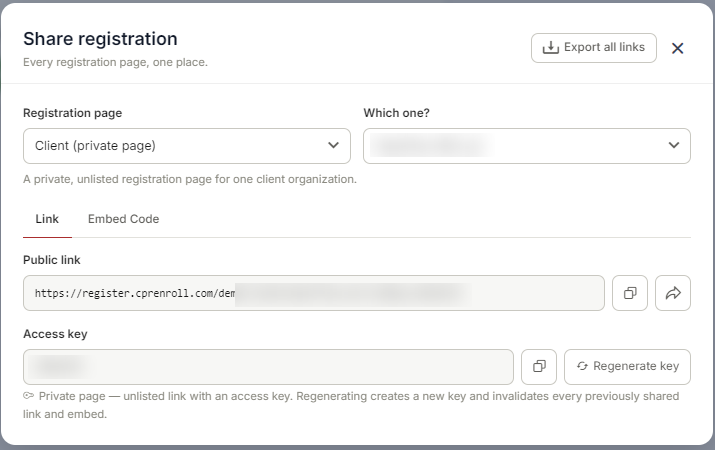
Anyone holding the link and the key can reach that client’s registration page, which is exactly why the key is designed to be rotated. Regenerate it when:
- the client coordinator leaves. The person you originally sent the link to keeps working access to their organization’s private registration page until you rotate the key — regenerating it is the clean way to close that door;
- the link has been forwarded to someone who should not have it — a shared inbox, a group chat, a public intranet page;
- a training engagement ends and you want the page closed to that audience;
- you simply are not sure who has it any more. Rotating costs nothing but a reissue.
Embed Codes — Adding Registration to Your Website
Click the Embed Code sub-tab under any section. Three embed codes are available:
- Embed Code (All Classes & Group Training) — embeds the full class schedule page with calendar, filters, and group training request form directly on your website.
- Embed Code (Layout Based View) — the main class registration widget featuring all available classes with filters and booking functionality.
- Embed Code (Calendar View) — an interactive calendar widget showing your complete class schedule.
To switch between standard iframe and advanced web component embed styles, use the toggles at the top of the Embed Code tab: Use Advance Widgets for the modern web component version, and Set iframe configuration for the standard iframe version. Toggle Show Header to include or exclude your business name and logo inside the embed.
Click the copy button next to your chosen embed code, then paste the HTML into your website where you want the widget to appear.
✔ Mobile-responsive by default. Both standard and advanced embed widgets are mobile-responsive — they automatically adjust to the width of their container. Test your embedded widget on both desktop and mobile after adding it to your website to confirm it displays correctly.
Best Practices
- Use the direct link for quick sharing, such as in emails, social posts, or text messages, since it requires no setup.
- Use the embed option for a seamless website experience, so students never have to leave your site to register.
- Bookmark or save your registration link somewhere convenient, since you'll likely reuse it often across marketing materials.
- You can place multiple widgets on the same page if needed — for example, to show classes from different categories in different sections of your site.
Frequently Asked Questions
| Question | Answer |
|---|---|
| What's the difference between the JavaScript Widget and iFrame options? | Both let you embed your class listings on your own website. The JavaScript Widget typically offers more flexible styling integration, while the iFrame embeds the page directly as a self-contained frame. Either option is mobile-friendly. |
| Can I place more than one widget on the same page? | Yes. You can place multiple widgets on a single page if needed. |
| Will the registration page update automatically as I add new classes? | Yes. The registration page reflects your upcoming classes automatically, so there's no need to update the link or embed code when your schedule changes. |
| Can I share this link on social media? | Yes. Since it's a standard public URL, you can share it anywhere — social media, email campaigns, printed materials, or your website. |
✔ You're all set. Your registration link is ready to share — whether by copying the direct link, or embedding it on your own website for a seamless enrollment experience.
Was this article helpful?
That’s Great!
Thank you for your feedback
Sorry! We couldn't be helpful
Thank you for your feedback
Feedback sent
We appreciate your effort and will try to fix the article