Add-ons are extra products students can buy alongside a class enrollment — physical items such as textbooks, pocket masks and manikin lungs, or digital items such as keycodes, downloadable files, static links and online SCORM courses. They can be pre-selected during registration and priced with volume discounts for bulk orders.
This article walks you through creating a physical add-on, creating a digital add-on, setting up volume pricing, and importing add-on templates from the Marketplace.
Before You Begin
- Decide whether the add-on is Physical or Digital. That choice is a tab at the top of the Create Add-Ons window and it changes the last section of the form, so pick it before you fill anything in.
- Have your pricing ready, including any volume discount tiers you want to offer.
- Know which courses the add-on should be available for, or whether it should apply to all courses.
- If you plan to sell a keycode, make sure the Key Code bank it draws from is already stocked.
Step 1: Open the Add-ons List
- Go to Configure > Course Builder and select Add-ons in the left panel.
- The grid lists every add-on with its Product Code, Name, Price, Tax and Shipping Price. Use the column filters to find one quickly, the Folder dropdown to narrow by folder, and the columns control to show or hide fields.
- Click + to create a new add-on. The Active button next to it switches the list between active and inactive add-ons.
Step 2: Create a Physical Add-On
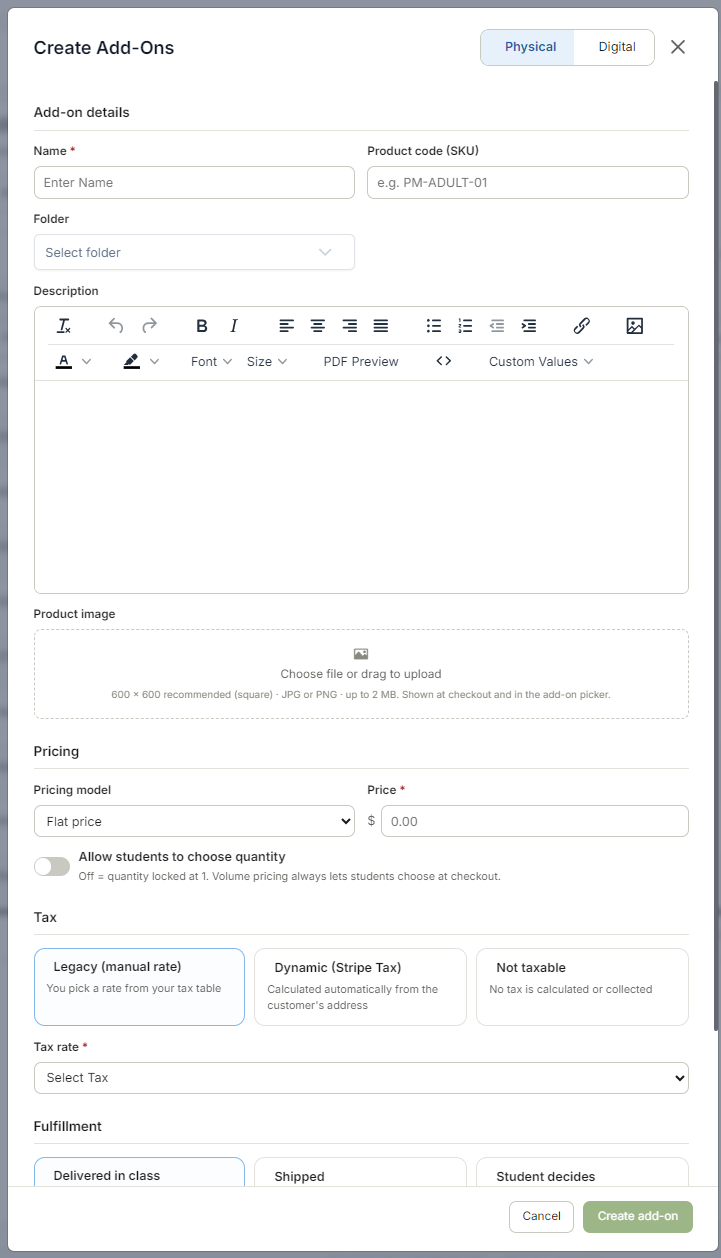
The Physical tab is selected by default. Work down the form:
- Add-on details — enter the Name (required) and optionally a Product code (SKU) and a Folder. Write a Description in the rich text editor.
- Product image — upload a square image, 600 × 600 recommended, JPG or PNG up to 2 MB. This is what students see at checkout and in the add-on picker.
- Pricing — choose a Pricing model and enter the Price (required). Leave Allow students to choose quantity off to lock the quantity at 1; volume pricing always lets students choose a quantity at checkout regardless of this toggle.
- Tax — pick one of three cards: Legacy (manual rate), where you select a rate from your tax table; Dynamic (Stripe Tax), calculated automatically from the customer’s address; or Not taxable.
- Fulfillment — choose Delivered in class, Shipped, or Student decides.
- Scroll down for the remaining options, including which courses the add-on should be available for and whether it is pre-selected on the registration form.
- Click Create add-on.
Step 3: Create a Digital Add-On
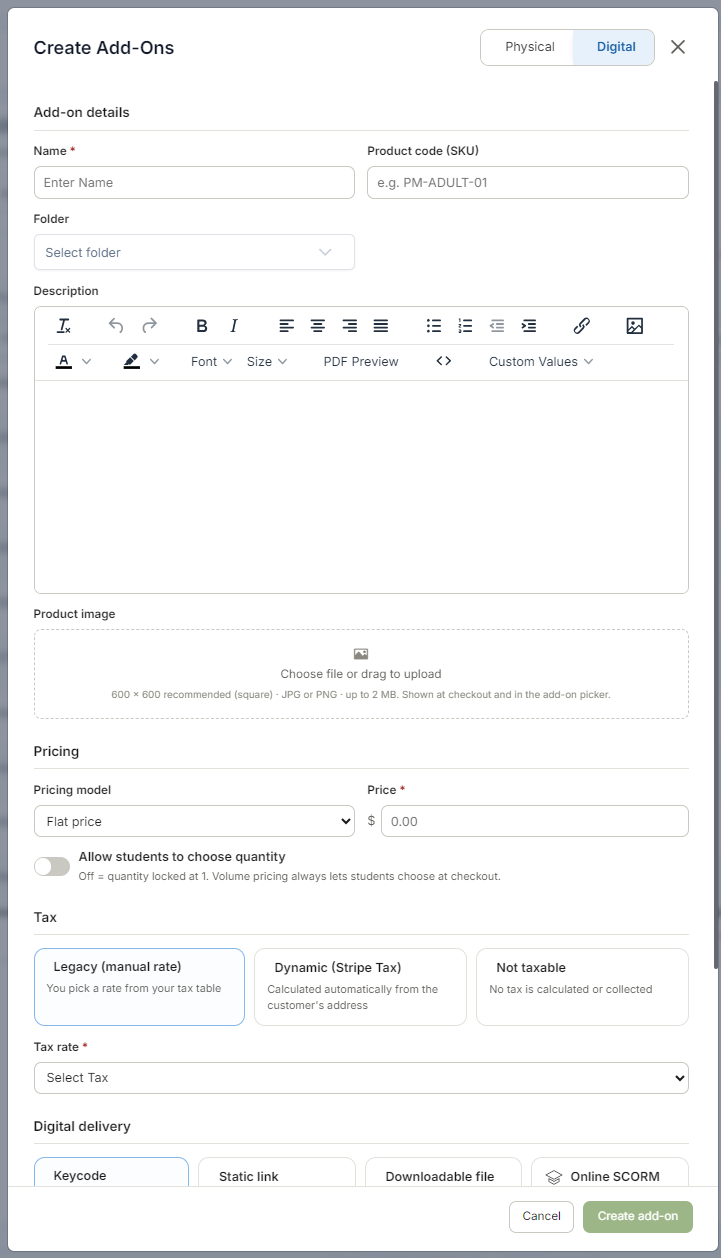
Click the Digital tab at the top of the window. The details, product image, pricing and tax sections are identical to the physical form. The difference is the final section: Fulfillment is replaced by Digital delivery, with four choices.
- Keycode — issues a code from one of your Key Code banks.
- Static link — sends the student to a fixed URL.
- Downloadable file — delivers a file you upload.
- Online SCORM — launches a SCORM course.
Step 4: Set Up Volume Pricing (Bulk Discounts)
- In the Pricing section, change Pricing model from Flat price to a tiered model.
- Enter each tier’s minimum quantity and per-unit price — for example 1–10 at $15.00 each, 11–25 at $12.00 each, 26 or more at $10.00 each.
- Save the add-on. Students can now choose a quantity at checkout and the correct tier price is applied automatically.
Step 5: Import Add-On Templates from the Marketplace (Optional)
- Go to Marketplace > Add-On Templates.
- Hover over a card and click Use Template to import it.
- Edit the imported add-on to set your own price, tax treatment and fulfillment or delivery method.
Best Practices
- Add a product image to everything you sell. It is the only visual a student sees in the add-on picker.
- Use a consistent Product Code scheme (for example PM-ADULT-01) so your add-ons sort and filter predictably.
- Reserve Student decides for items that genuinely work either way. For anything you always hand out at the class, Delivered in class keeps your fulfillment queue clean.
- Choose Not taxable only for items that really are exempt. If you are not sure, Dynamic (Stripe Tax) is the safer default once Stripe Tax is enabled on your account.
- Keep your Key Code banks stocked. A keycode add-on with an empty bank will fail at checkout.
- Use folders once you pass a dozen add-ons — the Folder filter on the list is the fastest way back to the one you want.
Was this article helpful?
That’s Great!
Thank you for your feedback
Sorry! We couldn't be helpful
Thank you for your feedback
Feedback sent
We appreciate your effort and will try to fix the article