Registration deadlines automatically close enrollment for a class a set number of days before it starts, giving you time to finalize headcount, prepare materials, and brief your instructor before class day. CPR Enroll+ supports deadlines at both the course level (applies to all classes from that course) and the class level (overrides the course setting for a specific session).
Before You Begin
- Know whether you want the deadline to apply to every class under a course, or only to a single session.
- Decide how many days before class start registration should close.
- If you plan to require a minimum headcount, know the minimum number of students needed to run the class.
Step-by-Step Instructions
Step 1: Set a Course-Level Deadline (Applies to All Classes)
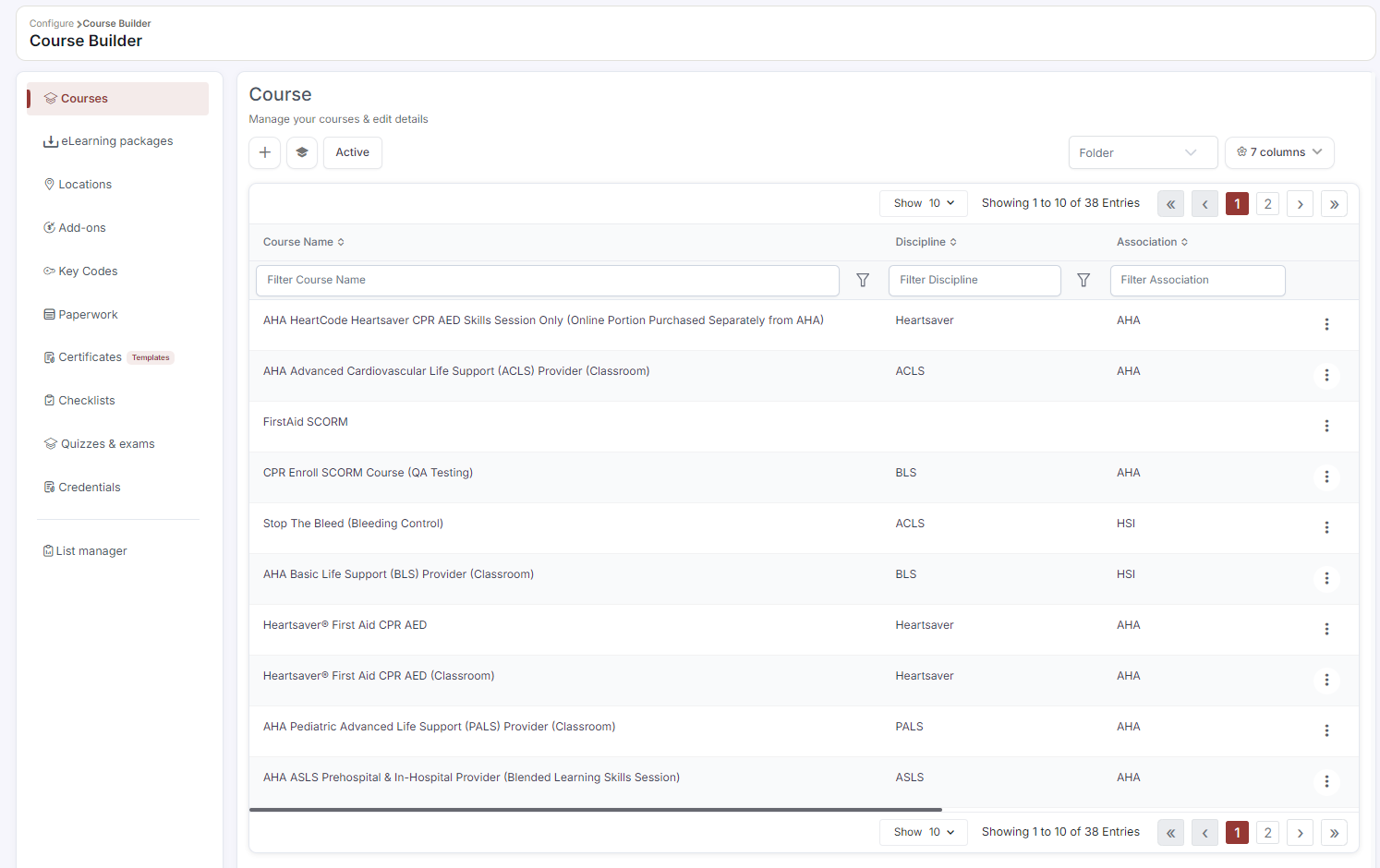
- Go to Course Builder > Courses.
- Click ⋮ > Edit on the course.
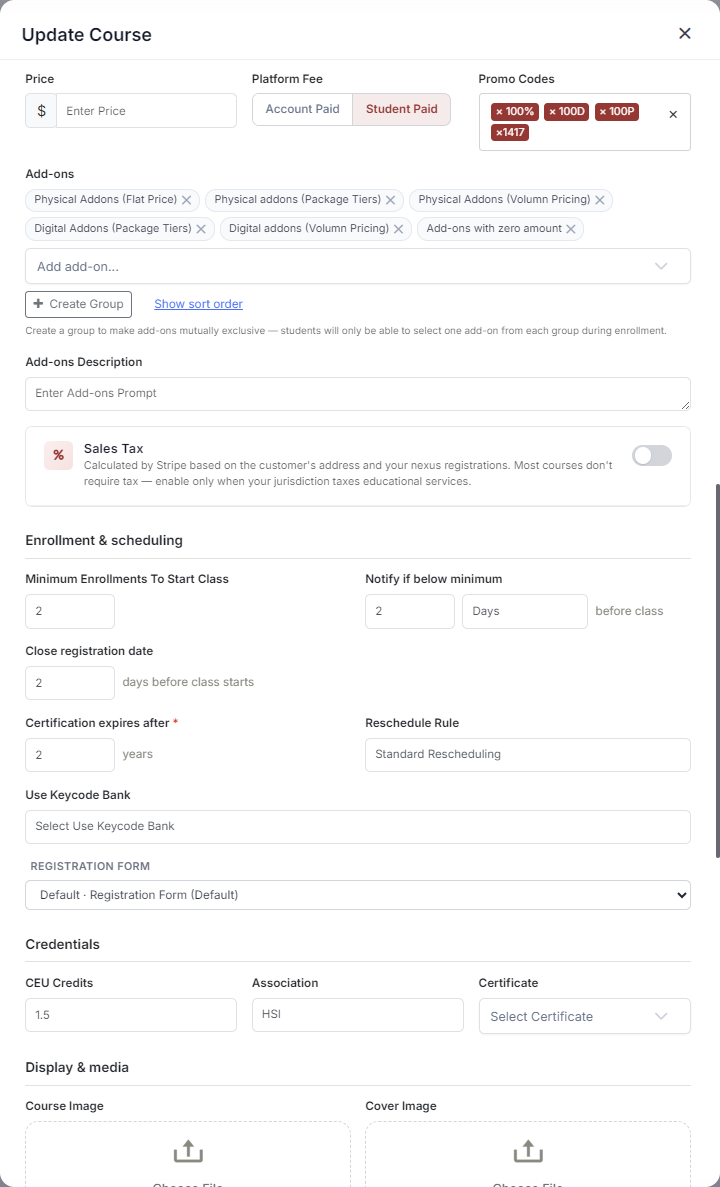
- Scroll to the Enrollment & scheduling section.
- In the Close registration date field, enter the number of days before class start that registration should close. The field reads days before class starts, so 2 closes registration 48 hours before the class.
- Click Save. This deadline applies to every class scheduled from this course unless overridden at the class level.
Step 2: Set a Class-Level Deadline (Overrides Course Setting)
- Go to Classes and click ⋮ > Edit on the specific class.
- On the Class Info tab, find the Close registration field.
- Enter the number of days before this class starts that registration should close — the field reads days before class start date.
- Click Save. This setting overrides the course-level deadline for this session only.
ℹ What students see after registration closes. After the deadline passes, the class still appears on your registration page, but the Enroll button is replaced with a "Registration Closed" message. Students cannot self-register, but an admin can still manually enroll students via the Enrollments section.
Step 3: Set a Minimum Enrollment to Start a Class (Optional)
- In the course Edit form, find Minimum Enrollments To Start Class in the Enrollment & scheduling section.
- Enter the minimum headcount required.
- Monitor enrollment numbers in the Classes list — the Enrollments column shows the current count versus the maximum.
- If the minimum is not met by the deadline, use ⋮ > Cancel Class. CPR Enroll+ automatically emails all enrolled students with a cancellation notification.
Step 4: Set a Low-Enrollment Alert (Optional)
- In the same Enrollment & scheduling section of the course, set Notify if below minimum to the amount of lead time you want.
- Choose Days, Weeks or Months — the field reads before class.
- This gives you a warning window before class day while enrollment is still below the minimum you set in Step 3, so there is time to promote the class or cancel it.
Best Practices
- Set deadlines at the course level first so every new class inherits a sensible default.
- Use a class-level override only when a specific session needs a different cutoff, such as a rush class or a private group booking.
- Pair a minimum enrollment requirement with the low-enrollment alert so you have time to promote a class before deciding whether to cancel it.
- Review the Enrolled column regularly as the deadline approaches so cancellations aren't a surprise.
Frequently Asked Questions
| Question | Answer |
|---|---|
| What happens if I set both a course-level and a class-level deadline? | The class-level deadline overrides the course-level setting for that specific session only; all other classes under the course keep using the course-level deadline. |
| Can students still register after the deadline passes? | No. Self-registration is disabled and replaced with a "Registration Closed" message, though an admin can still manually enroll students. |
| What happens if a class doesn't reach its minimum enrollment? | You can cancel the class using Cancel Class, which automatically emails all enrolled students a cancellation notification. |
✔ You're all set. Your registration deadlines are configured, and CPR Enroll+ will automatically close enrollment and notify students right on schedule.
Was this article helpful?
That’s Great!
Thank you for your feedback
Sorry! We couldn't be helpful
Thank you for your feedback
Feedback sent
We appreciate your effort and will try to fix the article