Group Training lets organizations request customized class sessions for their teams, separate from your standard public class listings. To support this, CPR Enroll gives you a variety of registration page types you can share — from a general all-classes page to a dedicated group training inquiry form, or even a private page built for a single client.
This article walks you through the Share Registration window and each of the page types available, so you can choose the right link for group training and any other registration scenario.
Before You Begin
Before setting this up, it helps to know:
- Whether you want to promote group training broadly (using a general page) or set up a dedicated inquiry page just for group training requests.
- Which classes, locations, courses, disciplines, associations, categories, or instructors you might want to filter a registration page around.
- Whether you have a specific client that needs a private, unlisted registration page.
Step-by-Step Instructions
Step 1: Open Your Setup Guide
- From the opening screen, click Settings on the left menu.
- Click Setup Guide.
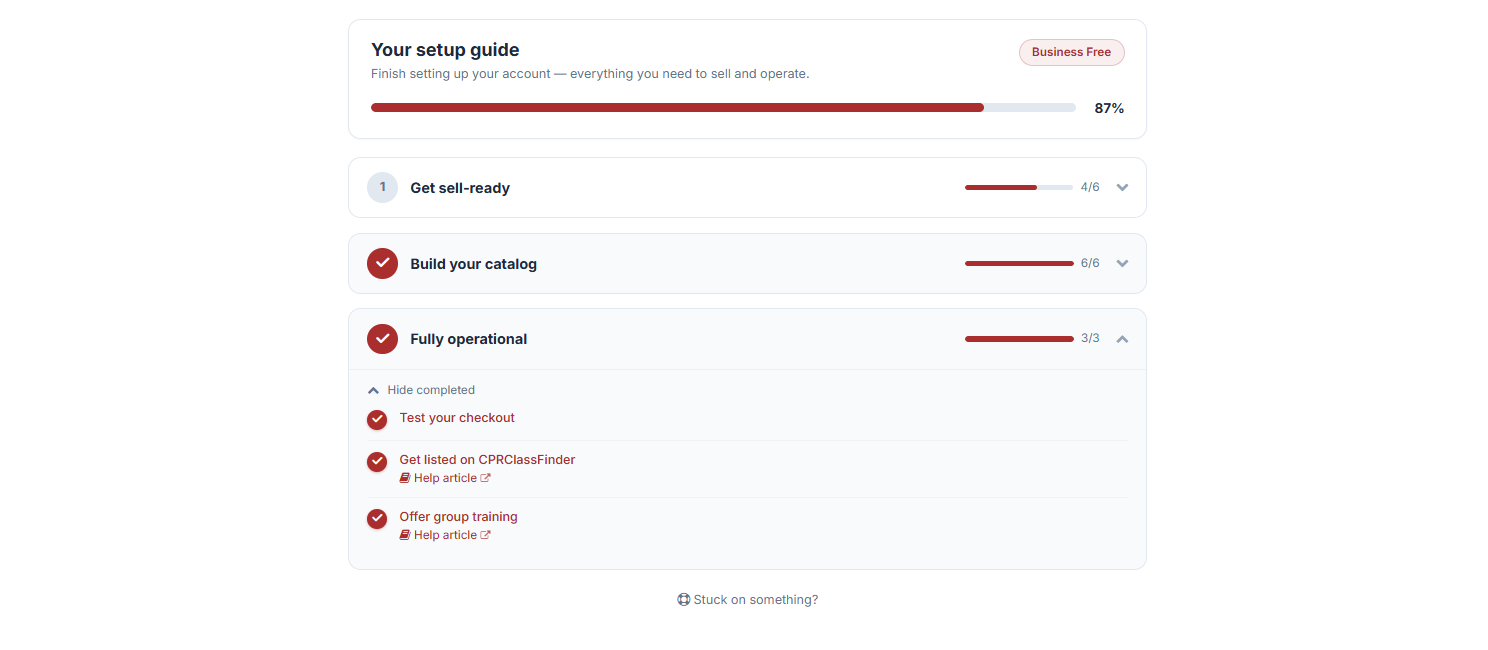
You'll land on Your Setup Guide, where you can finish setting up your account with everything you need to sell and operate.
Step 2: Navigate to Fully Operational
- Click Fully Operational. Here you'll find three different setups you can complete to make sure you're fully operational and optimizing your use of CPR Enroll.
- Select Offer Group Training.
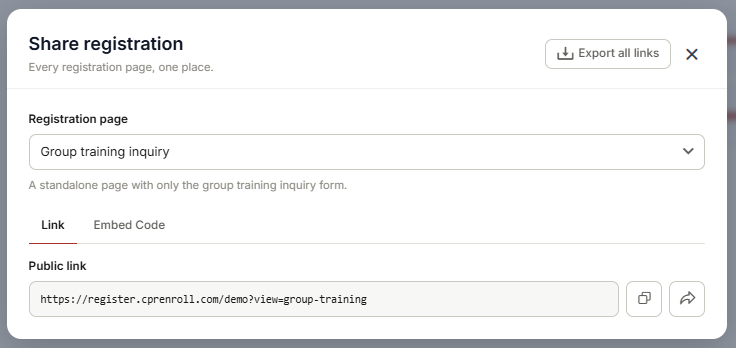
The Share Registration window will pop up — every registration page, in one place.
Step 3: Export All Links (Optional)
If you'd like a complete reference of every enrollment link at once, click Export All Links to download all of your Enrollment Links as an .xlsx file.
Step 4: Choose a Registration Page Category
Use the drop-down menu to select which registration page to share. You'll choose from three categories:
- General Pages
- Filtered Pages
- Specific Pages
Step 5: Select a General Page (If Applicable)
General Pages offer broad, ready-to-use registration links:
| Page | Description |
|---|---|
| All Classes | A unified page showing all upcoming classes with calendar, list, and filters. Recommended as your primary enrollment link. |
| All Classes & Group Trainings | All upcoming classes plus the group training request form on one page. |
| Group Training Inquiry | A standalone page with only the group training inquiry form. |
| Kiosk | A self-service kiosk page of walk-in / kiosk classes. |
For Group Training specifically, Group Training Inquiry or All Classes & Group Trainings are typically the most relevant options.
Step 6: Select a Filtered Page (If Applicable)
Filtered Pages narrow the registration link to a specific slice of your offerings:
| Filter | Description |
|---|---|
| Class Type | All upcoming classes of one delivery type (In Person, Blended, Skills Only, Online, Virtual, or Kiosk). |
| Course | All upcoming classes of one course. |
| Location | All upcoming classes of one location. |
| Discipline | All upcoming classes in one discipline. |
| Association | All upcoming classes under one association. |
| Category | All upcoming classes in one category. |
| Instructor | All upcoming classes taught by one instructor. |
Select the specific value for whichever filter you choose (e.g., a specific course, location, or instructor).
Step 7: Select a Specific Page (If Applicable)
Specific Pages create highly targeted registration links:
| Page | Description |
|---|---|
| Single Class | A direct registration link for one specific class. Select the Course and the Class. |
| Client (Private Page) | A private, unlisted registration page for one client organization. Select the specific client. |
Step 8: Copy or Share Your Link
For any page type, you can Copy or Forward the Public Link to share it with students or organizations.
For Client (Private Page) links specifically, you can also:
- Copy the Access Key.
- Regenerate the Access Key by clicking Regenerate Key, if you need to issue a new key (for example, if the previous key was shared too broadly).
Best Practices
- Use "Group Training Inquiry" for dedicated marketing, such as a landing page link shared with corporate or organizational contacts specifically interested in private training.
- Use "All Classes & Group Trainings" if you want a single link that serves both individual students and organizations inquiring about group sessions.
- Reserve Client (Private Page) links for confirmed client relationships, since these pages are unlisted and intended for a single organization.
- Regenerate the Access Key if a private link is ever shared unintentionally, to prevent unauthorized access.
- Export All Links periodically to keep a master reference of all your active registration pages, which is especially useful for teams managing multiple locations or client relationships.
Frequently Asked Questions
| Question | Answer |
|---|---|
| What's the difference between General, Filtered, and Specific Pages? | General Pages are broad, ready-to-use links covering all classes or group training generally. Filtered Pages narrow results to one attribute (like a course, location, or instructor). Specific Pages target one exact class or one specific client. |
| Which page type is best for promoting group training? | Use Group Training Inquiry if you want a standalone form dedicated only to group training requests, or All Classes & Group Trainings if you'd like to combine it with your general class listings. |
| What is the Access Key used for? | The Access Key is used with Client (Private Page) links to keep the registration page private and unlisted, accessible only to those with the key. |
| What happens if I regenerate the Access Key? | Regenerating the key invalidates the previous one, so anyone using the old key will no longer be able to access the private page. Share the new key with your client afterward. |
| Can I export all my registration links at once? | Yes. Click Export All Links from the Share Registration window to download every enrollment link as an .xlsx file. |
✔ You're all set. You now have a registration page tailored to your needs — whether that's a general group training inquiry form, a filtered link for a specific course or location, or a private page for a single client.
Was this article helpful?
That’s Great!
Thank you for your feedback
Sorry! We couldn't be helpful
Thank you for your feedback
Feedback sent
We appreciate your effort and will try to fix the article