Every class in CPR Enroll+ has a maximum student capacity. When a class fills up, you can either turn away additional students or enable a waitlist so interested students are automatically notified if a spot opens. This guide covers both options and explains how to monitor and manage class fill rates.
Before You Begin
- Know the maximum number of students your venue or instructor can accommodate.
- Decide whether you want to hide the remaining seat count from students on your registration page.
- Decide whether you want to enable a waitlist for classes that are likely to fill up.
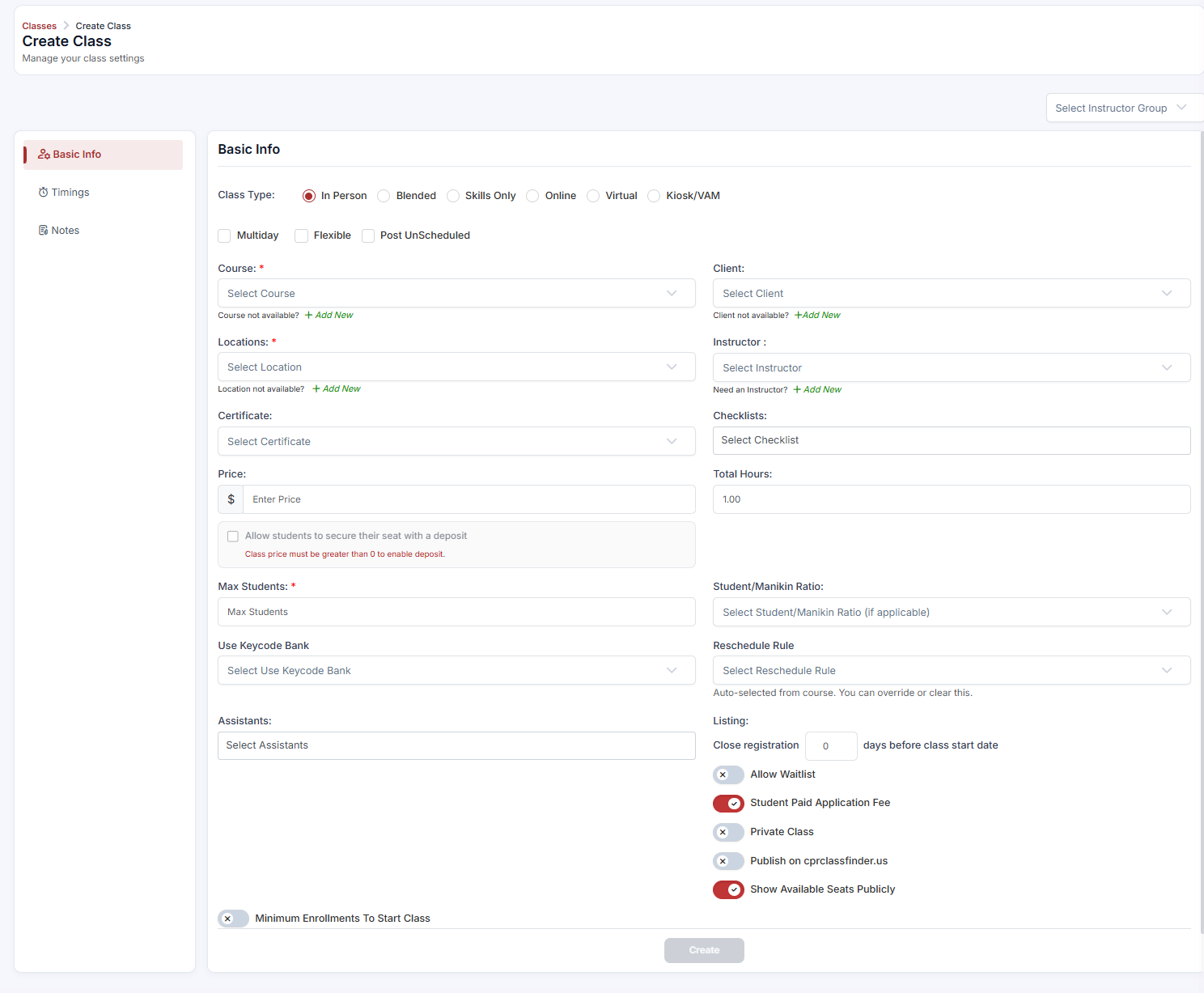
- to reduce panic-registrations near the deadline.
- When increasing Max Students on a full class, let CPR Enroll+ handle waitlist notifications automatically rather than manually enrolling students out of order.
- Check the waitlist regularly in the days leading up to class so you can fill last-minute cancellations.
Frequently Asked Questions
| Question | Answer |
|---|---|
| What happens when a class reaches Max Students? | The Enroll button is replaced with a "Class Full" message, and no additional self-enrollment is possible unless you increase the limit or enable a waitlist. |
| Can I hide the remaining seat count from students? | Yes. Turn off the Show Available Seats Publicly toggle in the Listing Settings section; students can still register, but the count stays hidden. |
| How are waitlisted students notified when a spot opens? | If you increase Max Students, CPR Enroll+ automatically notifies the next student in the queue in the order they joined the waitlist. |
✔ You're all set. Your class capacity is configured, and students who can't get a seat right away will be notified the moment one opens up.
Was this article helpful?
That’s Great!
Thank you for your feedback
Sorry! We couldn't be helpful
Thank you for your feedback
Feedback sent
We appreciate your effort and will try to fix the article