
QR codes let prospective students scan and land directly on your class registration page with a single camera tap — no typing required. CPR Enroll+ includes a built-in QR code generator with 10 link types and full visual customization. Download your QR codes as SVG, PNG, or JPEG files and place them on flyers, posters, business cards, or training room signage.
Step 1 — Open the QR Code Builder
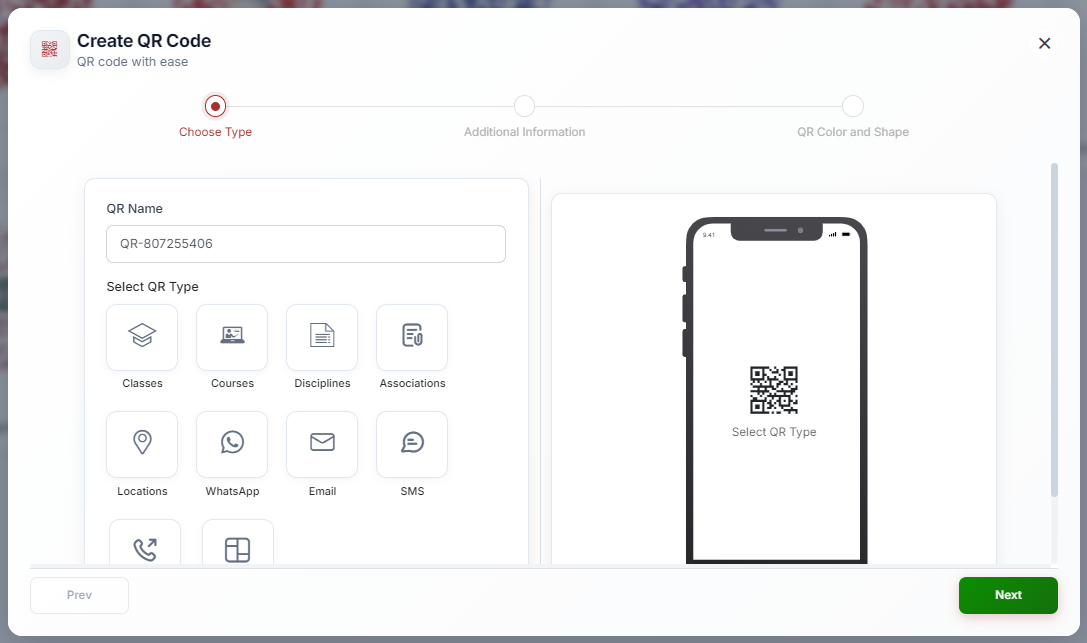
From the sidebar, click QR Codes. Click + to open the 3-step creation wizard.
Step 2 — Name and Type
Enter a descriptive QR Name (for example, “BLS Classes — Lobby Poster — Q3 2026”). Select the QR Type — this determines what the QR code links to:
Fill in the type-specific field (for example, select a class from the dropdown for the Classes type, or enter a URL for the Website type). A short cprenroll.me link is auto-generated for the QR code. Click Next.
Step 3 — Customize Appearance
On the QR Color and Shape step, customize the visual appearance of your QR code. Set the “Dots Color,” “Marker Border Color,” and “Marker Center Color,” then choose a “Dot Shape” and “Marker Shape” from the available geometric styles. A live preview updates in real time. Click Save when satisfied.
Downloading Your QR Code
Find your QR code in the QR Codes list. Click Download. Choose your format: SVG (for print — infinitely scalable), PNG (for digital use), or JPEG (for broad compatibility).
✔ Always use SVG for print. SVG is a vector format — it remains perfectly crisp no matter how large it is printed. Use PNG for websites, email, and social media.
Was this article helpful?
That’s Great!
Thank you for your feedback
Sorry! We couldn't be helpful
Thank you for your feedback
Feedback sent
We appreciate your effort and will try to fix the article