
The Student Attendance report in CPR Enroll+ lets you view and record attendance for every enrolled student across all your classes. It is the only report in CPR Enroll+ with a built-in bulk action — the Mark as Present button — making it the fastest way to update attendance records for an entire class at once.
Accessing the Report
From the sidebar, go to Reports > Student Attendance.
The report loads showing all enrolled students and their attendance status.
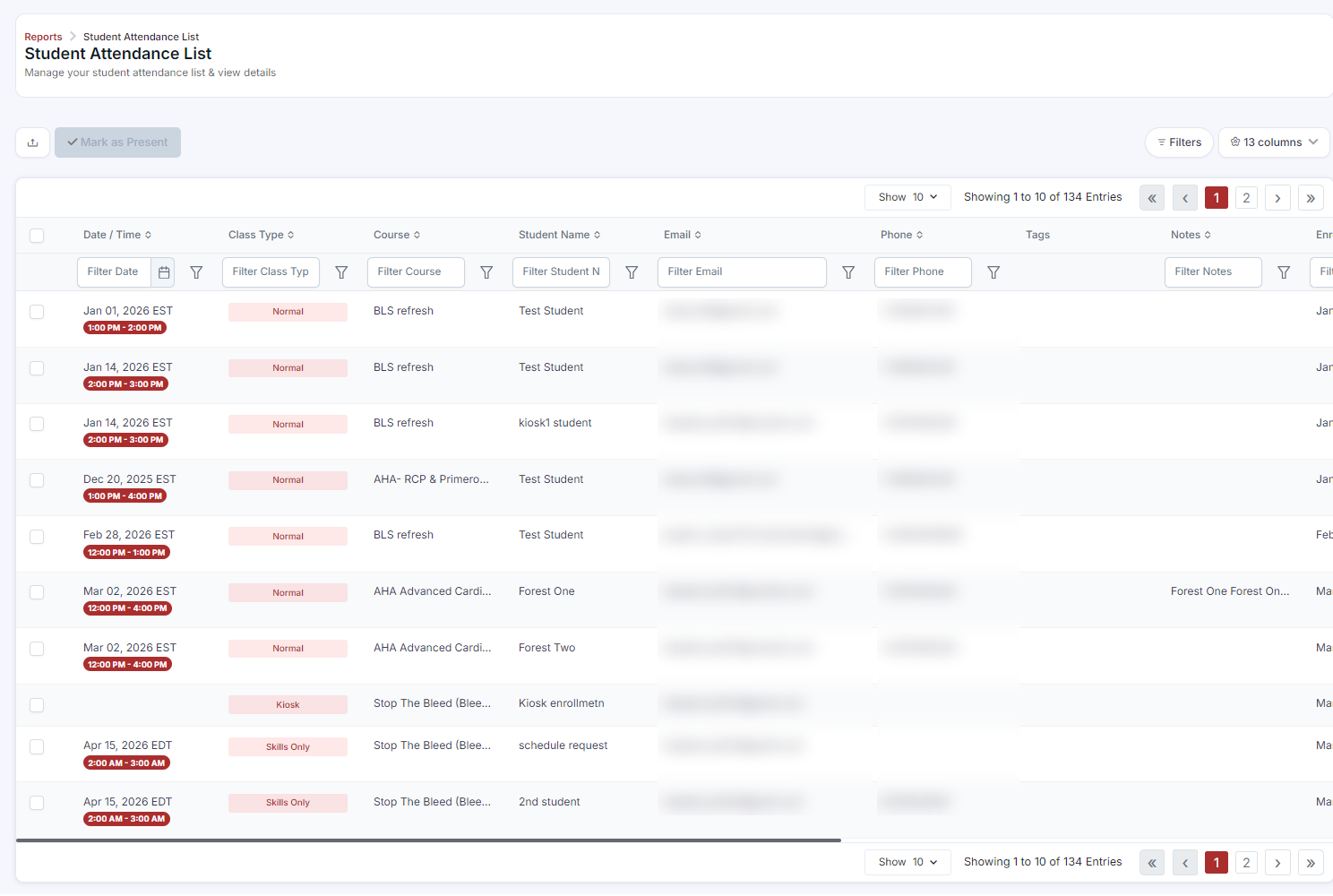
Understanding the Report Columns
Student Name — enrolled student
Class — the class the student is enrolled in
Date — the class date
Instructor — the lead instructor
Attendance Status — Present, Absent, or not yet recorded
Marking Students as Present
Filter the report to the class you want to update — use the Filters button to select by class name, instructor, or date.
Check individual student rows using the checkboxes, or use the select-all checkbox at the top to select the entire class.
Click the Mark as Present button in the toolbar.
All selected students are immediately updated to Present status.
Exporting Attendance Records
Apply your filters (by class, date range, or instructor).
Click Export to download the filtered attendance data as a spreadsheet.
Include this export in your compliance audit package (see Running a Compliance Audit Report).
Was this article helpful?
That’s Great!
Thank you for your feedback
Sorry! We couldn't be helpful
Thank you for your feedback
Feedback sent
We appreciate your effort and will try to fix the article