
If you already have a list of clients — from a spreadsheet, another platform, or your own records — you don't need to add them one by one. The Import Clients tool lets you upload a spreadsheet file and bring your entire client list into CPR Enroll at once.
This article walks you through preparing your file and completing the import process.
Before You Begin
To make sure your import goes smoothly:
- Download the provided import template before building your file. Using the template ensures your columns and formatting match what the system expects.
- Check your file format. Only
.xlsor.xlsxfiles are supported. - Review your data for accuracy before uploading — correct spelling, valid email formats, and consistent formatting will help avoid errors during import.
- Remove duplicate entries from your spreadsheet where possible, to keep your client list clean.
Step-by-Step Instructions
Step 1: Open Your Setup Guide
- From the opening screen, click Settings on the left menu.
- Click Setup Guide.
You'll land on Your Setup Guide, where you can finish setting up your account with everything you need to sell and operate.
Step 2: Navigate to Import Clients
- Click Build Your Catalog. Here you'll find six different setups you can complete to build out your catalog.
- Select Import Your Clients.
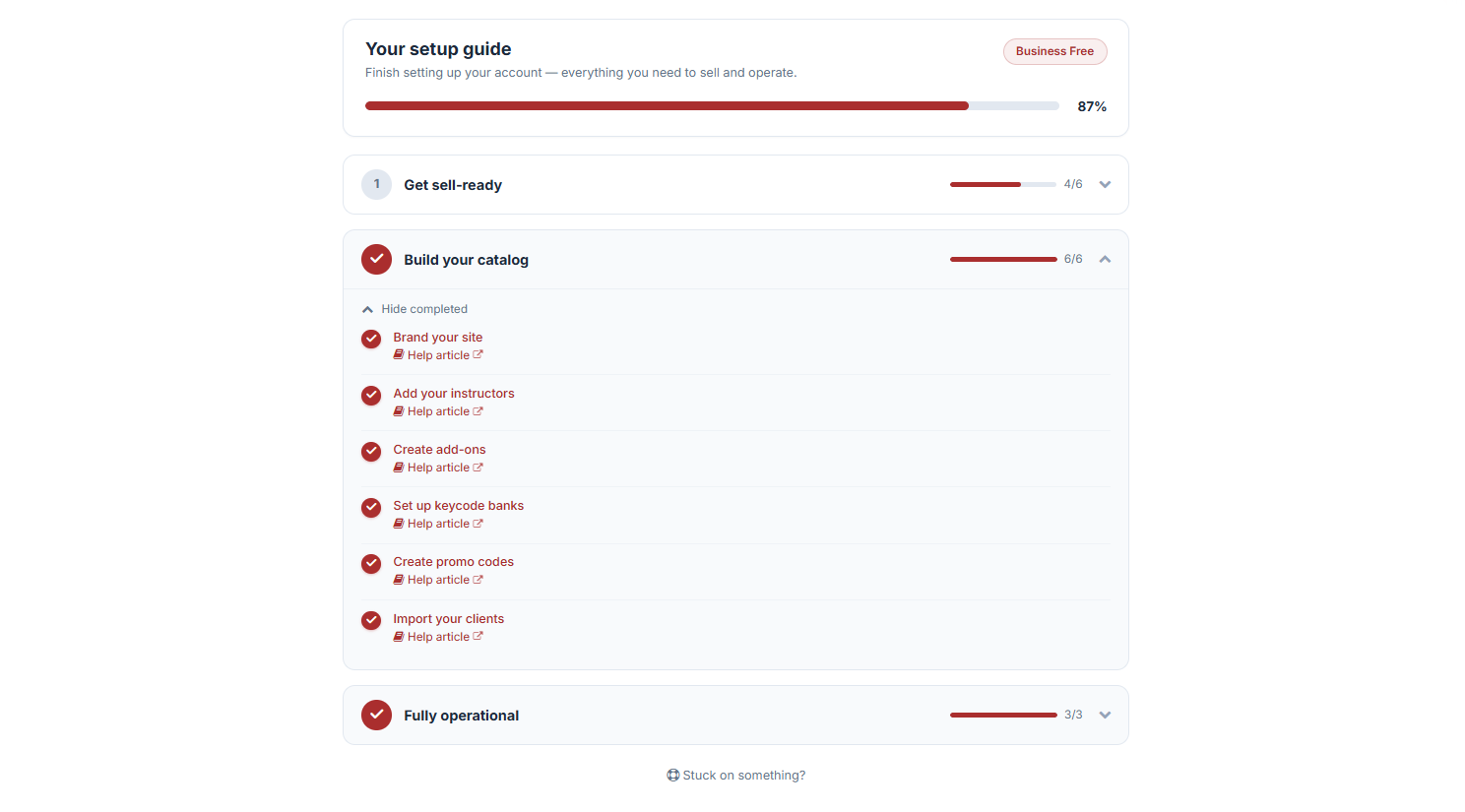
The Import Client window will open. 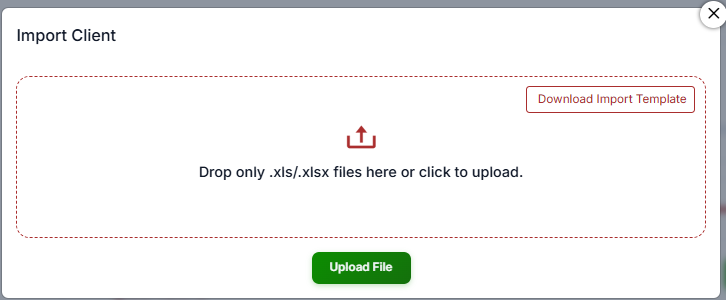
Step 3: Download the Import Template
Click Download Import Templates to get the correctly formatted spreadsheet. Use this template to organize your client data before uploading.
Step 4: Prepare Your File
Fill out the template with your client information, making sure each row represents one client and all required fields are completed.
Step 5: Upload Your File
Drag and drop your .xls or .xlsx file into the upload area, or click to browse and select the file from your computer.
Step 6: Finalize the Import
Click Upload File to complete the import.
Best Practices
- Always start from the downloaded template rather than building your own spreadsheet from scratch, to avoid formatting mismatches.
- Import in smaller batches if you have a very large client list, so it's easier to spot and fix any errors.
- Keep a backup copy of your original spreadsheet before uploading, in case you need to make corrections and re-import.
- Verify a few client records after the import completes to confirm the data came through correctly.
Frequently Asked Questions
| Question | Answer |
|---|---|
| What file formats are supported? | Only .xls and .xlsx files are supported for client imports. |
| Do I have to use the provided template? | Using the template is strongly recommended, since it ensures your file matches the expected column structure and reduces the chance of import errors. |
| What happens if my file has errors? | Review your spreadsheet for formatting issues, missing required fields, or invalid data, then re-upload the corrected file. |
| Can I import clients more than once? | Yes. You can run the import process multiple times as you add new clients to your spreadsheet. |
✔ You're all set. Your client list is now imported and ready to use across CPR Enroll — for scheduling classes, assigning discounts, and managing enrollments.
Was this article helpful?
That’s Great!
Thank you for your feedback
Sorry! We couldn't be helpful
Thank you for your feedback
Feedback sent
We appreciate your effort and will try to fix the article