Mailchimp, Slack and Microsoft Teams all connect from the same place, and all three do the same basic job: get what happens in CPR Enroll in front of the people who need to know about it. Mailchimp syncs your students to an audience; Slack and Teams put enrollment alerts in a channel.
Before You Begin
- All three live on Settings → Integrations & Connections. The header shows how many are live, for example 5 / 8 — Connected integrations active.
- You will need admin rights in the destination tool — a Mailchimp login, or permission to install an app in your Slack workspace or Teams tenant.
- Decide which Mailchimp audience and which Slack channel before you start, so you are not guessing mid-flow.

Step 1: Connect Mailchimp
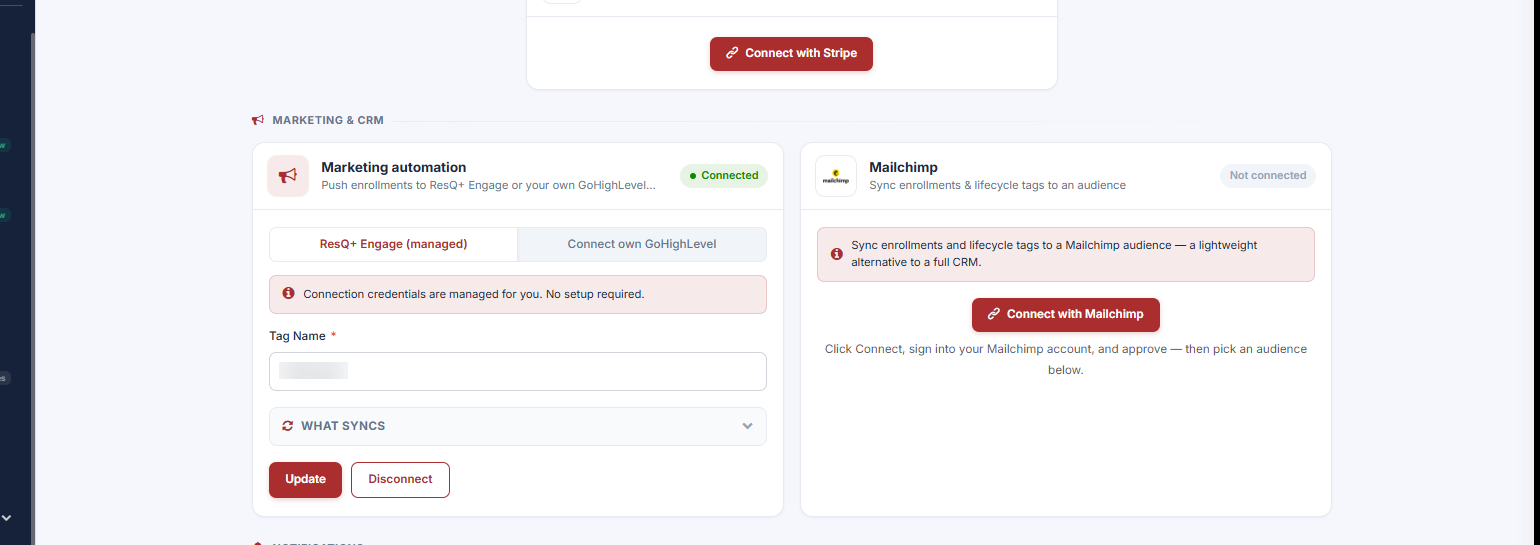
Found under Marketing & CRM — sync enrollments and lifecycle tags to an audience. It is a lightweight alternative to a full CRM.
- Click Connect with Mailchimp.
- Sign in to your Mailchimp account and approve.
- Pick the audience to sync to.
What syncs: first name, last name, email, phone, course name, instructor name and certificate expiry date, plus lifecycle event tags based on enrollment activity.
✔ Sync failures never interrupt an enrollment. They are logged silently. If credentials expire, the connection status indicator tells you to reconnect — so check the indicator rather than waiting for something to break.
Each organization syncs only with its own Mailchimp account and audience — data is fully isolated.
Step 2: Connect Slack
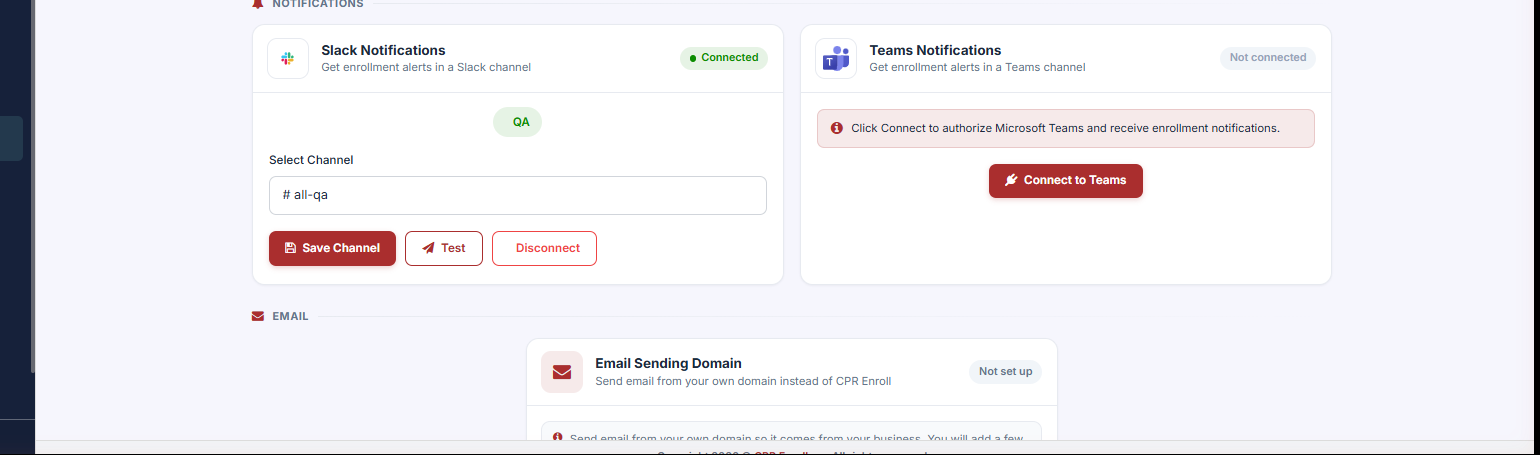
Found under Notifications — get enrollment alerts in a Slack channel.
- Click to connect and authorize Slack.
- Choose the workspace, then set Select Channel — for example #all-qa.
- Click Save Channel.
- Click Test to fire a sample notification into the channel.
Slack notifications use Block Kit formatting, so enrollments arrive as structured cards with student information, course details, payment details and class location.
Use Disconnect to remove the integration.
Step 3: Connect Microsoft Teams
Also under Notifications — get enrollment alerts in a Teams channel. Click Connect to Teams to authorize Microsoft Teams and receive enrollment notifications.
Step 4: If You Already Use Webhooks
Webhooks now carry a Channel Type setting — Generic (the default), Slack or Microsoft Teams.
- Existing webhook integrations continue to work unchanged.
- Set the channel type only if you want the richer formatting.
- Fallback templates ensure a readable message is delivered even with no custom template configured.
Step 5: GoHighLevel — Two Connection Modes
The Marketing automation card offers two tabs:
| Mode | What it involves |
|---|---|
| ResQ+ Engage (managed) | Credentials are managed for you; no setup required. Set a Tag Name and click Update. Expand What syncs to see the field list. |
| Connect own GoHighLevel | Authenticate with a Private Integration Token, then configure API Key, Location ID and Tag Name. |
Switching between modes prompts for confirmation so you cannot disconnect by accident, and disconnecting fully clears stored credentials.
Best Practices
- Send Slack alerts to a dedicated channel, not a busy general one. Enrollment cards are useful until they are noise.
- Always click Test after connecting Slack. It is the only way to know the channel choice actually stuck.
- Check the Mailchimp connection status indicator periodically — expired credentials fail quietly by design.
- If you already have working webhooks, leave them on Generic unless you specifically want Slack or Teams formatting.
- Use ResQ+ Engage (managed) for GoHighLevel unless you have a reason to run your own account.
Frequently Asked Questions
| Question | Answer |
|---|---|
| Where do I connect all of these? | Settings → Integrations & Connections. |
| What data goes to Mailchimp? | First name, last name, email, phone, course name, instructor name and certificate expiry date, plus lifecycle event tags. |
| Can another organization see my Mailchimp data? | No. Each organization syncs only with its own account and audience — data is fully isolated. |
| What happens if a Mailchimp sync fails? | It is logged silently and never interrupts an enrollment. The status indicator tells you if you need to reconnect. |
| Will my existing webhooks break? | No. They continue to work unchanged. Channel Type defaults to Generic. |
| How do I test Slack before relying on it? | Click Test to fire a sample notification into the channel. |
| Which GoHighLevel mode should I use? | ResQ+ Engage (managed) needs no setup. Connect own GoHighLevel requires a Private Integration Token, API Key and Location ID. |
✔ You’re all set. Enrollments now reach your audience and your team without anyone checking the portal.
Was this article helpful?
That’s Great!
Thank you for your feedback
Sorry! We couldn't be helpful
Thank you for your feedback
Feedback sent
We appreciate your effort and will try to fix the article