Students can save their certification to Apple Wallet or Google Wallet, so it lives on their phone without a portal login. It is one of the cheapest wins in the platform — two toggles, and your students stop emailing you for copies of their card.
Before You Begin
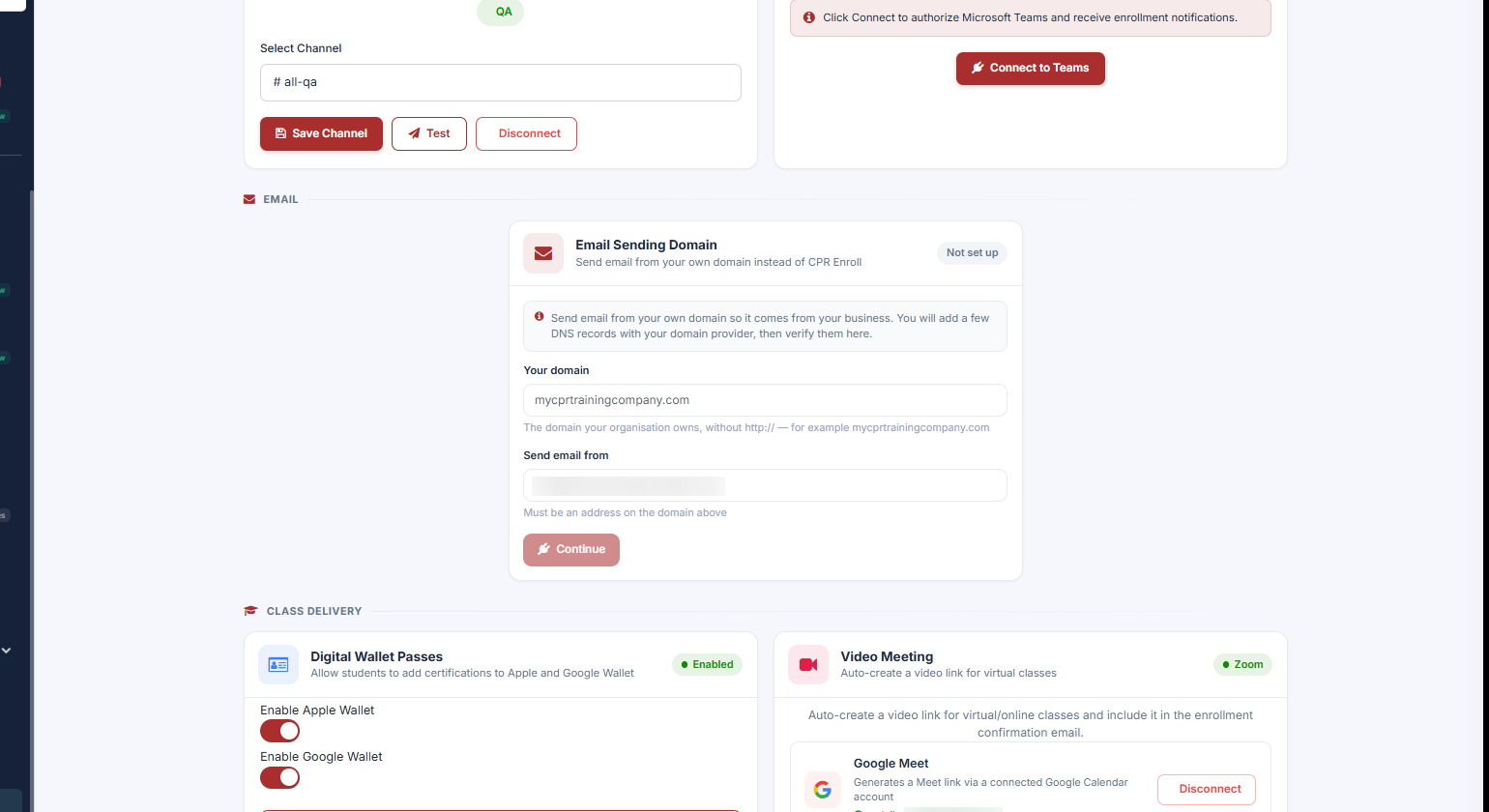
- Find it at Settings → Integrations & Connections → Class Delivery → Digital Wallet Passes.
- Decide on your pass colors before you start — Branding sets a background color and, for Apple Wallet only, foreground and label colors.
- Decide whether you want the Renew Certification link enabled and where it should point.
Step 1: Turn It On
- Toggle Enable Apple Wallet.
- Toggle Enable Google Wallet.
- Expand Branding to set how the pass looks. You can set an Organization Name Override (leave blank to use your org name), a Background Color, and — for Apple Wallet only — a Foreground Color and Label Color. Google Wallet determines its own text and label colors automatically.
- Click Save.
The card shows Enabled once at least one wallet is active.
Step 2: Know What the Student Sees
An Add to Wallet button appears on the certificate page. The pass shows the certifying body (AHA, Red Cross, HSI) and uses the actual expiration period configured for the class.
✔ Where the student finds it. The Add to Wallet button appears on the student’s certificate page — the same page they reach from their completion email or from My Enrollments. Tapping it on a phone opens Apple Wallet or Google Wallet directly. On a desktop browser the button still appears, but the pass is best added from the phone the student carries.
Step 3: Understand Why This Is Worth Enabling
| Benefit | What it means in practice |
|---|---|
| They stay current | When a certification is renewed or changed in CPR Enroll, the pass updates automatically — the student never re-downloads. |
| They verify | Every pass carries a secure QR code that opens a mobile-friendly verification page, so an employer can confirm authenticity by scanning. |
| They are tamper-evident | Passes are digitally signed and securely generated. |
| They drive renewals | A configurable Renew Certification link sends the student straight to a renewal registration page. |
Apple and Google Wallet stay in sync with updated certification numbers, issue dates and expiration dates.
✔ The renewal link is the quiet win. A pass sitting in a student’s wallet for two years is a renewal prompt they carry with them.
Step 4: While You Are Here — Video Meeting Settings
Video meeting settings sit beside this card. If you run virtual classes, use the Video Meeting card in the same section to connect Google Meet (via a connected Google Calendar account) or Zoom.
- Only one provider can be active at a time.
- The meeting link is added to enrollment confirmation emails and calendar invitations automatically.
Best Practices
- Enable both wallets. Splitting your students by phone platform serves nobody.
- Pick a background color with strong contrast against white text — wallet passes are read at a glance, often in poor light.
- Point the Renew Certification link at a live registration page, not your homepage.
- Mention the Add to Wallet button in your completion email — students will not look for a button they do not know exists.
- Scan your own pass’s QR code once to see what an employer sees.
Frequently Asked Questions
| Question | Answer |
|---|---|
| Do students need a portal login to see their card? | No. That is the point — the pass lives on their phone. |
| What happens when a certification is renewed? | The pass updates automatically. The student never re-downloads. |
| Can an employer confirm a pass is real? | Yes. Every pass carries a secure QR code that opens a mobile-friendly verification page. |
| Can passes be forged? | Passes are digitally signed and securely generated — they are tamper-evident. |
| Can I put my logo on the pass? | There is no logo upload in Branding. You control the Organization Name Override and the pass colors; the pass otherwise uses your organization’s existing branding. |
| Where does the expiration date come from? | The actual expiration period configured for the class. |
| Can I connect Google Meet and Zoom at the same time? | No. Only one video provider can be active at a time. |
✔ You’re all set. Certifications now live in your students’ pockets, stay current on their own, and verify by scan.
Was this article helpful?
That’s Great!
Thank you for your feedback
Sorry! We couldn't be helpful
Thank you for your feedback
Feedback sent
We appreciate your effort and will try to fix the article