A Virtual Location in CPR Enroll+ is a saved video conferencing link — your Zoom room, Microsoft Teams meeting, Google Meet link, or any other video platform URL — that you attach to a scheduled class. When a class uses a virtual location, CPR Enroll+ automatically includes the meeting link in the student's enrollment confirmation email and class reminder emails, so students always have the link without you distributing it manually.
Before You Begin
A Virtual Location is a good fit when:
- You are delivering a live, instructor-led class via video (Virtual class type).
- You want students to receive the meeting link automatically in their confirmation email.
- You have a dedicated recurring video room (e.g., a permanent Zoom link) used for all your virtual sessions.
- You offer both in-person and virtual versions of the same course and want separate location records for each.
ℹ Virtual Location vs. Online class type: A Virtual Location is for live, scheduled video sessions where an instructor and students are present simultaneously. The Online class type is for fully self-paced courses with no instructor and no fixed time — it requires no location at all. Do not assign a virtual location to an Online class.
Step-by-Step Instructions
Step 1: Create a Virtual Location
- From the sidebar, go to Course Builder > Locations.
- Click + Create.
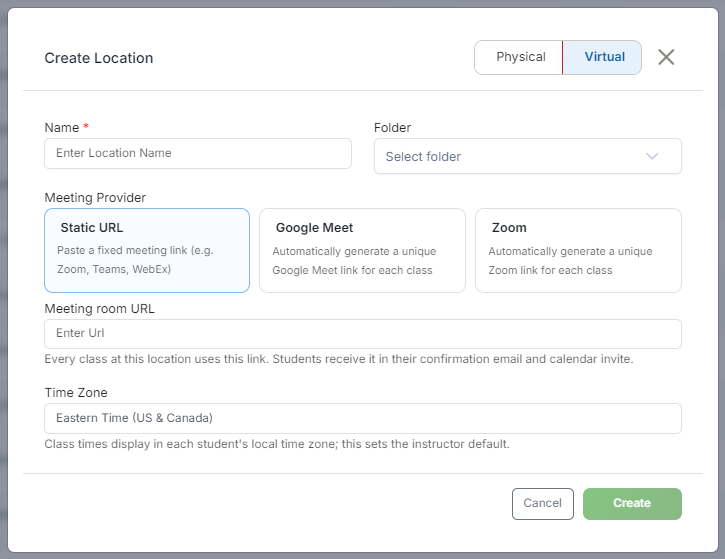
- Select Virtual as the location type.
- Enter the Location Name — be descriptive so it is easy to identify when scheduling (e.g., "Zoom — BLS Training Room" or "Teams — Main Virtual Classroom").
- Enter the Meeting URL — paste the full video conferencing link. This is the link students will receive in their confirmation and reminder emails.
- Set the Timezone — virtual locations have one timezone (unlike physical locations, which support a primary and secondary).
- Click Save.
✔ Use a permanent meeting room link: Most video platforms (Zoom, Teams, Google Meet) offer a Personal Meeting Room or Permanent Meeting Link that does not change between sessions. Save this as your virtual location URL so the same link works for every class — you will not need to update it after each session.
Step 2: Schedule a Class With a Virtual Location
- Go to Classes > + to create a new class.
- Select Virtual as the Class Type.
- Select your virtual location from the Location dropdown.
- Select the Instructor, set the Date, Start Time, End Time, and Timezone.
- Configure Max Students and any Listing Settings, then click Save.
Step 3: Know What Students See
- On the registration page: the class is listed with the virtual location name and scheduled time.
- In the enrollment confirmation email: the meeting URL is included automatically — students click it to join on class day.
- In the class reminder email: the meeting link is repeated so students have it close to class time.
Step 4: Manage Multiple Virtual Locations
If multiple instructors each use their own video room, or if you run classes on different platforms (some on Zoom, some on Teams), create a separate Virtual Location record for each. This keeps meeting links organized and ensures the correct link goes to each class's students.
Running a Virtual Class — Quick Checklist
- Before class: verify the enrolled student list via Classes > ⋮ > View Details and confirm the meeting URL is correct.
- At class time: start your video meeting 5–10 minutes early and admit students from the waiting room as they join.
- After class: go to Reports > Student Attendance and use Mark as Present to record attendance for all present students.
- If paperwork is required: go to Classes > ⋮ > Generate Class Paperwork to create skills assessment documents.
Best Practices
- Use a permanent meeting room link so you never have to update the location record between sessions.
- Name virtual locations descriptively, especially if you run classes on multiple platforms or with multiple instructors.
- Start your video meeting 5–10 minutes early to admit students smoothly from the waiting room.
- Never assign a virtual location to an Online (self-paced) class — those class types require no location at all.
Frequently Asked Questions
| Question | Answer |
|---|---|
| Do students have to ask me for the meeting link? | No. The meeting URL is included automatically in the enrollment confirmation email and repeated in the class reminder email. |
| Can a virtual location have a primary and secondary timezone like a physical location? | No. Virtual locations have a single timezone setting. |
| Should I create one virtual location for all instructors to share? | Only if they share the same video room. If each instructor or platform uses a different link, create a separate Virtual Location record for each. |
✔ You're all set. Your Virtual Location is created and ready to attach to classes, so students automatically receive the meeting link in their emails.
Was this article helpful?
That’s Great!
Thank you for your feedback
Sorry! We couldn't be helpful
Thank you for your feedback
Feedback sent
We appreciate your effort and will try to fix the article