Delete Phone Number Connected to WhatsApp Coexistence
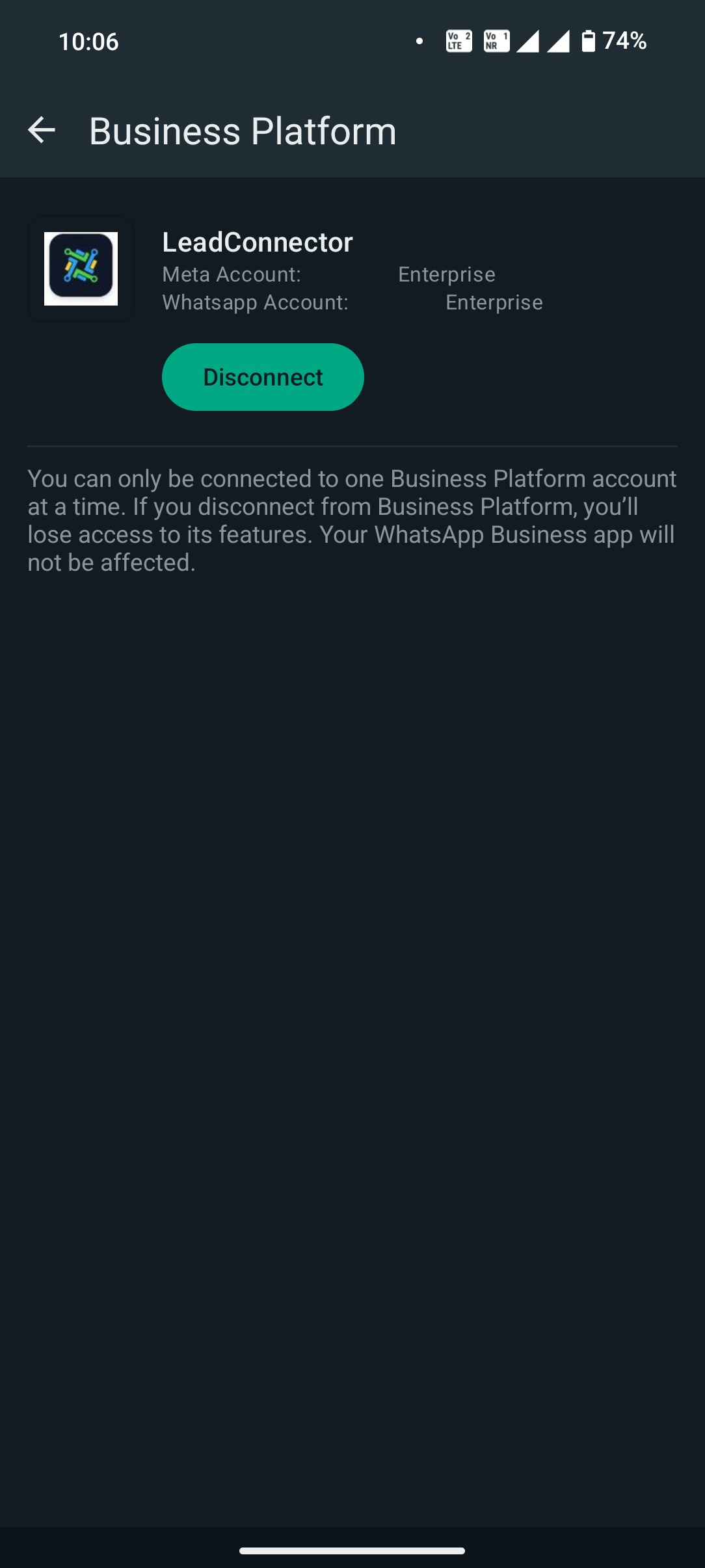
This is a case where the client sub-account that is connected to WhatsApp Coexistence doesn't have the option to disable it.
Solution:
In this case, clients are using coexisting for the number. The WhatsApp Coexistence feature allows businesses to use their existing WhatsApp Business App account with ResQEngage's advanced CRM tools powered by WhatsApp Cloud API.
WhatsApp businesses, who primarily use the WhatsApp Business App today, and are looking for advanced tools from Partners to manage conversations at scale or to integrate complex needs such as payments, shipping, and leads management to optimize business outcomes.
So, client can disconnect the integration from their WhatsApp mobile App by clicking on the disconnect button.
Was this article helpful?
Related articles
- How to Enable WhatsApp in your account?TABLE OF CONTENTS - Method 1: Connect a New WhatsApp Business number - How to Sign Up With the New WhatsApp Business AppPhone Number Verification - FAQs - Q. I received an error message stating that the number is registered to an existing WhatsApp account. What should I do next? - Q. You have alreaSetup
- WhatsApp FAQsTABLE OF CONTENTS - Q. Can I use my existing WhatsApp number for the WhatsApp Business Platform? - Q. Failed to send a message because this user's phone number is part of an experiment - Q. What steps do I need to take to use my existing WhatsApp number? - Q. Can I use my number on both the WhatsAppSetup
- Marketing Opt-out Button to Your Message TemplateTABLE OF CONTENTS - Enhance Customer Experience with a Marketing Opt-Out Button- Benefits of Adding a Marketing Opt-Out Button - Creating a High-Quality Opt-Out Experience Enhance Customer Experience with a Marketing Opt-Out Button Your business can now incorporate a marketing opt-out button in neSetup
- WhatsApp - Workflow IntegrationTABLE OF CONTENTS - Automating WhatsApp Responses with Workflow Automation- Step 1: Create a New Workflow - Step 2: Set Up a Trigger - Step 3: Apply WhatsApp-Specific Filters - Step 4: Define an Automated Action - Step 5: Customize the Automated Response - Step 6: Save & Activate the Workflow - HowSetup