WhatsApp Template Error: “New English (US) content can't be added while the existing English (US) content is being deleted. Try again in 4 weeks or consider creating a new message template.”
When creating or updating a WhatsApp Message Template, you may see the following error:
Error Message:
“New English (US) content can't be added while the existing English (US) content is being deleted. Try again in 4 weeks or consider creating a new message template.”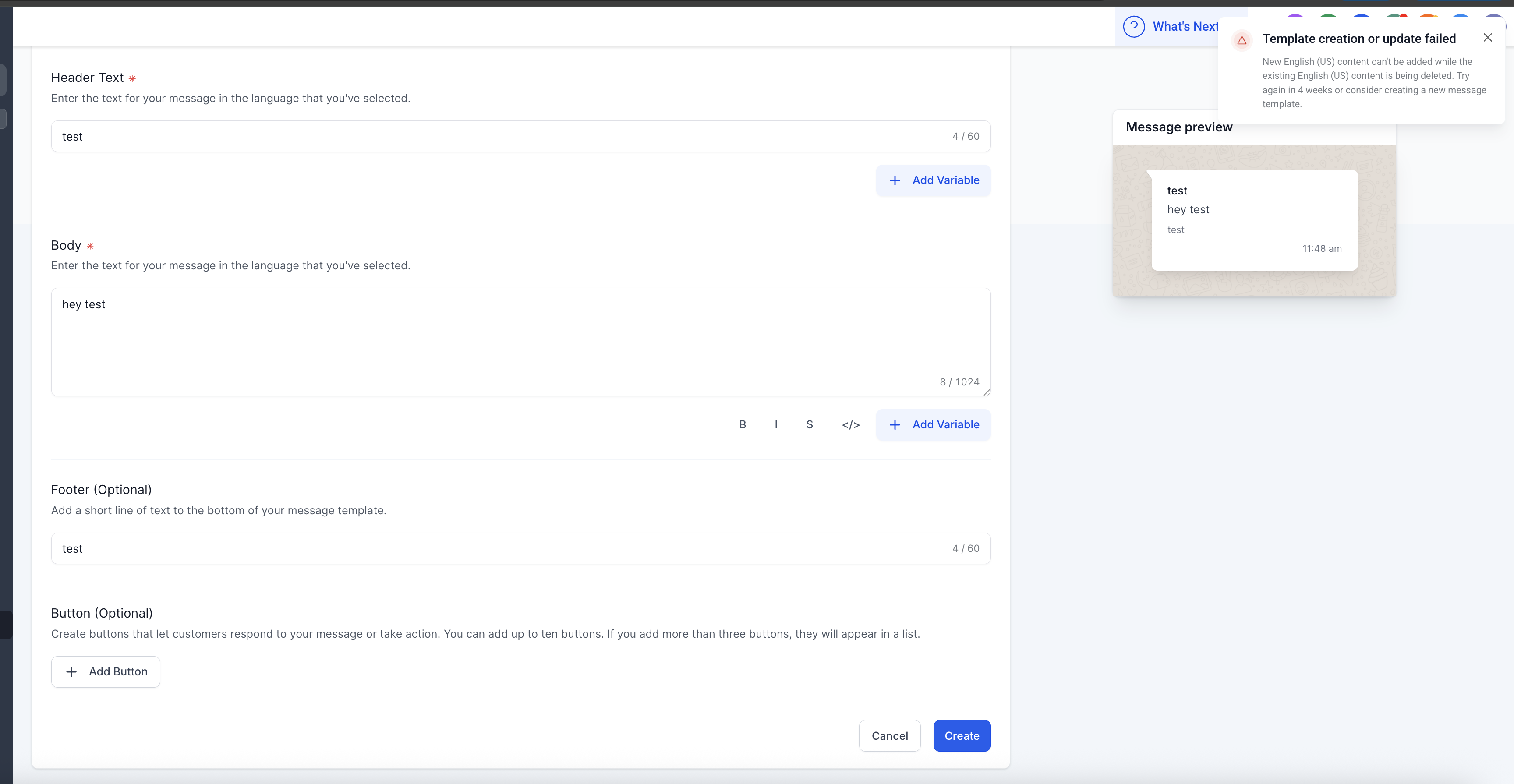
Why This Happens
Meta (WhatsApp) does not allow new English (US) content to be added immediately if the same language content is in the process of being deleted.
Once you delete English (US) content from a template, Meta enforces a cool-down period of up to 4 weeks before you can add English (US) content again.
This is part of Meta’s compliance checks to ensure consistent use of language in approved templates.
How to Resolve
You have two options to move forward:
Wait for 4 Weeks
After 4 weeks from the deletion date, you can add English (US) content back to the same template name.
Create a New Template (Recommended)
Instead of waiting, you can create a new template with the required English (US) template name
Use a unique template name (e.g.,
promo_offer_v2instead ofpromo_offer) to ensure it passes Meta’s review.
Was this article helpful?
Related articles
- How to Enable WhatsApp in your account?TABLE OF CONTENTS - Method 1: Connect a New WhatsApp Business number - How to Sign Up With the New WhatsApp Business AppPhone Number Verification - FAQs - Q. I received an error message stating that the number is registered to an existing WhatsApp account. What should I do next? - Q. You have alreaSetup
- WhatsApp FAQsTABLE OF CONTENTS - Q. Can I use my existing WhatsApp number for the WhatsApp Business Platform? - Q. Failed to send a message because this user's phone number is part of an experiment - Q. What steps do I need to take to use my existing WhatsApp number? - Q. Can I use my number on both the WhatsAppSetup
- Marketing Opt-out Button to Your Message TemplateTABLE OF CONTENTS - Enhance Customer Experience with a Marketing Opt-Out Button- Benefits of Adding a Marketing Opt-Out Button - Creating a High-Quality Opt-Out Experience Enhance Customer Experience with a Marketing Opt-Out Button Your business can now incorporate a marketing opt-out button in neSetup
- WhatsApp - Workflow IntegrationTABLE OF CONTENTS - Automating WhatsApp Responses with Workflow Automation- Step 1: Create a New Workflow - Step 2: Set Up a Trigger - Step 3: Apply WhatsApp-Specific Filters - Step 4: Define an Automated Action - Step 5: Customize the Automated Response - Step 6: Save & Activate the Workflow - HowSetup