WhatsApp Template Error: “body: Parameter at index contains URL”
What this means
Your message template was approved without a URL inside the body’s variable(s), but at send time you’re putting a URL inside a body parameter (e.g., {{1}}). For anti-phishing and quality reasons, Meta does not allow full URLs inside body placeholders. Links must be part of the template itself or placed in buttons (with optional dynamic suffixes).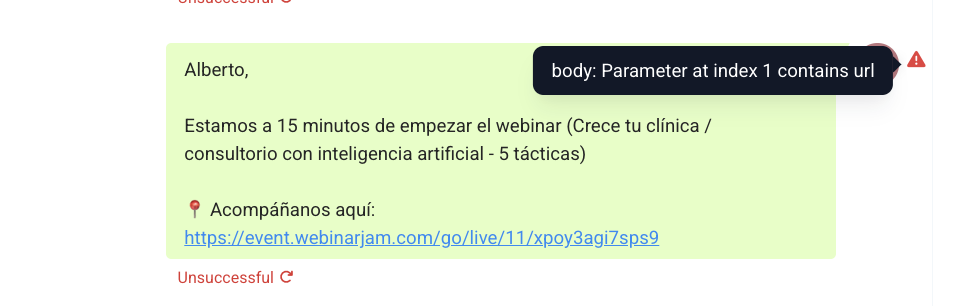
Why it happens
You’re passing text like
https://example.com/deal/123into a variable{{1}}.The template’s body was approved as plain text (variables expected to be names, codes, dates—not links).
You used a URL shortener in a variable (many are blocked in parameters).
You need a URL button instead of a body variable.
How to fix it (choose one)
Option A — Make the link static in the body
Use a template where the full URL is written directly in the approved body (no variable).
Example body:
“Hi {{1}}, please review your offer: https://example.com/offers”
When to use: The link is the same for everyone.
Option B — Use a CTA Website Button
Create/modify the template to include a Call-to-Action (CTA) Website button:
Button URL (base):
https://example.com/order/Button text: “View Order”
Was this article helpful?
Related articles
- How to Enable WhatsApp in your account?TABLE OF CONTENTS - Method 1: Connect a New WhatsApp Business number - How to Sign Up With the New WhatsApp Business AppPhone Number Verification - FAQs - Q. I received an error message stating that the number is registered to an existing WhatsApp account. What should I do next? - Q. You have alreaSetup
- WhatsApp FAQsTABLE OF CONTENTS - Q. Can I use my existing WhatsApp number for the WhatsApp Business Platform? - Q. Failed to send a message because this user's phone number is part of an experiment - Q. What steps do I need to take to use my existing WhatsApp number? - Q. Can I use my number on both the WhatsAppSetup
- Marketing Opt-out Button to Your Message TemplateTABLE OF CONTENTS - Enhance Customer Experience with a Marketing Opt-Out Button- Benefits of Adding a Marketing Opt-Out Button - Creating a High-Quality Opt-Out Experience Enhance Customer Experience with a Marketing Opt-Out Button Your business can now incorporate a marketing opt-out button in neSetup
- WhatsApp - Workflow IntegrationTABLE OF CONTENTS - Automating WhatsApp Responses with Workflow Automation- Step 1: Create a New Workflow - Step 2: Set Up a Trigger - Step 3: Apply WhatsApp-Specific Filters - Step 4: Define an Automated Action - Step 5: Customize the Automated Response - Step 6: Save & Activate the Workflow - HowSetup