How to Setup a Course (Templates)
A course in CPR Enroll+ is the blueprint for your training program. It defines everything — the name, description, price, certification body, expiration period, and all the rules that apply to every class scheduled from it. You create a course once, then schedule multiple classes from it over time.
This article walks you through creating a course from scratch, creating one from a Marketplace template, key settings to review afterward, and cloning an existing course.
Before You Begin
- Decide on your Course Name, base Price, and how long the certification should remain valid (Expiration Years).
- Know which Discipline and certifying Association (AHA, ARC, HSI, etc.) apply to the course.
- Consider whether a similar course already exists in the Marketplace that you could import instead of building from scratch.
Step-by-Step Instructions
Step 1: Create a Course From Scratch
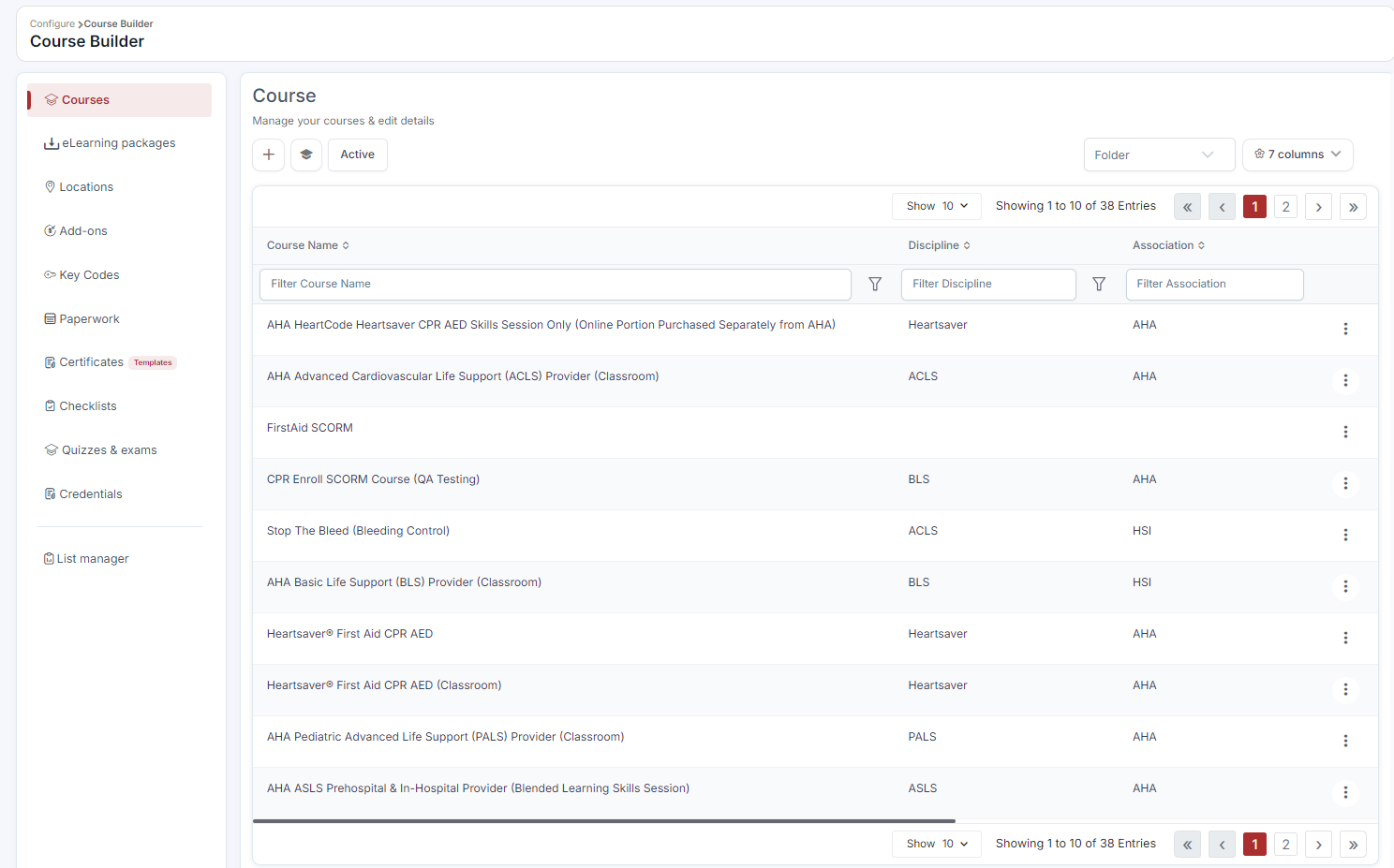
- Go to Course Builder > Courses.
- Click + Create.
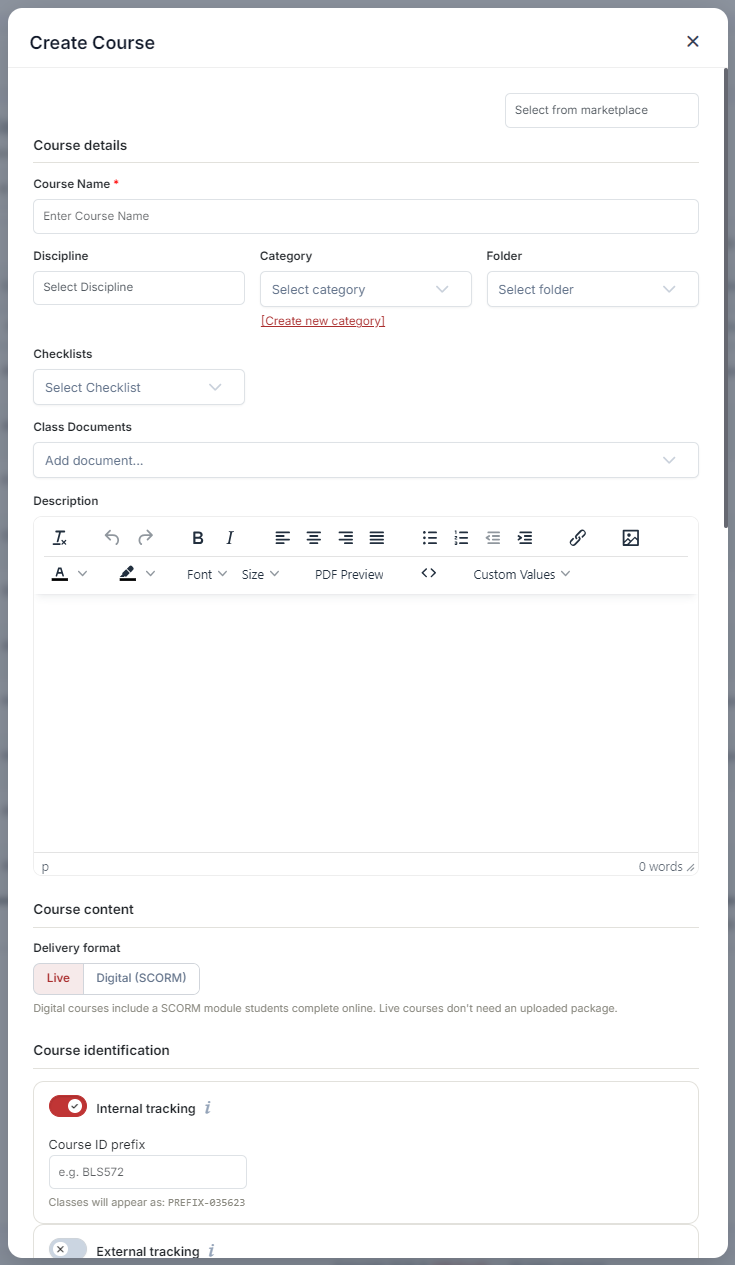
- Fill in the required fields:
- Course Name (required) — the name students see on your registration page.
- Expiration Years (required, default: 2) — how long the certification is valid.
- Price — the base enrollment price.
- Discipline — select from the 13 available disciplines.
- Association — select your certifying body (AHA, ARC, HSI, etc.).
- Description — rich text description visible to students.
- Optionally upload a Course Image (322 × 220 px) and Cover Image (1358 × 570 px).
- Click Save.
Step 2: Create a Course From a Marketplace Template
- Click Marketplace in the sidebar and select Course Templates from the category dropdown.
- Browse or search. Hover over a card and click Preview to review before importing.
- Click Use Template. A modal opens with the course name pre-filled.
- Edit the name if desired, then click Use Template to add it to your account with all fields pre-configured.
Step 3: Review Key Settings After Creation
| Setting | What It Controls |
|---|---|
| Platform Fee | Whether the payment processing fee is Student Paid or Account Paid. |
| Minimum Enrollments To Start Class | The minimum headcount required for the class to run. |
| Close Registration | Days before class start that self-enrollment closes. |
| Reminder Notifications | Days before class for the 1st and 2nd reminder emails. |
| Add-Ons | Supplementary products offered at registration. |
| Registration Questions | Custom questions students answer at enrollment. |
Step 4: Clone a Course
- In the Courses list, click ⋮ > Clone.
- The Create Course form opens pre-filled from the original.
- Modify the name and any other fields, then click Save.
✔ Tip: Cloning is the fastest way to create a new version of an existing course — for example, a refresher or classroom variant — without re-entering every field from scratch.
Best Practices
- Start from a Marketplace template when one closely matches your course, then adjust pricing and description to fit your organization.
- Review all Key Settings after creation, not just the required fields, since defaults like Platform Fee and Close Registration affect how the course runs.
- Use Clone rather than building from scratch when creating a variant of an existing course, to keep settings consistent.
- Assign the correct Discipline and Association so students can find and trust the course on your registration page.
Frequently Asked Questions
| Question | Answer |
|---|---|
| What's required to create a course? | At minimum, Course Name and Expiration Years. Price, Discipline, Association, and Description are strongly recommended but not required to save. |
| Can I preview a Marketplace template before importing it? | Yes. Hover over a template card and click Preview to review it before clicking Use Template. |
| Does cloning a course copy all of its settings? | Yes. The Create Course form opens pre-filled from the original course, which you can then modify before saving as a new course. |
✔ You're all set. Your course is created and ready to have classes scheduled from it.
Was this article helpful?
Related articles
- How to Setup and Add KeycodesKeycodes are digital access codes that give students access to online learning platforms such as AHA HeartCode. When a student enrolls in a course or purchases an add-on that includes a keycode, CPR Enroll+ automatically assigns one from your keycode bank and delivers it in the enrollment confirmatiCourses
- How to Setup Custom Registration QuestionsCustom Registration Questions let you collect additional information from students during enrollment — employer name, employee ID, dietary needs, waiver confirmation, or anything else your training program requires. Questions can be required or optional and can apply to all courses or specific ones.Courses
- How to Add or Update an SOP or ChecklistChecklists in CPR Enroll+ are structured step-by-step guides — Standard Operating Procedures — that instructors follow during a class. They ensure consistent delivery across all instructors and sessions, and can cover skills testing protocols, equipment setup, or any other procedural requirement. CoCourses
- Understanding the MarketplaceThe Marketplace is CPR Enroll+'s built-in template library — over 150 pre-built templates from AHA, ARC, HSI, and other certifying bodies. Import courses, paperwork forms, add-ons, keycodes, and checklists in a single click instead of building them from scratch. Before You Begin - Know which certifyCourses