How to Setup and Add Keycodes
Keycodes are digital access codes that give students access to online learning platforms such as AHA HeartCode. When a student enrolls in a course or purchases an add-on that includes a keycode, CPR Enroll+ automatically assigns one from your keycode bank and delivers it in the enrollment confirmation email — no manual distribution needed.
Before You Begin
Here's how keycodes work, end to end:
- You purchase a block of codes from your certification body.
- You upload them into a CPR Enroll+ Keycode Bank.
- You attach the bank to a course or add-on.
- At enrollment, CPR Enroll+ draws the next available code and emails it to the student.
Step-by-Step Instructions
Step 1: Create a Keycode Bank
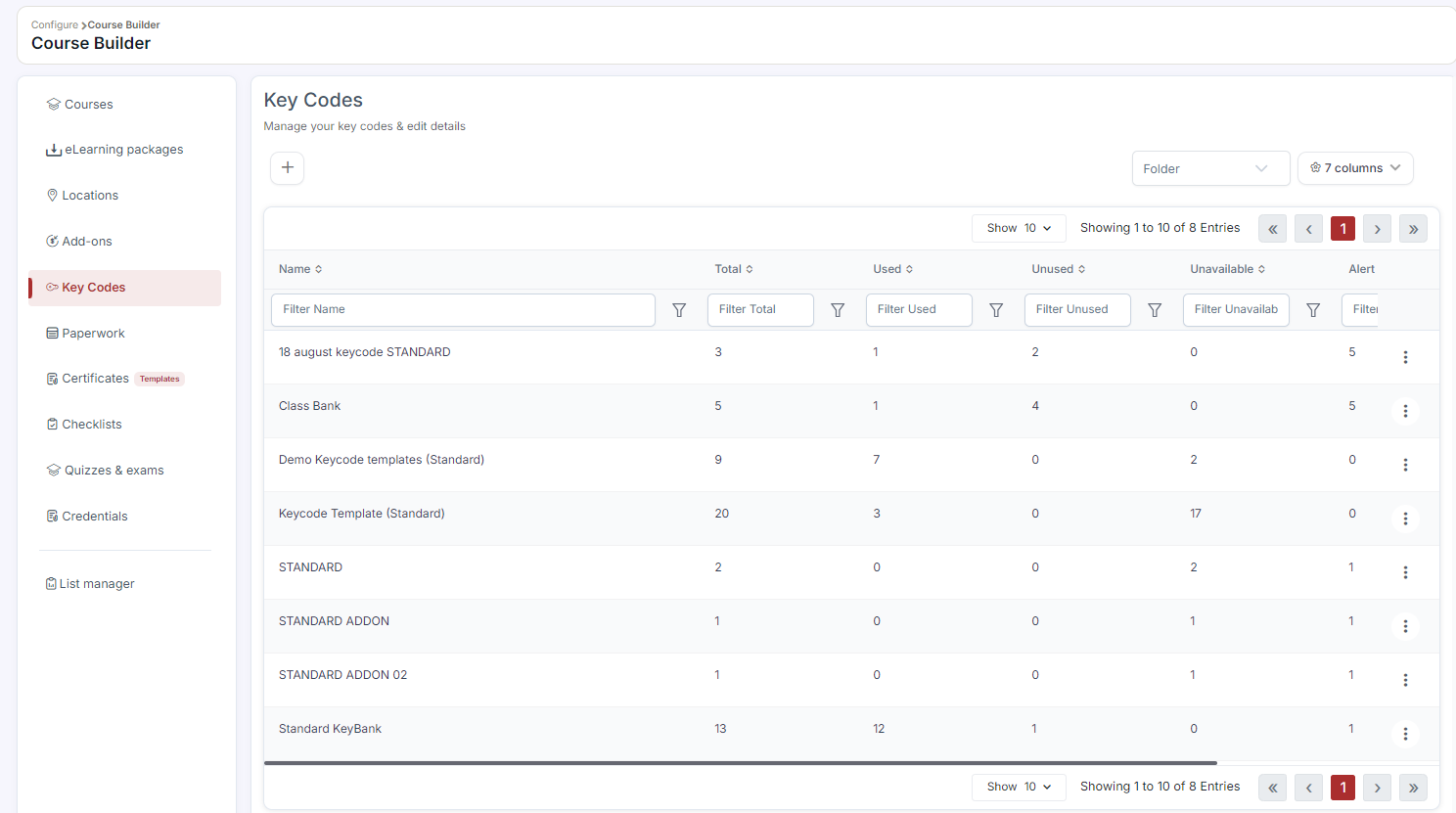
- Go to Course Builder > Keycodes (or Payments > Catalog > Keycodes).
- Click + Create.
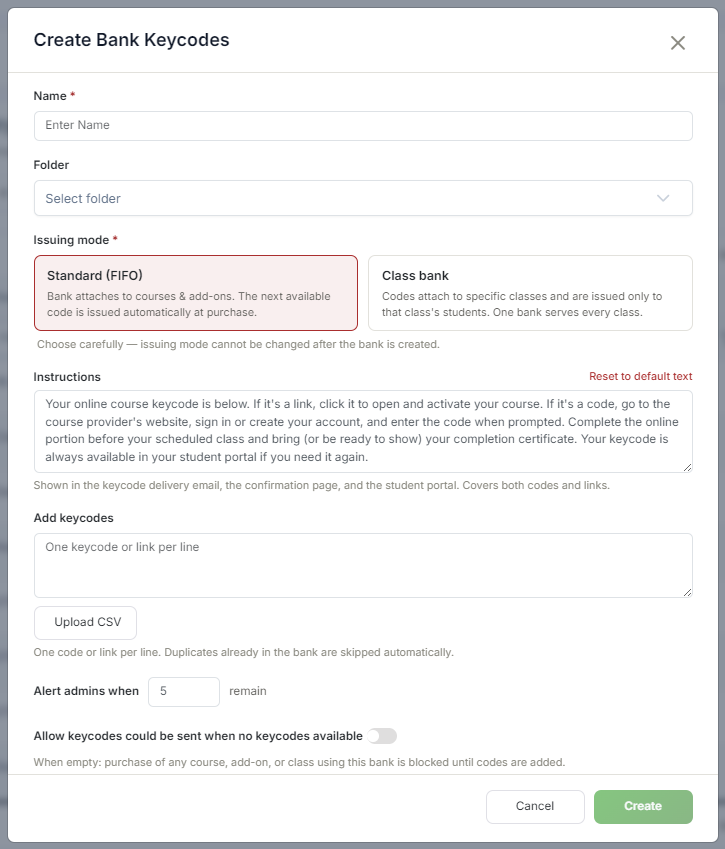
- Enter a Bank Name (e.g., "AHA BLS HeartCode — Q2 2026").
- Paste your access codes, one per line.
- Click Save.
Step 2: Attach the Bank to a Course or Add-On
- For a course: go to Courses > ⋮ > Edit, find the Key Codes section, select the bank, and click Save.
- For an add-on: go to Add-Ons > ⋮ > Edit, set the Type to Keycode, select the bank from the Keycode Bank dropdown, and click Save.
⚠ Monitor your inventory: CPR Enroll+ can send a Low Bank Key Code notification — configure it in Settings > Communication Hub.
Step 3: Import Keycode Templates from the Marketplace (Optional)
- Click Marketplace > Keycode Templates.
- Hover over a template and click Use Template to import the bank structure, then add your actual codes.
Best Practices
- Name banks clearly (e.g., "AHA BLS HeartCode — Q2 2026") so you can tell them apart when attaching to courses or add-ons.
- Set up the Low Bank Key Code notification so you're never caught off guard by an empty bank.
- Import a Marketplace keycode template first if one matches your certification body, then add your actual codes on top of the pre-built structure.
- Restock proactively rather than waiting for students to enroll into an empty bank.
Frequently Asked Questions
| Question | Answer |
|---|---|
| How does a student receive their keycode? | CPR Enroll+ automatically draws the next available code from the attached bank and emails it in the enrollment confirmation — no manual distribution needed. |
| Can I attach the same keycode bank to both a course and an add-on? | Yes. A bank can be attached to a course's Key Codes section or to an add-on set to the Keycode type. |
| How will I know when a bank is running low? | Configure the Low Bank Key Code notification in Settings > Communication Hub to be alerted automatically. |
✔ You're all set. Your keycode bank is created and attached, and codes will now be delivered to students automatically at enrollment.
Was this article helpful?
Related articles
- How to Setup a Course (Templates)A course in CPR Enroll+ is the blueprint for your training program. It defines everything — the name, description, price, certification body, expiration period, and all the rules that apply to every class scheduled from it. You create a course once, then schedule multiple classes from it over time. Courses
- How to Setup Custom Registration QuestionsCustom Registration Questions let you collect additional information from students during enrollment — employer name, employee ID, dietary needs, waiver confirmation, or anything else your training program requires. Questions can be required or optional and can apply to all courses or specific ones.Courses
- How to Add or Update an SOP or ChecklistChecklists in CPR Enroll+ are structured step-by-step guides — Standard Operating Procedures — that instructors follow during a class. They ensure consistent delivery across all instructors and sessions, and can cover skills testing protocols, equipment setup, or any other procedural requirement. CoCourses
- Understanding the MarketplaceThe Marketplace is CPR Enroll+'s built-in template library — over 150 pre-built templates from AHA, ARC, HSI, and other certifying bodies. Import courses, paperwork forms, add-ons, keycodes, and checklists in a single click instead of building them from scratch. Before You Begin - Know which certifyCourses