Using the List Manager: Disciplines, Categories, and Associations
The List Manager is the single place to manage the disciplines, categories and associations your courses use. Get these right early — they drive your public class listings, marketplace filters and CPR Class Finder, and they are much harder to tidy once courses depend on them.
Before You Begin
- Find it at Course Builder → List Manager. Four tabs: Discipline, Categories, Associations and Folders.
- Check the usage count before deleting anything. Once a value has been used, archive is your only option.
- Associations are held to a stricter standard than disciplines and categories — read Step 4 before creating one.
- The Folders tab is covered separately in Organizing Records with Folders.
Step 1: Add a Discipline or Category
Both work the same way.
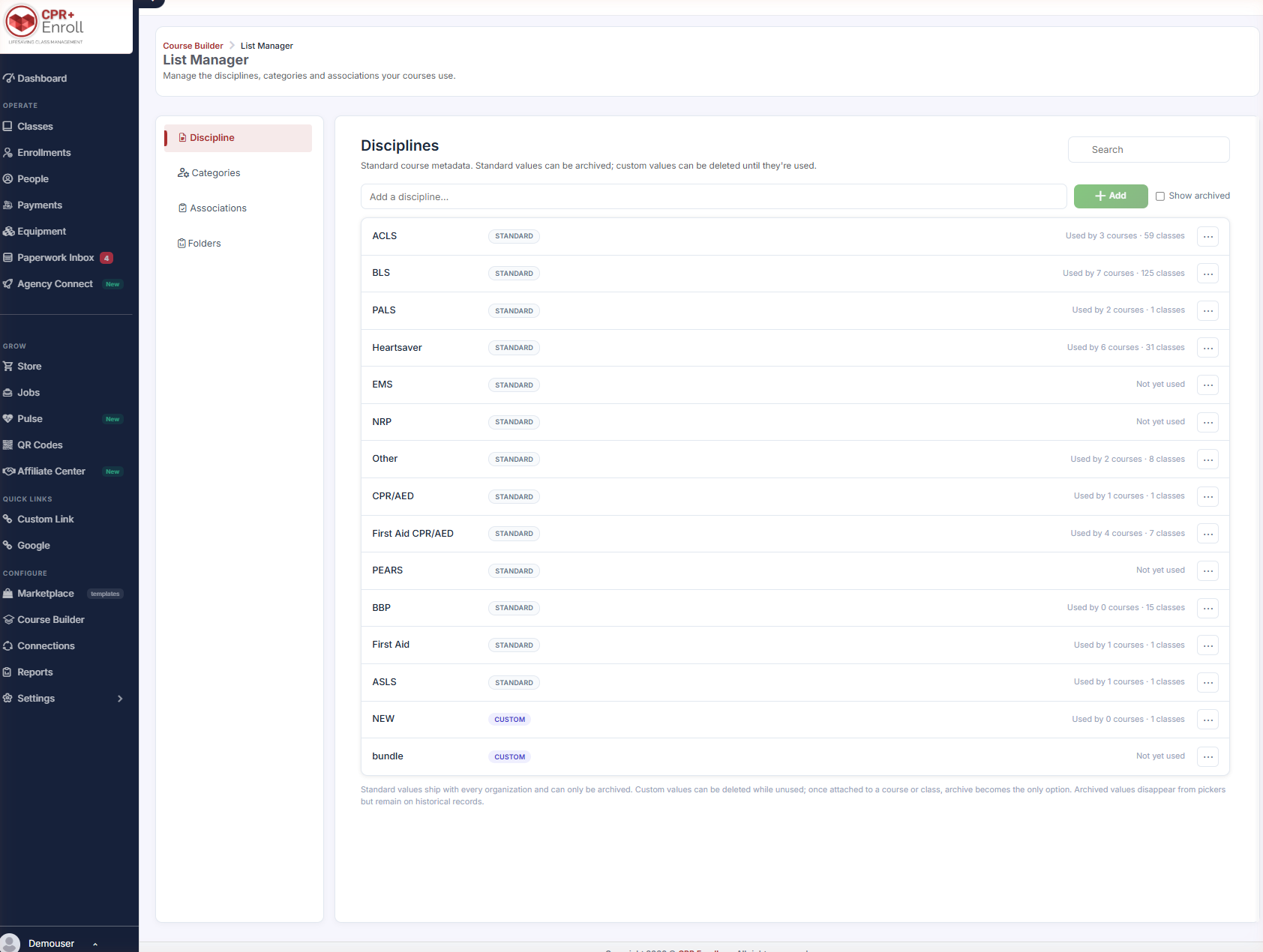
- Type a name into the Add a discipline… (or category) box.
- Click + Add.
Each row shows:
- A STANDARD or CUSTOM badge.
- A usage count — Used by 3 courses · 59 classes, or Not yet used.
- An action menu (⋯).
Step 2: Know the Rules on Deleting
The footer spells them out:
| Value type | What you can do |
|---|---|
| Standard | Ships with every organization. Can only be archived. |
| Custom, unused | Can be deleted. |
| Custom, in use | Once attached to a course or class, archive becomes the only option. |
Archived values disappear from pickers but remain on historical records. Tick Show archived to see archived values and restore them.
✔ Check the usage count before you try to delete. If it has been used, archive it — the record it is attached to still needs it.
Step 3: Use Category Colors
Custom course category headings can be assigned a color, which makes long course lists far easier to scan on your public page. Default categories use their predefined colors and cannot be changed.
Step 4: Work With Associations
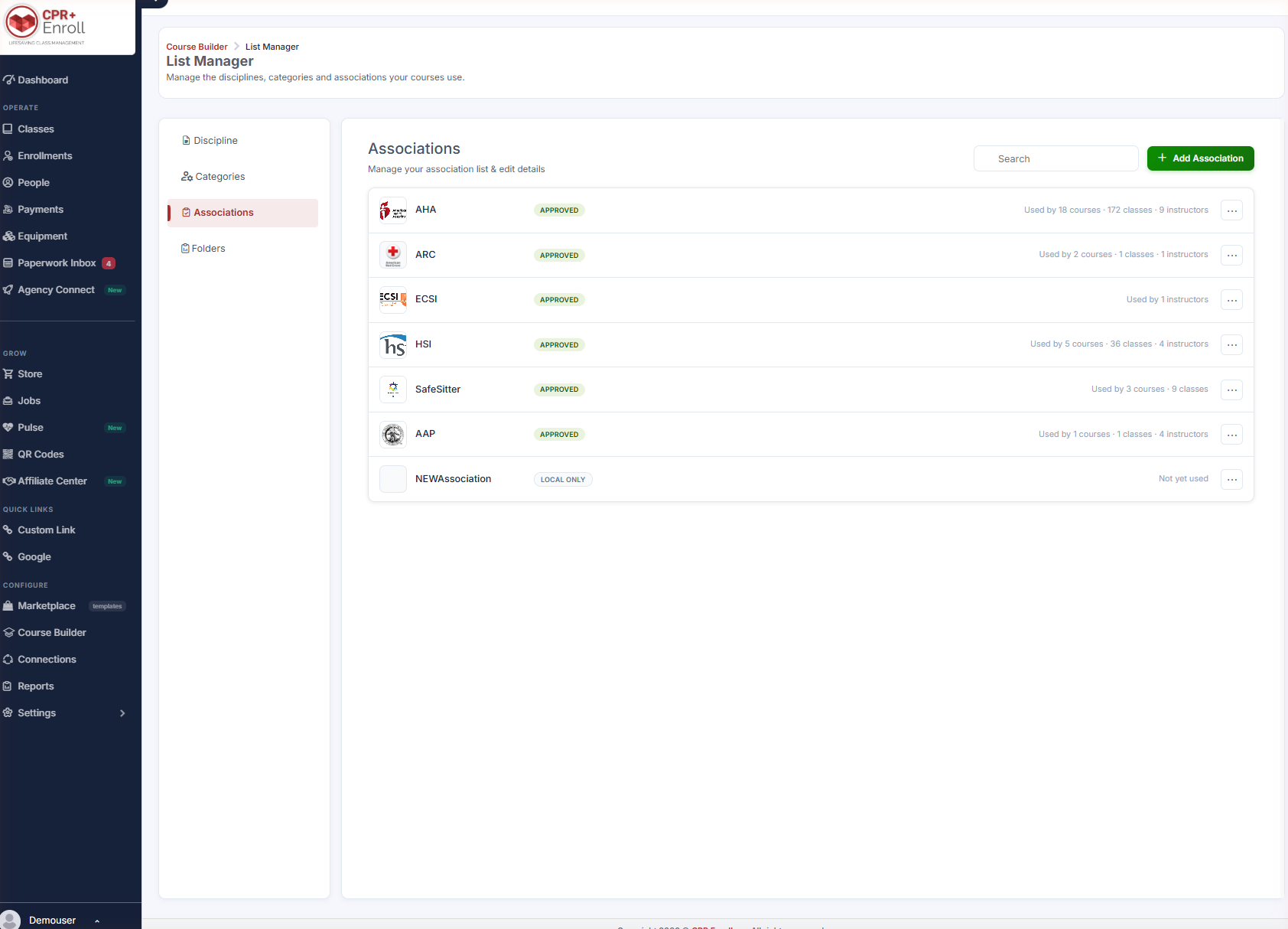
Associations drive class listings, marketplace filters and CPR Class Finder, so they are held to a stricter standard. There is a centralized, approved catalog for consistent naming, plus organization-specific custom associations.
| Status | Meaning |
|---|---|
| Approved | In the central catalog. |
| Pending Approval | Submitted for marketplace inclusion, awaiting review. |
| Local Only | Yours alone; not in the marketplace. |
To request approval, use the row action and supply the required justification and contact information.
✔ Duplicate detection works for you. If an equivalent association already exists as approved or pending, your entry is linked to it rather than creating a near-duplicate.
Step 5: Share Registrations by Discipline or Category
Row-level actions let you generate:
- A public registration link for a specific discipline, category or association.
- Embeddable filtered registration forms for external websites.
These links stay valid even if the discipline or category is later renamed.
Best Practices
- Settle your discipline and category list before building a large catalog. Renaming is easy; restructuring after 200 courses is not.
- Color-code custom categories deliberately — it is the cheapest usability win on your public page.
- Search the approved catalog before creating a custom association. Duplicate detection helps, but a good first choice helps more.
- Use Local Only for genuinely internal groupings and request approval only for associations you want discoverable in the marketplace.
- Archive rather than delete when in doubt. Archived values vanish from pickers but keep history intact.
Frequently Asked Questions
| Question | Answer |
|---|---|
| Why can’t I delete a standard value? | Standard values ship with every organization and can only be archived. |
| Why can’t I delete my own custom value? | Once it is attached to a course or class, archive becomes the only option. |
| What happens to records using an archived value? | Nothing. Archived values disappear from pickers but remain on historical records. |
| Can I change the color of a default category? | No. Default categories use their predefined colors. |
| What does Local Only mean? | The association is yours alone and is not in the marketplace. |
| How do I get an association into the marketplace? | Use the row action to request approval, supplying justification and contact information. |
| Will a registration link break if I rename a category? | No. These links stay valid after a rename. |
✔ You’re all set. Related reading: Organizing Records with Folders for the fourth tab.
Was this article helpful?
Related articles
- How to Setup a Course (Templates)A course in CPR Enroll+ is the blueprint for your training program. It defines everything — the name, description, price, certification body, expiration period, and all the rules that apply to every class scheduled from it. You create a course once, then schedule multiple classes from it over time. Courses
- How to Setup and Add KeycodesKeycodes are digital access codes that give students access to online learning platforms such as AHA HeartCode. When a student enrolls in a course or purchases an add-on that includes a keycode, CPR Enroll+ automatically assigns one from your keycode bank and delivers it in the enrollment confirmatiCourses
- How to Setup Custom Registration QuestionsCustom Registration Questions let you collect additional information from students during enrollment — employer name, employee ID, dietary needs, waiver confirmation, or anything else your training program requires. Questions can be required or optional and can apply to all courses or specific ones.Courses
- How to Add or Update an SOP or ChecklistChecklists in CPR Enroll+ are structured step-by-step guides — Standard Operating Procedures — that instructors follow during a class. They ensure consistent delivery across all instructors and sessions, and can cover skills testing protocols, equipment setup, or any other procedural requirement. CoCourses