How to start your Virtual Class?
Virtual classes in CPR Enroll+ use a scheduled class with a Virtual Location — a saved video conferencing link (Zoom, Teams, Google Meet, etc.) that is automatically sent to enrolled students in their confirmation and reminder emails. There is no separate "Virtual Classes" section; virtual classes are managed the same way as all other classes.
Before You Begin
- Have your video conferencing platform ready, ideally with a permanent meeting room link.
- Know your class date, time, instructor, and max capacity before creating the class.
Step-by-Step Instructions
Step 1: Complete the Setup Checklist Before Class Day
- Create a Virtual Location record with your meeting room URL (Course Builder > Locations > + > Virtual). See What Is a Virtual Location and How Do I Create One? for full instructions.
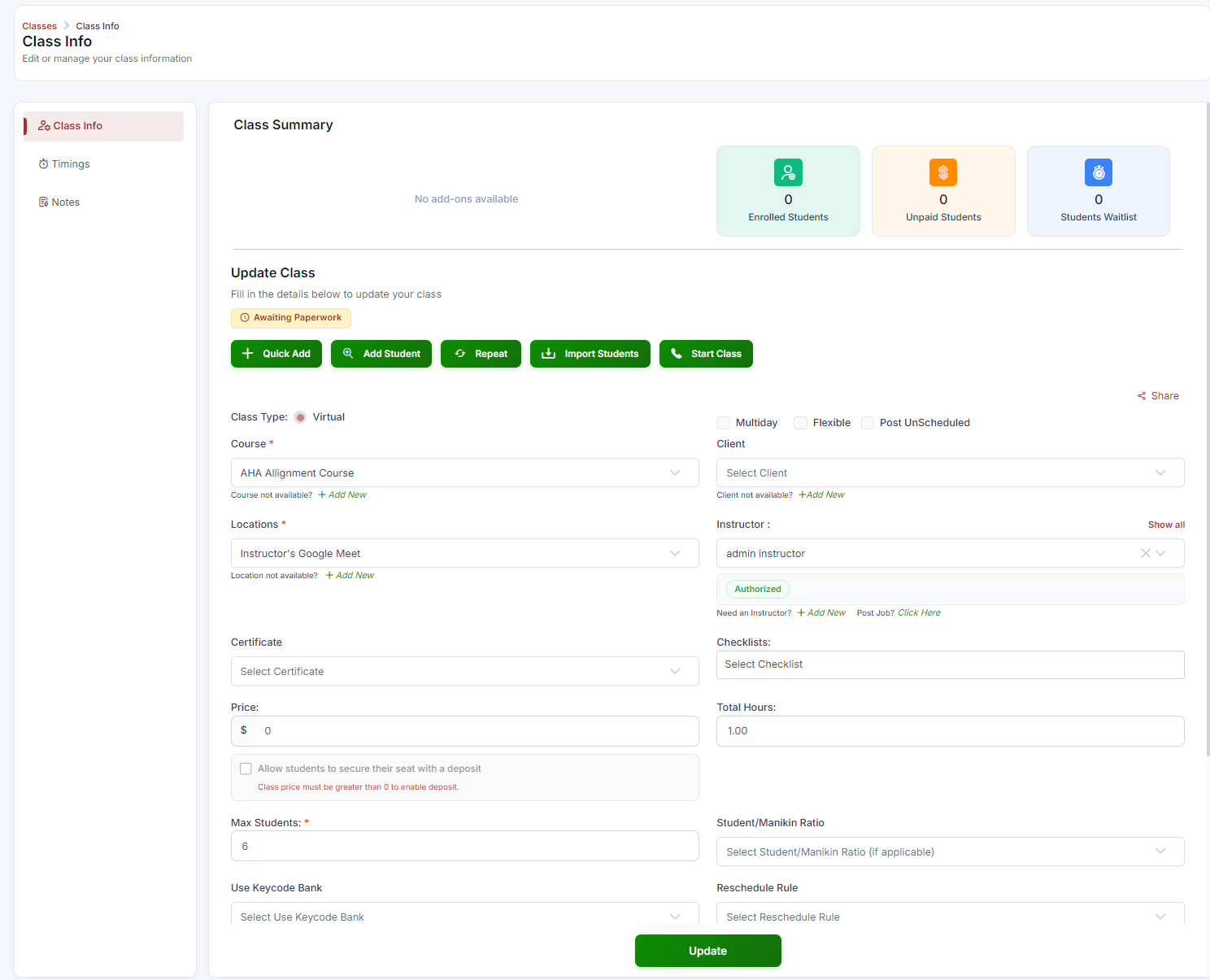
- Create a class using the Virtual class type, selecting your virtual location from the Location dropdown.
- Set your date, time, instructor, and max capacity. Click Create.
- Students who self-enroll receive the meeting URL automatically in their confirmation email — no manual distribution needed.
Step-by-Step Instructions
Step 1: Complete the Setup Checklist Before Class Day
- Create a Virtual Location record with your meeting room URL (Course Builder > Locations > + > Virtual). See What Is a Virtual Location and How Do I Create One? for full instructions.
- Create a class using the Virtual class type, selecting your virtual location from the Location dropdown.
- Set your date, time, instructor, and max capacity. Click Create.
- Students who self-enroll receive the meeting URL automatically in their confirmation email — no manual distribution needed.
Step 2: Start Your Session on Class Day
- Log in to your video conferencing platform (Zoom, Teams, etc.) and start the meeting from your usual interface — CPR Enroll+ does not launch video calls directly.
- Admit students as they join from the waiting room.
- To view enrolled students before class, go to Classes in the sidebar, find the class, and click ⋮ > View Details. The enrolled student list is visible in the class detail view.
Step 3: Send a Reminder to Enrolled Students (If Needed)
If you want to send a last-minute communication with the meeting link:
- Go to Enrollments in the sidebar.
- Filter by your class to see all enrolled students.
- Select the students you want to notify and click ⋮ > Resend Enrollment Email to resend their confirmation (which includes the meeting URL).
Step 4: Record Attendance and Paperwork After Class
- Go to Reports > Student Attendance and use Mark as Present to record attendance for all students who attended.
- If paperwork is required for this class, go to Classes > ⋮ > Generate Class Paperwork to create skills assessment documents.
✔ Tip: Most video platforms offer a permanent meeting room link that never changes. Save this as your Virtual Location URL so the same link works for every session — you will not need to update the location record after each class.
Best Practices
- Set up your Virtual Location once with a permanent meeting link, rather than creating a new one for every class.
- Start your video meeting a few minutes early so you're ready to admit students as they arrive.
- Use Resend Enrollment Email for last-minute reminders rather than sending the meeting link manually.
- Record attendance right after class while it's fresh, so your compliance records stay accurate.
Frequently Asked Questions
| Question | Answer |
|---|---|
| Does CPR Enroll+ launch the video call for me? | No. You start the meeting from your usual video conferencing platform interface — CPR Enroll+ only manages the class record and distributes the meeting link. |
| How do students receive the meeting link? | Automatically, in their enrollment confirmation email and class reminder emails, once the class is linked to a Virtual Location. |
| How do I send a last-minute reminder with the meeting link? | Go to Enrollments, filter by your class, select the students, and click Resend Enrollment Email. |
✔ You're all set. Your virtual class is scheduled, students have their meeting link, and you know how to run the session from start to finish.
Was this article helpful?
Related articles
- How to Setup a Course (Templates)A course in CPR Enroll+ is the blueprint for your training program. It defines everything — the name, description, price, certification body, expiration period, and all the rules that apply to every class scheduled from it. You create a course once, then schedule multiple classes from it over time. Courses
- How to Setup and Add KeycodesKeycodes are digital access codes that give students access to online learning platforms such as AHA HeartCode. When a student enrolls in a course or purchases an add-on that includes a keycode, CPR Enroll+ automatically assigns one from your keycode bank and delivers it in the enrollment confirmatiCourses
- How to Setup Custom Registration QuestionsCustom Registration Questions let you collect additional information from students during enrollment — employer name, employee ID, dietary needs, waiver confirmation, or anything else your training program requires. Questions can be required or optional and can apply to all courses or specific ones.Courses
- How to Add or Update an SOP or ChecklistChecklists in CPR Enroll+ are structured step-by-step guides — Standard Operating Procedures — that instructors follow during a class. They ensure consistent delivery across all instructors and sessions, and can cover skills testing protocols, equipment setup, or any other procedural requirement. CoCourses