When a student needs a refund — due to a cancellation, scheduling conflict, or dissatisfaction — CPR Enroll+ gives you tools to process refunds directly within the platform for most scenarios. For complex or unusual cases, refunds can also be issued through your connected Stripe dashboard. This article covers both paths, and explains how to handle payment disputes (chargebacks).
ℹ Prerequisite: You must have a Stripe account connected in Settings > Payment Gateway to accept or refund online payments. See Setup & Connecting Your Stripe Account if you have not done this yet.
Before You Begin
- Have the student's name, email, or the transaction date on hand to help locate the payment.
- Decide whether you're issuing a full or partial refund, and note your reason for internal records.
Step-by-Step Instructions
Step 1: Locate the Transaction in CPR Enroll+
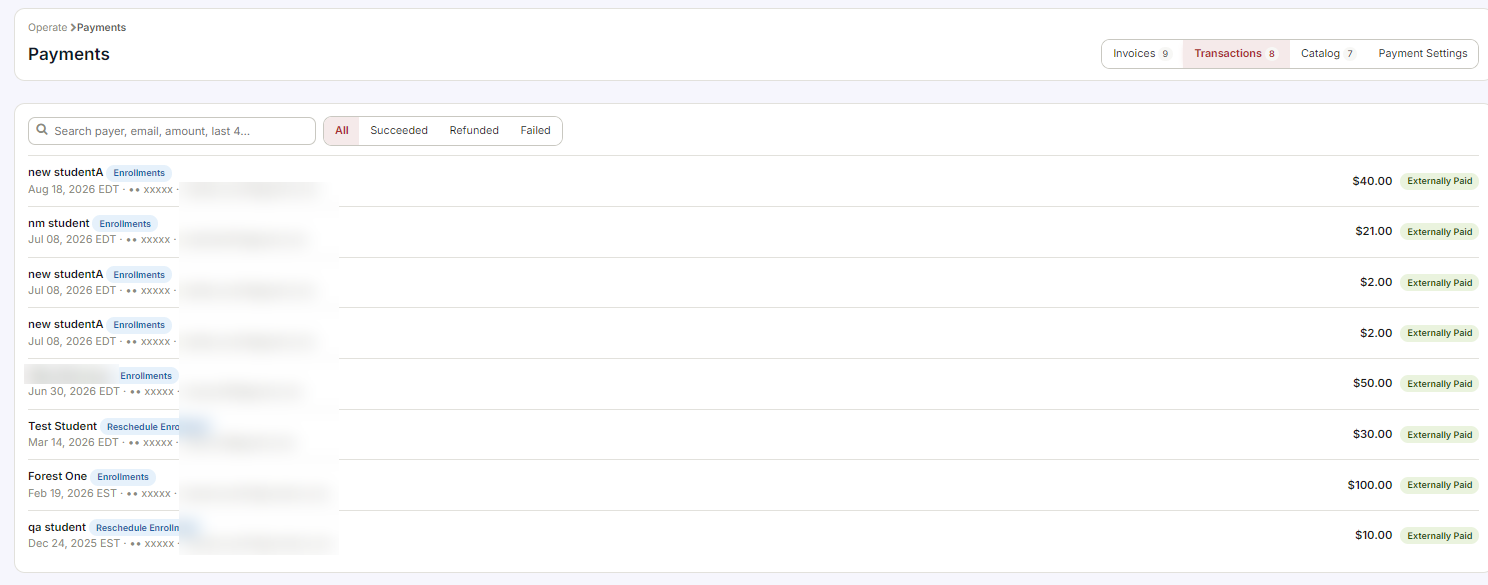
- From the sidebar, go to Payments > Transactions.
- Use the Type filter to select the relevant payment category: Enrollments, Store Products, Invoices, Add-Ons, or Reschedules.
- Find the transaction by student name, email, or date. Note the Payment ID and amount.
Step 2: Process the Refund in CPR Enroll+
For enrollment-related refunds, CPR Enroll+ provides a refund action directly on the transaction or enrollment record:
- In Payments > Transactions, click the ⋮ menu on the relevant transaction.
- Select Refund (if available for the transaction type).
- Choose Full Refund or enter a custom Partial Refund amount.
- Add an internal note explaining the reason for the refund.
- Click Confirm. The refund is submitted to Stripe and the student will receive the funds within 5–10 business days depending on their bank.
- The transaction record in CPR Enroll+ will update to show the refunded status.
✔ Also update the enrollment record: After issuing a refund, update the enrollment record manually if needed — for example, mark the student as Dropped to free the class seat and record their departure in Reports > Dropped Students.
Step 3: Refund Through Stripe (Last Resort)
If the refund action is not available directly in CPR Enroll+ for a specific transaction type (e.g., a legacy payment or an unusual edge case), you can issue the refund through Stripe directly:
- Log in to your Stripe account at dashboard.stripe.com.
- Go to Payments > Payments and search for the charge by the student's email or the transaction amount.
- Click the payment to open the detail view, then click Refund.
- Choose Full Refund or enter a partial amount, select a reason, and click Refund.
- Return to CPR Enroll+ and manually update the enrollment or transaction record to reflect the refund.
⚠ Stripe refunds do not auto-sync: Refunds processed directly in Stripe do not automatically update CPR Enroll+ records. Always manually update the enrollment or transaction record in CPR Enroll+ after issuing a Stripe refund to keep your records accurate.
Step 4: Handle a Dispute (Chargeback)
A dispute occurs when a student contacts their bank to reverse a charge. Stripe notifies you by email when a dispute is filed. You typically have 7–21 days to respond with evidence.
- Log in to your Stripe dashboard and go to Payments > Disputes. Find the dispute and review the details.
- Gather evidence from CPR Enroll+:
- Reports > Communication History — export the enrollment confirmation email sent to the student as proof of registration.
- Enrollments list — export the student's enrollment record showing their registration date and payment amount.
- Settings > Site Compliance — screenshot your Refund Policy as evidence of your stated terms.
- Submit all evidence through the Stripe dispute interface before the deadline.
✔ Prevention is the best cure: Always ensure your Refund Policy URL is set in Settings > Site Compliance and your Class Terms & Conditions are configured in the same section. Students who acknowledge terms at checkout provide much stronger grounds for winning a dispute.
Best Practices
- Process refunds directly in CPR Enroll+ whenever the option is available, so records stay in sync automatically.
- Always add an internal note explaining the reason for a refund, for your own recordkeeping and future disputes.
- Manually update enrollment and transaction records after any Stripe-side refund, since it doesn't sync back automatically.
- Keep your Refund Policy and Class Terms & Conditions current and linked, so you have strong evidence if a dispute arises.
Frequently Asked Questions
| Question | Answer |
|---|---|
| How long does it take for a student to receive a refund? | Typically 5–10 business days after the refund is confirmed, depending on the student's bank. |
| Do Stripe-issued refunds automatically update CPR Enroll+? | No. You must manually update the enrollment or transaction record in CPR Enroll+ after issuing a refund directly through Stripe. |
| How long do I have to respond to a dispute? | Typically 7–21 days from when Stripe notifies you the dispute was filed. |
✔ You're all set. You now know how to process refunds in CPR Enroll+ and through Stripe, and how to respond to a payment dispute with strong evidence.
Was this article helpful?
That’s Great!
Thank you for your feedback
Sorry! We couldn't be helpful
Thank you for your feedback
Feedback sent
We appreciate your effort and will try to fix the article