
A Reschedule Rule defines your organization's policy for student rescheduling — how many times a student can reschedule for free, and what fee applies when they exceed that limit. Once a rule is created and assigned, the fee is collected automatically when a student is rescheduled beyond their free allowance. This protects your revenue from last-minute changes while giving students reasonable flexibility.
Before You Begin
Reschedule Rules are useful when:
- You want to allow one free reschedule per student but charge a fee (e.g., $25) for any additional changes.
- You want to prevent unlimited free cancellations that leave class seats unfilled.
- You want consistent, automated enforcement of your rescheduling policy across all instructors and classes.
Step-by-Step Instructions
Step 1: Create a Reschedule Rule
- From the sidebar, go to Payments > Payment Settings > Reschedule Rules.
- Click + Create.
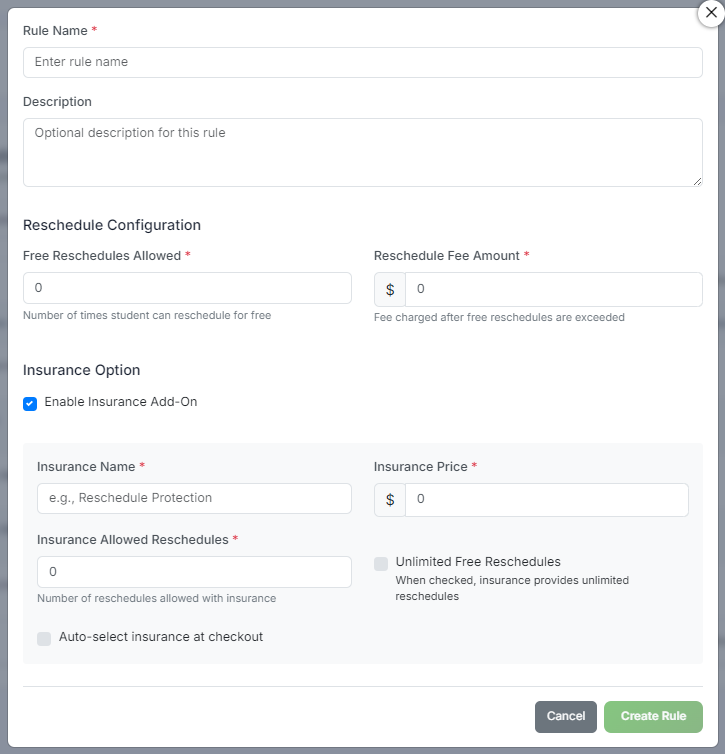
- Enter a Rule Name — this is an internal label (e.g., "Standard Policy — 1 Free Reschedule" or "No Free Reschedules").
- Set Free Reschedules — the number of times a student can reschedule at no charge. Enter 0 to charge from the first reschedule, 1 to allow one free reschedule, and so on.
- Set the Reschedule Fee — the dollar amount charged for each reschedule beyond the free limit (e.g., 25.00 for $25.00).
- Click Save.
Step 2: Offer Reschedule Insurance (Optional)
In the same window, below the reschedule fee, tick Enable Insurance Add-On under Insurance Option to sell reschedule protection at checkout. A panel opens with these fields:
- Insurance Name (required) — what the student sees at checkout, for example Reschedule Protection.
- Insurance Price (required) — the one-time amount added to the enrollment.
- Insurance Allowed Reschedules (required) — how many reschedules the insurance covers.
- Unlimited Free Reschedules — when checked, the insurance covers an unlimited number of reschedules and the allowed count no longer applies.
- Auto-select insurance at checkout — pre-selects the option on the registration form. Students can still remove it before paying.
Click Create Rule when you are done.
Step 3: Assign the Rule to a Course
A reschedule rule must be assigned to a course to take effect. When a student enrolled in that course is rescheduled, the rule determines whether a fee applies.
- Go to Course Builder > Courses.
- Click ⋮ > Edit on the course you want to apply the rule to.
- In the course form, find the Reschedule Rule dropdown (in the Rules or Pricing section).
- Select the rule you created.
- Click Save.
Step 4: Understand How the Fee Is Collected
- When an admin reschedules a student from one class to another (via Enrollments > ⋮ > Reschedule), CPR Enroll+ checks the student's reschedule history for that course against the assigned rule.
- If the student has used their free reschedules, the system calculates the fee.
- The fee is added to the student's account and processed through the connected Stripe payment method on file, or the admin is prompted to collect payment manually.
⚠ Rule applies per enrollment: The free reschedule count resets per enrollment, not per student. If a student enrolls in the same course again after completing it, they receive the full free reschedule allowance again.
Example Scenarios
| Scenario | Free Reschedules | Fee | Result |
|---|---|---|---|
| Student requests 1st reschedule | 1 | $25 | Free — within allowance |
| Student requests 2nd reschedule | 1 | $25 | $25 fee charged automatically |
| No-tolerance policy | 0 | $15 | $15 fee on every reschedule |
| Corporate client — flexible policy | 3 | $0 | 3 free reschedules, no fee ever |
✔ Communicate your policy: Add your reschedule policy to your Class Terms & Conditions in Settings > Site Compliance. Students who acknowledge the terms at enrollment checkout cannot dispute the fee later.
Best Practices
- Name your rules clearly (e.g., "Standard Policy — 1 Free Reschedule") so it's easy to tell them apart when assigning them to courses.
- Set expectations up front by including your reschedule policy in your Class Terms & Conditions.
- Use a more flexible rule (higher free reschedule count, lower or no fee) for corporate clients where relationship goodwill matters more than fee revenue.
- Remember the free reschedule count resets per enrollment, so repeat students still get their full allowance.
Frequently Asked Questions
| Question | Answer |
|---|---|
| Does a reschedule rule apply automatically to all courses? | No. A rule must be assigned to each course individually via the Reschedule Rule dropdown in the course form. |
| Does the free reschedule allowance carry over if a student retakes a course? | No. The free reschedule count resets per enrollment, so a student enrolling again after completing the course gets the full allowance again. |
| How is the fee actually collected from the student? | It's processed through the connected Stripe payment method on file, or the admin is prompted to collect payment manually. |
✔ You're all set. Your reschedule rule is created and assigned, and fees will now be enforced automatically according to your policy.
Was this article helpful?
That’s Great!
Thank you for your feedback
Sorry! We couldn't be helpful
Thank you for your feedback
Feedback sent
We appreciate your effort and will try to fix the article