Life happens — students miss classes, schedules change, and corporate clients rebook groups. CPR Enroll+ lets you move a student from one class session to another in a few clicks. Combined with a Reschedule Rule, you can also automatically apply fees for repeated rescheduling.
Before You Begin
- Know that students can only be rescheduled to a different session of the same course — moving them to a different course requires dropping and re-enrolling.
- If a Reschedule Rule is assigned to the course, be ready to collect a fee if the student has exceeded their free reschedule allowance.
Step-by-Step Instructions
Step 1: Reschedule a Single Student
- From the sidebar, go to Enrollments and switch to List view.
- You will find the list of your students here.
- Click ⋮ on the enrollment row.
- Select Reschedule (or Transfer to Class).
- Choose the new class from the dropdown of upcoming sessions for the same course.
- Click Save. The enrollment moves to the new class and the student receives an updated confirmation email.
ℹ Same course only. Students can be rescheduled to a different session of the same course. To move a student to a completely different course, drop the current enrollment and create a new one in the new course.
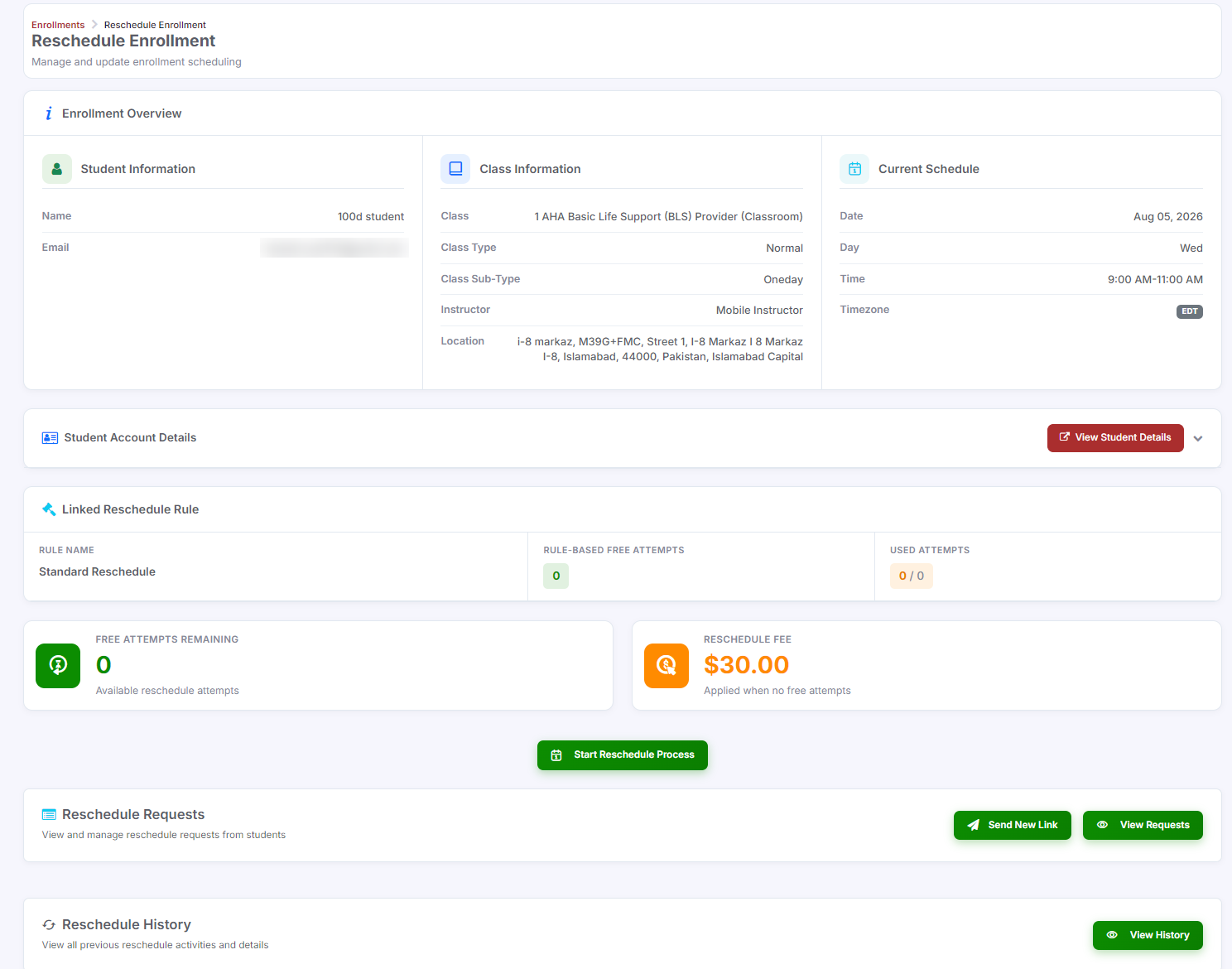
Rescheduling After a Class Cancellation
After canceling a class (Classes > ⋮ > Cancel Class), go to Enrollments > List view.
Filter by the canceled class to see all affected students.
Reschedule each student to their preferred new session. Contact students first if you need to confirm their availability.
Applying a Reschedule Fee
If you have a Reschedule Rule assigned to the course, CPR Enroll+ automatically applies a fee when a student exceeds their free reschedule allowance. See How to Create a Reschedule Rule for setup instructions. When a fee applies during rescheduling, the system will prompt you to collect the fee before completing the transfer.
Was this article helpful?
That’s Great!
Thank you for your feedback
Sorry! We couldn't be helpful
Thank you for your feedback
Feedback sent
We appreciate your effort and will try to fix the article