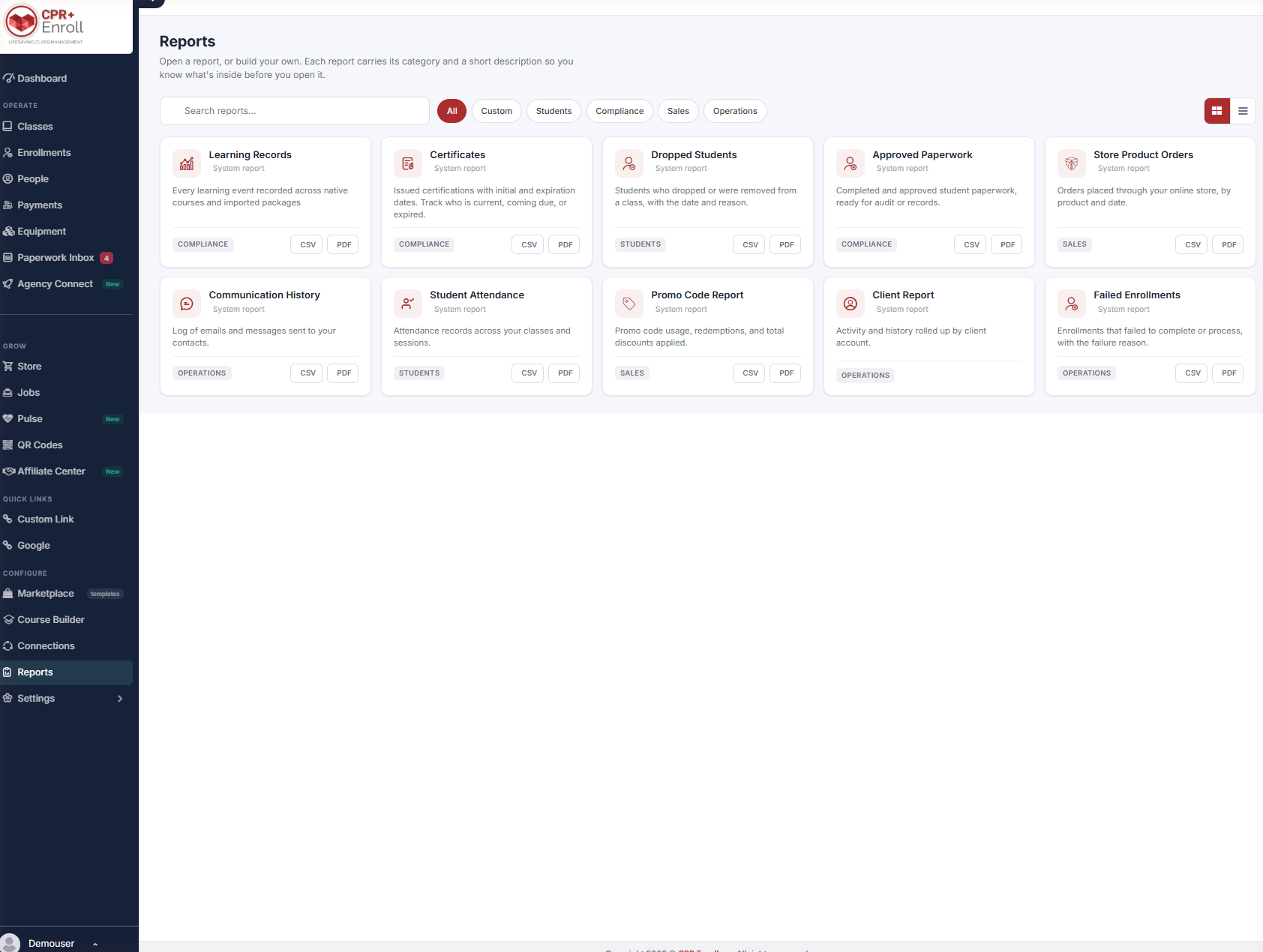
Every report in CPR Enroll now lives on one page. The Reports hub lets you search, filter and open any report — standard or custom — and export it without leaving the page. The header sets the expectation: open a report, or build your own; each report carries its category and a short description so you know what’s inside before you open it.
Before You Begin
- Reports is in the left navigation, under Configure.
- Report access follows your role. Learning Records in particular is permission-gated — by default only Admin users can open it.
- If a colleague cannot see a report you can see, that is a permissions question, not a bug. Check Settings → Permissions.
Step 1: Open the Reports Hub
- Click Reports in the left navigation, under Configure.
- The hub opens showing every report available to your role.
Step 2: Find the Report You Need
- Search reports… matches on name, description and category — so searching “compliance” surfaces every compliance report even if the word is not in the title.
- Filter chips narrow the list: All, Custom, Students, Compliance, Sales, Operations.
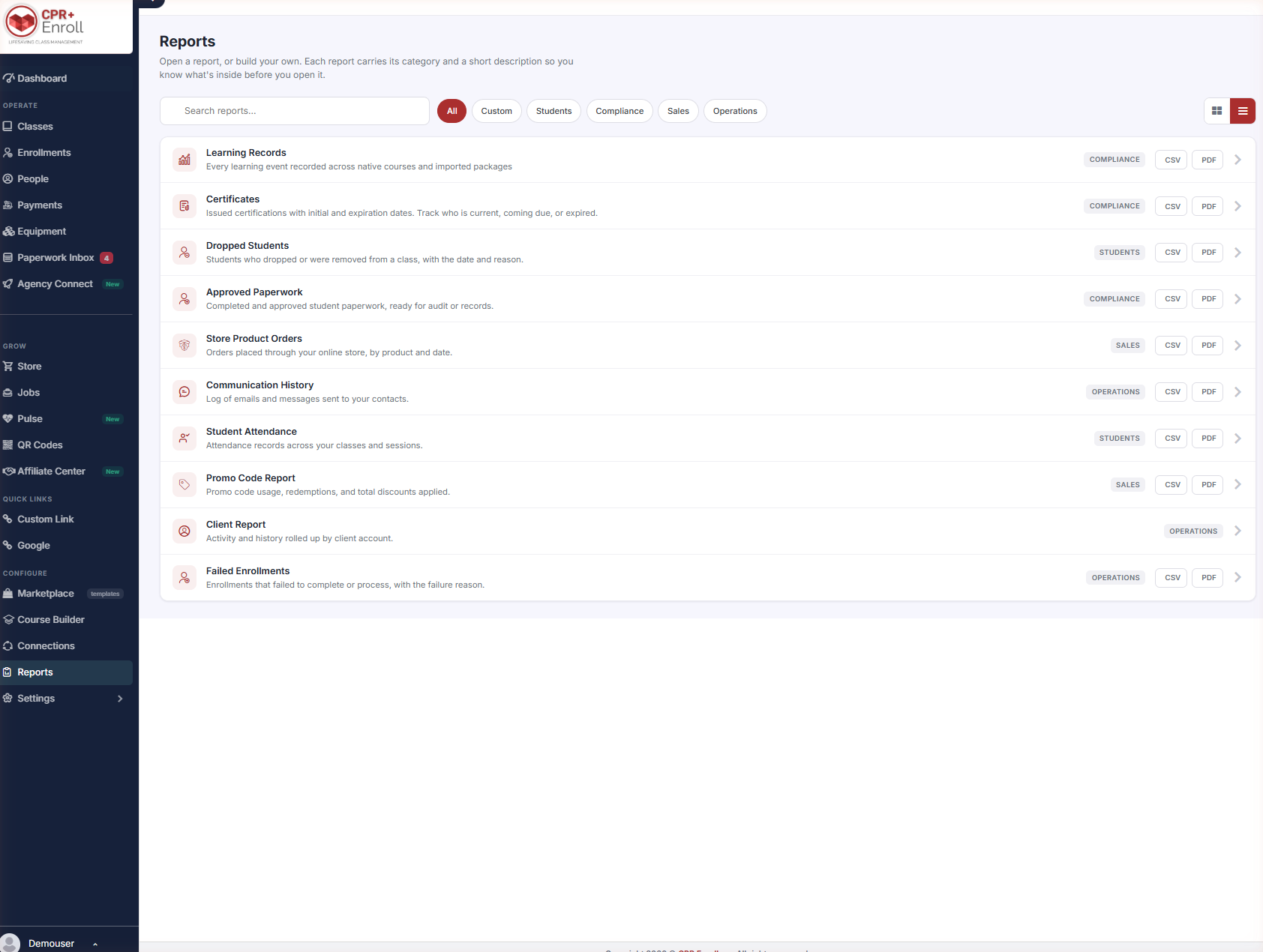
- Layout buttons on the right toggle between card and list views. Card view shows descriptions; list view fits more on screen.
Step 3: Know the Reports That Ship
| Report | Category | What’s inside |
|---|---|---|
| Learning Records | Compliance | Every learning event recorded across native courses and imported packages. |
| Certificates | Compliance | Issued certifications with initial and expiration dates. Track who is current, coming due, or expired. |
| Approved Paperwork | Compliance | Completed and approved student paperwork, ready for audit or records. |
| Dropped Students | Students | Students who dropped or were removed from a class, with the date and reason. |
| Student Attendance | Students | Attendance records across your classes and sessions. |
| Store Product Orders | Sales | Orders placed through your online store, by product and date. |
| Promo Code Report | Sales | Promo code usage, redemptions and total discounts applied. |
| Communication History | Operations | Log of emails and messages sent to your contacts. |
| Client Report | Operations | Activity and history rolled up by client account. |
| Failed Enrollments | Operations | Enrollments that failed to complete or process, with the failure reason. |
Step 4: Filter, Then Export
- Open the report you need.
- Apply the built-in filters before exporting — many reports narrow substantially. Certificates, for example, can be filtered by Student, Instructor, Expiring or Expired.
- Click CSV or PDF.
Both export buttons appear on every report card in the hub and while viewing the report, so you can export a familiar report without opening it.
✔ Filter first, export second. Exports honour the filters you have applied. Exporting an unfiltered Certificates report and then trimming it in a spreadsheet is doing work the report will do for you.
Step 5: Switch Between Card and List Layout
Use the layout buttons in the top right to switch between card and list view. Card view shows each report’s description, which helps while you are still learning the set. List view fits all ten reports on screen at once and is faster to scan once you know them by name. A Custom filter chip also sits in the chip row — building your own reports is a planned feature, so that chip returns no results today.
Best Practices
- Use the Compliance chip as your audit shortlist — Learning Records, Certificates and Approved Paperwork together cover most audit requests.
- Run Failed Enrollments on a schedule. It surfaces revenue you have already lost sight of.
- Apply each report’s built-in filters before exporting rather than exporting everything and trimming it in a spreadsheet.
- Switch to list layout once you know the reports by name — it is faster to scan.
Frequently Asked Questions
| Question | Answer |
|---|---|
| Where is the Reports hub? | Reports in the left navigation, under Configure. |
| Why can’t my colleague open Learning Records? | It is permission-gated. By default only Admin users can open it. Check Settings → Permissions. |
| Does search look at more than the report name? | Yes — it matches on name, description and category. |
| Can I export from the hub without opening a report? | Yes. Every card carries CSV and PDF buttons. |
| Do exports include my filters? | Yes. Apply the built-in filters first, then export. |
| Can I build my own report? | Not yet. The Custom filter chip exists in the interface, but custom report building is a planned feature and returns no results today. |
✔ You’re all set. Next, read Understanding the Learning Records Report for the report most often asked for in an audit.
Was this article helpful?
That’s Great!
Thank you for your feedback
Sorry! We couldn't be helpful
Thank you for your feedback
Feedback sent
We appreciate your effort and will try to fix the article