Class Paperwork in CPR Enroll+ refers to skills testing documentation — the forms used to record each student’s performance during a hands-on skills assessment. Submitting paperwork for a finalized class creates an individual document for each enrolled student and starts a review and approval workflow. Completed, approved paperwork is stored for compliance and audit purposes.
Before You Begin
- Make sure the class has enrolled students and has been finalized. Only courses with at least one finalized class can have paperwork submitted.
- Confirm at least one Paperwork Template is configured for the associated course — import one from Marketplace > Paperwork Templates, or go to Course Builder > Paperwork.
- Confirm the user submitting paperwork has the appropriate permissions (Settings > Permissions).
Step-by-Step Instructions
Step 1: Submit Paperwork for a Class
- Go to Paperwork Inbox in the sidebar.
- Click Submit New Paperwork.
- Choose Class Paperwork to document a scheduled class, or Simplified Paperwork for a standalone record.
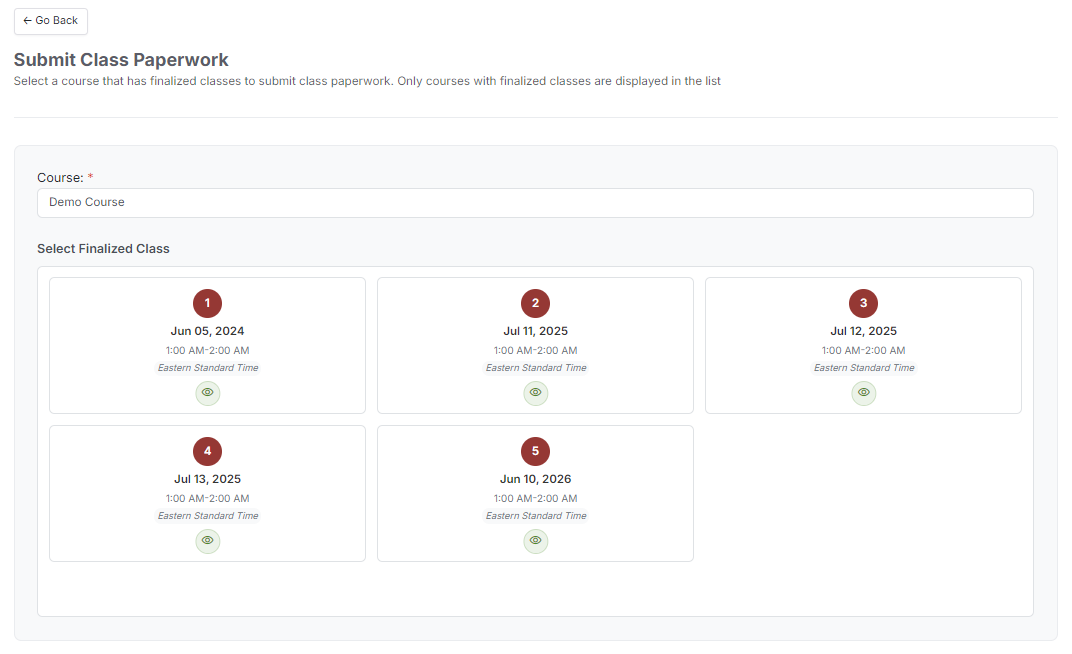
- On the Submit Class Paperwork screen, select the Course. Only courses that have at least one finalized class appear in the list.
- Under Select Finalized Class, pick the class you are documenting. Use the preview icon on a card to check a class before selecting it.
- CPR Enroll+ creates an individual paperwork document for each enrolled student.
- The new documents appear in the Paperwork Inbox with a status of Submitted.
Step 2: Review and Approve Paperwork
- Go to Paperwork Inbox.
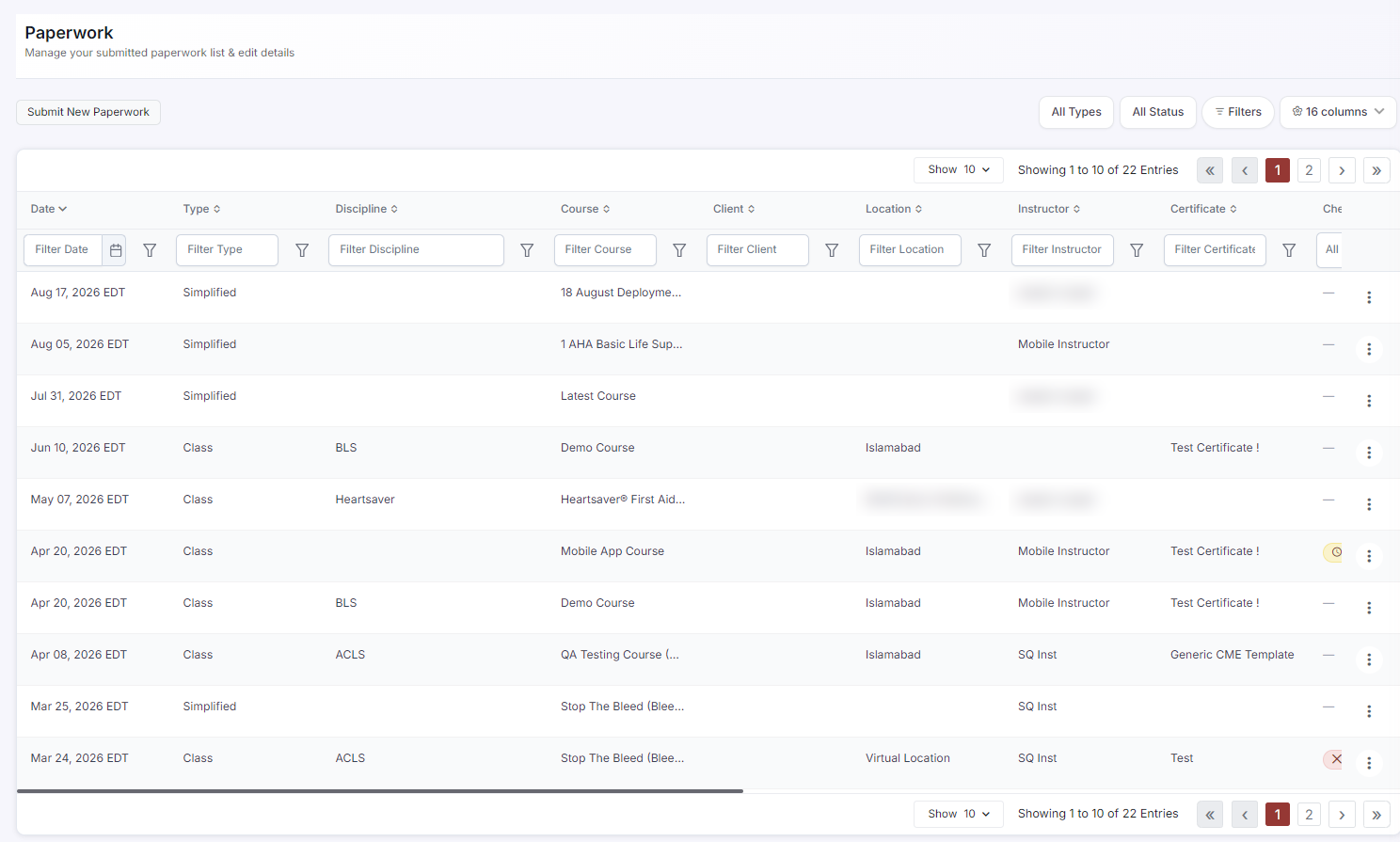
- Find the submission for the class. Filter by date, type, discipline, course, client, location, instructor or certificate, or narrow the list with All Types and All Status.
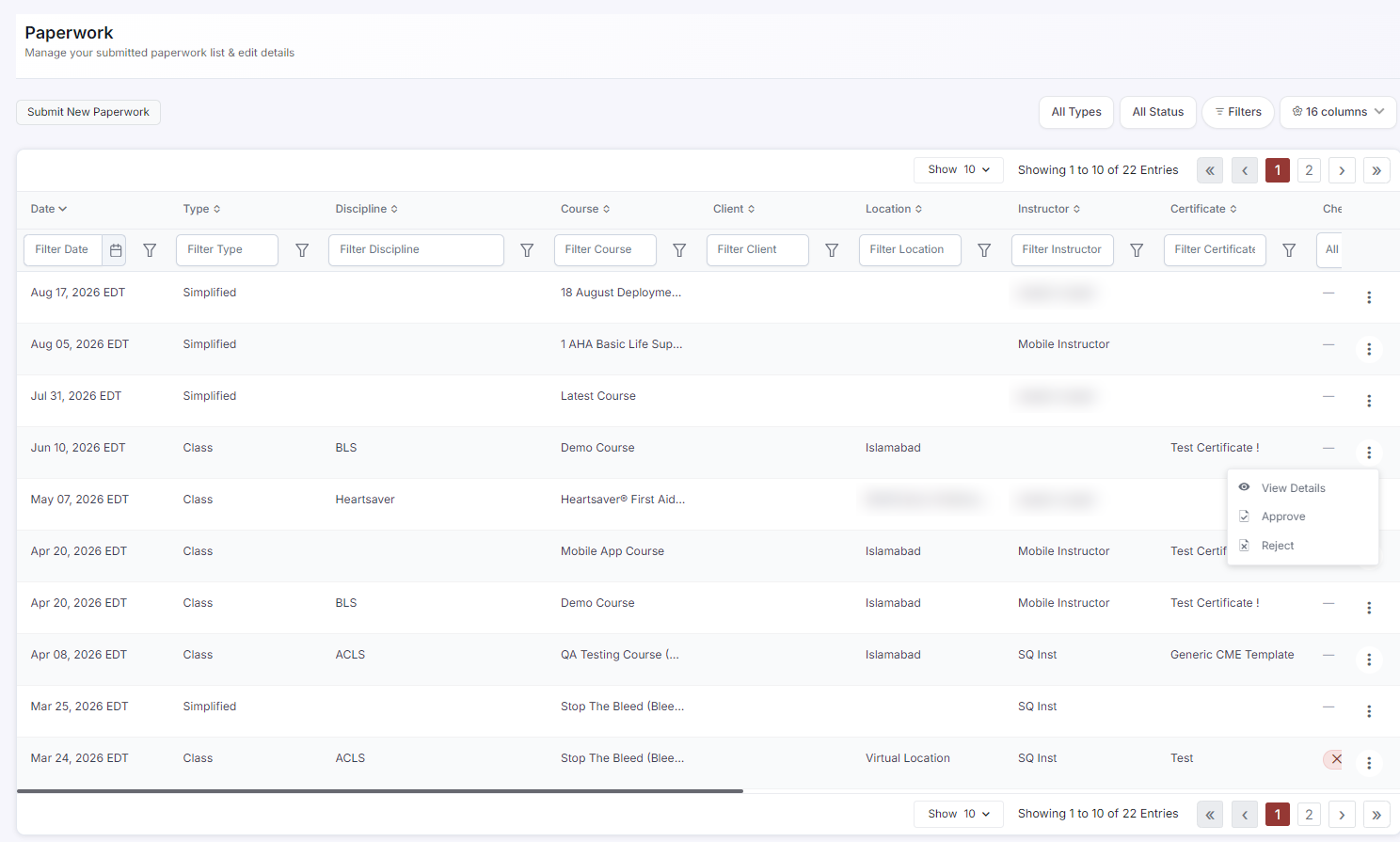
- Click ⋮ on the row and choose View Details to open the documents and review the skills assessment data.
- Back on the row, click ⋮ again and choose Approve if skills testing is complete and acceptable, or Reject if it needs to be redone or contains errors.
- Paperwork stays in Submitted — the default state — until you approve or reject it. Some rows also offer Delete.
Step 3: View Approved Paperwork and Class Documents
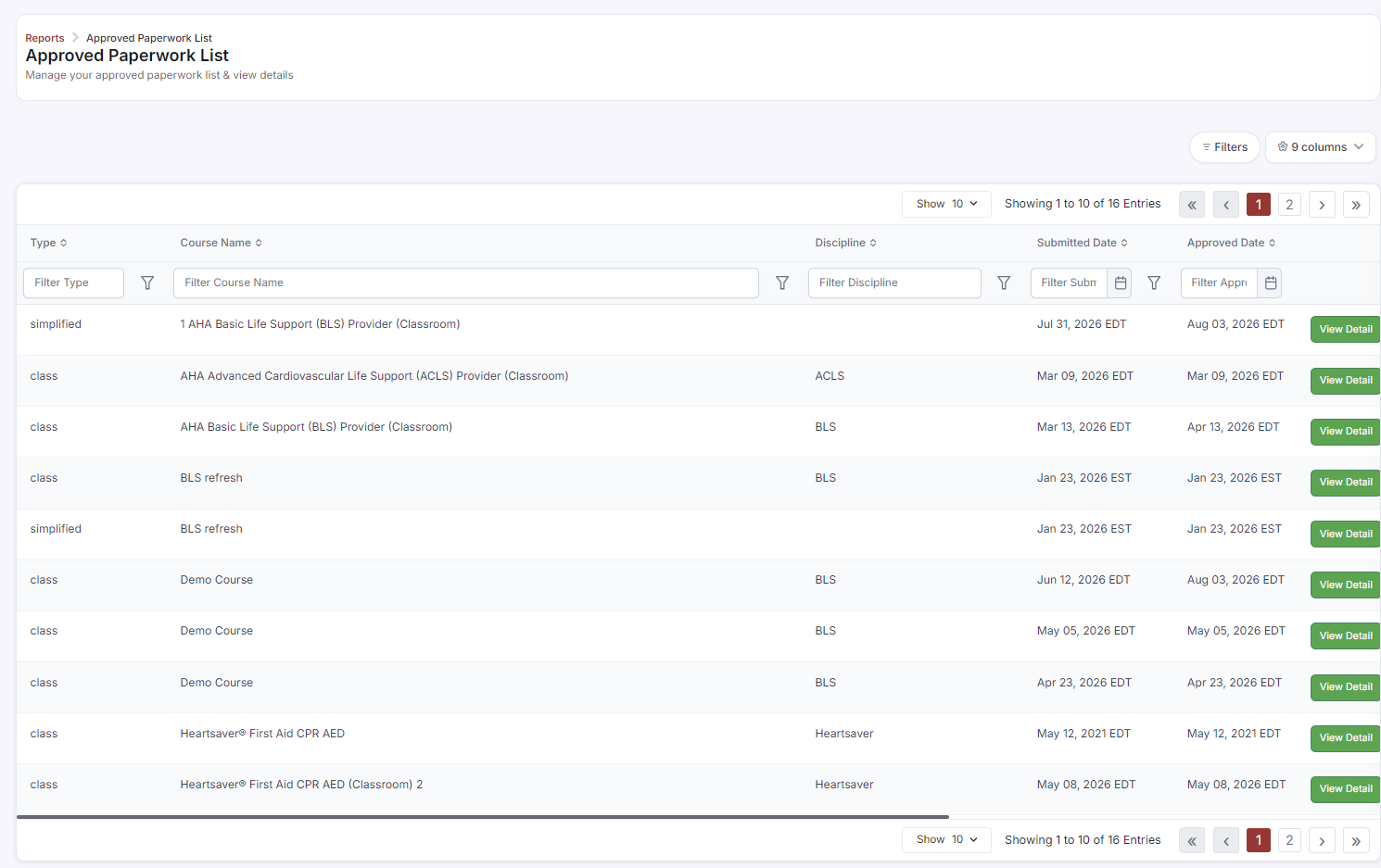
- Go to Reports > Approved Paperwork for the primary compliance report on skills testing records. Filter by type, course name, discipline, submitted date or approved date, and export as CSV or PDF from the Reports hub.
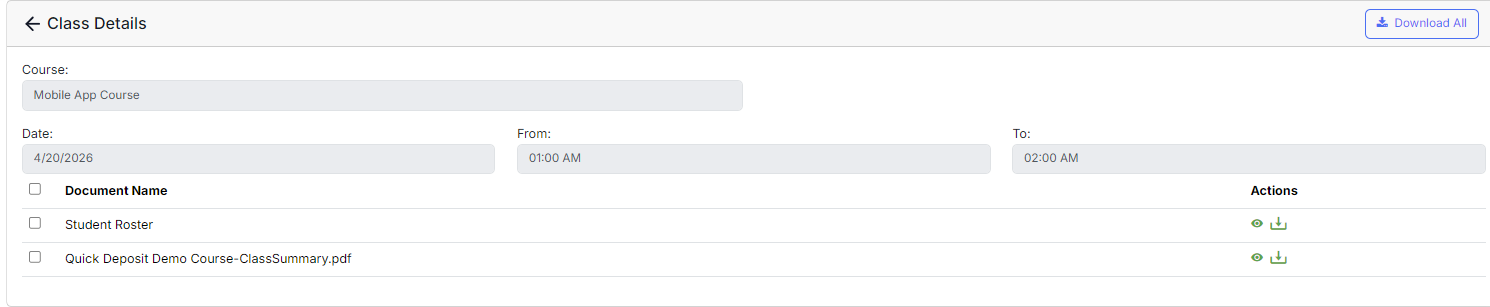
- To view the documents attached to a specific class, go to Paperwork Inbox, click ⋮ on the row and choose View Details.
- The Class Details view lists every document for that class. Use the preview icon to read a document inline, the download icon to save one, or Download All to take the whole set.
✔ Importing paperwork templates. The Marketplace includes 44 Paperwork Templates from AHA, ARC, ECSI, and other certification bodies. Import the correct template for your discipline to ensure your paperwork meets certifying body standards. Go to Marketplace > Paperwork Templates and filter by Association.
Best Practices
- Finalize a class before submitting its paperwork — unfinalized classes do not appear in the course list.
- Review and set paperwork status promptly after class so records do not pile up in Submitted status.
- Use Reports > Approved Paperwork as your go-to source for audit-ready compliance exports.
- Import the discipline-specific template from the Marketplace rather than building one from scratch, to stay aligned with certifying body requirements.
Frequently Asked Questions
| Question | Answer |
|---|---|
| What do I need before I can submit paperwork? | The class needs enrolled students and must be finalized, the course needs at least one Paperwork Template configured, and the submitting user needs the appropriate permissions. |
| What is the difference between Class Paperwork and Simplified Paperwork? | Class Paperwork is tied to a finalized class and produces a document for each enrolled student. Simplified Paperwork is a standalone submission that is not linked to a scheduled class — the Type column in the Paperwork Inbox shows which is which. |
| Where do I find paperwork that has already been approved? | In Reports > Approved Paperwork, the primary compliance report. It can be filtered by type, course, discipline, and submitted or approved date. |
✔ You're all set. Your class paperwork is submitted, reviewed, and stored for compliance and audit purposes.
Was this article helpful?
That’s Great!
Thank you for your feedback
Sorry! We couldn't be helpful
Thank you for your feedback
Feedback sent
We appreciate your effort and will try to fix the article