Every course in CPR Enroll has a Delivery format, set in the Course content section of the course form. It determines whether the course is taught by a person, completed online, or both. Getting it right at creation time saves rework later, because the format decides whether the course expects an uploaded eLearning package.
Before You Begin
- Courses live at Course Builder → Courses.
- If you are creating a Digital (SCORM) course, have the eLearning package uploaded first. See Uploading and Managing eLearning Packages.
- Decide whether the training is genuinely blended — blended programs are built as two courses, not one.
Step 1: Open the Course Form
- Go to Course Builder → Courses.
- Open the course’s action menu (⋮) and choose Edit, or click + to create a new course.
- Scroll to Course content.
Step 2: Choose Live or Digital (SCORM)
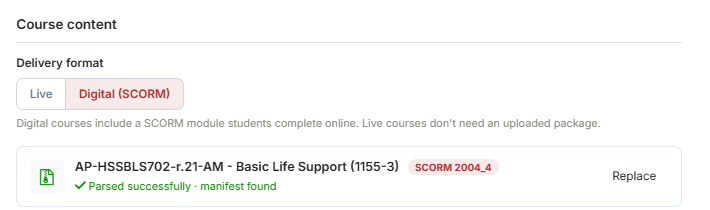
The helper text under the selector says it plainly: digital courses include a SCORM module students complete online; live courses don’t need an uploaded package.
| Format | Use it when | What it expects |
|---|---|---|
| Live | The course is taught by a person — classroom, virtual, or a skills session. | Nothing uploaded. The class type you pick when scheduling determines how it runs. |
| Digital (SCORM) | The course is completed online through an eLearning package. | A linked SCORM package, plus a Max attempts value. |
Step 3: Configure a Live Course
A Live course is taught in a classroom, virtually, or as a skills session. Nothing is uploaded. The class type you pick when scheduling — In Person, Blended, Skills Only, Online, Virtual, or Kiosk/VAM — determines how it runs.
✔ Delivery format and class type are different things. Delivery format is set once, on the course. Class type is set each time you schedule a class from that course.
Step 4: Configure a Digital (SCORM) Course
- Set Delivery format to Digital (SCORM).
- Select the uploaded eLearning package.
- Set Max attempts — the number of attempts a student may make. Enter 0 for unlimited attempts.
- Optionally set a Mastery score — the minimum passing score from 0 to 100. If you set one it overrides the value in the package manifest; leave it blank to use whatever the package specifies.
- Save the course.
Once a package is linked, the course row shows the package name, its SCORM version (for example SCORM 2004_4) and a parse status such as ✔ Parsed successfully · manifest found, with a Replace button.
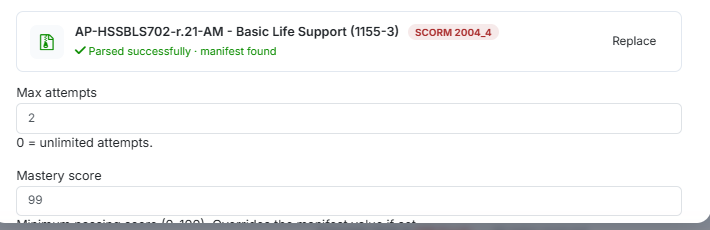
✔ 0 means unlimited. If you want to limit retakes, enter the actual number — leaving Max attempts at 0 gives students unlimited attempts.
Step 5: Handle Blended Training
Blended programs — an online portion followed by a hands-on skills session — are built as two courses:
- A Digital (SCORM) course for the online portion.
- A Live course for the skills session.
Do not try to represent both halves in one course. See Delivering Blended Learning with CPR Enroll SCORM Courses for the full pattern.
Best Practices
- Upload the eLearning package before creating the Digital course, so you can link it in one pass.
- Name the two halves of a blended program clearly — for example “… (Online)” and “… (Skills)” — so schedulers and students are never in doubt.
- Check the parse status after linking a package. Parsed successfully · manifest found is what you want to see before you sell the course.
- Set a real Max attempts value for assessed courses; reserve 0 for practice or refresher content.
Frequently Asked Questions
| Question | Answer |
|---|---|
| Where do I set the delivery format? | In the Course content section of the course form, at Course Builder → Courses. |
| Does a Live course need an uploaded package? | No. Live courses don’t need an uploaded package. |
| What does Max attempts = 0 mean? | Unlimited attempts. |
| Can one course be both live and digital? | No. Blended programs are built as two courses — a Digital (SCORM) course and a Live course. |
| How do I know the package linked correctly? | The course row shows the package name, SCORM version and a parse status such as ✔ Parsed successfully · manifest found. |
| Can I swap the package later? | Yes — use the Replace button next to the current package. |
✔ You’re all set. Related reading: Uploading and Managing eLearning Packages and Delivering Blended Learning with CPR Enroll SCORM Courses.
Was this article helpful?
That’s Great!
Thank you for your feedback
Sorry! We couldn't be helpful
Thank you for your feedback
Feedback sent
We appreciate your effort and will try to fix the article