The Settings panel is where a quiz becomes an exam, a practice run or a self-check — and where you decide how hard it is to game. This article walks every option.
Before You Begin
- Open a quiz in Course Builder → Quizzes & exams → Builder and click Settings (next to Questions).
- Have the course you intend to attach the quiz to ready — students reach a quiz through their enrollment, not through a link.
- Decide up front whether this is graded. It changes which settings matter.
Step 1: Set the Top Row
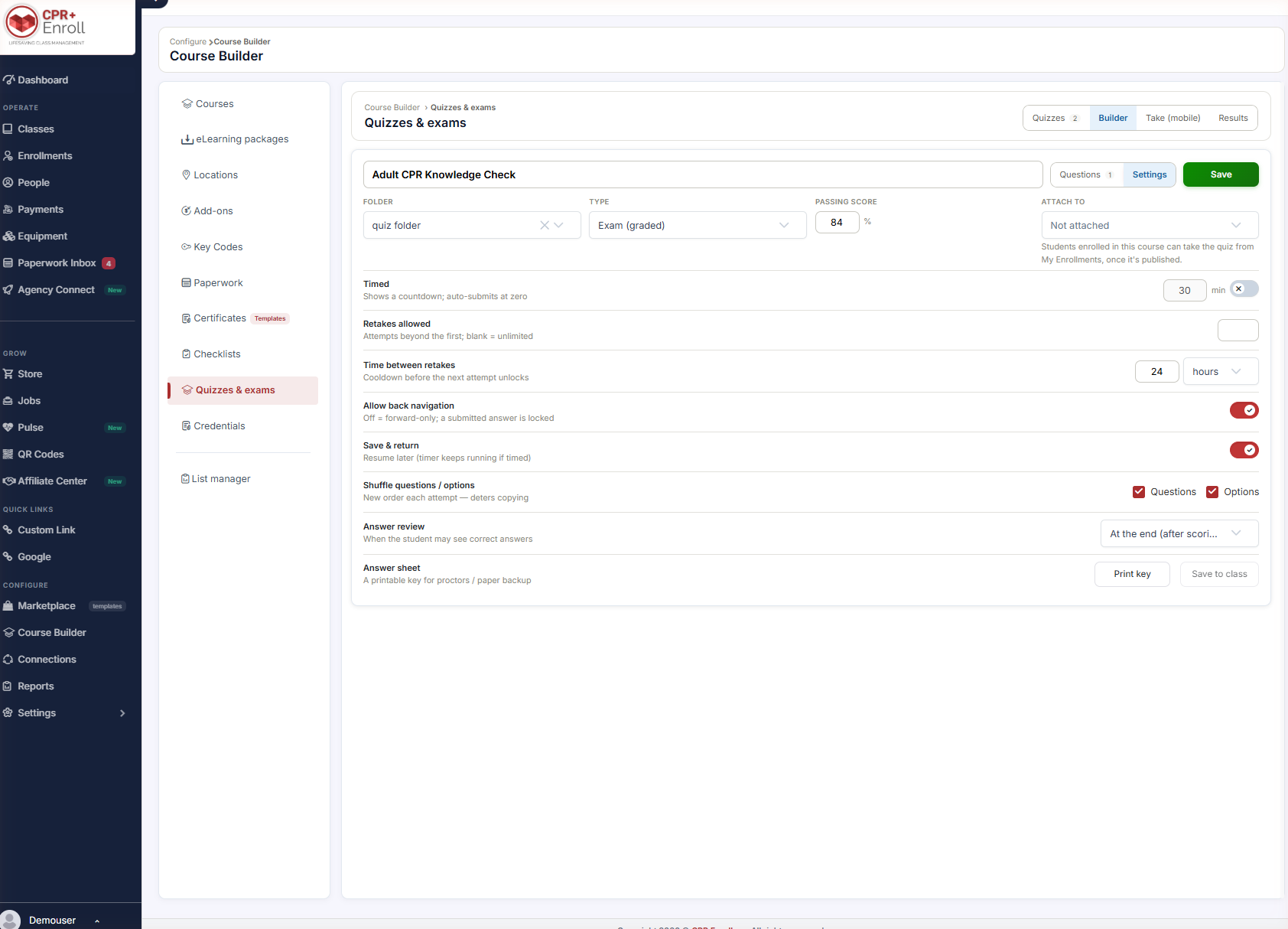
| Setting | What it does |
|---|---|
| Folder | Files the quiz. Defaults to Top level (no folder). |
| Type | Exam (graded), Quiz (graded) or Self-assessment (ungraded). |
| Passing score | The percentage required to pass. Not used for self-assessments. |
| Attach to | The course this quiz belongs to. Students enrolled in that course can take the quiz from My Enrollments, once it is published. |
✔ Attach to is not optional in practice. A quiz with no course attached has no way for a student to reach it.
Step 2: Configure Delivery
- Timed — shows a countdown and auto-submits at zero. Enter the limit in minutes and switch the toggle on.
- Retakes allowed — attempts beyond the first. Leave blank for unlimited.
- Time between retakes — a cooldown before the next attempt unlocks, in hours or days.
- Allow back navigation — when off, the quiz is forward-only and a submitted answer is locked.
- Save & return — lets a student resume later. Note that the timer keeps running if the quiz is timed.
- Shuffle questions / options — tick Questions, Options, or both. A new order is generated each attempt, which deters copying.
- Answer review — controls when a student may see correct answers. The default is At the end (after scoring).
✔ Timed plus Save & return is a trap. The clock does not pause. If you want students to be able to stop and come back, do not also time the quiz — or say so plainly in the instructions.
Step 3: Use the Answer Sheet
The Answer sheet row gives you a printable key for proctors or as a paper backup:
- Print key — opens a printable answer key.
- Save to class — attaches the key to a class record.
Step 4: Publish
A quiz stays in Draft until you publish it. Students can only take a published quiz, and only if the quiz is attached to a course they are enrolled in.
Step 5: Pick a Sensible Combination
| Purpose | Type | Retakes | Timed | Shuffle | Answer review |
|---|---|---|---|---|---|
| Certification exam | Exam | Limited, with cooldown | Yes | Questions + Options | At the end |
| Practice quiz | Quiz | Unlimited | No | Questions | At the end |
| Self-check | Self-assessment | Unlimited | No | Off | At the end |
Best Practices
- Set a cooldown on graded exams. Unlimited immediate retakes turn an exam into a guessing game.
- Shuffle Options as well as Questions — shuffling questions alone still leaves “the answer is C” intact.
- Turn Allow back navigation off for proctored exams and on for practice. Forward-only is stressful for no gain when the stakes are low.
- Print the answer key before a proctored session. Wi-Fi fails; paper does not.
- Leave Passing score alone for self-assessments — it is not used.
Frequently Asked Questions
| Question | Answer |
|---|---|
| Where are these settings? | Open the quiz in Builder and click Settings, next to Questions. |
| How do I allow unlimited retakes? | Leave Retakes allowed blank. |
| Does the timer pause if a student saves and returns? | No. The timer keeps running. |
| What does turning off Allow back navigation do? | The quiz becomes forward-only and a submitted answer is locked. |
| Does shuffling change the questions themselves? | No — a new order is generated each attempt, which deters copying. |
| When do students see correct answers? | Per the Answer review setting. The default is At the end (after scoring). |
| Why can’t my students see the quiz? | It is probably still in Draft, or not attached to a course they are enrolled in. |
✔ You’re all set. Type, passing score, attachment and publish state are the four that decide whether a student ever sees the quiz.
Was this article helpful?
That’s Great!
Thank you for your feedback
Sorry! We couldn't be helpful
Thank you for your feedback
Feedback sent
We appreciate your effort and will try to fix the article