Quiz Builder lets you create and deliver assessments inside CPR Enroll, with results visible to admins and instructors in real time. The same builder produces a graded exam, a practice quiz or an ungraded self-assessment — the difference is one setting.
Before You Begin
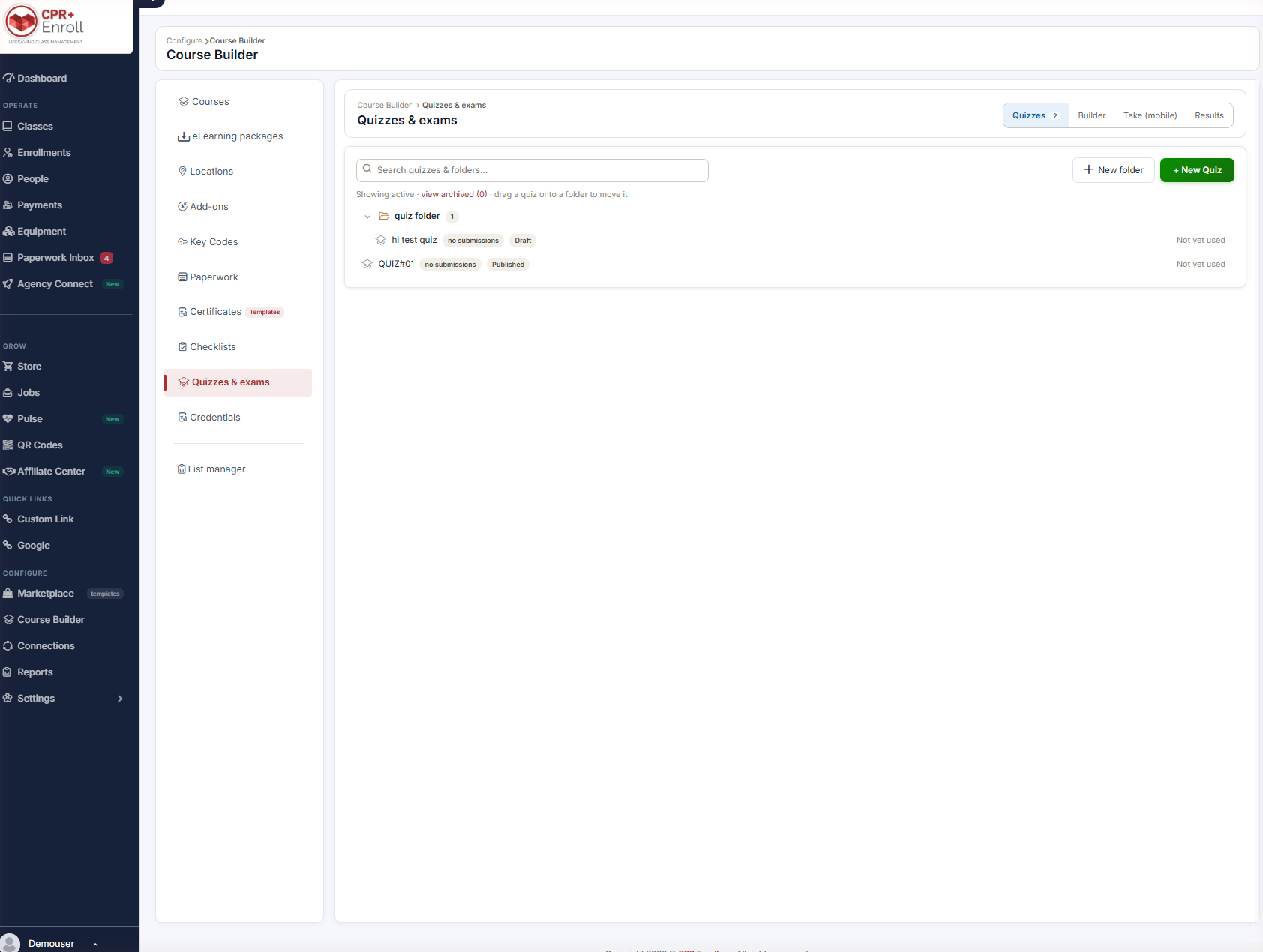
- Find it at Course Builder → Quizzes & exams. The page has four tabs: Quizzes, Builder, Take (mobile) and Results.
- Have the course you want to attach the quiz to already created.
- If you have questions in a spreadsheet or in your Question Bank, you can import them rather than retyping — see Step 3.
Step 1: Create the Quiz
- On the Quizzes tab, click + New Quiz. The Builder tab opens.
- Replace Untitled quiz with a name.
- Click + Add Question.
Step 2: Build a Question
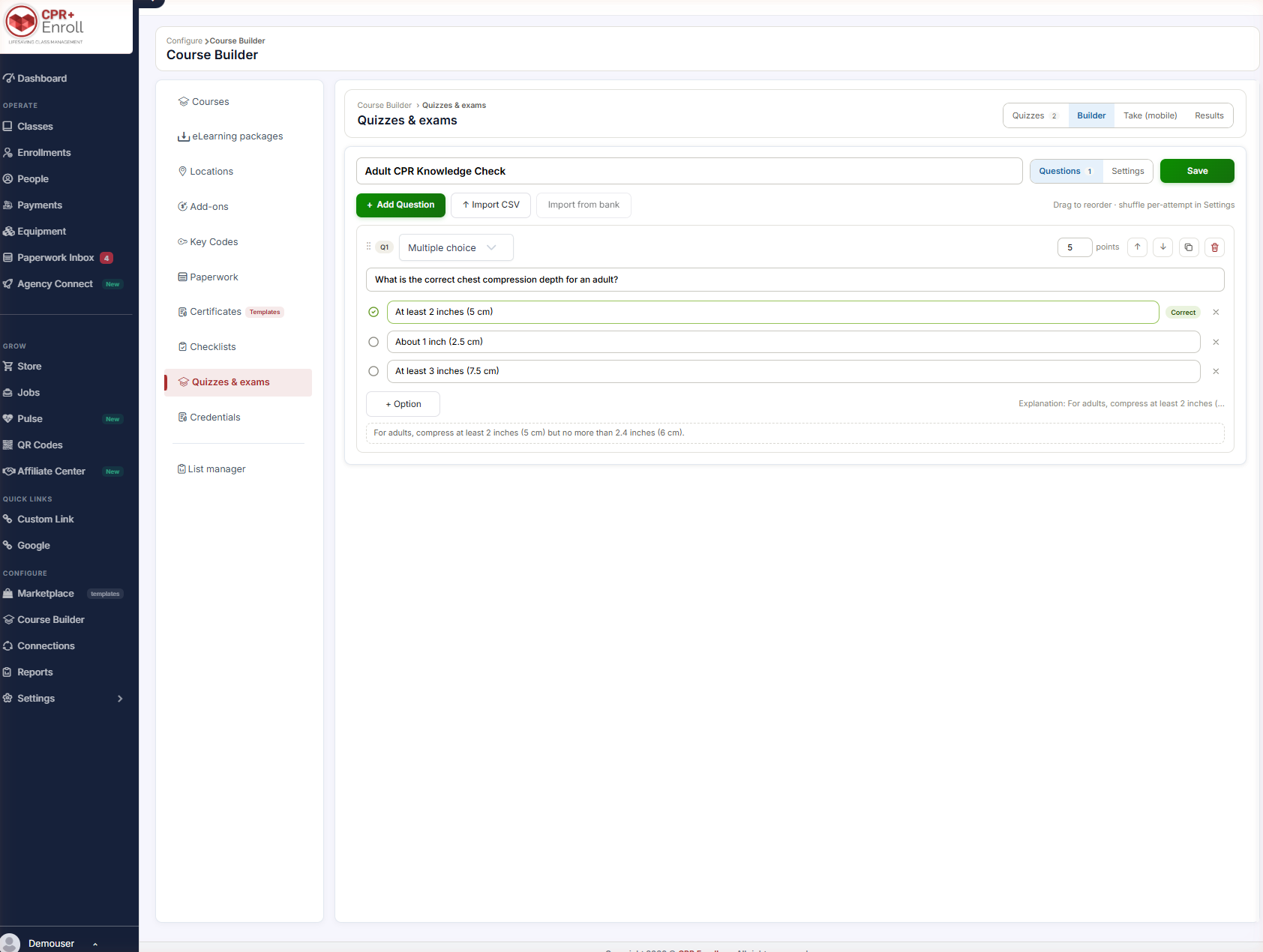
- Choose the question type from the dropdown: Multiple choice, Multiple select, or True / false.
- Type the question into the Question prompt field.
- Fill in the options. Click the circle to the left of an option to mark it Correct. Use + Option to add more.
- Set the point value for the question in the box on the right.
- Optionally add an Explanation shown on review — students see this when answer review is enabled.
- Repeat for each question, then click Save.
✔ Write the explanation while you write the question. It costs you thirty seconds now and saves an email later — and it is the difference between a quiz that scores and a quiz that teaches.
Step 3: Use the Question Controls
Each question card has arrows to move it up or down, a duplicate button, a delete button, and a drag handle. As the builder notes: drag to reorder — shuffle per-attempt is in Settings.
Step 4: Build Faster
- ↑ Import CSV — bulk-load questions from a spreadsheet.
- Import from bank — pull questions from your centralized Question Bank.
✔ Put reusable questions in the Question Bank first. A question written once and pulled into six quizzes is six chances to have written it well.
Step 5: Organize Your Quizzes
- On the Quizzes tab, click + New folder.
- Drag a quiz onto the folder to file it.
The tab header shows how many quizzes are active, with a view archived link beside it. Each quiz row shows its status (Draft or Published), its submission count and whether it has been used.
Best Practices
- Name quizzes after the course and version (“BLS Renewal — 2026”), not just the topic. You will have several.
- Point-weight questions deliberately rather than leaving everything at 1. A critical-action question should not score the same as a definition.
- Draft, take it yourself on the Take (mobile) tab, then publish. Most quiz bugs are visible in ten seconds on a phone.
- Import from CSV for anything over about fifteen questions — the builder is fine for editing and slow for bulk entry.
- Check the submission count before editing a published quiz. Changing questions under students mid-course invalidates comparisons.
Frequently Asked Questions
| Question | Answer |
|---|---|
| Where is Quiz Builder? | Course Builder → Quizzes & exams. |
| What question types are supported? | Multiple choice, Multiple select, and True / false. |
| How do I mark the right answer? | Click the circle to the left of the option to mark it Correct. |
| Can I bulk-load questions? | Yes — ↑ Import CSV, or Import from bank to pull from your Question Bank. |
| How do I reorder questions? | Drag to reorder, or use the arrows on the question card. Per-attempt shuffling is a Settings option. |
| What is the Explanation shown on review for? | Students see it when answer review is enabled. |
| Where do I see whether a quiz is live? | The quiz row shows Draft or Published, plus its submission count. |
✔ You’re all set. Next, read Quiz Settings Explained to set the passing score, timing, retakes and publishing.
Was this article helpful?
That’s Great!
Thank you for your feedback
Sorry! We couldn't be helpful
Thank you for your feedback
Feedback sent
We appreciate your effort and will try to fix the article