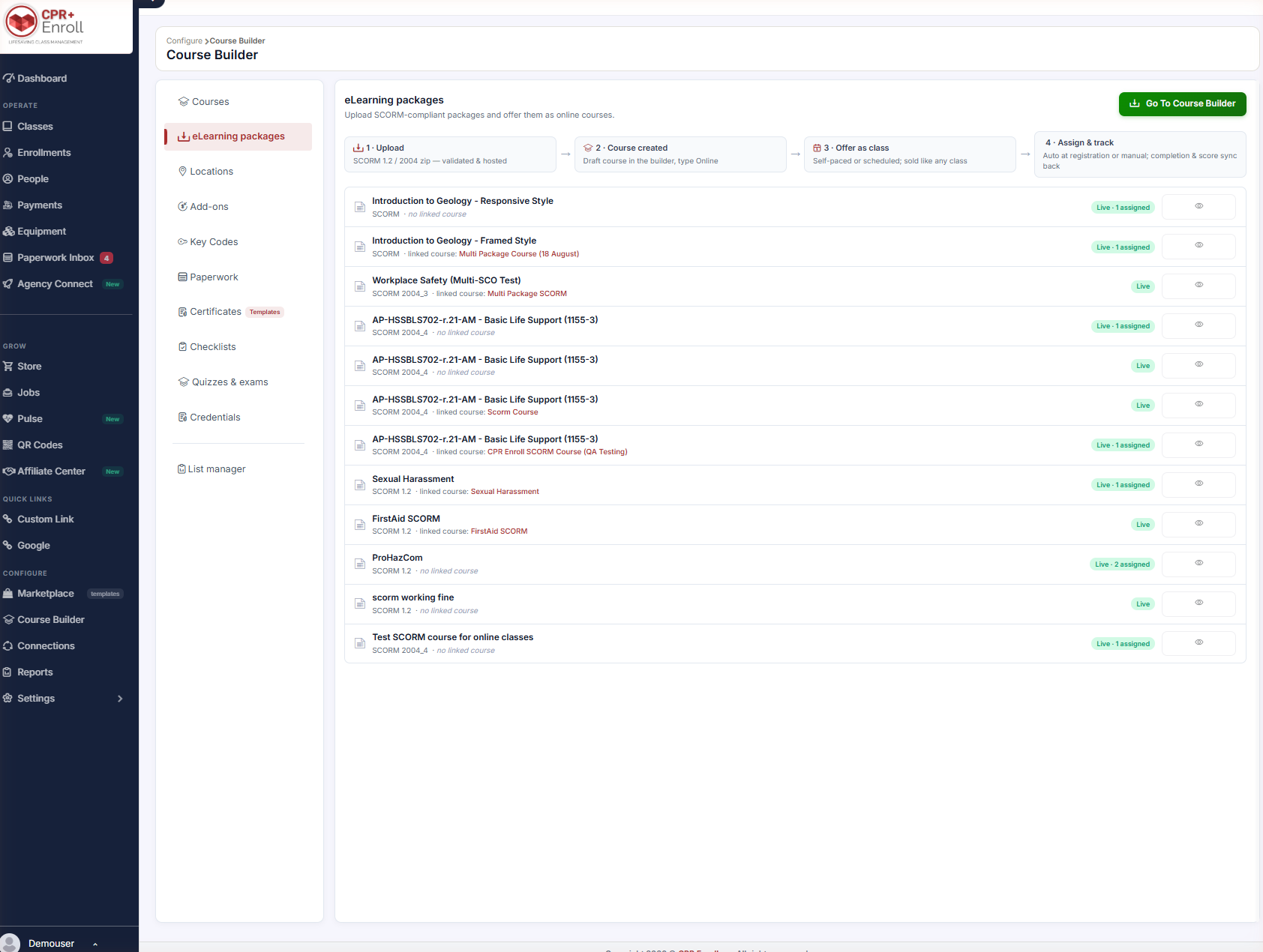
The eLearning packages library is where SCORM-compliant packages are uploaded, validated and hosted so they can be offered as online courses. Everything a Digital (SCORM) course needs starts here.
Before You Begin
- Find the library at Course Builder → eLearning packages.
- Have your package as a SCORM 1.2 or SCORM 2004 zip file. Supported versions are 1.2, 2004_3 and 2004_4.
- Upload the package before you create the course that will use it — it makes linking a single step.
Step 1: Understand the Four-Step Flow
The page opens with the pipeline laid out across the top. Knowing where you are in it makes the rest of the page read easily.
| Stage | What happens |
|---|---|
| Upload | A SCORM 1.2 or 2004 zip file is uploaded, validated and hosted. |
| Course created | A draft course appears in the builder with type Online. |
| Offer as class | Self-paced or scheduled; sold like any other class. |
| Assign & track | Assignment happens automatically at registration or manually, and completion and score data sync back. |
Step 2: Upload a Package
- Go to Course Builder → eLearning packages.
- Upload your SCORM zip file.
- Wait for validation. The package is parsed and its manifest read; the SCORM version is detected automatically.
Step 3: Read the Library
Each row in the library shows:
- The package name.
- The SCORM version — 1.2, 2004_3 or 2004_4.
- The linked course, or no linked course if the package has not been attached yet.
- A status chip such as Live or Live · 1 assigned, telling you how many courses currently use the package.
- A preview (eye) button, so you can see what students will see before you sell it.
✔ Preview before you publish. The eye button opens the package exactly as a learner sees it — the fastest way to catch a broken or wrong-version upload.
Step 4: Link a Package to a Course
- Use Go To Course Builder from the eLearning packages page.
- Set the course’s Delivery format to Digital (SCORM).
- Select the package.
A single package can be linked to more than one course — useful when the same online module supports several programs.
Step 5: Replace a Package
- Open the course.
- Scroll to Course content.
- Click Replace next to the current package and upload the new one.
✔ Replacing is safe. Existing learner progress is preserved; new learners start on the new package.
Step 6: Work With Multi-Lesson Packages
Packages containing multiple modules and lessons are fully supported:
- Students get a contents menu and can move between lessons without losing progress.
- Where the package sets one, a student must reach a passing score before the next lesson unlocks.
- A course stays incomplete until all required lessons are done.
- A completed course can be reopened in Review mode without changing the recorded result.
Best Practices
- Preview every package after upload, before linking it to a saleable course.
- Reuse one package across courses rather than uploading duplicates — the status chip tells you how many courses depend on it.
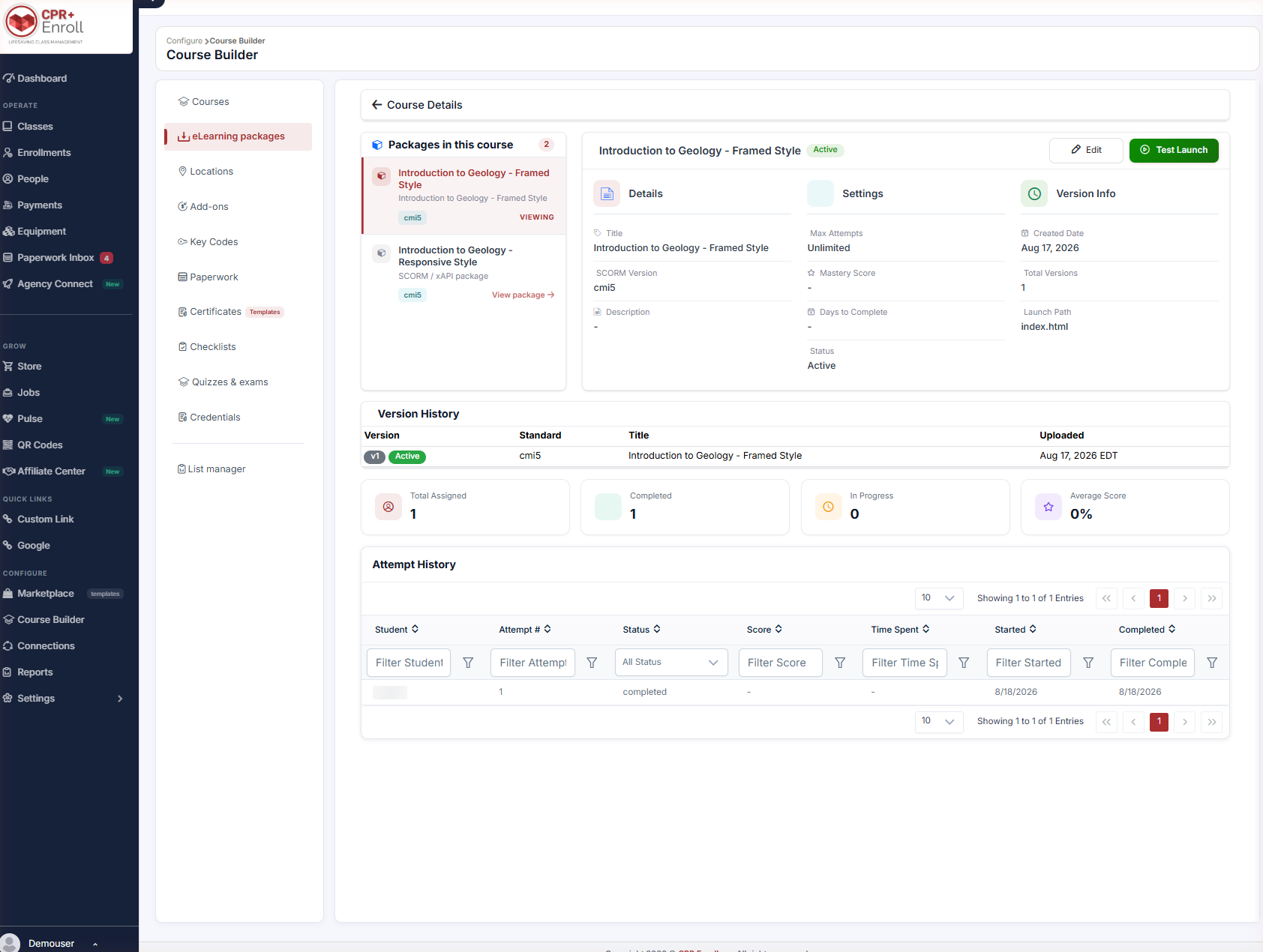
- Check the status chip before replacing a package. Live · 3 assigned means three courses change at once.
- Keep the package name meaningful and versioned; the library is sorted by name, not by upload date.
Frequently Asked Questions
| Question | Answer |
|---|---|
| Which SCORM versions are supported? | SCORM 1.2 and SCORM 2004 — specifically 1.2, 2004_3 and 2004_4. |
| Can one package serve several courses? | Yes. A single package can be linked to more than one course. |
| Will replacing a package wipe learner progress? | No. Existing learner progress is preserved; new learners start on the new package. |
| How do students move between lessons? | A contents menu is provided. Progress is kept when moving between lessons. |
| Can a student redo a completed course? | Yes — a completed course can be reopened in Review mode without changing the recorded result. |
| What does Live · 1 assigned mean? | The package is live and currently used by one course. |
✔ You’re all set. Next, read Live vs. Digital (SCORM): Choosing a Course Delivery Format to attach the package to a course.
Was this article helpful?
That’s Great!
Thank you for your feedback
Sorry! We couldn't be helpful
Thank you for your feedback
Feedback sent
We appreciate your effort and will try to fix the article