
Every class type now lives on one page, and you choose how to look at it. The same underlying classes can be read as a List, a Calendar or a Board — each answers a different question, and switching between them costs one click.
Before You Begin
- Classes is in the left navigation, under Operate.
- Two tabs sit at the top: Scheduled Classes and Requests. This article covers the views available on Scheduled Classes.
- Your most recent layout is remembered between sessions, so pick the view that matches how you work.
✔ Existing links still work. Classes were migrated automatically and old bookmarks continue to resolve.
Step 1: Switch Views
- Open Classes from the left navigation.
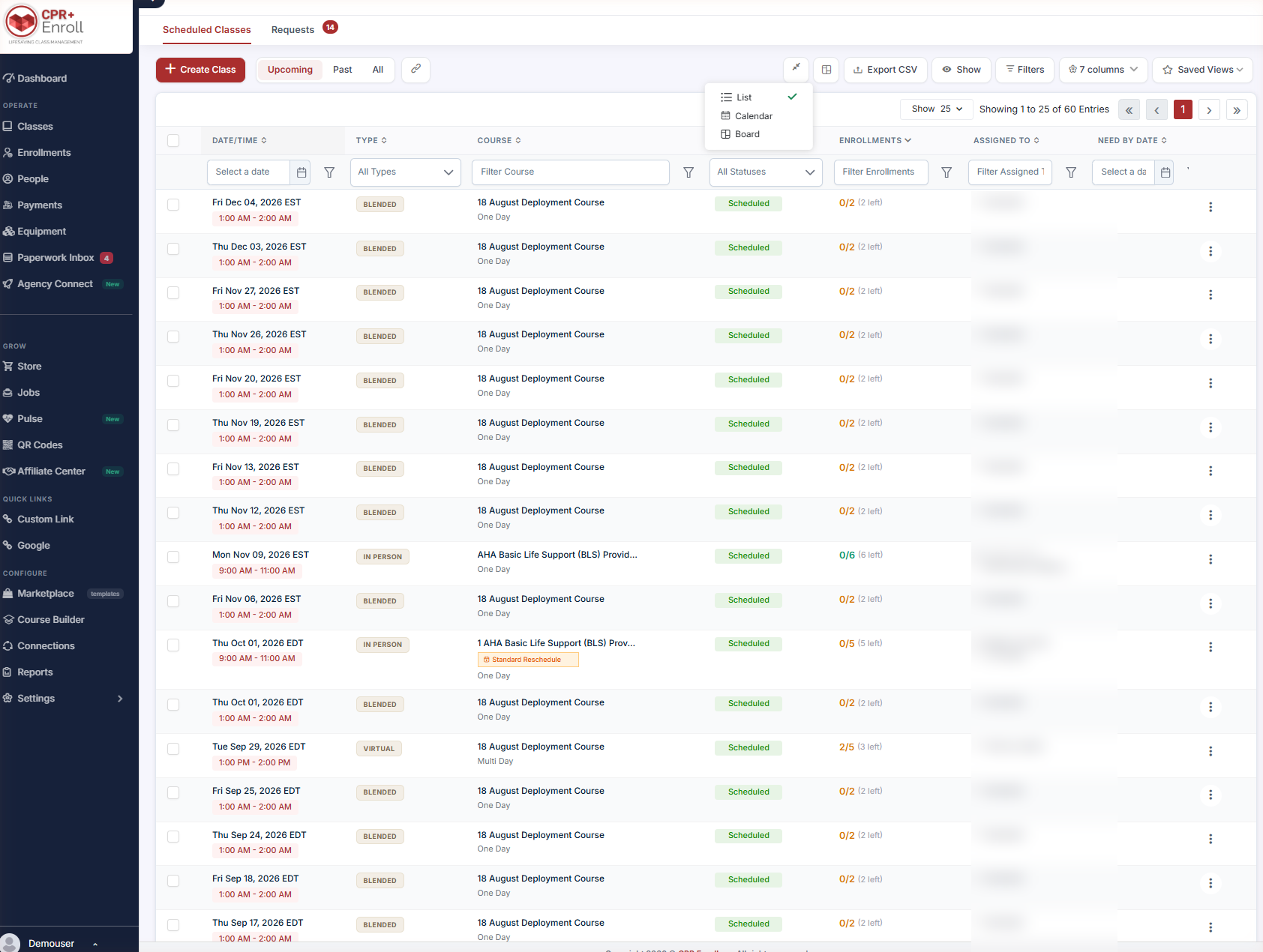
- Click the Change View icon in the toolbar.
- Choose List, Calendar or Board.
Step 2: Work in List View
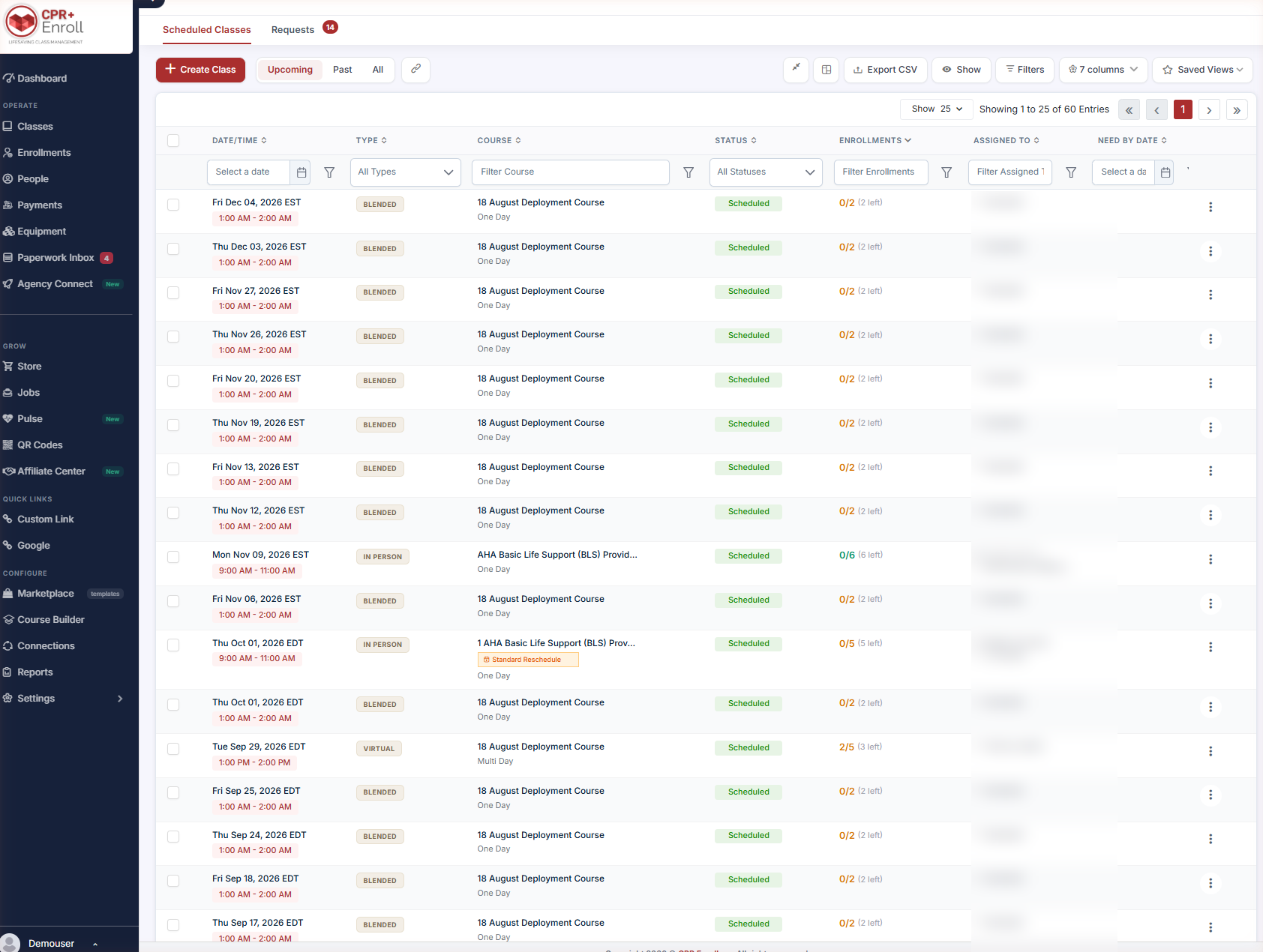
List is the default and the best view for scanning and exporting. Columns are Date/Time, Type, Course, Status and Enrollments, with a filter row beneath the headers.
- Type chips label each row: IN PERSON, BLENDED, VIRTUAL, and so on.
- Enrollments reads as 0/2 (2 left) — filled against capacity, with remaining seats in brackets.
- Quick filters Upcoming / Past / All sit next to + Create Class.
- Export CSV downloads the current view — filters included.
- 7 columns lets you show or hide columns.
- Show offers two toggles: Classes with No Enrollments and Show archived.
- Filters opens the full filter panel.
Step 3: Work in Calendar View
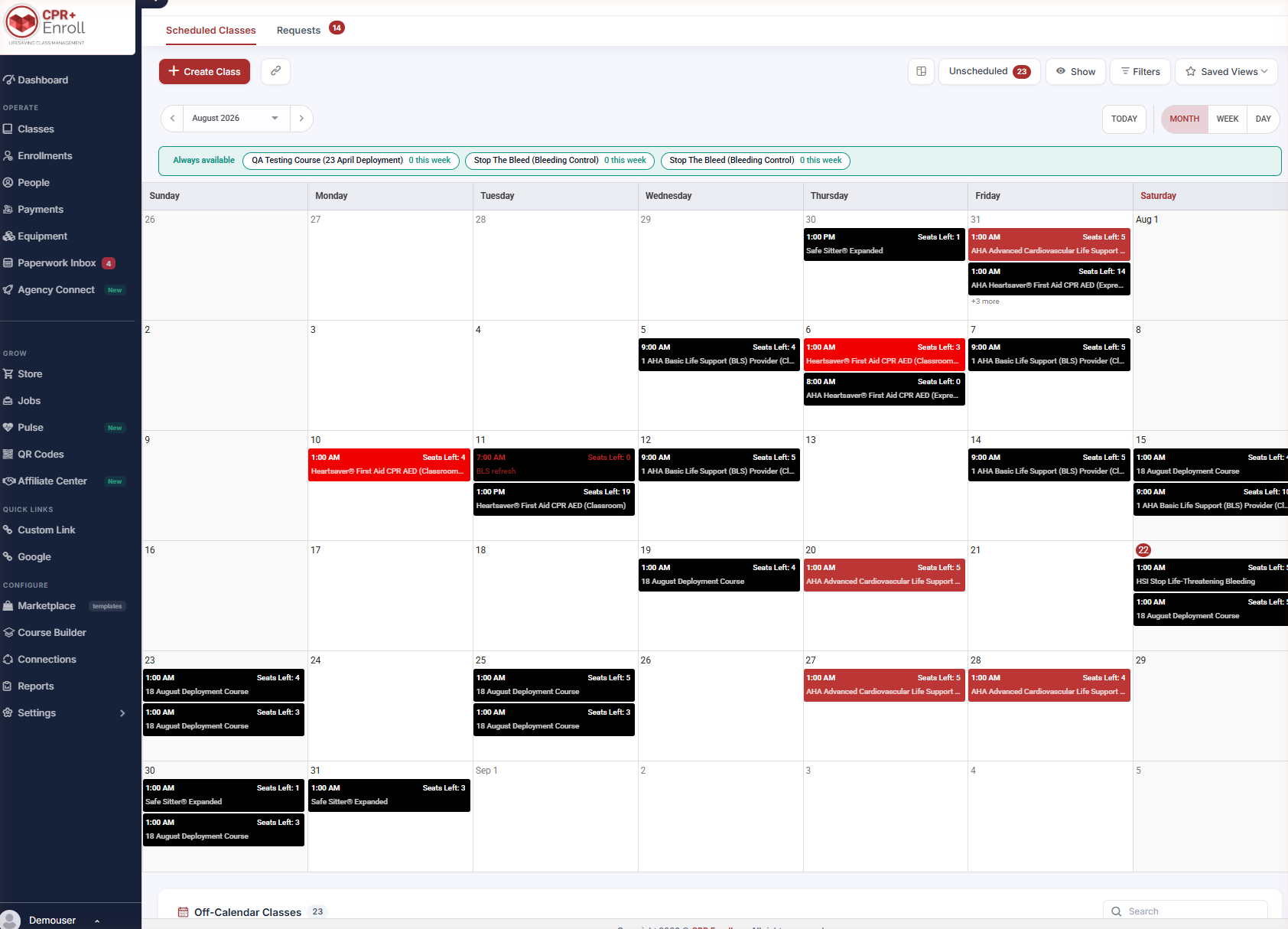
Calendar shows scheduled, flexible, kiosk, online, SCORM and unscheduled classes together. Classes that do not sit on a specific date are not hidden — they get their own sections:
- Always Available — self-paced and always-open offerings.
- Off-Calendar — classes with no fixed date.
You can drag a class onto a different date to reschedule it.
Step 4: Work in Board View
Board is a Kanban board organized by workflow status. Use Board scope at the top to choose which class types are shown — the default is All types (stages).
| Column | Meaning |
|---|---|
| OPEN | Upcoming · available · active |
| ATTENTION | Needs action from you |
| PENDING | In review / awaiting |
| APPROVED | Ready to close |
| CLOSED | Done |
Cards show the assigned instructor, enrollment count, course, location, date and time, plus status chips such as Awaiting Paperwork, No Enrollments, Submitted, Approved, Paused or Awaiting Registrations.
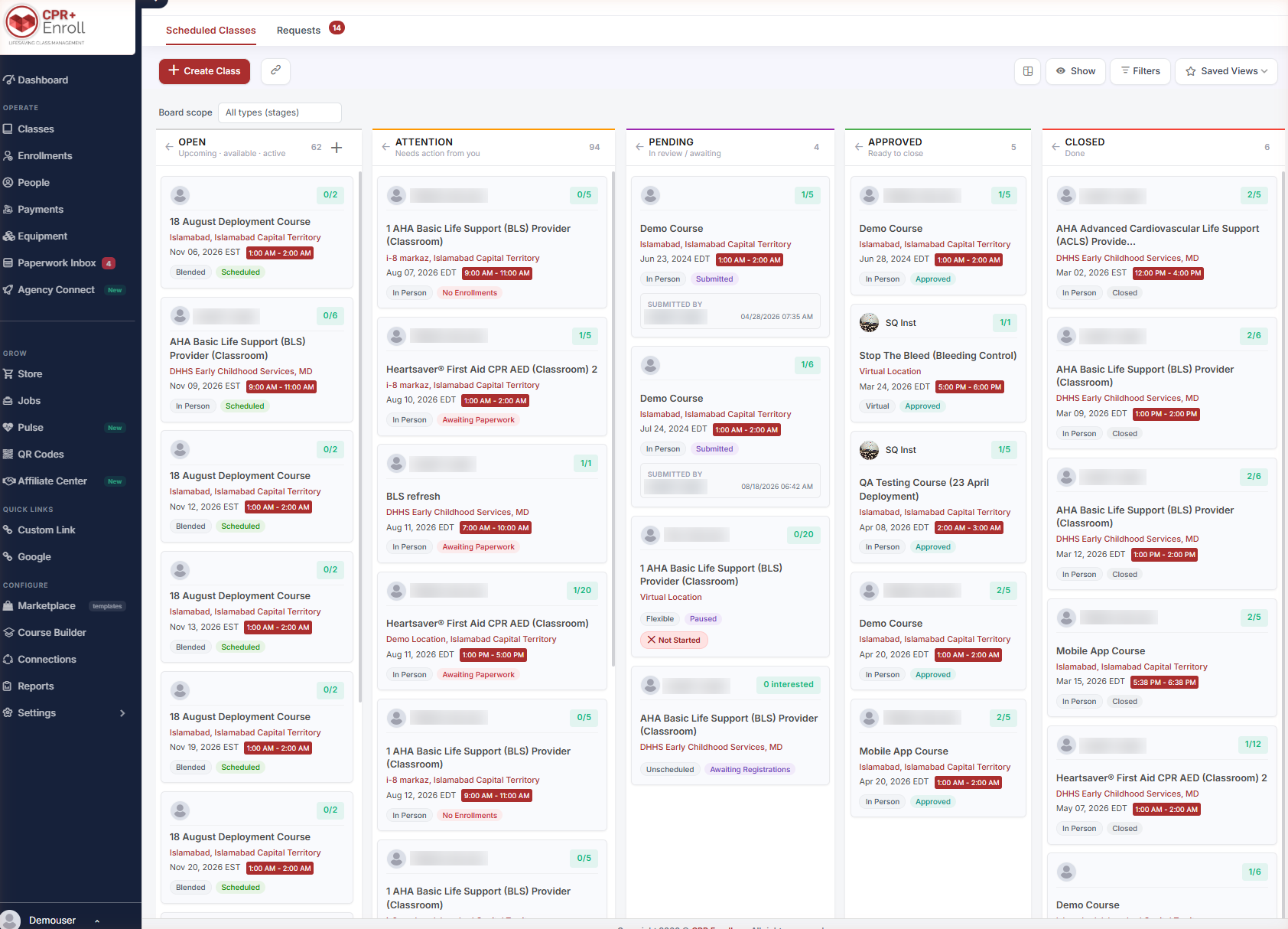
✔ Board view is the fastest way to find work that is stuck. If the ATTENTION column is large, that is your backlog.
Step 5: Choose the Right View for the Job
| If you want to… | Use |
|---|---|
| Scan, filter and export a working set | List |
| See how the month is shaped, or move a class to another date | Calendar |
| Find classes that are blocked or need action | Board |
Best Practices
- Start the day in Board and clear the ATTENTION column before anything else.
- Use List for anything you plan to export — Export CSV honours the filters you have applied.
- Turn on Classes with No Enrollments periodically. Empty upcoming classes are a marketing problem you can still fix.
- Reschedule by dragging in Calendar rather than editing the class form — it is faster and less error-prone.
- Pair views with Saved Views so a filtered List is one click away. See Creating and Using Saved Views.
Frequently Asked Questions
| Question | Answer |
|---|---|
| Where is the Classes page? | Classes in the left navigation, under Operate. |
| Does CPR Enroll remember my view? | Yes. Your most recent layout is remembered between sessions. |
| Did my old class bookmarks break? | No. Classes were migrated automatically and old links continue to resolve. |
| Where do classes with no date appear on the calendar? | In the dedicated Always Available and Off-Calendar sections. |
| Can I reschedule from the calendar? | Yes — drag the class onto a different date. |
| What does 0/2 (2 left) mean in the Enrollments column? | Zero enrolled out of a capacity of two, with two seats remaining. |
| How do I limit the Board to one class type? | Use Board scope at the top of the board. |
✔ You’re all set. Next, read Creating and Using Saved Views to make your favorite filter combinations one-click.
Was this article helpful?
That’s Great!
Thank you for your feedback
Sorry! We couldn't be helpful
Thank you for your feedback
Feedback sent
We appreciate your effort and will try to fix the article