Every public registration link now lives in one window — every registration page, one place. Whether you want a single class link, a filtered page for one location, or embed code for your website, you get it here.
Before You Begin
- There are three ways in, listed in Step 1 — use whichever is closest to what you are doing.
- If you plan to embed, know whether your site can run a JavaScript widget. It is the recommended option.
- Client pages are private and key-protected. Read the last section before sharing one.
Step 1: Open the Share Registration Window
- Your profile menu (bottom left) → Share Registration, or
- The link icon in the Classes toolbar, or
- The Share Registration action on a course, location, instructor, client, discipline, category or individual class.
Step 2: Choose a Page
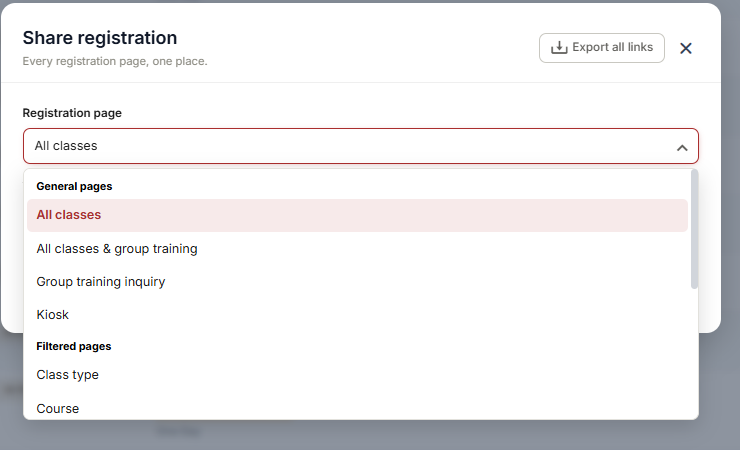
Use the Registration page dropdown. Options are grouped into three sets.
General pages
| Page | Description |
|---|---|
| All classes | A unified page showing all upcoming classes with calendar, list, and filters. Recommended as your primary enrollment link. |
| All classes & group training | Adds a group training path to the same page. |
| Group training inquiry | The group training enquiry form on its own. |
| Kiosk | Self-paced, instructor-less sessions such as RQI and advanced manikin programs. |
Filtered and specific pages
- Filtered pages — Class type, Course, Location, Discipline, Association, Category, Instructor.
- Specific pages — Single class, Client (private page).
✔ Use All classes as your primary enrollment link. Filtered pages are for campaigns and partners; the unified page is what belongs on your website and in your signature.
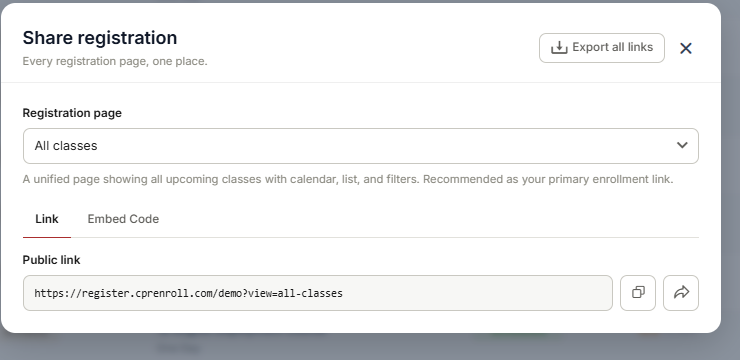
Step 3: Take the Link or the Embed Code
Below the selector are two tabs:
- Link — the public URL, with copy and share buttons. For example https://register.cprenroll.com/demo?view=all-classes.
- Embed Code — the code to paste into your website.
For embedding, the JavaScript widget is now the recommended option: it supports multiple registration widgets on one page and auto-adjusts its height. Traditional iframe embeds remain available for compatibility.
Step 4: Export Every Link at Once
Export all links in the top right of the window downloads links and embed codes for all courses, locations, instructors, clients and classes at once. This used to be a separate feature; it now lives here.
Step 5: Trust That Your Links Keep Working
- Registration links use permanent identifiers, so they stay valid even if you rename a course, location or instructor.
- Links to completed or canceled classes show a friendly registration closed page rather than breaking.
- Previous Slot Registration URLs still work — Slot Registration was renamed Kiosk.
✔ Rename freely. Because links use permanent identifiers, tidying up course or location names will not break flyers, emails or embeds already in the wild.
Step 6: Handle Private Client Pages
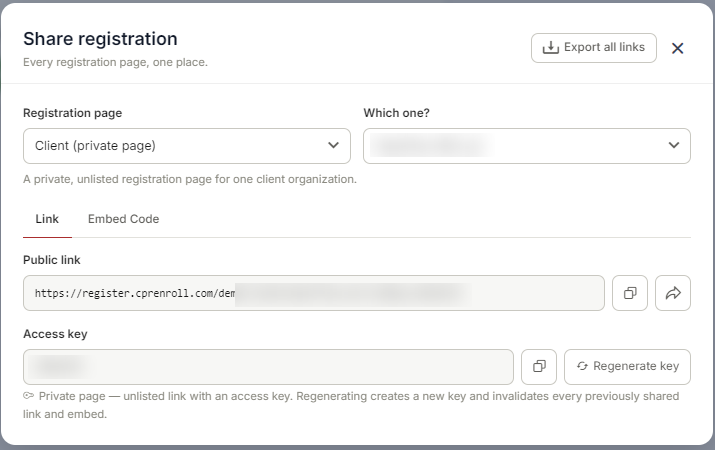
Client pages use a secure access key you can regenerate at any time.
Regenerating immediately invalidates every previously shared link and embed for that client — which is exactly the right action if a private link has leaked, and exactly the wrong surprise if you do it casually.
Rotate the key whenever the people who should have access change. The usual triggers are a client coordinator leaving — they keep working access to that organization’s private page until you rotate — a link that has been forwarded to someone who should not have it, or the end of a training engagement. Regenerate, then send the fresh link to the current coordinator and update any embeds the client is running.
Best Practices
- Standardize on the All classes link everywhere public, and use filtered pages only for targeted campaigns.
- Prefer the JavaScript widget over an iframe on new pages — the auto-height alone is worth it.
- Run Export all links before a website rebuild so your developer has everything in one file.
- Tell the client before regenerating their access key. Every link and embed they hold stops working the moment you do.
- Do not hand-edit registration URLs. Take them from this window so the permanent identifiers stay intact.
Frequently Asked Questions
| Question | Answer |
|---|---|
| Which page should I use as my main enrollment link? | All classes — the unified page with calendar, list and filters. |
| Will renaming a course break my links? | No. Registration links use permanent identifiers. |
| What happens to a link for a canceled class? | It shows a friendly registration closed page rather than breaking. |
| My old Slot Registration URLs — do they still work? | Yes. Slot Registration was renamed Kiosk and previous URLs still work. |
| Should I use the iframe or the JavaScript widget? | The JavaScript widget is recommended — multiple widgets per page and auto-height. Iframes remain for compatibility. |
| How do I get every link at once? | Export all links in the top right of the window. |
| What happens when I regenerate a client access key? | Every previously shared link and embed for that client is immediately invalidated. |
✔ You’re all set. One window, every registration page — link it, embed it, or export the lot.
Was this article helpful?
That’s Great!
Thank you for your feedback
Sorry! We couldn't be helpful
Thank you for your feedback
Feedback sent
We appreciate your effort and will try to fix the article