
Corporate clients often need to enroll 10, 50, or 200 employees at once for scheduled CPR training. Rather than adding each student manually, CPR Enroll+ lets you import an entire client roster from an Excel spreadsheet in seconds. This guide covers the complete bulk import process from spreadsheet preparation to verification.
ℹ When to use bulk import Use this feature when a corporate client sends you a roster of employees to enroll, or when a healthcare facility, school, or large organization needs to register a group for training. |
Step 1 — Prepare Your Spreadsheet (Two Options)
a) Download the Import Template and add one student per row -OR-
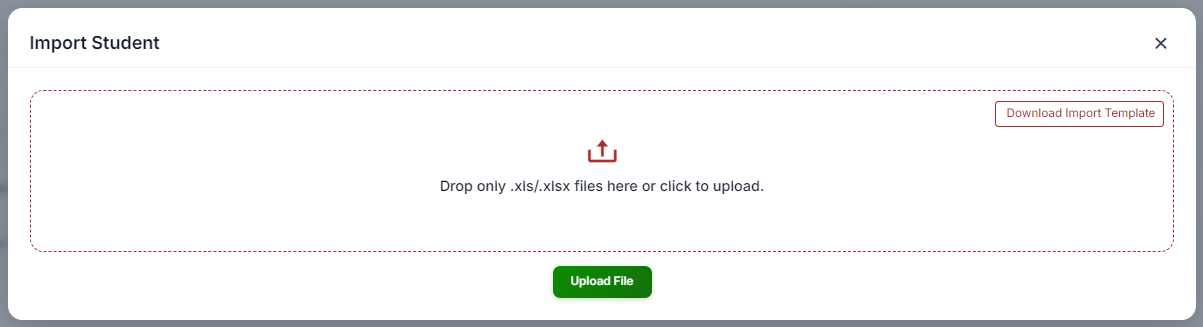
b) Create a new Excel file (.xls or .xlsx) with the following columns and add one student per row:
Column Name | Required? | Notes |
First Name | Required |
|
Last Name | Required |
|
Required | Must be unique — duplicates may cause conflicts | |
UserName | Optional | If the student has a username in CPR Enroll |
Address1 | Optional | Google Maps validated or plain text |
Address2 | Optional | Google Maps validated or plain text |
| City | Optional | Google Maps validated or plain text |
State | Optional | Google Maps validated or plain text |
Zip | Optional | Google Maps validated or plain text |
Country | Optional | Google Maps validated or plain text\ |
Phone | Optional | Include country code for international numbers |
✔ Spreadsheet formatting tips Use a clean header row with exact column names. Avoid merged cells, blank rows, special characters in names, or extra formatting. Save as .xlsx (Excel format) rather than .csv for best compatibility. |
Step 2 — Import Into CPR Enroll+
- From the sidebar, go to Classes.
- Select the Class you want to enroll all imported students into.
- Click the Edit button to open the record and select Import Students.
- Click Upload File and select your .xls or .xlsx spreadsheet.
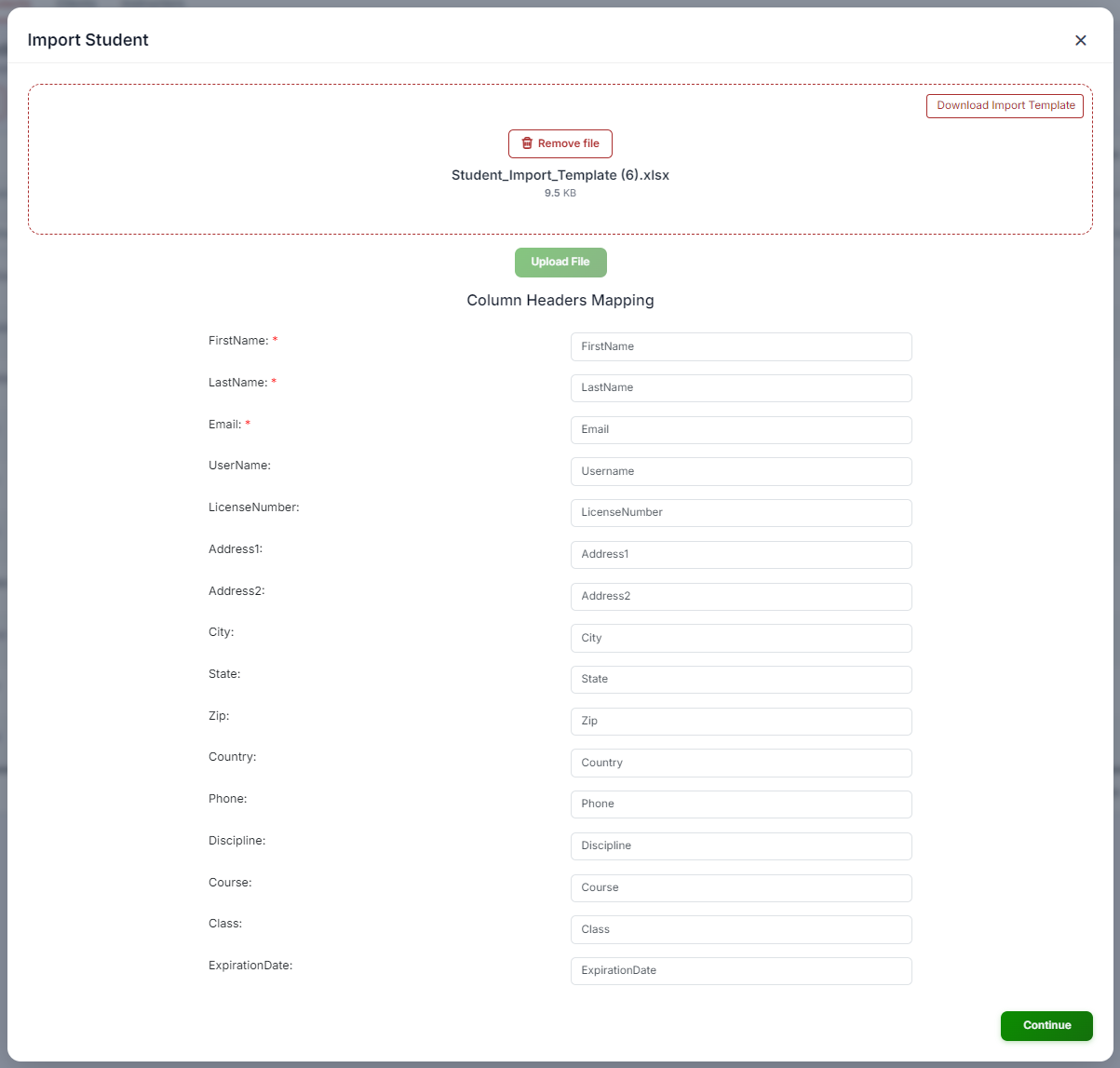
- Map the spreadsheet columns to the corresponding CPR Enroll+ fields if prompted.
- Click Import. CPR Enroll+ creates a student record and enrollment for each row.
Step 3 — Verify the Import
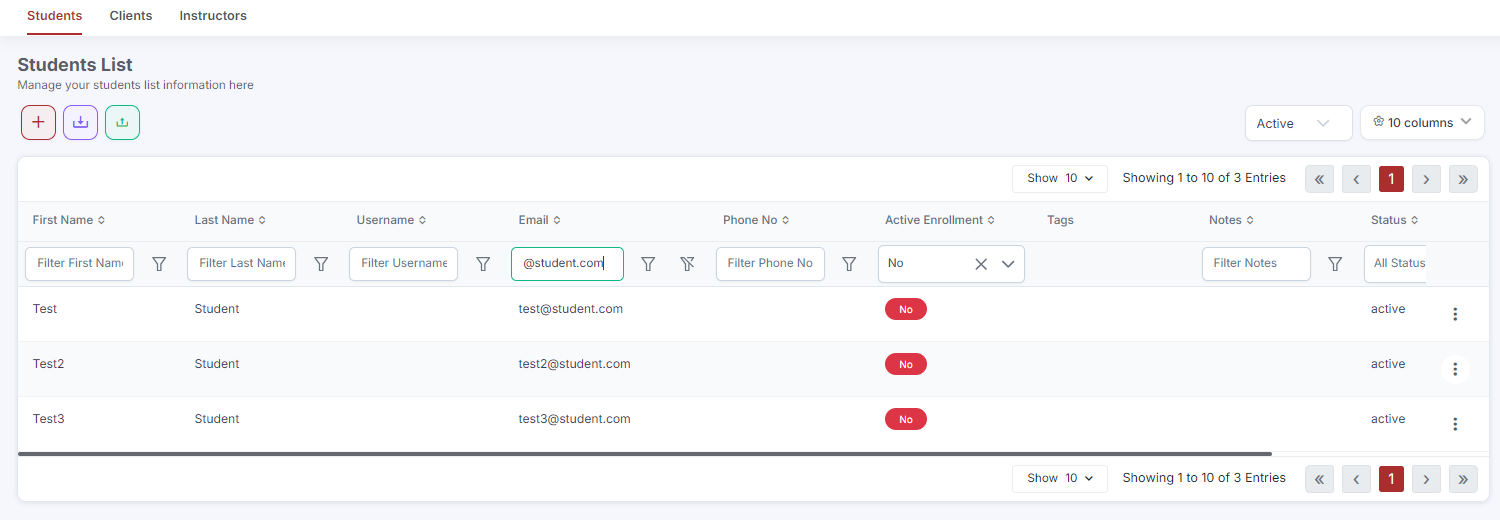
- After import, go to Enrollments > List view and filter by the class you imported into.
- Verify the student count matches your spreadsheet.
- Check for import errors — rows that failed (e.g., due to a missing required field or duplicate email) will be flagged.
- Add any failed rows manually using Enrollments > + > Quick Add.
Tagging and Organizing Corporate Students
- Apply a corporate client Tag to all imported students (set it during import or in bulk after import) so you can filter by company at any time.
- Use the Client field in the enrollment record to associate students with their corporate account for billing purposes.
- Generate a corporate Invoice in Payments > Invoices after enrollment, billing for the full group at once.
Was this article helpful?
That’s Great!
Thank you for your feedback
Sorry! We couldn't be helpful
Thank you for your feedback
Feedback sent
We appreciate your effort and will try to fix the article